Managing a Microsoft Azure Subscription
eG Enterprise automatically discovers the target Microsoft Azure Subscription. Once the Microsoft Azure Subscriptions are discovered, eG Enterprise automatically manages those subscriptions. To view the auto-discovered and auto-managed Microsoft Azure Subscriptions, do the following:
-
Login to the eG admin interface.
-
Follow the Infrastructure -> Components -> Manage/Unmanage/Delete menu sequence in the eG admin interface.
-
Figure 1 will then appear. Select Microsoft Azure Subscription from the Component type drop-down in Figure 1. Doing so will populate the Managed components list in Figure 1 with all the Microsoft Azure Subscriptions that were automatically discovered and managed by the eG agent.
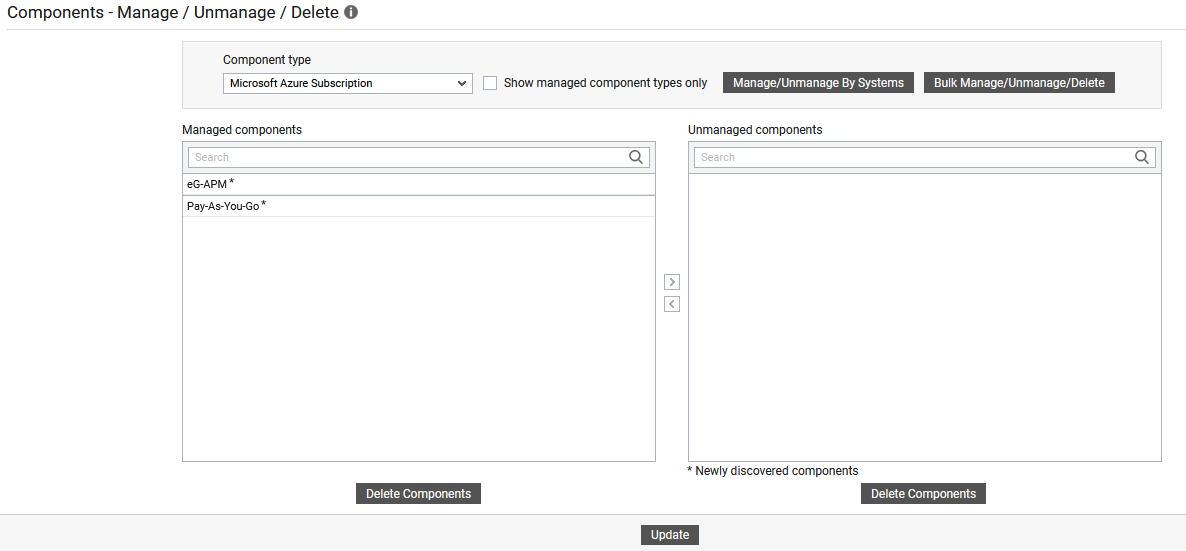
Figure 1 : Managing a Microsoft Azure Subscription component
Note:
Every discovered Microsoft Azure subscription is managed as a separate Microsoft Azure Subscription component.