Managing F5 VELOS/rSeries Appliance
eG Enterprise automatically discovers the F5 VELOS/rSeries Appliance in the target environment and also auto-manages the component after it is discovered. However, if for some reason the component is not discovered automatically, you will have to manually add the component to the eG Enterprise system using the eG admin interface.
-
Login to the eG admin interface as a user with administrative privileges.
-
In general, eG Enterprise will automatically discover the F5 VELOS/rSeries Appliance. If the F5 VELOS/rSeries Appliance is already discovered, then directly proceed towards managing it using the COMPONENTS – MANAGE/UNMANAGE page.
-
However, if it is yet to be discovered, then run discovery (Infrastructure -> Components -> Discover) to get it discovered or follow the Components -> Add/Modify menu sequence in the Infrastructure tile of the Admin menu to manually add the component using the Components page. Remember that components manually added are managed automatically.
-
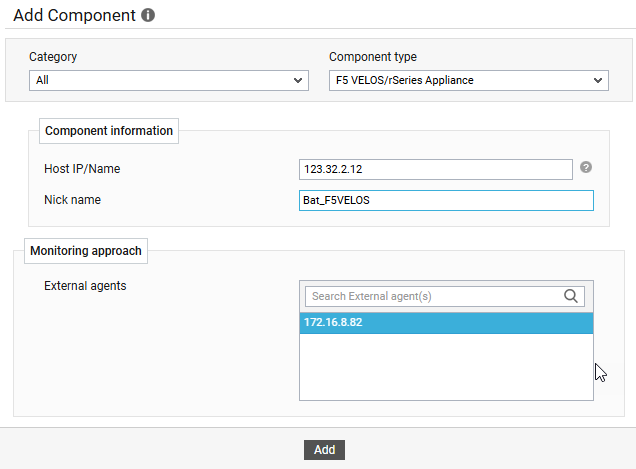
In the COMPONENT page that appears next (see Figure 1), select F5 VELOS/rSeries Appliance as the Component type. Then, click the Add New Component button.
-
Specify the Host IP/Name and the Nick name of the F5 VELOS/rSeries Appliance as shown in Figure 1, and click the Add button to register the changes.
-
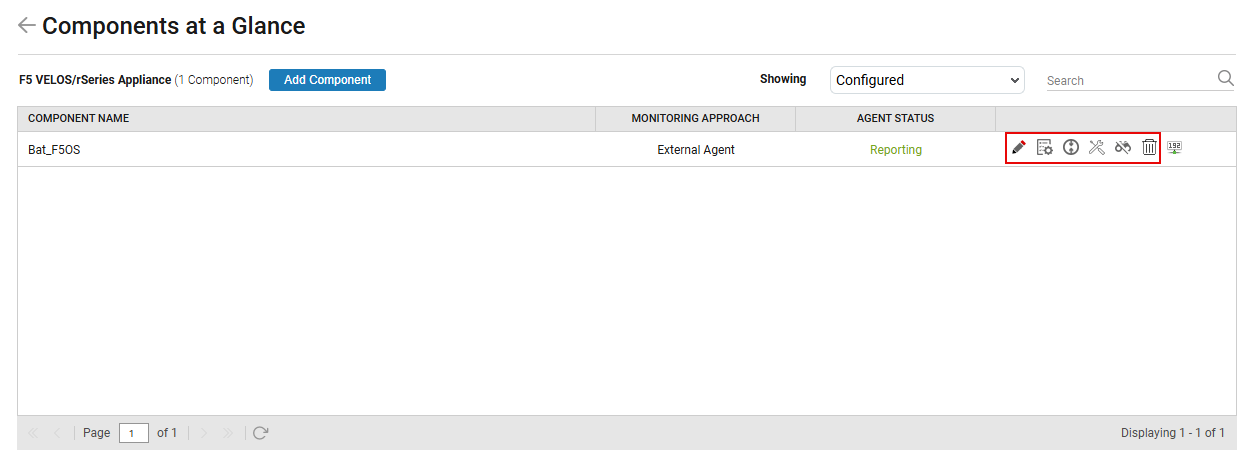
Once the F5 VELOS/rSeries Appliance is added successfully, you will be again redirected to the Components page (see Figure 2). Using the options provided in the Components page, you can modify, unmanage or delete the newly added component. In addition, you can also configure the tests.
-
Click on any test in the list of unconfigured tests (see Figure 3). For instance, click on the F5 Appliance Disks test to configure it.
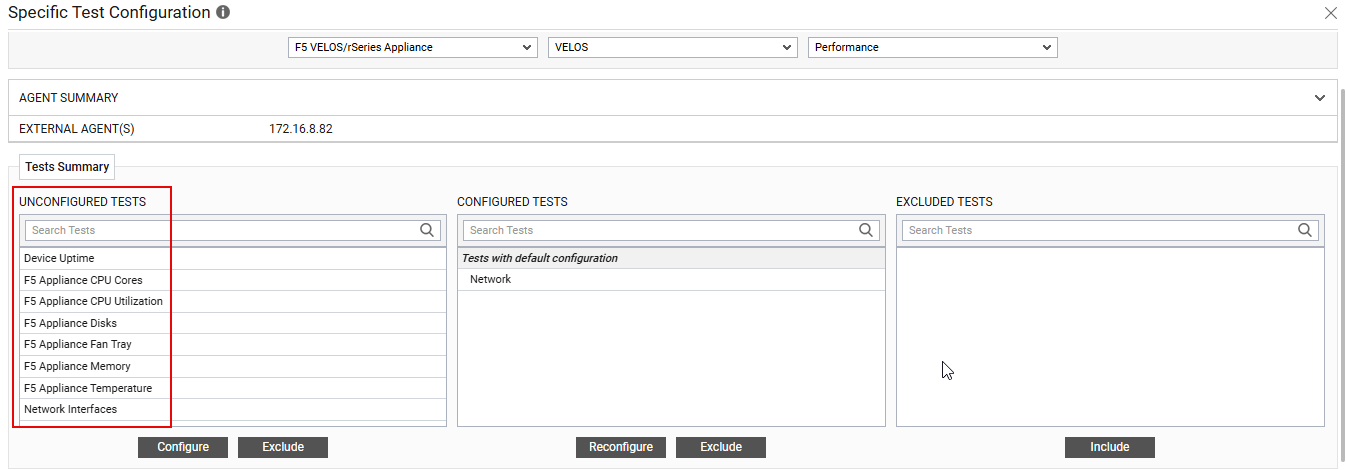
Figure 3 : List of unconfigured tests for F5 VELOS/rSeries Appliance
-
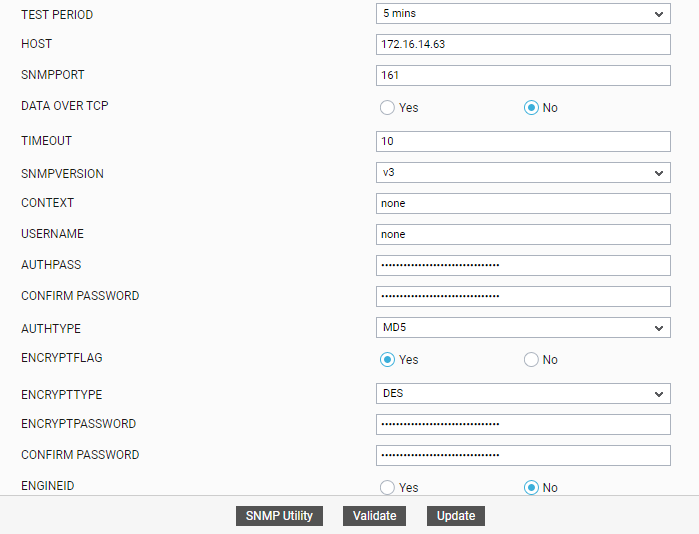
In the page that appears, specify the parameters as shown in Figure 4 and click the Update button to configure the test.
-
Once all the tests are configured, switch to the Monitor tab to view the performance metrics reported by the tests.
