Configuring SSL for Monitoring the DB2 Server
When monitoring a DB2 server using the eG agent, secure communication between the eG agent and the DB server is essential, especially in environments where data security is a priority. Enabling SSL on the DB2 server ensures that the data exchanged between the eG agent and the server is encrypted and secure.
To enable SSL-based communication, the DB2 server must be configured with digital certificates. The steps below guide you through creating and configuring SSL certificates on the DB2 server to establish a secure monitoring connection.
This section provides a step-by-step guide to:
-
Generate SSL certificates
-
Export and import certificates
-
Configure DB2 Server to Use SSL
Note: These steps must be performed on the DB2 server as a DB2 instance owner or with Administrator rights (Windows).
Prerequisites
Before proceeding, ensure the following:
-
GSKit is installed on the server. GSKit (Global Security Kit) is used for key and certificate management. It comes bundled with DB2 installations.
-
LIBPATH/ PATH or equivalent environment variable must be properly set to the GSKit bin path.
-
The instance owner should have permission to write to the directory where the certificate files will be stored.
Create a Key Store and Stash File
To initiate SSL configuration, first create a Key Database(.kdb) and a stash file. These will securely store the server’s private keys and passwords. For that run the following command:
gsk8capicmd_64 -keydb -create -db "db2Server.kdb" -pw "password" -type cms -stash
-db: Name of the key database file to be created, in our example, db2Server.kdb
-pw: Password for the key database
-stash: Creates a stash file so that password prompts can be avoided later.
Note:
Make sure the target directory is writable by the DB2 instance owner. The stash file must remain secure, as it contains encrypted credentials.
Create a Self-Signed Certificate
Once the key database is created, the next step is to generate a self-signed certificate that will be used by the DB2 server for SSL authentication. This certificate will be stored in the .kdb file. Execute the following command to create the certificate:
gsk8capicmd_64 -cert -create -db db2Server.kdb -stashed -label selfsigned -dn "CN=<host>, O=<organization>, OU=<org_unit>, L=<location>, ST=<state>, C=<country>"
-label: Assigns a label (e.g., selfsigned) to identify the certificate.
-dn: Distinguished Name - details for the certificate's identity.
For example:
gsk8capicmd_64 -cert -create -db db2Server.kdb -stashed -label selfsigned -dn "CN=hostname, O=eG OU=IBM, L=Chennai, ST=TN, C=India"
After creation, verify the certificate is stored correctly in the key database using the command given below:
gsk8capicmd_64 -cert -list -db db2Server.kdb
This will provide the result given in Figure 1, look for the label you created,

Figure 1 : Verify the certificate location
Extract the Public Part of the Certificate for Client Use
The eG Agent will need a copy of the server’s public certificate to trust the DB2 server. You must export the public certificate (not the private key) to a .cer file. To achieve this, execute the following command:
gsk8capicmd_64 -cert -extract -db "db2Server.kdb" -pw "password" -label "selfsigned" -target "db2ServerCert.cer" -format ascii
-label - Name of the certificate to extract, here it is selfsigned.
-target - File where the public certificate will be saved (e.g., db2ServerCert.cer).
This file (db2ServerCert.cer) will later be imported into the eG agent's truststore.
Create a Truststore
Hereafter,you will create a truststore file on the client side (where the eG agent runs). The truststore is a secure repository where trusted certificates are stored. This allows the client to validate the authenticity of the DB2 server’s certificate during the SSL handshake. Without a truststore containing the server or CA certificates, the SSL connection will fail because the client cannot establish trust.
To create the truststore, run the following command:
keytool -genkeypair -alias ca -keyalg RSA -keysize 2048 -validity 3650 -keystore trustStoreWCC.jks -storetype JKS -dname "CN=hostname, O=eG OU=IBM, L=Chennai, ST=TN, C=India" -storepass changeit -keypass changeit
In our example:
-keystore - Specifies the name of the truststore file that will be created, here it istrustStoreWCC.jks. Provide this file name in the TRUSTSTORE FILE NAME parameter in the test configuration page.
-storetype - Defines the keystore format. JKS is commonly used, but PKCS12 can also be used.
-alias - A label for the entry inside the keystore. You can use any meaningful name.
-dname - Distinguished name used to create a temporary keypair entry.
-storepass - Password used to protect the truststore file. In this example changeit. This should be replaced with a strong password. Provide this password in the TRUSTSTORE PASSWORD parameter in the test configuration page.
-keypass - Password for the temporary private key created, here it is changeit.
Import Server Certificate into Truststore
After creating the truststore, you must import the DB2 server’s SSL certificate (or the CA certificate that signed it) into the truststore. This step ensures that the client (eG agent) will recognize and trust the server during the SSL handshake. Without this step, even though a truststore exists, the client cannot validate the server’s certificate and the SSL connection will fail. Execute the following command to import the server certificate:
keytool -import -trustcacerts -keystore trustStoreWCC.jks -storepass changeit -file db2ServerCert.cer -alias selfsigned
-file - The server certificate file you exported from Db2 (or the CA certificate file, if using a CA-signed cert), here db2ServerCert.cer.
-keystore - The truststore file created in Create a Truststore, into which the certificate will be imported ( trustStoreWCC.jks).
-alias - A label for this entry in the truststore.
-trustcacerts - Tells keytool to treat the certificate being imported as a trusted certificate authority or a server certificate signed by one.
Once the certificate is imported successfully, the client’s truststore now contains the DB2 server’s identity. This allows the eG agent (or any SSL-enabled client) to securely connect to the DB2 instance over TLS.
Configure DB2 Server to Use SSL
Now, you need to configure DB2 to use the certificate and key database for SSL communication by updating the DB Manager Configuration (DBM CFG) parameters. For that run the following commands:
db2 "UPDATE DBM CFG USING SSL_SVR_KEYDB C:\IBM\i2analyze\db2Server.kdb"
db2 "UPDATE DBM CFG USING SSL_SVR_STASH C:\IBM\i2analyze\db2Server.sth"
db2 "UPDATE DBM CFG USING SSL_SVR_LABEL selfsigned"
db2 "UPDATE DBM CFG USING SSL_VERSIONS TLSv12"
db2 "UPDATE DBM CFG USING SSL_SVCENAME 50002"
SSL_SVR_KEYDB: Path to the .kdb file.
SSL_SVR_STASH: Path to the .sth file (created automatically with -stash).
SSL_SVR_LABEL: Label of the certificate (e.g., selfsigned).
SSL_VERSIONS: Enforced SSL protocol (e.g., TLSv12).
SSL_SVCENAME: Port number on which SSL connections are accepted.
You may change the service port (e.g., 50002) based on your organization’s policies.
Before restarting DB2, validate that all SSL parameters have been applied correctly using the command below:
db2 get dbm cfg | findstr SSL
This will give the following result Figure 2, ensure values are populated correctly for each SSL parameter.
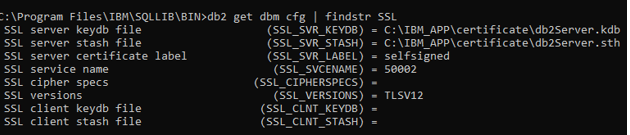
Figure 2 : Verify the SSL parameters
Set DB2COMM to Enable SSL
If you want the DB2 server to support both SSL and TCP/IP connections simultaneously, update the DB2COMM registry variable:
Use the command given below to enable only SSL:
db2set -i db2inst2 DB2COMM=SSL
If you want to enable both TCP and SSL, execute the following command:
db2set -i db2inst2 DB2COMM=SSL,TCPIP
Replace db2inst2 with your DB2 instance name.
Restart DB2 to Apply Changes
For this, run the below command:
db2stop
db2start
This restarts the DB2 instance and applies the updated SSL settings.