Adding Kong API Gateway
The eG Enterprise cannot automatically discover the Kong API Gateway. This implies that you need to manually add the component for monitoring. Remember that the eG Enterprise automatically manages the components that are added manually. To add a Kong API Gateway, do the following:
- Log into the eG administrative interface.
- Click on the Add Component button in the right corner of the Components at a Glance page that appeared or follow the Infrastructure -> Components -> Add/Modify menu sequence.
-
The Components page will then appear. In the Components page, select Kong API Gateway as the Component type and click the Add New Component button.
-
Figure 1 will then appear.
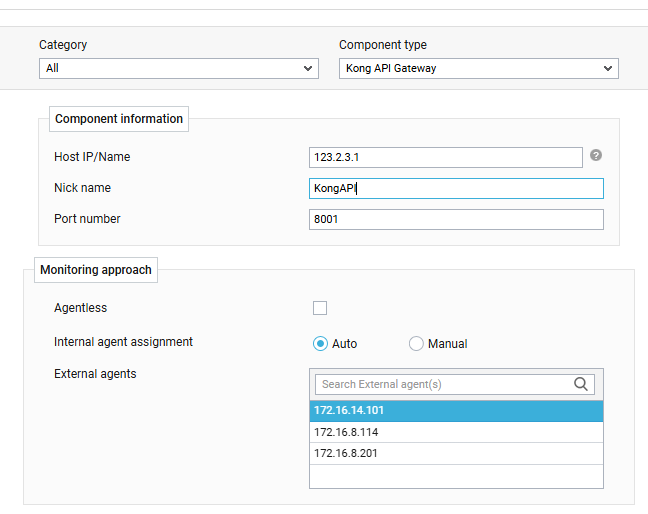
- Specify the Host IP/Name and the Nick name for the Kong API Gateway component.
-
Next, select the External agent that will monitor the target Kong API Gateway component.
-
Finally, click the Add button to register the changes
-
Once the Kong API Gateway component is added successfully, you will be again redirected to the Components page (see Figure 2). Using the options provided in the Components page, you can modify, unmanage or delete the newly added component. In addition, you can also configure the tests, set thresholds and maintenance policies, and change the IP address.

-
Once you have added the component to monitor, all the test will be auto - configured and will be listed in CONFIGURED TESTS list box . If you wish to change the configuration select the specific test and click the Reconfigure button.
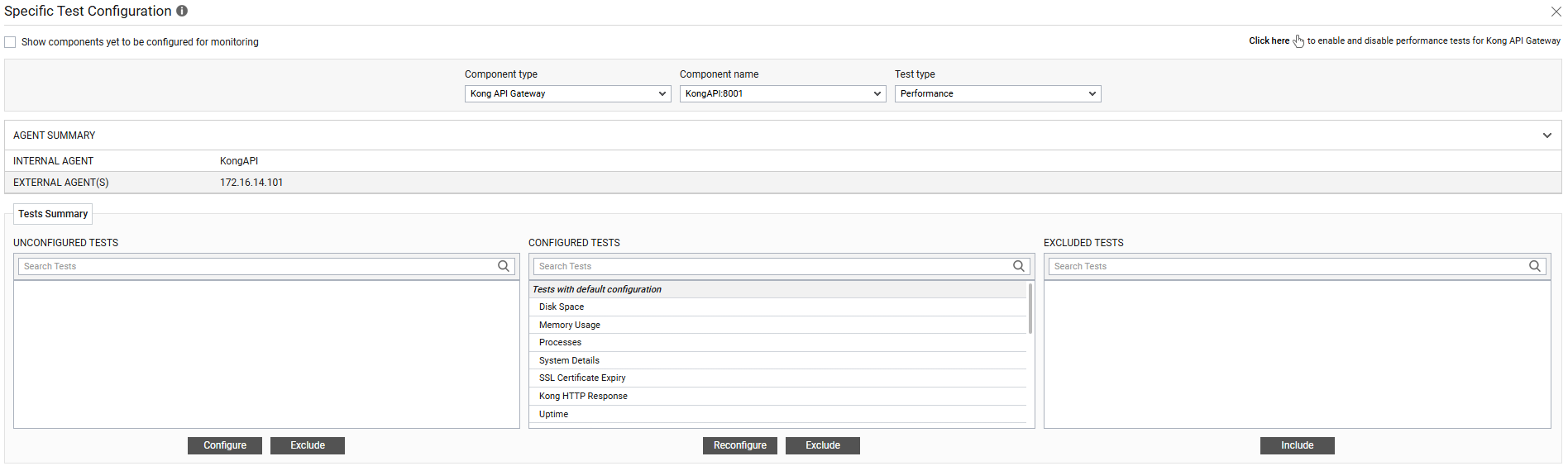
Figure 3 : Unconfigured tests for the Kong API Gateway component
- Once all the tests are configured, switch to the Monitor tab to view the performance metrics reported by the tests.