How Does eG Enterprise Monitor a Microsoft Azure SQL Database?
eG Enterprise can monitor a Microsoft Azure SQL database in an agentless manner only. The remote agent used to monitor the Microsoft Azure SQL database should be deployed on a remote Windows host in the environment.
Before monitoring a Microsoft SQL Azure database server using eG Enterprise, there are a few mandatory pre-requisites that must be fulfilled. When Azure AD (domain user) authentication is used, the connection to the Azure SQL server is established over TLS. To validate the server’s certificate during this secure handshake, the eG agent must trust the certificate chain returned by Azure SQL. For this purpose, a truststore needs to be created containing the required Root CA certificates that Azure SQL uses.
Note:
The following steps are applicable only when connecting to Azure SQL using Azure Active Directory (AD) authentication (i.e., domain user based authentication).
In this scenario, client certificates must be trusted by the SQL server before the JDBC connection can succeed.
-
To validate the SSL handshake between the Azure SQL service and the client, the root certificates used by Azure must be trusted. For that download the following certificates from the official CA provider:
-
Baltimore CyberTrust Root
https://www.digicert.com/CACerts/BaltimoreCyberTrustRoot.crt.pem
-
DigiCert GlobalRoot G2
-
-
These certificates are in .pem format. For the mssql-jdbc driver to accept them while generating the truststore, they must be converted to .crt format. For that run the following commands:
openssl x509 -in BaltimoreCyberTrustRoot.crt.pem -out BaltimoreCyberTrustRoot.crt

Figure 2 : Converting Baltimore CyberTrust Root certificate
openssl x509 -in DigiCertGlobalRootG2.crt.pem -out DigiCertGlobalRootG2.crt

Figure 3 : Converting DigiCert GlobalRoot G2 certificate
-
After conversion, both .crt files must be imported into a single .jks truststore file. This combined truststore will contain the trusted certificate entries required by the agent to authenticate the Azure SQL server during connection establishment. For that run the following commands:
keytool -import -alias BaltimoreCyberTrustRoot -file BaltimoreCyberTrustRoot.crt -keystore combinedTrustStore.jks
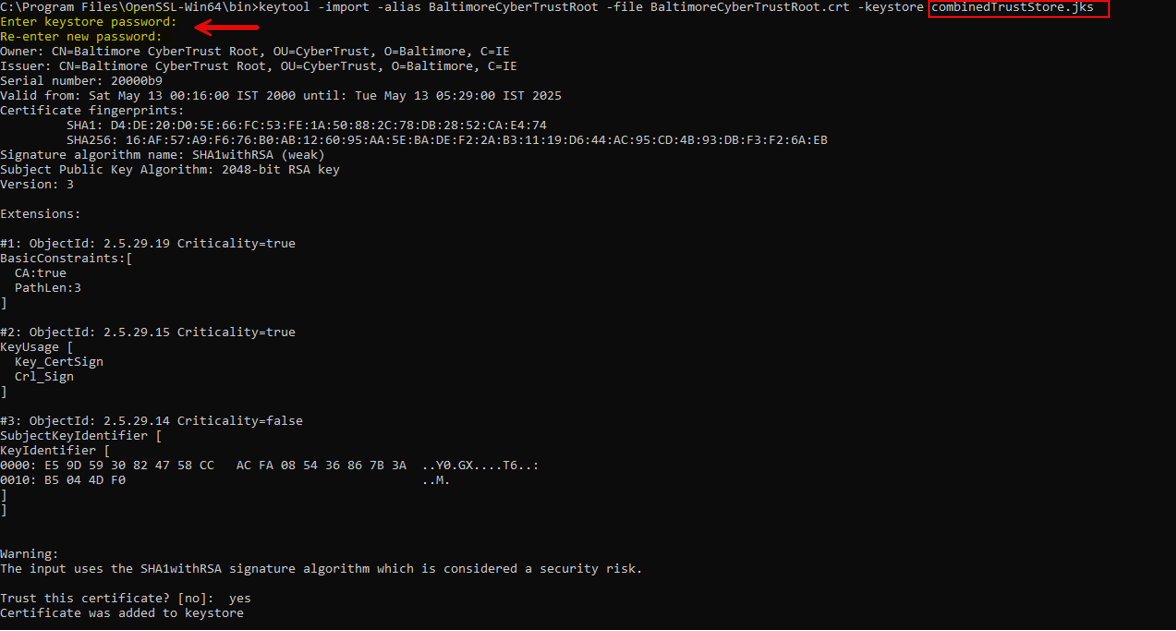
Figure 4 : Importing BaltimoreCyberTrustRoot.crt into combined truststore
keytool -import -alias DigiCertGlobalRootG2 -file DigiCertGlobalRootG2.crt -keystore combinedTrustStore.jks
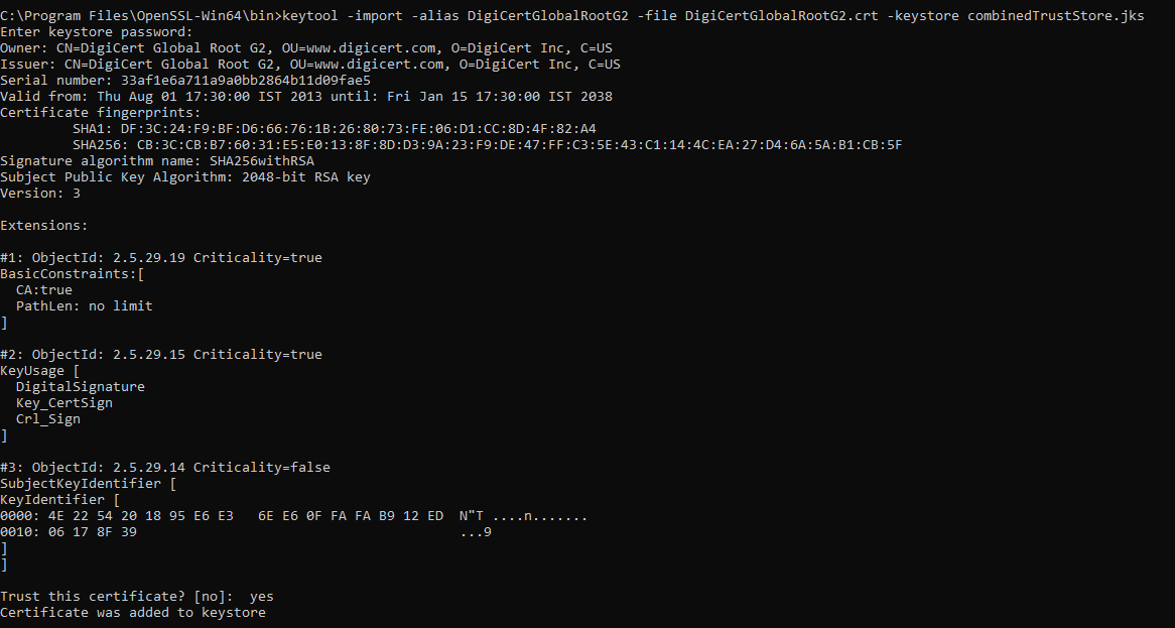
Figure 5 : Importing DigiCertGlobalRootG2.crt into combined truststore
-
Once the truststore file is created, specify the Truststore file name, here it is combinedTrustStore.jks and theTruststore password (as in Figure 4) while configuring the tests.