Automatically Fulfilling the Pre-requisites for Monitoring Microsoft Azure Subscription
The eG administrative interface offers a simple step-by-step procedure to configure the pre-requisites required to discover and monitor Microsoft Azure Subscription. This process simplifies monitoring Microsoft Azure Subscription as well as help administrators avoid navigating across multiple pages on the Microsoft Azure portal.
Note:
-
The eG manager must be able to connect to the Microsoft Azure URLs/portal to perform the simplified setup.
-
Once the set up is complete, the configured eG remote agent must have access to the Azure URLs/portal for monitoring.
Follow the steps mentioned below to automatically discover and monitor the Microsoft Azure Subscription in a cloud infrastructure:
-
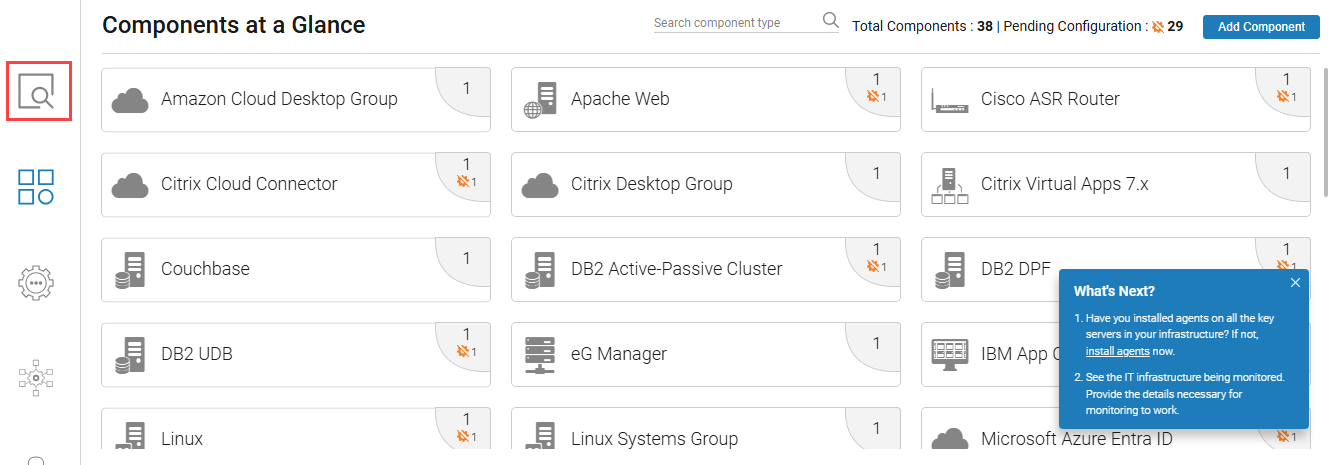
Login to the admin interface of the eG manager. Figure 1 will then appear.
-
Click on the button indicated by Figure 1 above. Figure 2 will then appear. Click on the Cloud Infrastructures tile in Figure 2.
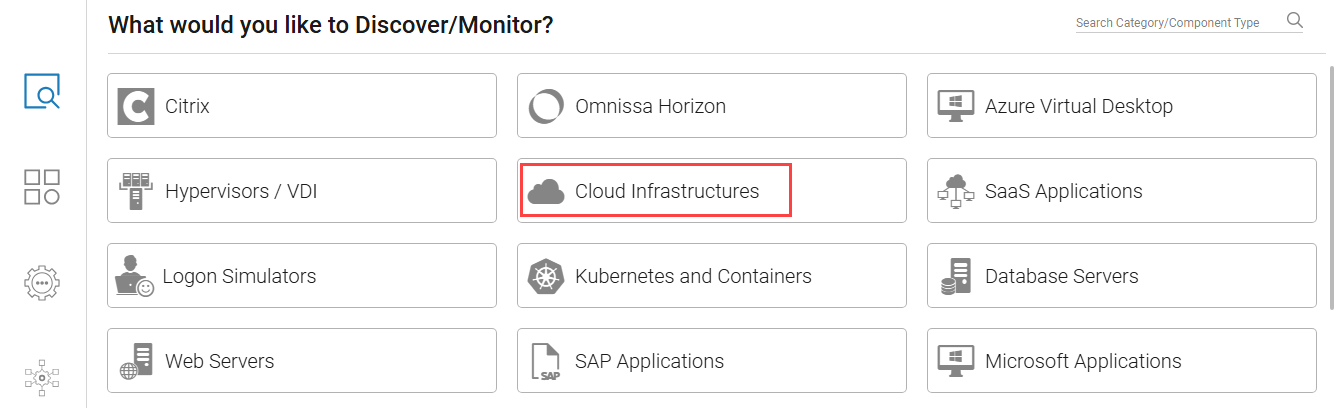
Figure 2 : Choosing to discover/monitor Cloud Infrastructures
-
Figure 3 will then appear. Click Microsoft Azure Subscription to discover the Microsoft Azure Subscriptions in the target environment.
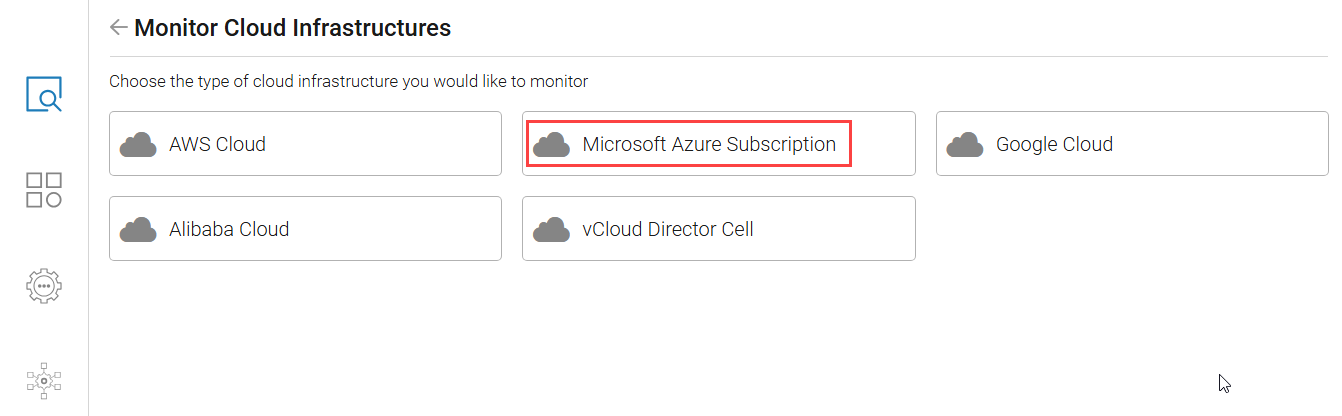
Figure 3 : Choosing to discover/monitor Microsoft Azure Subscription
-
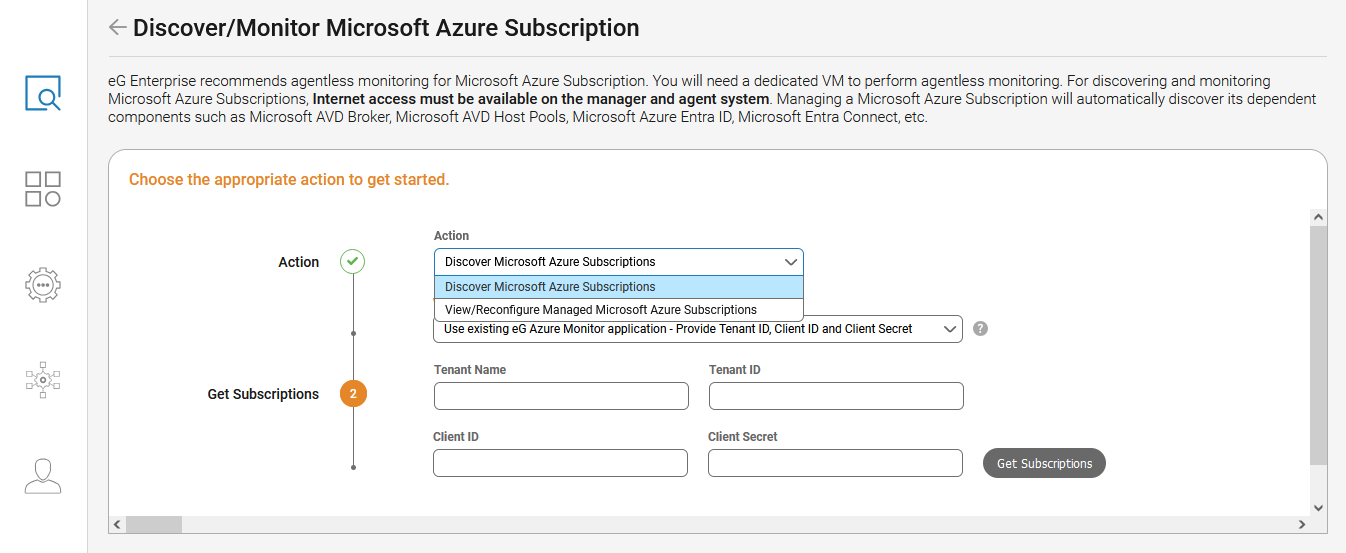
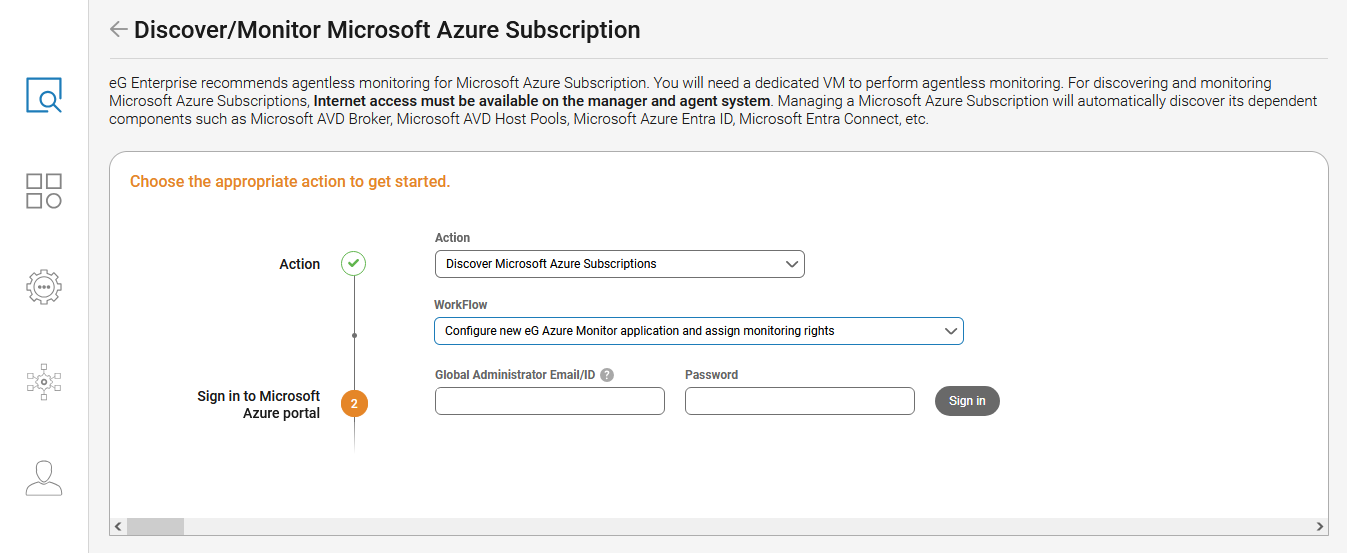
Figure 4 will then appear. By default, Discover Microsoft Azure Subscriptions option will be chosen from the Action list. If you wish to view or reconfigure the Microsoft Azure Subscriptions that are previously managed by eG Enterprise, then, pick the View/Managed Microsoft Azure Subscriptions option from this list.
-
Next, the Use existing eG Azure Monitor application - Provide Tenant ID, Client ID and Client Secret option is by default chosen from the Workflow list. This indicates that you can use the pre-exisitng Tenant ID, Client ID and Client Secret information in your environment for discovering/monitoring the Microsoft Azure Subscriptions. To discover the Microsoft Azure Subscription and fulfill the pre-requisites for monitoring, pick the Configure new eG Azure Monitor application and assign monitoring rights option from the Workflow list.
-
Next, specify the credentials of the user who is authorized to login to Microsoft Azure portal (see Figure 6) in the Global Administrator Email/ID and Password text boxes. Note that this user should possess Global Administrator privilege. To manager Azure Subscriptions, the Global Administrator should be explicitly assigned the Owner role at the Subscription scope.
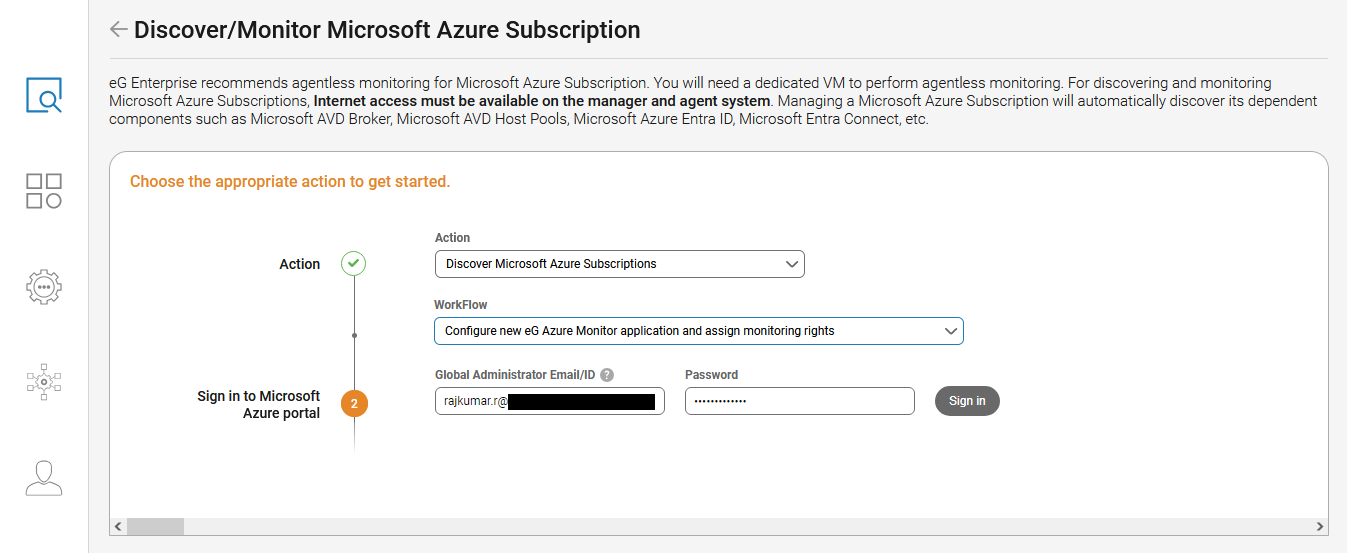
Figure 6 : Specifying the credentials of the user to sign into Azure portal
-
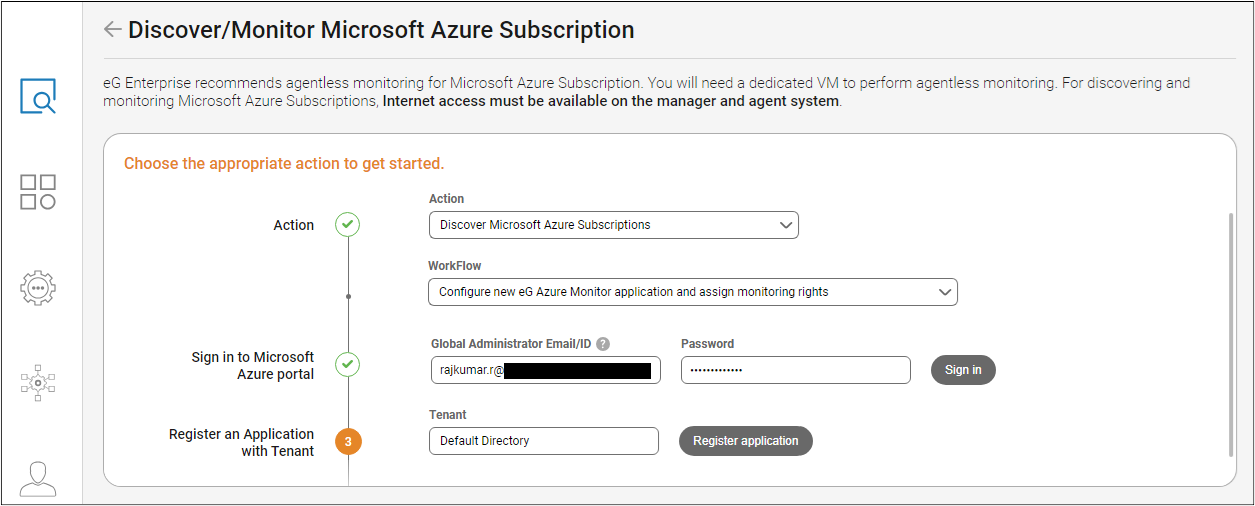
As soon as you sign in to the Microsoft Azure portal, the Tenant text box will be automatically populated with the available tenant (see Figure 7) that is associated with the user. In our example, it is DefaultDirectory.
-
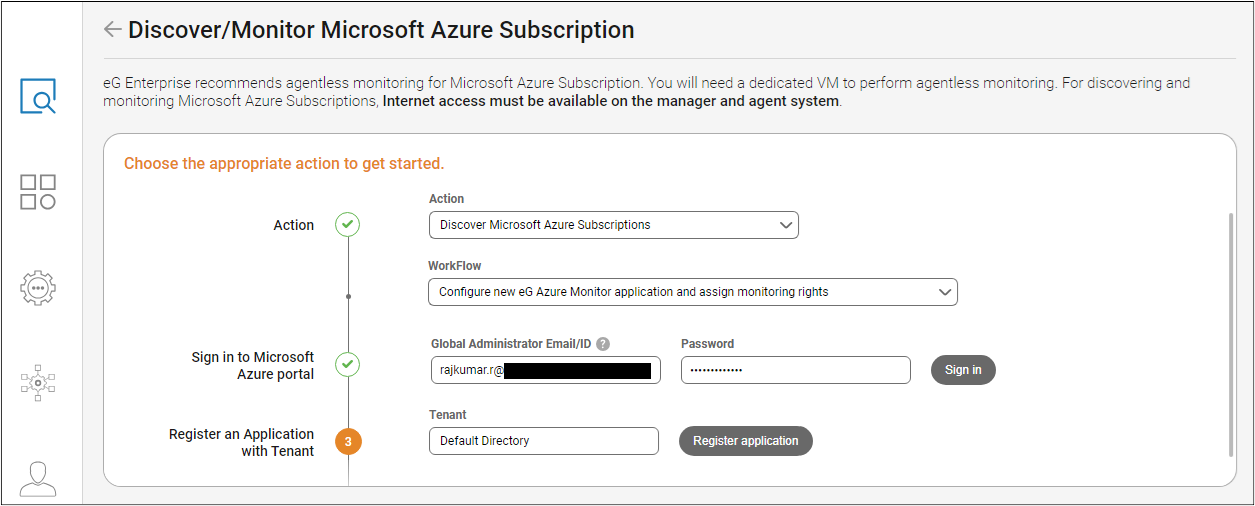
Then, click the Register Application button to register the eG Azure Monitor application with Microsoft Azure Entra ID (see Figure 8).
-
Figure 9 will then appear displaying the name of the application monitor that is created in the App Registration section. In our example, the name of the application monitoring is eGEnterpriseMonitorApp as shown in Figure 9. The secret key is also generated and displayed int he Generate Secret Key section (see Figure 9). Click Ok to proceed further.

-
Figure 10 will then appear. The Microsoft Azure Subscription list will be populated with all the Microsoft Azure Subscriptions that are discovered.
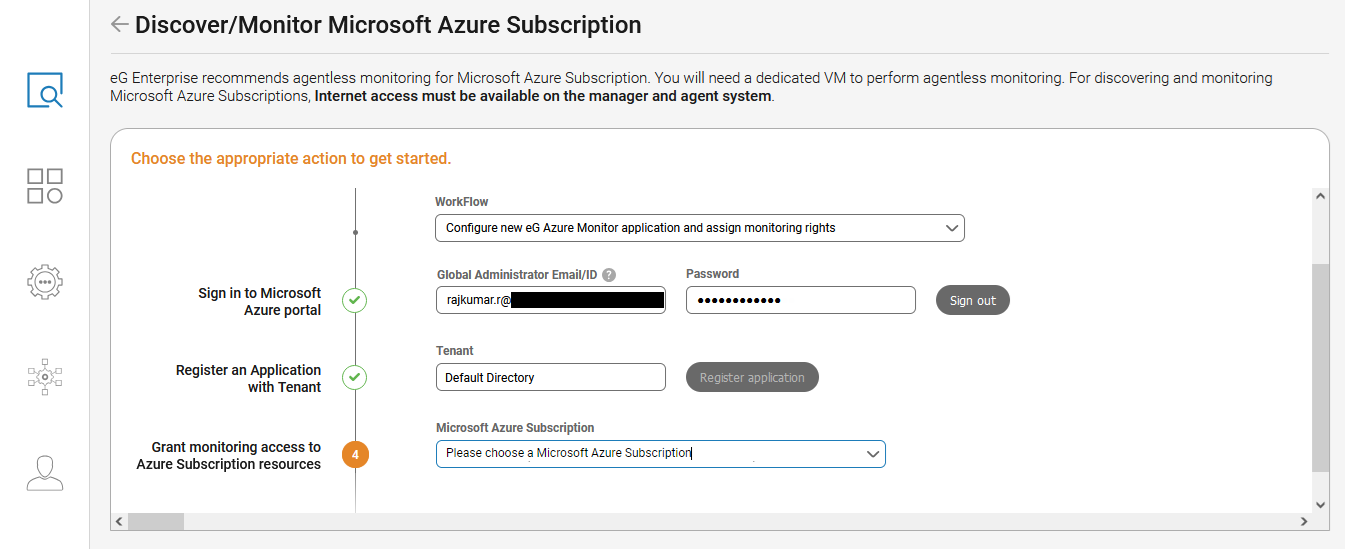
Figure 10 : List specifying to choose the Microsoft Azure Subscription
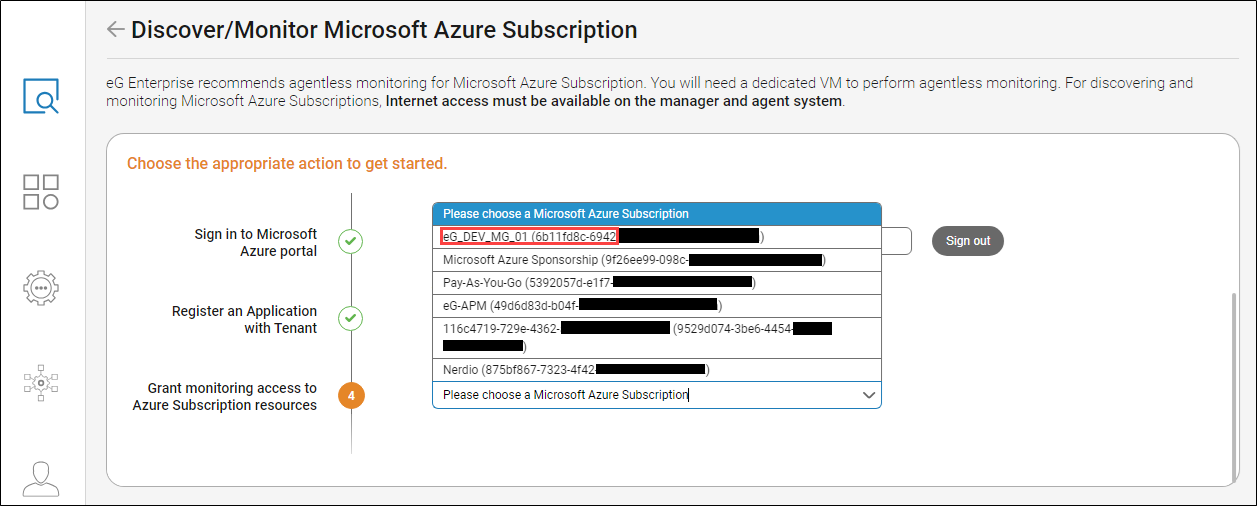
Choose the Microsoft Azure Subscription that you wish to monitor from the Microsoft Azure Subscription list as shown in Figure 11.
-
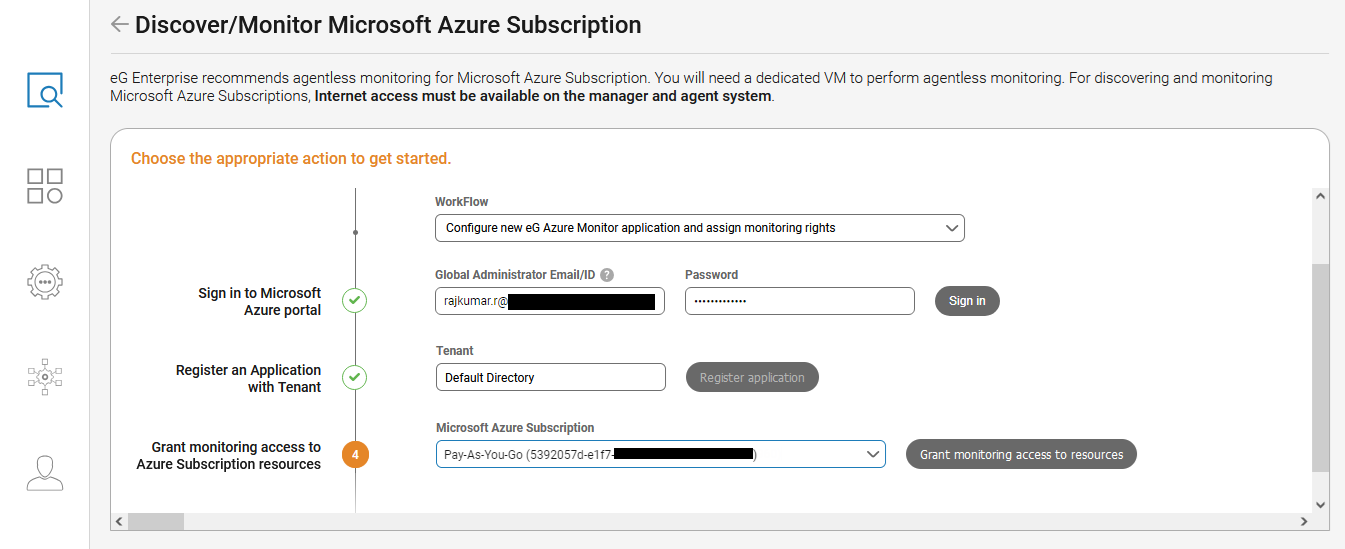
As soon as you pick a Microsoft Azure Subscription from the Microsoft Azure Subscription list, a Grant monitoring access to resources button will appear next to the list as shown in Figure 12. Click this button to grant monitoring access to the chosen Microsoft Azure Subscription.
-
Figure 13 will then appear. Here, every step of granting monitoring access is completed from the eG Enterprise console - e.g., the eG agent is now configured to read logs from Log Analytics Workspace as shown in Figure 13. Click OK to proceed further.
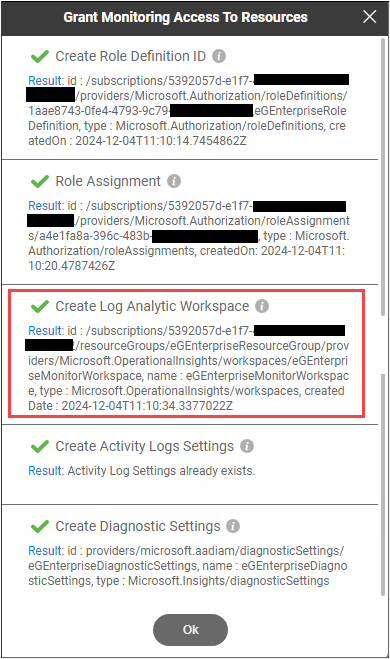
Figure 13 : Pop up window displaying the monitoring access granted
-
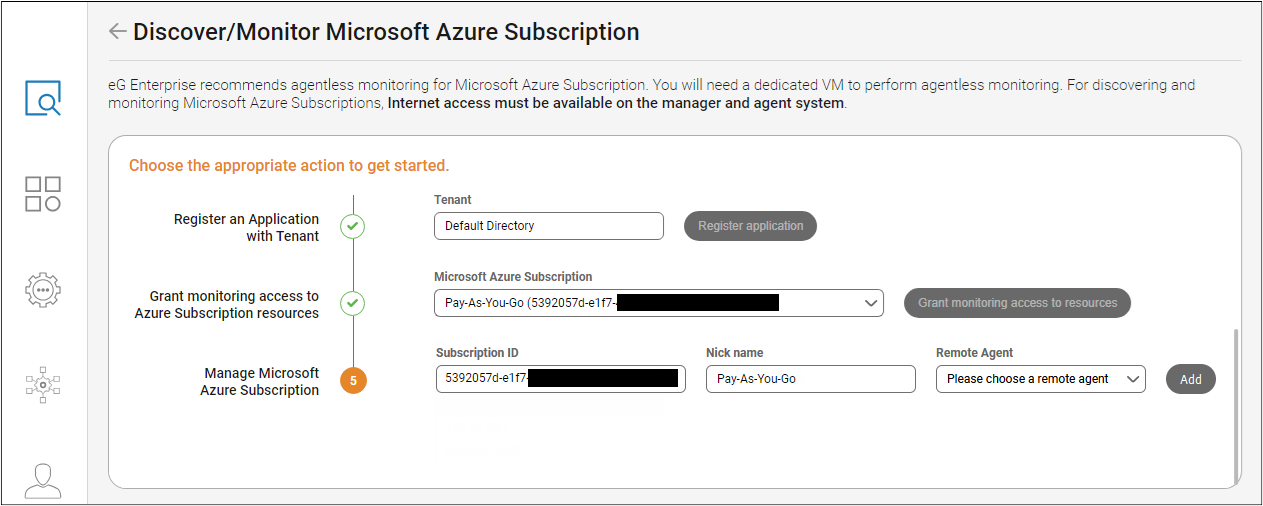
Figure 14 will then appear. The Subscription ID text box will automatically be populated with the ID of the target Microsoft Azure Subscription. In the Nick name field, specify the nick name of the Microsoft Azure Subscription that you are about to configure for monitoring (see Figure 14).
-
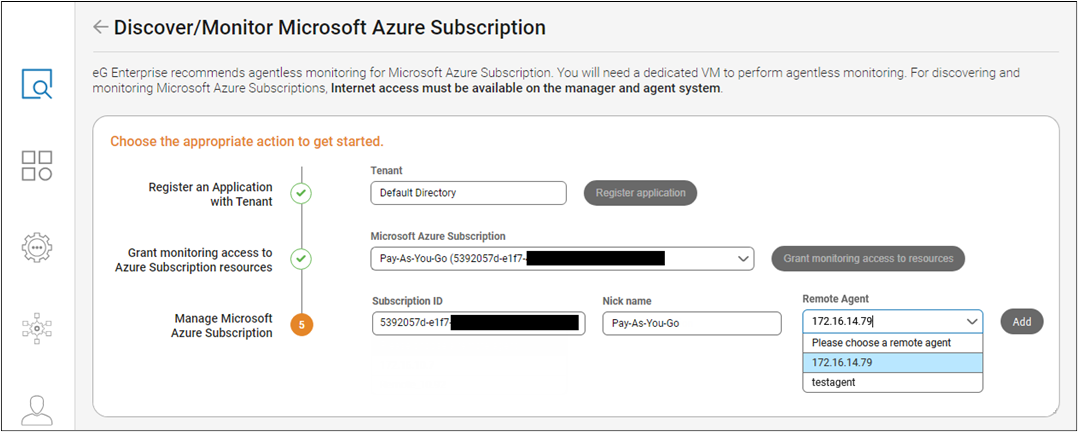
Choose the Remote Agent that you should use for monitoring the chosen Microsoft Azure Subscription and click Add button ( see Figure 15) to manage the chosen Microsoft Azure Subscription in eG Enterprise.
-
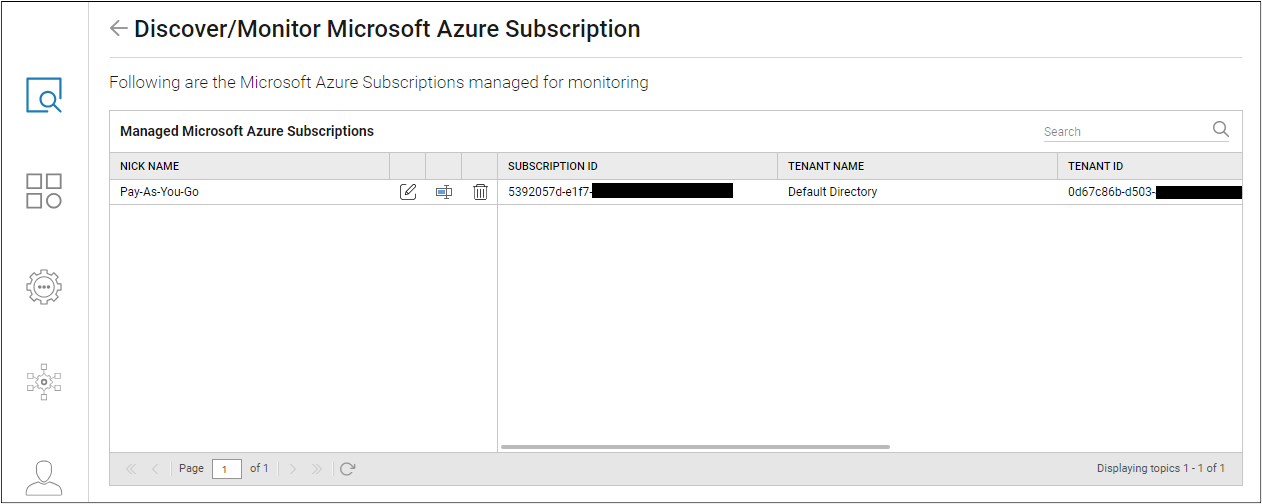
Figure 16 then appears listing the Microsoft Azure Subscription that is successfully managed after all pre-requisites are fulfilled for monitoring.
-
In addition to the above, you also need to manually grant Certificate Get and List permissions to the Azure Entra ID Application that is created for monitoring purposes. This is required to enable the Azure Key Vault test to monitor the status (whether active or expired) of certificates stored in an Azure Key Vault and report their details. To know how to grant these permissions, refer to
-
Furthermore, for some of the eG tests to run and report metrics, the eG agent should be allowed access to the following endpoint URLs:
-
https://westus2.api.loganalytics.io
-
https://login.microsoftonline.com
-
https://vault.azure.net
-
https://login.windows.net
-
https://management.azure.com
If the eG agent is not allowed to access the above-mentioned endpoint URLs, then, alerts will not be raised in the eG administrative interface while fulfilling the pre-requisites. If the eG agent is behind a firewall, then make sure that the firewall is configured to allow access to the aforesaid URLs.
-
-
Ensure that Diagnostics Settings are manually enabled for the components that are automatically discovered through Microsoft Azure Subscription such as Microsoft Azure Data Factory in the respective console to collect metrics.
-
As soon as you are done with the above steps, the Microsoft Azure Subscriptions will be discovered and managed by eG Enterprise. The tests for the component too will be automatically configured. Therefore, navigate to the eG monitor console to view the metrics collected for the target Microsoft Azure Subscription.