Managing a Microsoft Intune Component
Where a Microsoft Azure Subscription component is managed, the eG agent monitoring that subscription is capable of automatically discovering Microsoft Intune in the environment.
Note:
A Microsoft Azure Subscription can only be managed manually using the eG admin interface. To use the interface, an internet connection is required. If for any reason the eG agent is unable to auto-discover Microsoft Intune, then you can manually add the component to eG Enterprise. For this purpose, follow the steps below:
-
Login to the eG admin interface.
-
Click on the Admin tile and follow the Infrastructure -> Components -> Add/Modify menu sequence.
-
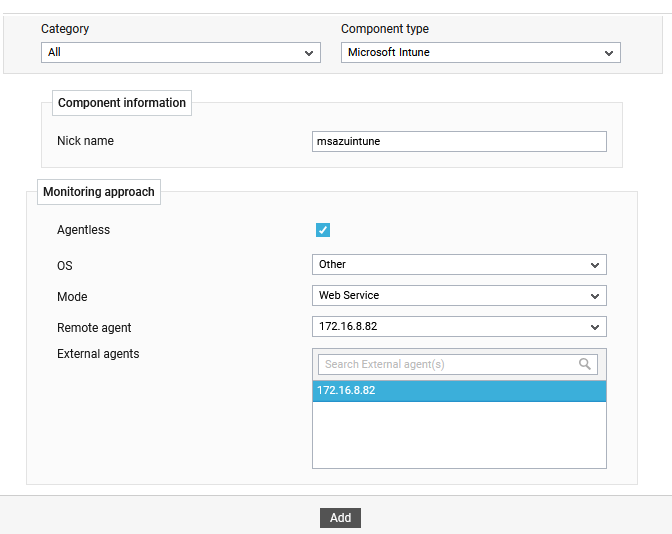
In the page that appears next, select Microsoft Intune as the Component type, and click the Add New Component button therein. Figure 1 will then appear.
-
In Figure 1, first provide a unique Nick name for the new cloud account.
-
Then, enable the Agentless flag and set Mode as Web Service.
-
Next, pick a Remote agent and one/more External agents for monitoring the cloud account.
-
Finally, click the Add button to add the cloud account.
Configuring eG Tests
Once you click on the Add button in Figure 1, Figure 2 will appear displaying the Microsoft Intune component that you just added. To configure the tests for that component, click on the Configure Test icon corresponding to that component in Figure 2.

Figure 2 : The Microsoft Intune component
Figure 3 will then appear. From the UNCONFIGURED TESTS list in Figure 3, select the test that you want to configure. For instance, say you select the Intune Android Device Enrollment Profiles test. To configure this test, click on the Configure button in Figure 3.
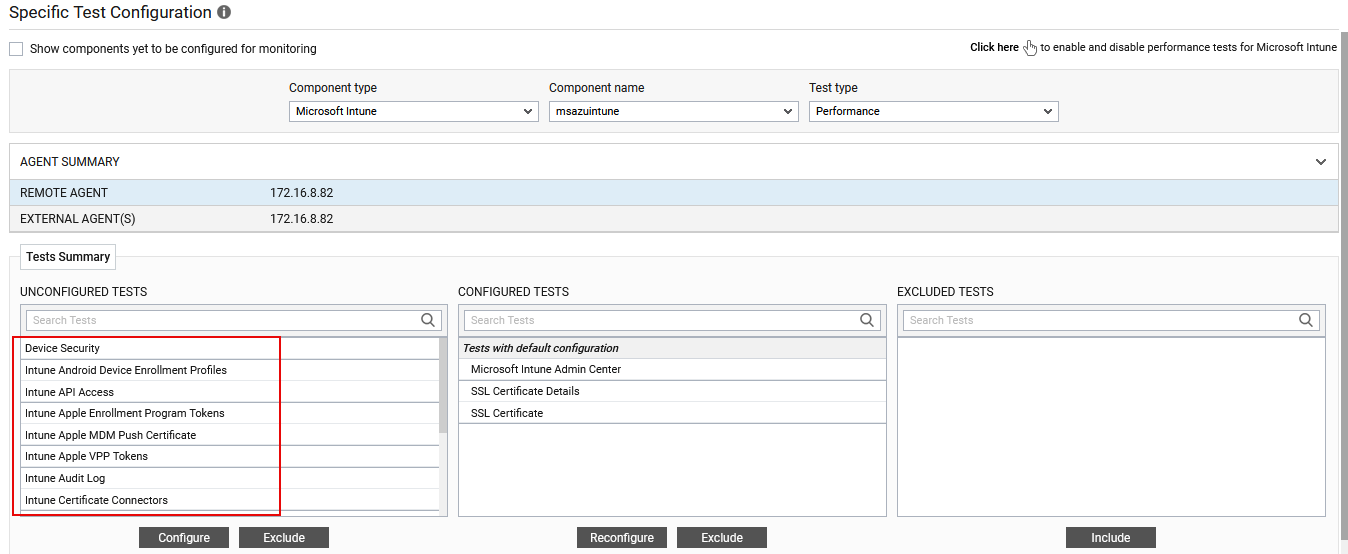
Figure 3 : List of unconfigured tests for Microsoft Intune
To know how to configure these tests, refer to the Monitoring the Microsoft Intune. Once the tests are configured, switch to eG Monitor interface to view the performance metrics reported by the configured tests.