Adding MongoDB on Azure Cosmos Component
The Mongo on Azure Cosmos cannot be automatically discovered by eG Enterprise. The steps for manually adding a Mongo on Azure Cosmos are detailed below:
-
Login to the eG admin interface as user with administrative privileges.
-
Click on the Add Component button in the right corner of the Components at a Glance page that appeared or follow the Infrastructure -> Components -> Add/Modify menu sequence.
-
From the page that appears, select Mongo on Azure Cosmos as the Component type and click the Add New Component button.
-
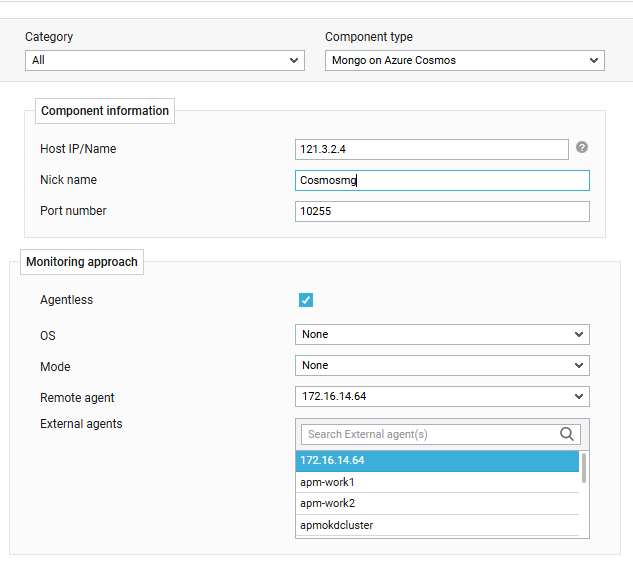
Figure 1 : Adding Mongo on Azure Cosmos component
-
The Port number will be set as 27017 by default. If the Mongo on Azure Cosmos server is listening on a different port in your environment, then override this default setting (see ).
-
Select an external agent from the External agents list box and click the Add button to add the component for monitoring.
-
On the other hand, if you are monitoring a Mongo on Azure Cosmos in an agentless manner, then do the following:
-
Select the Agentless check box.
-
Pick the OS on which the MongoDB server is running.
-
Set the Mode to Other.
-
Select the Remote agent that will be monitoring the MongoDB Cluster server. Note that the Remote agent you choose should run on a Windows host.
-
Choose an external agent for the server by picking an option from the External agents list box.
-
Finally, click the Add button to add the component to the eG Enterprise system.
-