How does eG Enterprise monitor MongoDB on Azure Cosmos?
eG Enterprise monitors Mongo on Azure Cosmos Service using the external agent approach. The external agent can be deployed on any remote host in the environment.
The eG agent connects to a database on the Mongo Azure Cosmos Service using the Client ID, Secret ID and Resource group name and runs MongoDB API commands to pull the metrics of interest from across databases. To enable this connection, each test that the eG agent runs on the MongoDB cluster server should be configured with these details. To collect the required metrics from the target MongoDB cluster, below prerequisites should be fulfilled.
For further details on monitoring Azure, refer to How does eG Enterprise Monitor Microsoft Azure?
Prerequisites for monitoring MongoDB on Azure Cosmos
Go to Azure Cosmos portal with your Azure Subscription ID and create below details:
-
Subscription ID – A unique identifier for your Azure subscription that contains and manages your resources.
-
Tenant ID – A unique ID representing your Azure Active Directory (Azure AD) instance used for identity and access management.
-
Client ID – The application (service principal) ID used to authenticate your app or script with Azure services.
-
Secret ID (Client Secret) – A password-like credential used with the Client ID to authenticate securely to Azure.
-
Resource Group Name – A named container in Azure that holds and organizes related resources like Cosmos DB. Resource group name is required for monitoring and alert configuration, RBAC access control, automation scripts, CLI, cost management etc.
Follow the steps below to find the resource group name from Azure portal:
-
Sign in to Azure Portal. You will need details like Subscription Id, Tenant Id, client Id and secret etc.
-
Go to Azure Cosmos DB will be available in the services.
-
Select your Cosmos DB account that uses the MongoDB API.
-
On the Overview page, locate Resource group.
-
Click the resource group name to open its details.
-
Refer to the Figure 1 for more details.
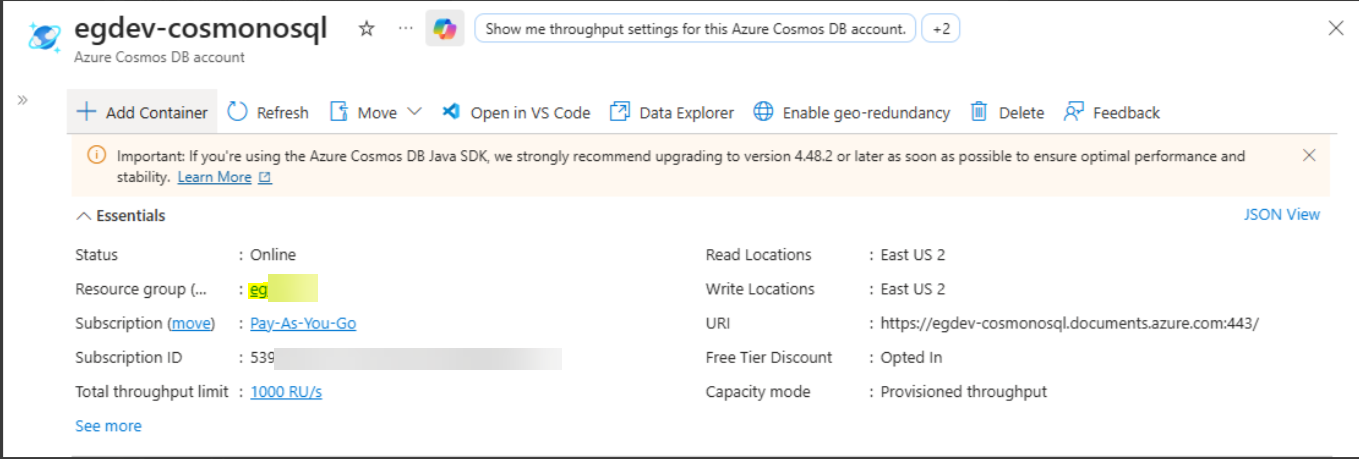
Figure 1 : Azure MongoDB management dashboard
Once these details are available, configure the tests by providing the details.