Mongo Azure Database Usage Test
MongoDB on Azure enables developers to build scalable, high-performance applications using a NoSQL database. It supports flexible data models, real-time analytics, global distribution, and integrates with Azure services for seamless deployment.
Monitoring MongoDB on Azure ensures performance, availability, and security. It helps detect slow queries, resource bottlenecks, and potential failures early, enabling proactive scaling, cost optimization, and maintaining application reliability.
This test monitors the Mongo Azure database usage and reports key metrics like database availability, number of collections,average size, allocated size etc. These metrics help the administrators analyze and understand the current state of the database and allows them to take preemptive actions in case of potential failures. This way administrators can ensure high availability and high performance through proactive monitoring approach.
Target of the test : An Azure Cosmos Mongo Server
Agent deploying the test : A remote agent
Outputs of the test : One set of results for target Mongo server being monitored.
| Parameter |
Description |
|
Test period |
How often should the test be executed. |
|
Host |
The host for which the test is to be configured. |
|
Port |
The port number at which the specified host listens. |
|
Subscription Id |
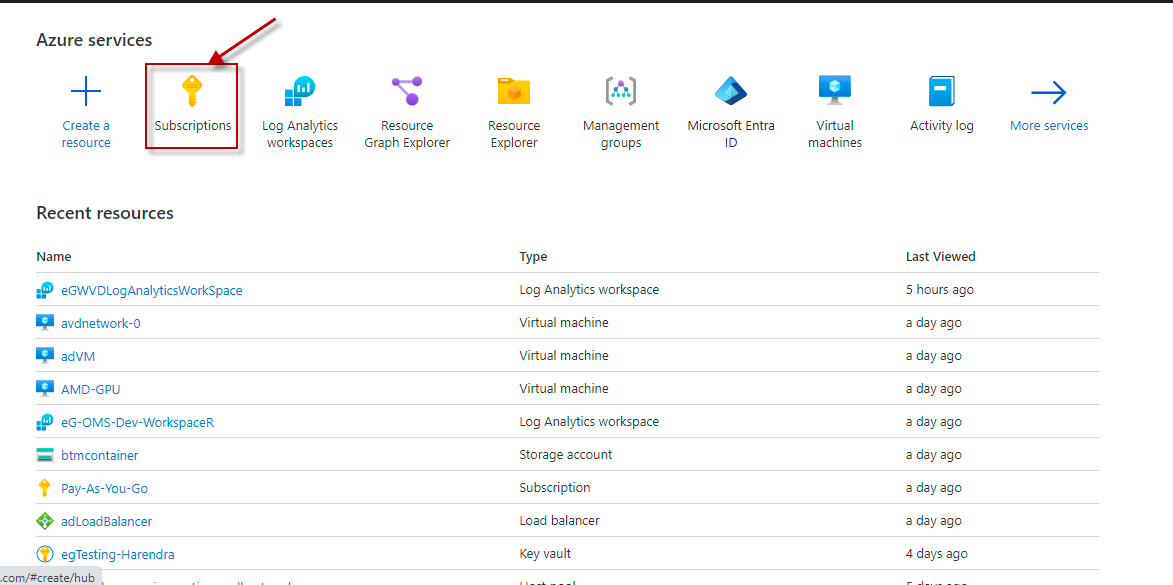
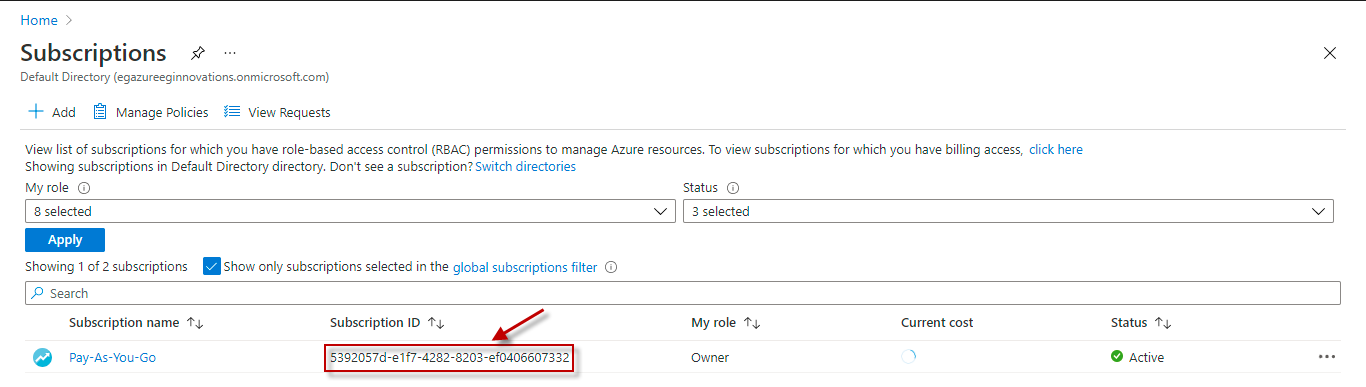
Specify the GUID which uniquely identifies the Microsoft Azure Subscription to be monitored. To know the ID that maps to the target subscription, do the following:
|
|
Tenant Id |
Specify the Directory ID of the Microsoft Entra tenant to which the target subscription belongs. To know how to determine the Directory ID, refer to Configuring the eG Agent to Monitor Microsoft Azure section in Monitoring Microsoft Azure Subscription document. |
|
Client Id and Client Password |
To connect to the target subscription, the eG agent requires an Access token in the form of an Application ID and the client secret value. For this purpose, you should register a new application with the Microsoft Entra tenant. To know how to create such an application and determine its Application ID and client secret, refer to Configuring the eG Agent to Monitor Microsoft Azure section in Monitoring Microsoft Azure Subscription document. Specify the Application ID of the created Application in the Client ID text box and the client secret value in the Client Password text box. |
|
Resource Group name |
Specify the resource group name which we created on monitoring. |
| Measurement | Description | Measurement Unit | Interpretation | ||||||
|---|---|---|---|---|---|---|---|---|---|
|
Is database available? |
Indicates if the database is currently available or not. |
|
The values that this measure can report and their corresponding numeric values are listed in the table below:
Note: By default, the measure reports only the Measure Values provided in the table above to indicate whether/not database is available. In the graph of this measure however, the same is indicated using the numeric equivalents only. |
||||||
|
Number of collections |
Indicates the total number of collections in the database during the current measurement period. |
Number |
|
||||||
|
Average size |
Indicates the average size of the database. |
GB |
|
||||||
|
Allocated size |
Indicates the current allocated size of the database. |
GB |
|
||||||
|
Data size |
Indicates the total size of data stored in the database. |
GB |
|
||||||
|
Data usage on allocated size |
Indicates the percentage of data used out of total database size. |
Percent |
|
||||||
|
Growth rate |
Indicate the rate at which the database is growing. |
GB/Sec |
|