AWS Inspector Test
Amazon Inspector Classic service tests the network accessibility of your Amazon EC2 instances and the security state of your applications that run on those instances.
Amazon Inspector Classic also offers predefined software called an agent that you can install in the operating system of the EC2 instances that you want to assess. The agent monitors the behavior of the EC2 instances, including network, file system, and process activity. It also collects a wide set of behavior and configuration data (telemetry).
If the agents installed on the EC2 instances are unhealthy, then, there is a high chance that the EC2 instances may not be scanned for security findings and also may fail to detect the blind spots in vulnerability assessment. To avoid such security compromise, it is essential to keep track on the count of matching/healthy agents in the target AWS Cloud environment. The AWS Inspector test helps in this regard!
For each Assessment Template/Assessment Target, this test help administrators figure out the count of healthy agents installed on EC2 instances and the count of matching agents. This test also reveals the number of times assessment was run. This helps administrators an accurate and complete security assessment of the EC2 instances.
Target of the test: Amazon Cloud
Agent deploying the test : A remote agent
Outputs of the test : One set of results for each Assessment Target/Assessment Template defined on the target AWS Cloud being monitored.
First-level descriptor: AWS Region
Second-level descriptor: Assessment Target or Assessment Template based on the configured AWSInspector Filter Name parameter
| Parameter | Description |
|---|---|
|
Test Period |
How often should the test be executed. |
|
Host |
The host for which the test is to be configured. |
|
Access Type |
eG Enterprise monitors the AWS cloud using AWS API. By default, the eG agent accesses the AWS API using a valid AWS account ID, which is assigned a special role that is specifically created for monitoring purposes. Accordingly, the Access Type parameter is set to Role by default. Furthermore, to enable the eG agent to use this default access approach, you will have to configure the eG tests with a valid AWS Account ID to Monitor and the special AWS Role Name you created for monitoring purposes.
Some AWS cloud environments however, may not support the role-based approach Note that the Secret option may not be ideal when monitoring high-security cloud environments. This is because, such environments may issue a security mandate, which would require administrators to change the Access Key and Secret Key, often. Because of the dynamicity of the key-based approach, Amazon recommends the Role-based approach for accessing the AWS API. |
|
AWS Account ID to Monitor |
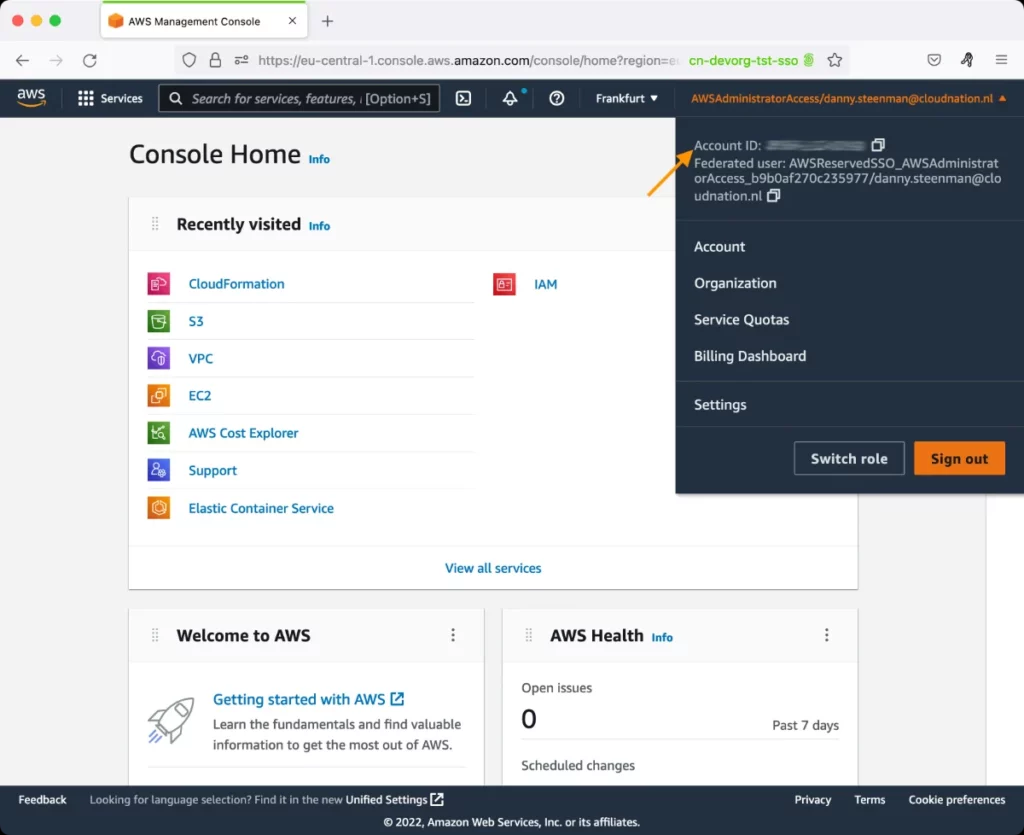
This parameter appears only when the Access Type parameter is set to Role. Specify the AWS Account ID that the eG agent should use for connecting and making requests to the AWS API. To determine your AWS Account ID, follow the steps below:
|
|
AWS Role Name |
This parameter appears when the Access Type parameter is set to Role. Specify the name of the role that you have specifically created on the AWS cloud for monitoring purposes. The eG agent uses this role and the configured Account ID to connect to the AWS Cloud and pull the required metrics. To know how to create such a role, refer to Creating a New Role. |
|
AWS Access Key, AWS Secret Key, Confirm AWS Access Key, Confirm AWS Secret Key |
These parameters appear only when the Access Type parameter is set to Secret.To monitor an Amazon cloud instance using the Secret approach, the eG agent has to be configured with the access key and secret key of a user with a valid AWS account. For this purpose, we recommend that you create a special user on the AWS cloud, obtain the access and secret keys of this user, and configure this test with these keys. The procedure for this has been detailed in the Obtaining an Access key and Secret key topic. Make sure you reconfirm the access and secret keys you provide here by retyping it in the corresponding Confirm text boxes. |
|
Proxy Host and Proxy Port |
In some environments, all communication with the AWS cloud and its regions could be routed through a proxy server. In such environments, you should make sure that the eG agent connects to the cloud via the proxy server and collects metrics. To enable metrics collection via a proxy, specify the IP address of the proxy server and the port at which the server listens against the Proxy Host and Proxy Port parameters. By default, these parameters are set to none , indicating that the eG agent is not configured to communicate via a proxy, by default. |
|
Proxy User Name, Proxy Password, and Confirm Password |
If the proxy server requires authentication, then, specify a valid proxy user name and password in the Proxy User Name and Proxy Password parameters, respectively. Then, confirm the password by retyping it in the Confirm Password text box. By default, these parameters are set to none, indicating that the proxy sever does not require authentication by default. |
|
Proxy Domain and Proxy Workstation |
If a Windows NTLM proxy is to be configured for use, then additionally, you will have to configure the Windows domain name and the Windows workstation name required for the same against the Proxy Domain and Proxy Workstation parameters. If the environment does not support a Windows NTLM proxy, set these parameters to none. |
|
Exclude Region |
Here, you can provide a comma-separated list of region names or patterns of region names that you do not want to monitor. For instance, to exclude regions with names that contain 'east' and 'west' from monitoring, your specification should be: *east*,*west* |
|
Default Connection Region |
By default, this test connects to the endpoint URL of the us-east-1 region to collect the required metrics. If the default us-east-1 region is not enabled in the target environment, then, for this test to collect the required metrics, specify the region that is enabled in the target environment. |
|
Exclude Instance |
Here, you can provide a comma-separated list of AWS instance names or patterns of AWS instance names that you do not want to monitor. For instance, to exclude Instances with names that contain 'central' and 'middle' from monitoring, your specification should be: *central*,*middle* |
|
AWSInspector Filter Name |
Specify how you want this test to report metrics. By default, AssessmentTarget Name is chosen from this list. This implies that this test will report metrics for each AWS Region:Name of the Assessment Target in the AWS region. However, if you wish this test to report metrics for each AWS Region:Assessment Template, then pick the AssessmentTemplate option from this list. |
|
Measurement |
Description |
Measurement Unit |
Interpretation |
|---|---|---|---|
|
Total matching agents |
Indicates the total number of EC2 instances within this Assessment target/template having the same inspector agent installed. |
Number |
|
|
Total healthy agents |
Indicates the total number of EC2 instances within this Assessment target/template with healthy inspector agents installed. |
Number |
A high value is desired for this measure. |
|
Total assessment runs |
Indicates the number of times assessment was run for this assessment target/template. |
Number |
Assessments are run to analyze the behavior and security state of the EC2 instances in the target AWS Cloud. Assessments help administrators in identifying vulnerabilities, deviations from security best practices, and potential exposure risks in the target AWS Cloud. |
|
Total assessment run findings |
Indicates the total number of times assessment run was initiated. |
Number |
This measure is applicable only for the 'Summary' descriptor. |