Using Trusted Nodes for AWS Monitoring
By default, eG Enterprise is capable of monitoring the target AWS Cloud using the AWS Secret key approach or Role based approach or Managed Identity approach. In a Managed Identity approach, you configure an EC2 instance in the target AWS Cloud with a service role (IAM role) assigned with permissions to access other AWS resources in the cloud. An eG agent installed on that EC2 instance pulls the required metrics from the target AWS Cloud. This approach is more secure and convenient for the administrators as it eliminates the need for long term credentials and allows granular control over access to resources. In order to use the Managed Identity based approach to monitor the target AWS Cloud, you need to do the following:
-
Create a special role for monitoring purpose on the AWS Cloud. The AWS role can be created either manually or automatically.
-
Create a new EC2 instance or use an existing EC2 instance and assign the newly created role to that instance.
-
Install an eG agent on the EC2 instance and use that eG agent as a remote agent to monitor the target AWS Cloud.
Note:
Since the eG agent is installed in customer premises i.e., the target environment, the process is extremely safe and secure. All metrics are collected and processed by the eG agent and then transmitted to the eG manager.
Let us discuss each of the above-mentioned steps in detail in the following sections:
Automatic Creation of AWS Role
eG Enterprise recommends automatic creation of AWS Role. To achieve this, eG Enterprise offers a specialized URL that is built out of a standard CloudFormation template. By accessing this URL, administrators can execute the CloudFormation template and create an AWS Role without having to navigate across multiple screens in the AWS IAM console.
To create an AWS Role automatically, do the following:
-
Copy and paste the URL specified below in any browser in your target environment:
Copyhttps://us-east-1.console.aws.amazon.com/cloudformation/home?region=us-east-1#/stacks/quickcreate?templateURL=https%3A%2F%2Feg-innovations.s3.us-east-1.amazonaws.com%2FeG_EC2ManagedIdentityRole.yml&stackName=eG-EC2ManagedIdentity¶m_RoleName=eG-EC2ManagedIdentity -
The login page of AWS will then appear. Login to the AWS console as a user with administrator privileges.
-
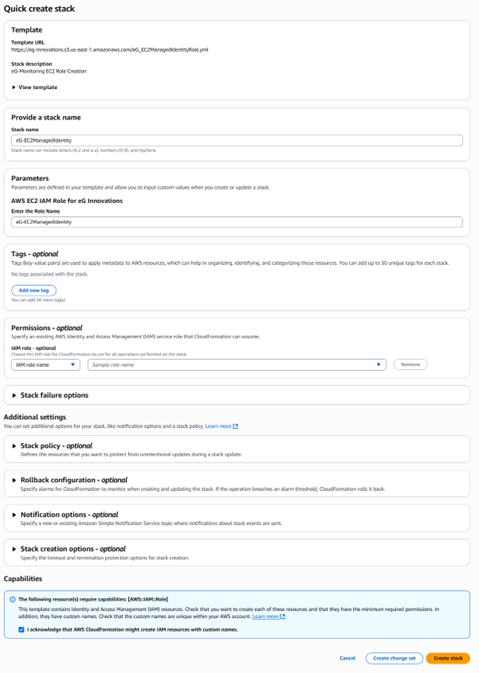
Figure 1 will then appear. The Stack name text box and the Enter the Role Name text box will be auto populated with the name of the AWS Role that is to be created.
-
Ensure that you select the check box preceding the I acknowledge that AWS CloudFormation might create IAM resources with custom names field (see Figure 1) and click the Create stack button.
-
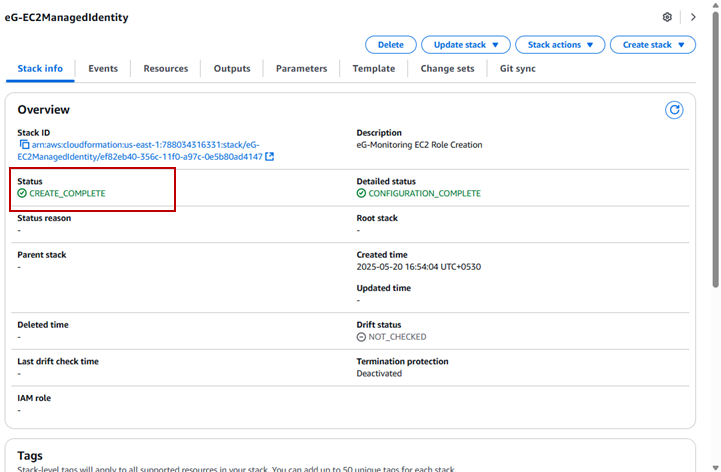
The stack will then be created and Figure 2 will then appear with the Stack name. Here, ensure that the Status of the stack is displayed as CREATE_COMPLETE.
-
Then, navigate to the Outputs tab. Figure 3 will then appear.
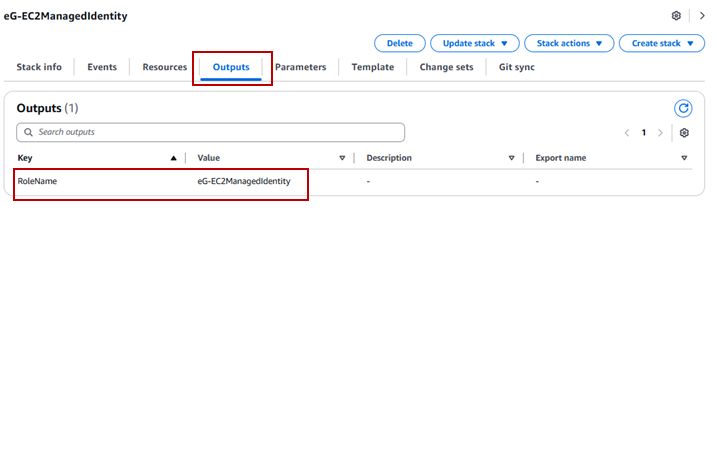
Figure 3 : Navigating to the Outputs tab
Here, the RoleName will be displayed. Note down this parameter. Ensure that you specify the RoleName against the AWS ROLE NAME parameter while you configure the tests pertaining to AWS Cloud component.
Manual Creation of AWS Role
To create an AWS Role manually, you first need to do the following:
-
Create a Policy on AWS Cloud
-
Create a new role for monitoring purposes and assign the created policy to the role.
Creating a New Policy
To create a new Policy on AWS cloud, do the following:
-
Login to AWS console as a root user or with an account that has privileges to create a new role.
-
Upon successful login, the Services page will appear. Keep scrolling down this page until you view the IAM option.
-
The first step to creating a role is to create a policy that defines the rights and privileges of that role. To create a policy, click on the Policies link in the left panel as shown in Figure 4.
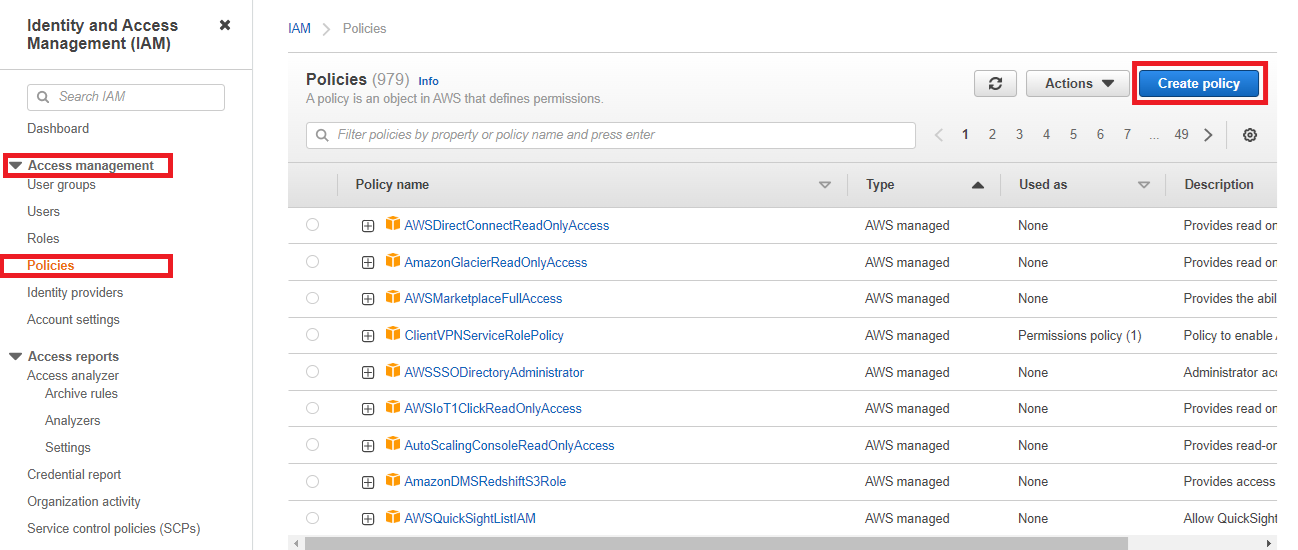
Figure 4 : The Policies page using which new policy can be created
-
The context-sensitive right panel of Figure 4 lists all the pre-existing policies. Click on Create Policy button to create a new policy.
-
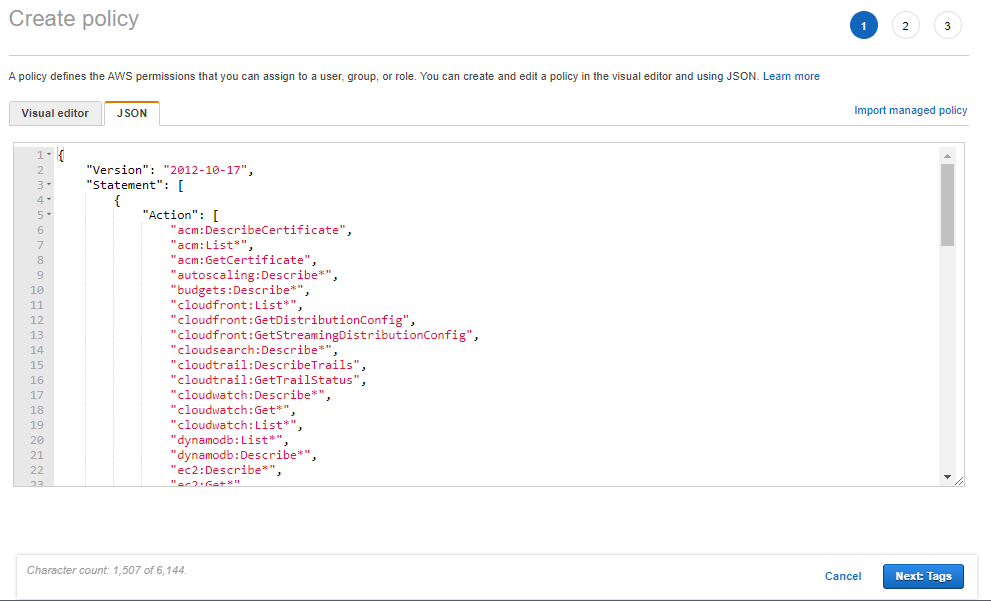
In the Create Policy page that appears, click on the JSON tab. Figure 5 will then appear.
-
Replace the contents of the JSON tab page (see Figure 5) with the following:
{
"Version":"2012-10-17",
"Statement":[
{
"Action":[
"acm:DescribeCertificate",
"acm:ListCertificates",
"acm:ListTagsForCertificate",
"appstream:ListAssociatedStacks",
"appstream:DescribeFleets",
"appstream:DescribeSessions",
"appstream:DescribeImages",
"autoscaling:DescribeLaunchConfigurations",
"autoscaling:DescribeAutoScalingGroups",
"backup:ListBackupVaults",
"backup:ListBackupJobs",
"backup:DescribeBackupJob",
"backup:ListCopyJobs",
"backup:DescribeCopyJob",
"backup:ListRestoreJobs",
"backup:DescribeRestoreJob",
"backup:ListRecoveryPointsByBackupVault",
"ce:GetCostAndUsage",
"ce:GetCostAndUsageWithResources",
"ce:GetDimensionValues",
"ce:GetRightsizingRecommendation",
"ce:GetSavingsPlansUtilization",
"ce:GetSavingsPlansUtilizationDetails",
"ce:GetTags",
"ce:GetReservationUtilization",
"cloudfront:ListDistributions",
"cloudtrail:DescribeTrails",
"cloudtrail:GetTrailStatus",
"cloudwatch:GetMetricStatistics",
"cloudwatch:ListMetrics",
"ec2:DescribeRegions",
"ec2:DescribeAvailabilityZones",
"ec2:DescribeInstances",
"ec2:MonitorInstances",
"ec2:DescribeInstanceCreditSpecifications",
"ec2:DescribeInstanceTypes",
"ec2:DescribeVolumes",
"ec2:DescribeVolumeStatus",
"ec2:DescribeVpcs",
"ec2:DescribeSubnets",
"ec2:DescribeRouteTables",
"ec2:DescribeInternetGateways",
"ec2:DescribeEgressOnlyInternetGateways",
"ec2:DescribeDhcpOptions",
"ec2:DescribeAddresses",
"ec2:DescribeVpcEndpoints",
"ec2:DescribeVpcEndpointServiceConfigurations",
"ec2:DescribeNatGateways",
"ec2:DescribeVpcPeeringConnections",
"ec2:DescribeNetworkAcls",
"ec2:DescribeSecurityGroups",
"ec2:DescribeCustomerGateways",
"ec2:DescribeVpnGateways",
"ec2:DescribeVpnConnections",
"ec2:DescribeSnapshots",
"ec2:DescribeKeyPairs",
"ec2:DescribeNetworkInterfaces",
"ec2:DescribeTransitGatewayAttachments",
"ec2:DescribeTags",
"ec2:DescribeFlowLogs",
"ecs:ListClusters",
"ecs:DescribeClusters",
"ecs:ListContainerInstances",
"ecs:DescribeContainerInstances",
"ecs:ListServices",
"ecs:DescribeServices",
"ecs:ListTasks",
"ecs:DescribeTasks",
"elasticache:DescribeCacheClusters",
"elasticloadbalancing:DescribeLoadBalancers",
"elasticloadbalancing:DescribeInstanceHealth",
"elasticloadbalancing:DescribeLoadBalancerAttributes",
"elasticloadbalancing:DescribeTargetGroups",
"elasticloadbalancing:DescribeTargetHealth",
"elasticloadbalancing:DescribeListeners",
"health:DescribeEvents",
"health:DescribeEventDetails",
"health:DescribeAffectedEntities",
"inspector2:ListFindings",
"lambda:ListFunctions",
"logs:DescribeLogGroups",
"logs:DescribeLogStreams",
"logs:GetLogEvents",
"Organizations:DescribeAccount",
"rds:DescribeDBInstances",
"rds:DescribeDBSnapshots",
"rds:DescribePendingMaintenanceActions",
"rds:DescribeEvents",
"s3:ListBucket",
"s3:GetBucketLocation",
"s3:GetBucketPolicyStatus",
"s3:ListAllMyBuckets",
"s3:GetObject",
"s3:PutObject",
"ses:GetSendQuota",
"support:DescribeTrustedAdvisorChecks",
"support:DescribeTrustedAdvisorCheckSummaries",
"workspaces:DescribeWorkspaces",
"workspaces:DescribeWorkspacesConnectionStatus",
"config:DescribeComplianceByResource",
"config:GetComplianceDetailsByResource",
"iam:ListRoles",
"iam:GetRole",
"sns:ListTopics",
"sns:ListSubscriptionsByTopic",
"sqs:ListQueues",
"sqs:GetQueueAttributes"
],
"Effect":"Allow",
"Resource":"*"
}
]
}
Note:
If you copy the above code block directly from this document and paste it in the JSON tab page, you will find that the page numbers in the document also get copied on to the tab page inadvertently. Therefore, after copying the code block to the JSON tab page, make sure you remove the page numbers from the code block and then proceed.
-
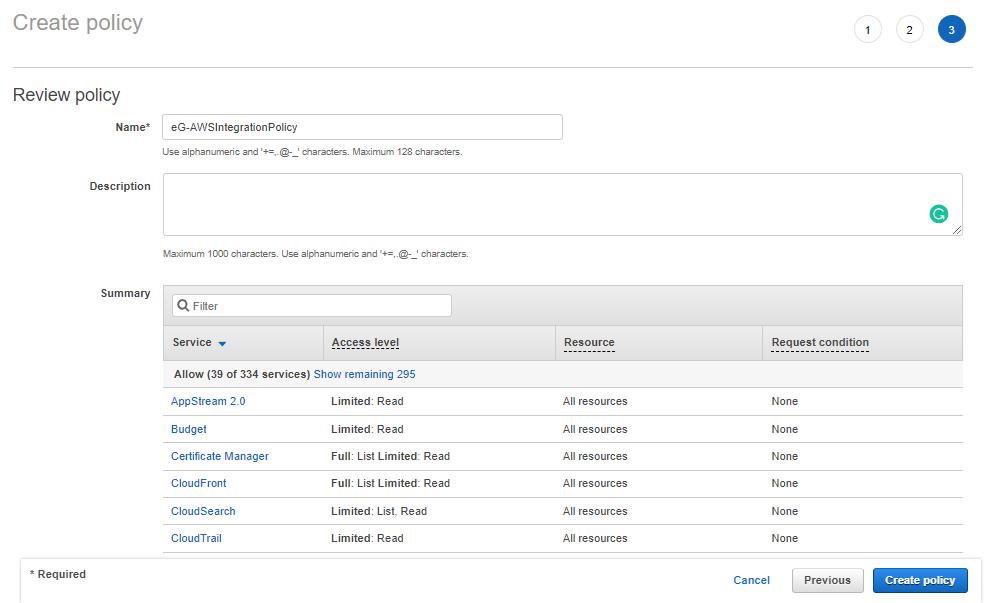
Then, click the Next: Tags button in Figure 5 to review the policy that you have defined. In Figure 6 that appears, provide a Name for the new policy and a brief Description of the policy.
-
The Summary section in Figure 6 lists all the services that this policy allows access to, the level of access (whether Full or Limited), and the resources that can be accessed.
-
Then, click the Create Policy button in Figure 6 to create the new policy.
Creating the New Role by Assigning the Newly Created Policy
To create a new Role on AWS cloud, do the following:
-
Navigate to the AWS IAM Console and click the Roles option in the left panel. Figure 7 then appears.
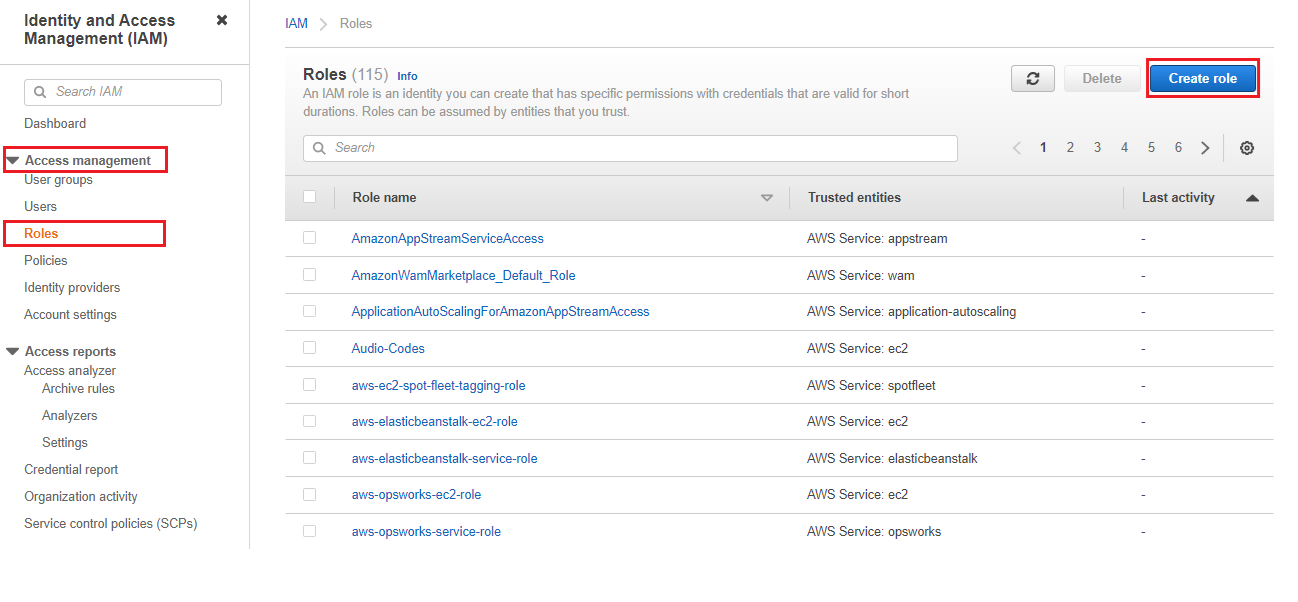
Figure 7 : The Roles page using which new role can be created
-
The context sensitive right panel of Figure 7 displays all the pre-existing roles.
-
In Figure 7, click the Create Role button to create a new role.
-
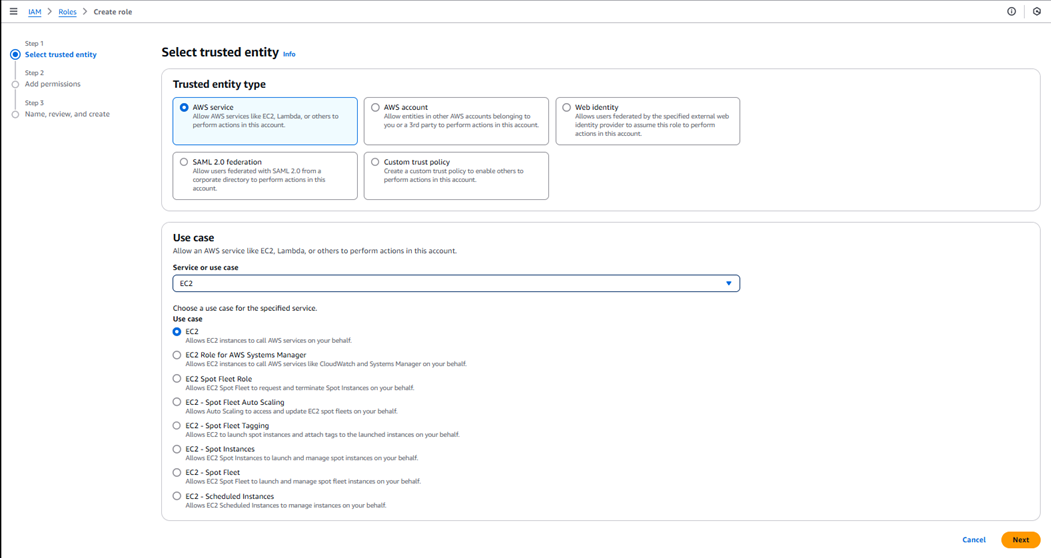
Figure 8 will then appear. Here, choose the AWS service tile as the Trusted entity Type.

-
Now, choose EC2 from the Service or use case list as shown in Figure 9.
-
Clicking the Next button in Figure 9 will reveal Figure 10. In this page, all the policies that pre-exist in your environment will be listed. Select the policy that you have created exclusively for monitoring purpose and click the Next button.
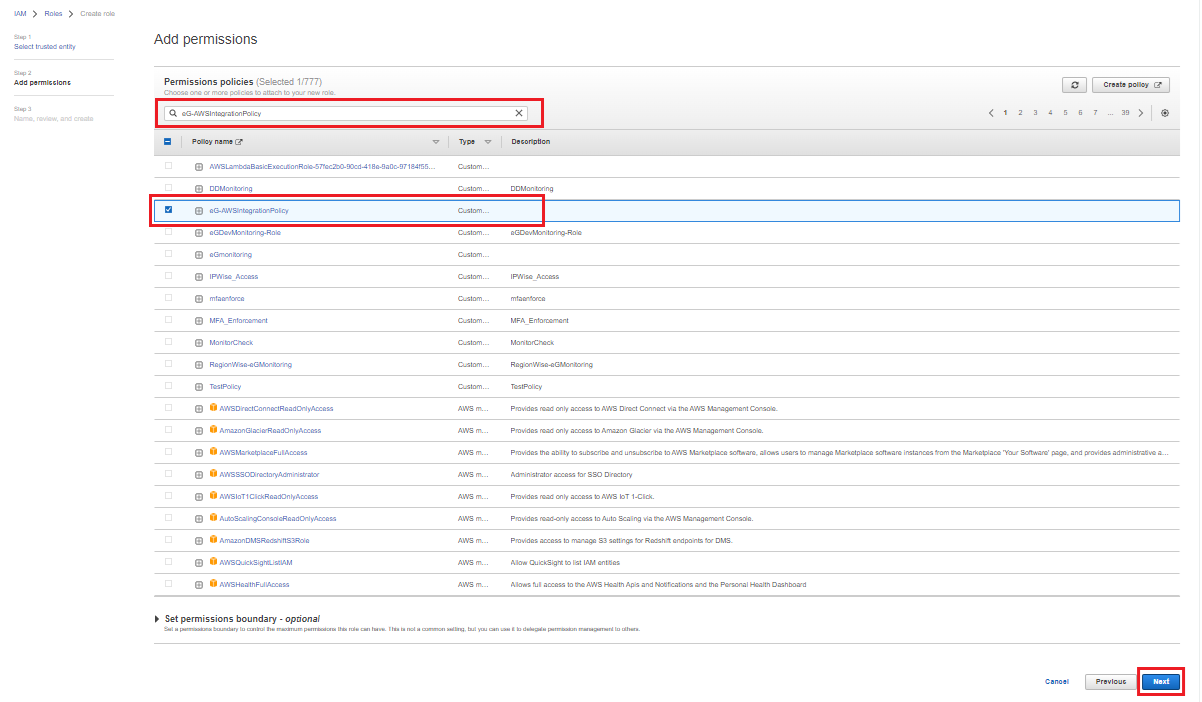
Figure 10 : Associating the newly created Policy with the role
-
In Figure 11 that then appears, specify the name of the role that you wish to create in the Role name text box. Also, specify a description of your choice in the Description text box. Remember that the Role name that you specify here should be specified against the AWS ROLE NAME parameter while configuring the tests pertaining to AWS Cloud component.
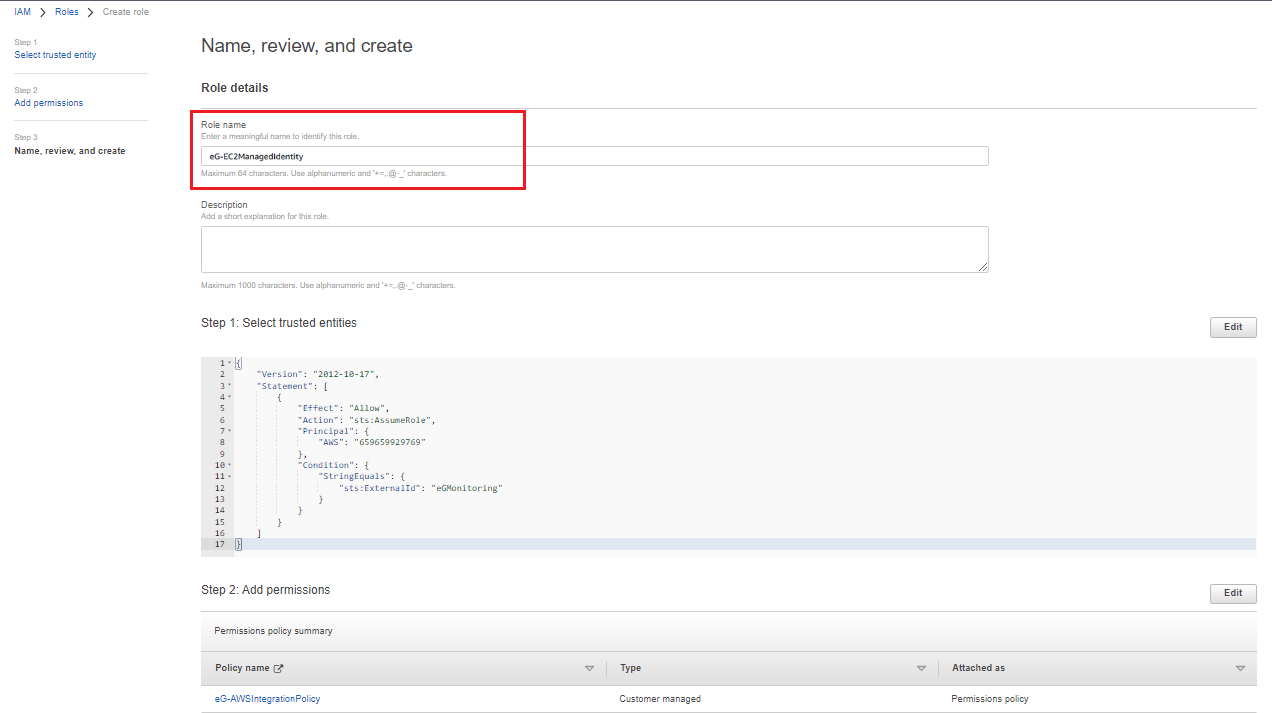
Figure 11 : Providing the name for the role that is to be created
-
Clicking the Create Role button at the right bottom of Name, review and create page (Figure 11) will create the new role.
Assigning the Role to an EC2 Instance in the Target Environment
To assign the newly created role to an EC2 instance, do the following:
-
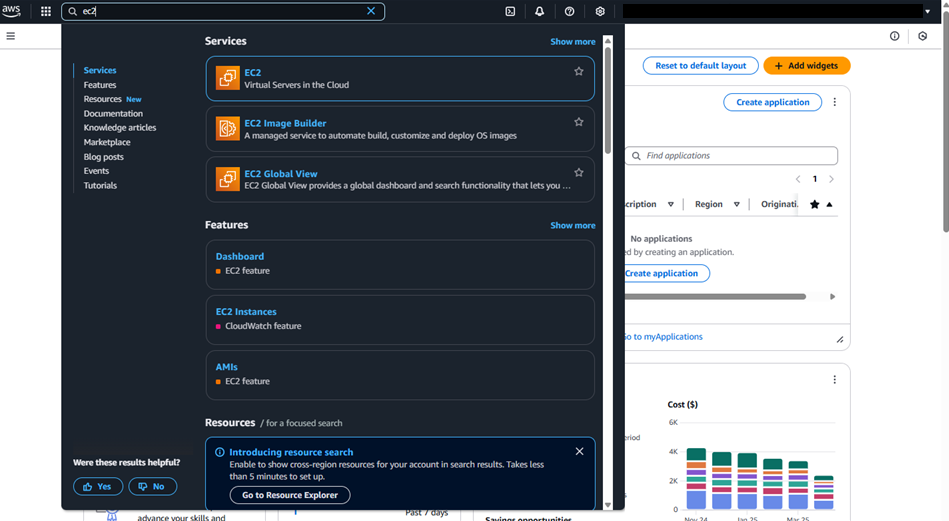
From the AWS console, navigate to the Services page (see Figure 12). Keep scrolling down this page until you view the EC2 tile or search for EC2 from the search bar of Figure 12.
-
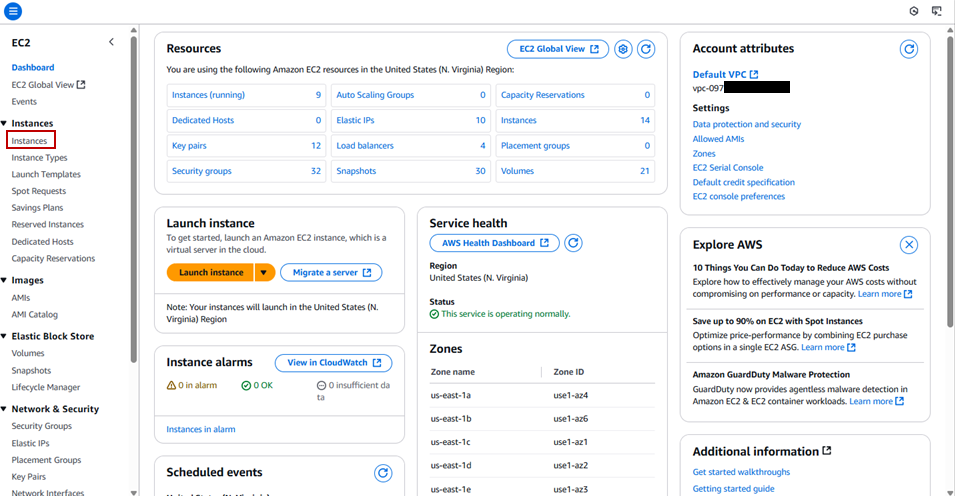
Clicking the EC2 tile in Figure 12 will lead you to Figure 13.
-
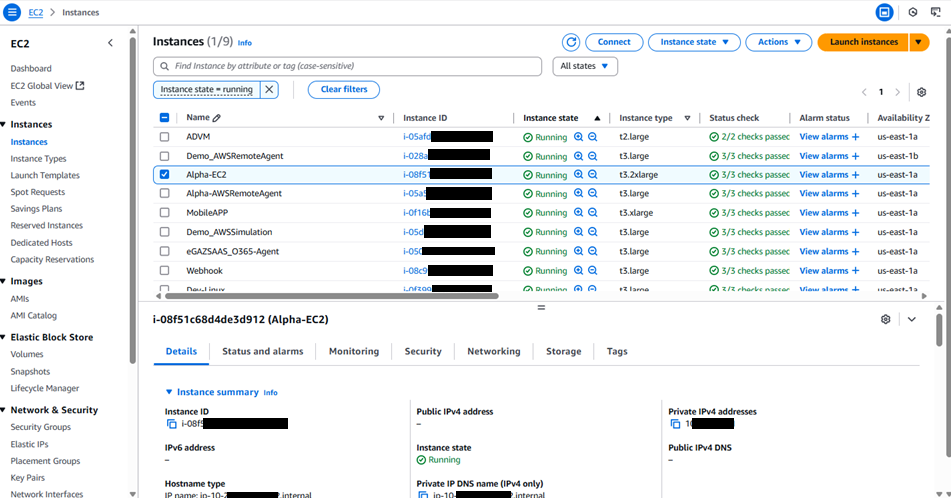
In Figure 13, expand the Instances list available in the left panel and click the Instances option. Figure 14 then appears.
-
You can either create a new EC2 instance for monitoring purpose or use an existing EC2 instance. In our example, we are using an existing EC2 instance. In Figure 14, select an EC2 instance that you wish to assign the newly created role.
-
Now, expand the Actions list and navigate through the menu sequence: Security -> Modify IAM role as shown in Figure 15.
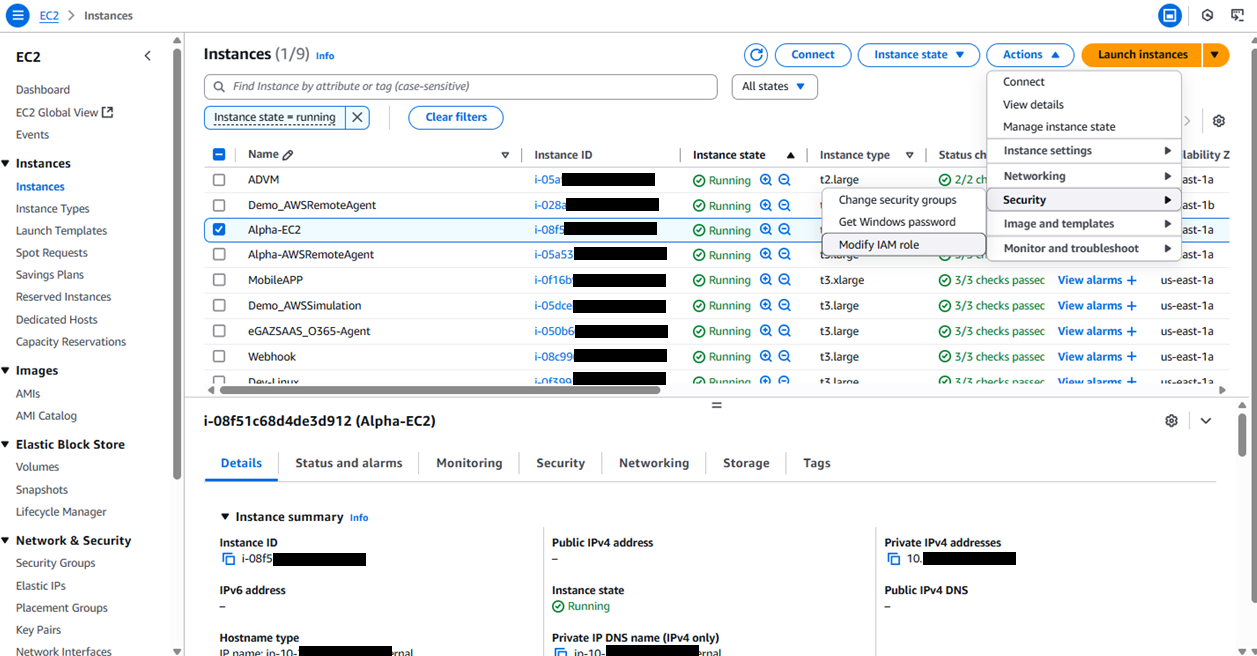
Figure 15 : Expanding the Actions list for the chosen EC2 instance
-
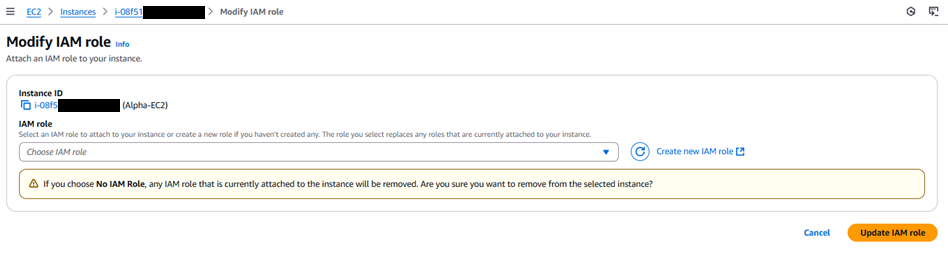
Figure 16 then appears.
-
Pick the newly created role to associate with the EC2 instance from the IAM role list (see Figure 17).
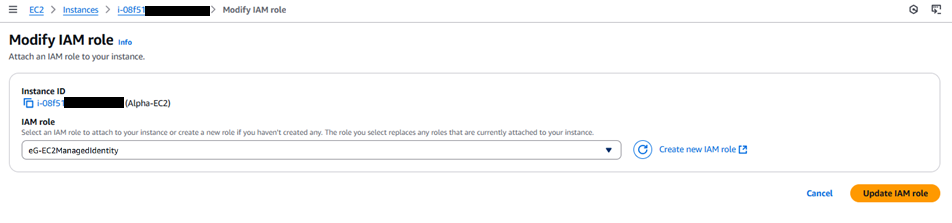
Figure 17 : Choosing the newly created IAM role to assign to the chosen EC2 instance
- Clicking the Update IAM role button in Figure 17 will assign the newly create role to the EC2 instance that you wish to use for monitoring purpose.
Installing the eG Agent on EC2 Instance
Download the eG Agent installable according to the operating system of the EC2 instance and install the agent on the EC2 instance. You can even use the one-liner command available in the eG manager to install the eG agent.
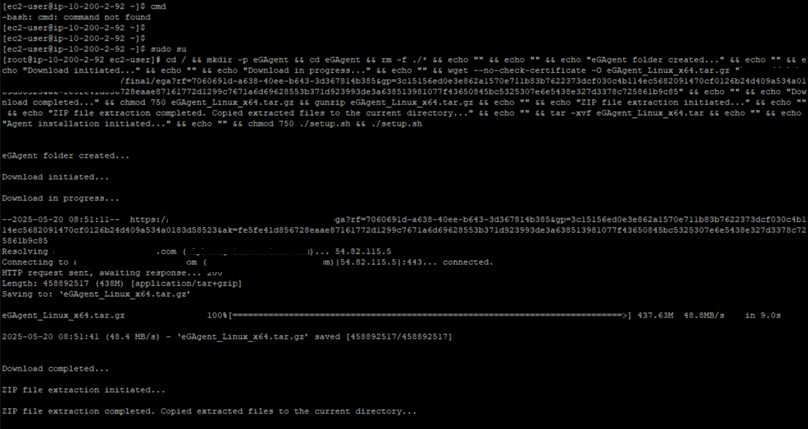
Figure 18 : Installing the eG agent on AWS Cloud
Once the eG agent is installed, note down the host name of the EC2 instance. Ensure that the same host name is used to add the installed eG agent as a remote agent in the eG manager that is about to discover the target AWS Cloud.
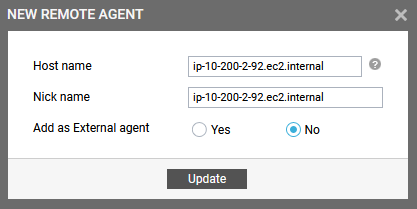
Figure 19 : Adding the eG agent as a remote agent in the eG manager
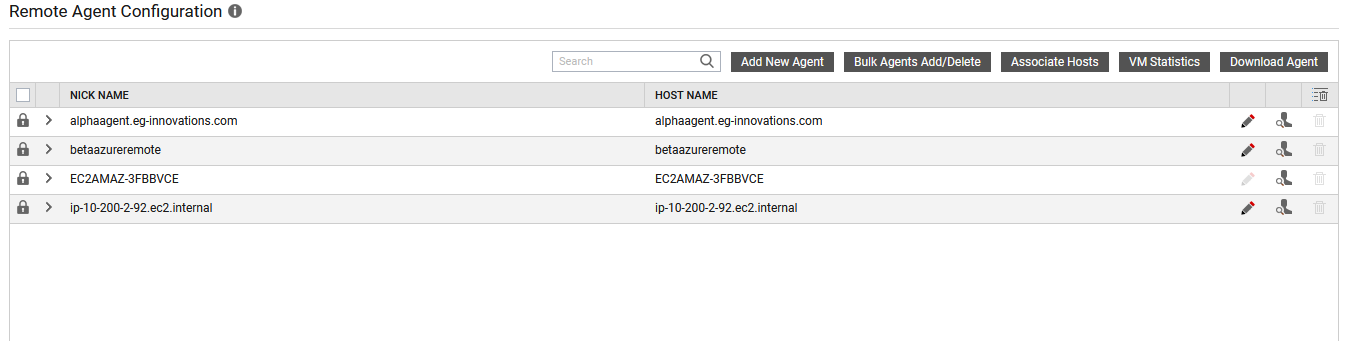
Figure 20 displays the newly configured remote agent.