Office 365 User Dashboard
The Office 365 User Dashboard allows an at-a-glance look at how individual Office 365 users are using business-critical Office 365 services such as storage and communication (over email and Microsoft Teams).
Note:
This dashboard will be available only where Office 365 is licensed using the User-based licensing model of eG Enterprise.
To access this dashboard, you need to follow the Dashboards -> MS Office 365 -> Users menu sequence in the eG monitoring console. Figure 1 will then appear.
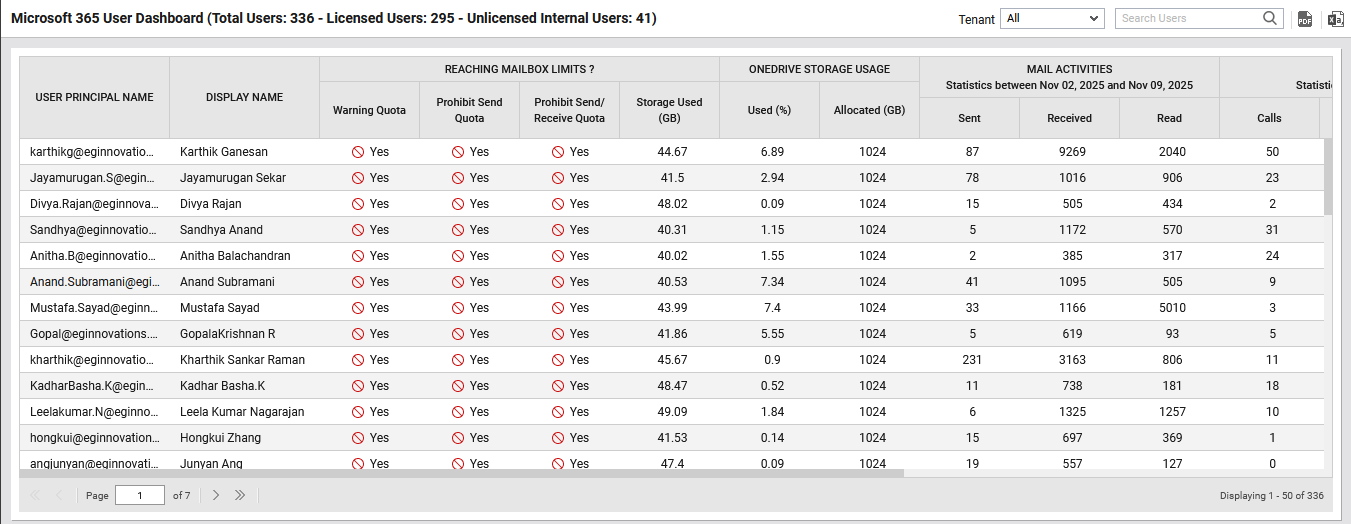
Figure 1 : The Office 365 User Dashboard
By default, the user dashboard lists all users who are currently using the Office 365 services, across all tenants. To zoom into the usage metrics of a particular tenant, select that tenant's name from the Tenant drop-down in Figure 1.
With the help of Figure 1, Office 365 administrators can find quick and accurate answers to the following questions:
-
Has any user's mailbox exceeded their usage quota? If so, which user's mailbox is it and what storage threshold has been violated - Warning quota, Prohibit Send quota, or Prohibit Send/Receive quota?
-
Does any user's mailbox contain an unusually large number of unread messages?
-
Does any user require additional OneDrive storage? Which user would that be?
-
Are there any unlicensed users?
-
Is any user guilty of ineffective Microsoft Teams usage?
Using the insights provided by this dashboard, administrators can quickly and accurately isolate unlicensed users and users who are rapidly running out of resources. Capacity plans and resource allocations for the future can be laid out based on the information gleaned from this dashboard.
You can save this dashboard as a PDF document by clicking on the  icon at the right, top corner of Figure 1. Similarly, you can save this dashboard as an Excel worksheet by clicking on the
  icon.
icon.