How Does eG Enterprise Monitor Omnissa Horizon Cloud Control Plane?
The monitoring of Omnissa Horizon Cloud Control Plane by eG Enterprise includes:
-
synthetic monitoring using the Horizon logon simulator and support of full session simulator.
-
using APIs to gain visibility into the operation of the Horizon cloud control plane and monitor user logons, sessions, desktop pools, etc.
-
using agent/agentless monitoring to monitor the resource plane components.
eG Enterprise provides a specialized Omnissa Horizon Cloud Control Plane model to monitor Omnissa Horizon Cloud Control Plane. To collect metrics from the Omnissa Horizon Cloud Control Plane, eG Enterprise employs an agentless monitoring approach - i.e., it uses an eG remote agent deployed on any Windows/Linux host/VM in the environment with internet connectivity to the cloud. To collect the metrics, the eG remote agent should communicate with Omnissa Horizon Cloud Control Plane and pull metrics using the REST API commands.
Pre-requisites for monitoring Omnissa Horizon Cloud Control Plane
To enable the eG agent to perform the above, you need to make sure that the following pre-requisites are fulfilled:
-
A service account allows Omnissa console to automatically integrate and interact with external systems and services without requiring manual intervention. This enables smoother data flow and reporting processes, which are crucial for intelligence and analytics functions. Using this service account, the API Client ID and API Client Secret can be generated. The generated API Client ID and API Client Secret are used to authenticate the application or user requesting access to the control plane. By providing these credentials, the system can verify that the request is coming from a legitimate and authorized source. To create a service account and to generate the API Client ID and API Client Secret in Omnissa console, refer to Creating Service Account with API Client ID/ API Client Secret.
-
Once the service account is created, an API token needs to be generated in Omnissa console that acts as an unique identifier, authenticating the administrators to collect metrics from the target Omnissa Horizon Cloud Control Plane using REST API. Service account helps protect the platform from unauthorized access and potential security breaches. An API token is created in the Omnissa Horizon Cloud Control Plane console and the steps on how to create a new API token has been explained in Creating a new API token
Creating Service Account with API Client ID/ API Client Secret
The below steps guide you on how to create a Service Account and generate API Client ID/ API Client Secret in Omnissa console which is a mandatory requirement. This is applicable for Horizon Cloud User Logon test in which API Client ID and API Client Secret serves as parameters.
-
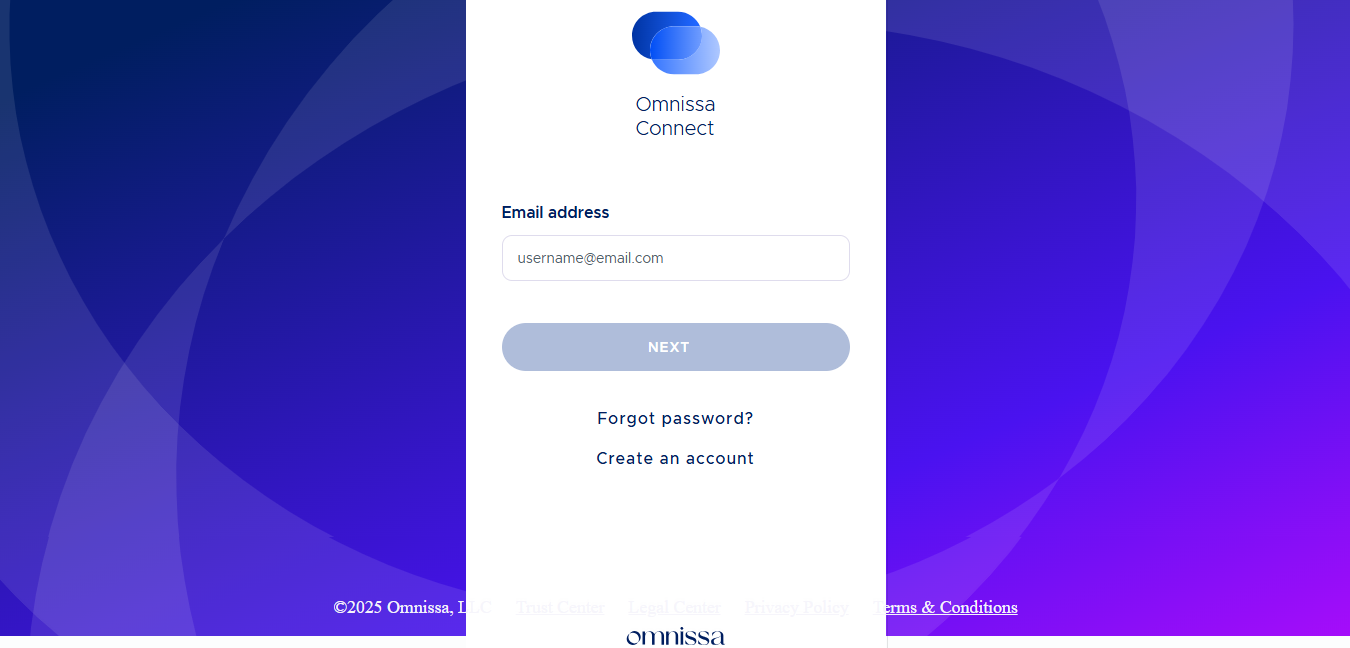
Login to the Omnissa console using logon credentials (see Figure 1).
-
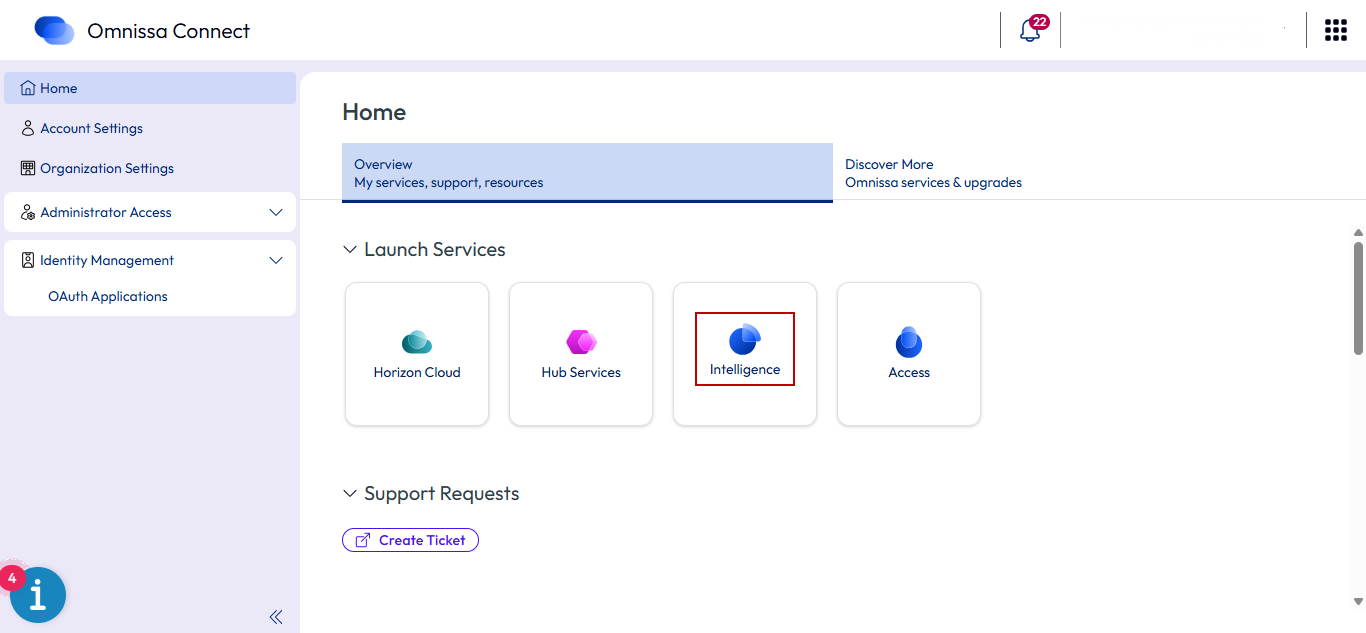
In the Home page of Omnissa Connect console, select Intelligence launch option in the Launch Services section. This Intelligence service offers advanced analytics and reporting capabilities (see Figure 2).
-
In Omnissa Intelligence page, click the Accounts tab and then select the Service Account menu in the left panel (see Figure 3).
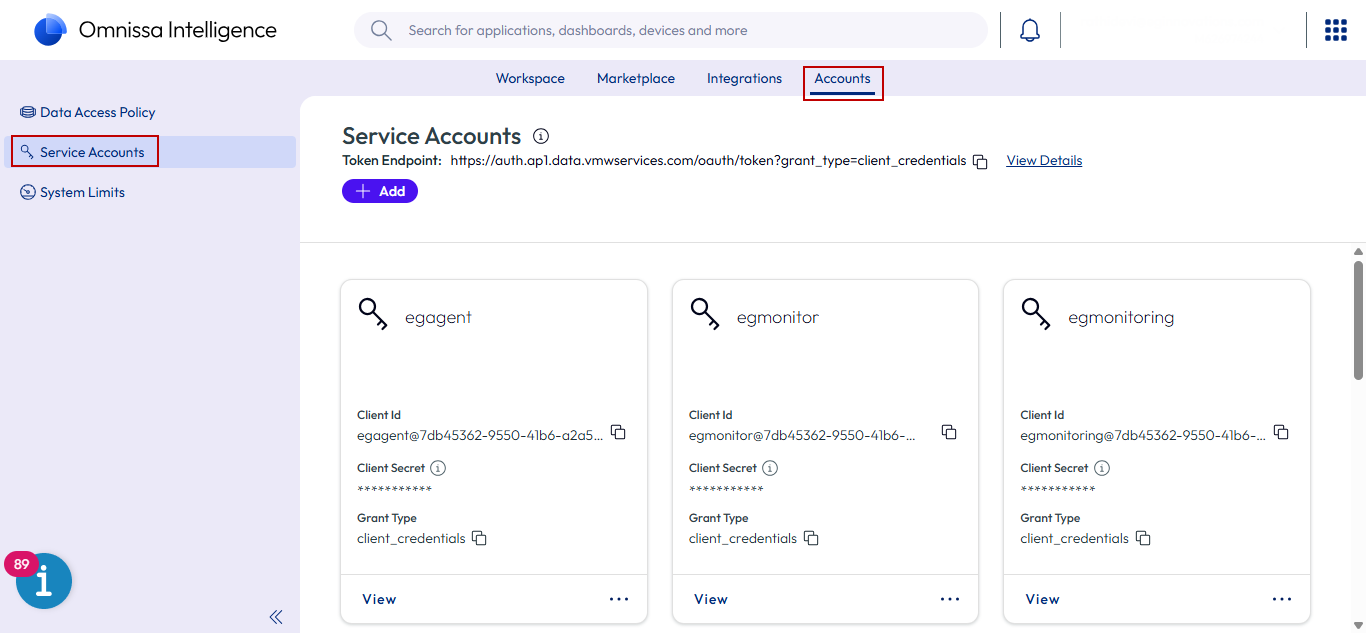
Figure 3 : Service Accounts menu in the left panel of Accounts tab page
-
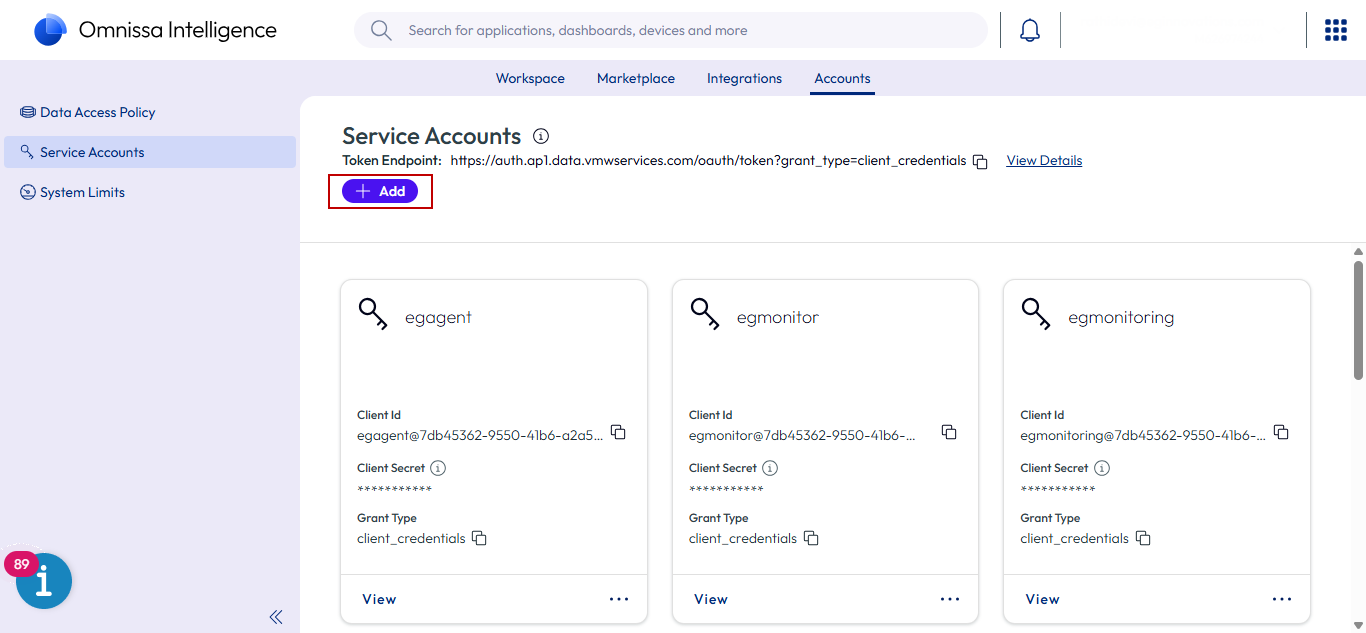
Click the Add button in the Service Accounts section in the Omnissa Intelligence page (see Figure 4).
-
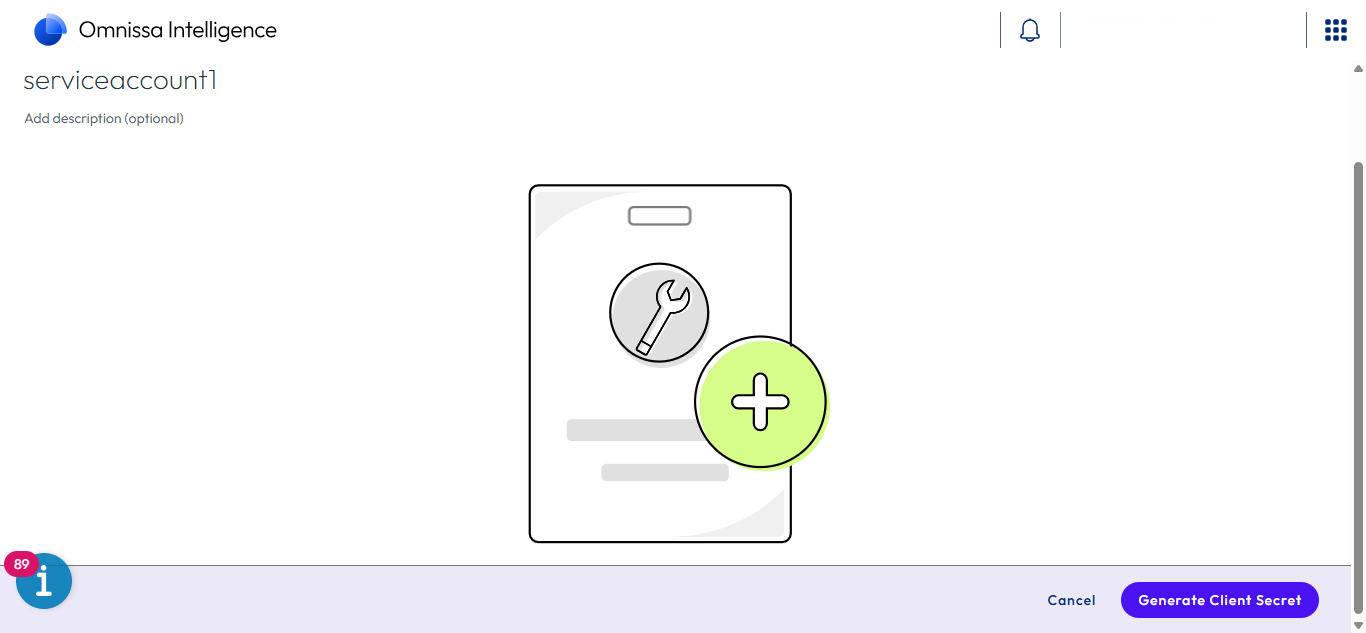
Specify the service name in the Add Service Account page based on the naming conventions (as listed in this page) and then click the Generate Client Secret button (see Figure 5).
-
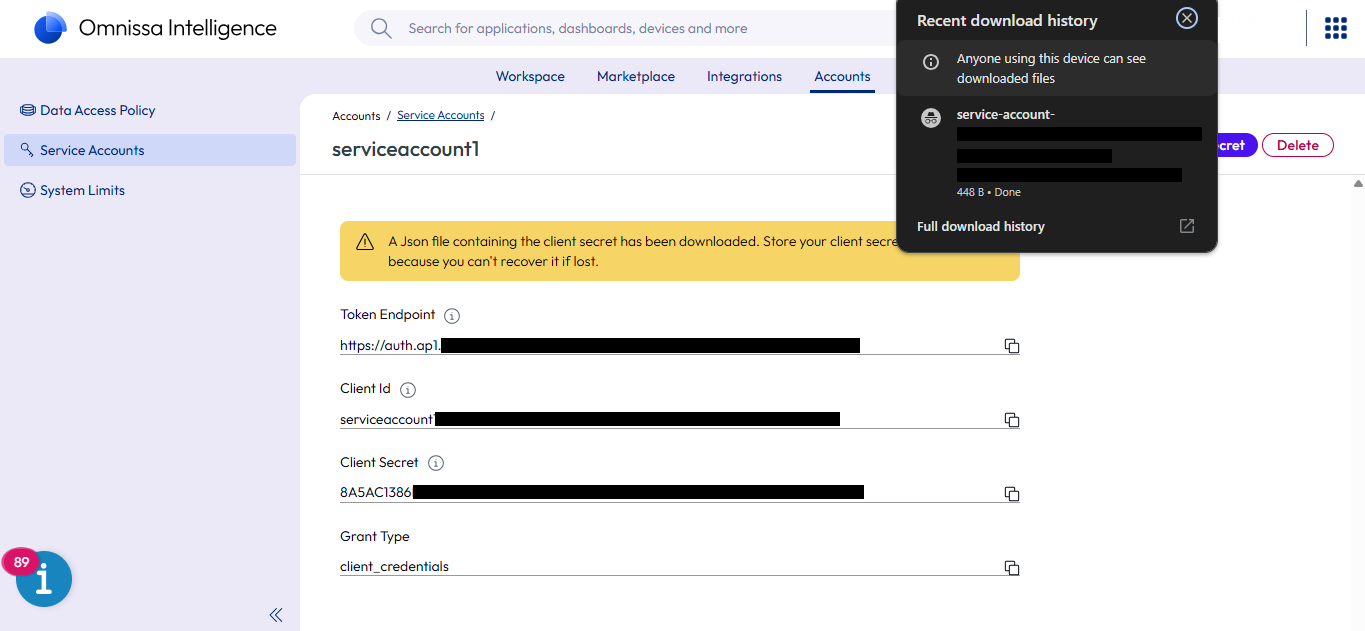
Once the Generate Client Secret button is clicked, the service name with the Client ID and Client Secret will be generated and listed in the Download list (see Figure 6).
-
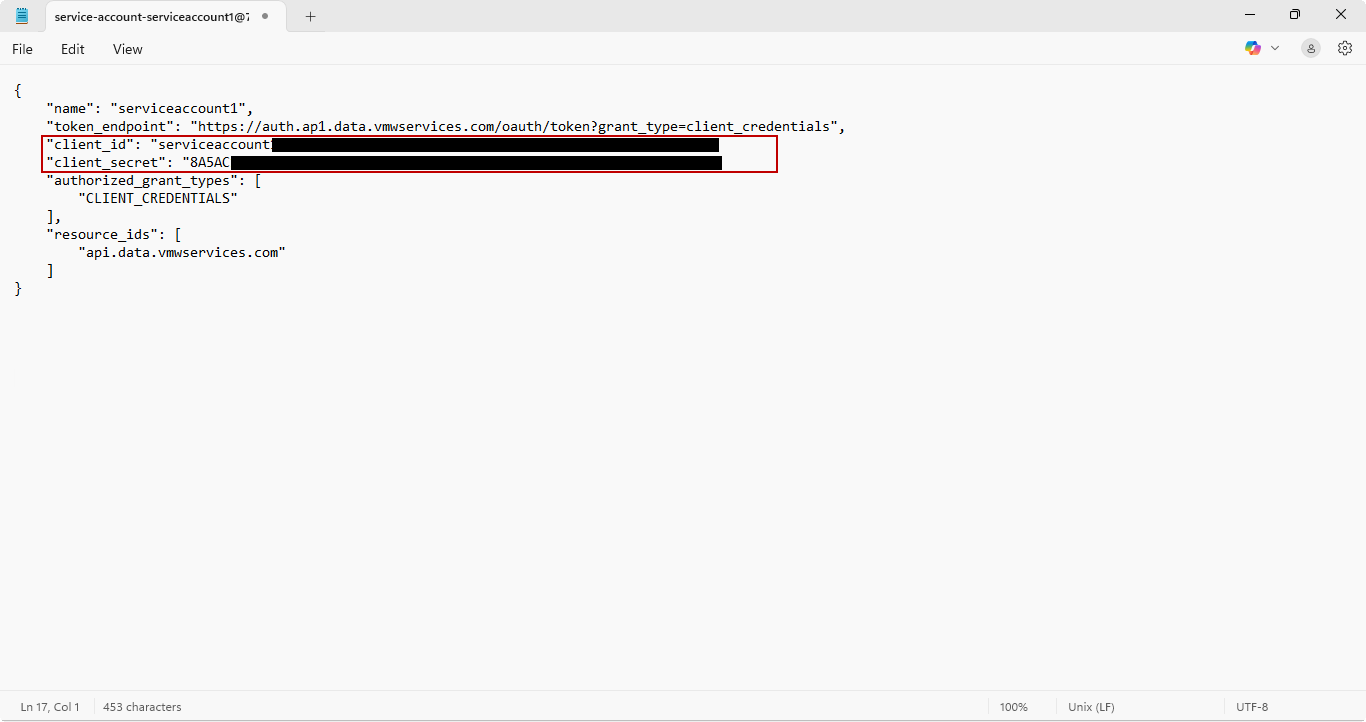
The Client ID and Client Secret generated can be viewed in Notepad and they are used as parameters in the Logon test to collect the metrics related to logon (see Figure 7).
Creating a new API token
The below steps guide you on how to create an API Token in Omnissa console.
-
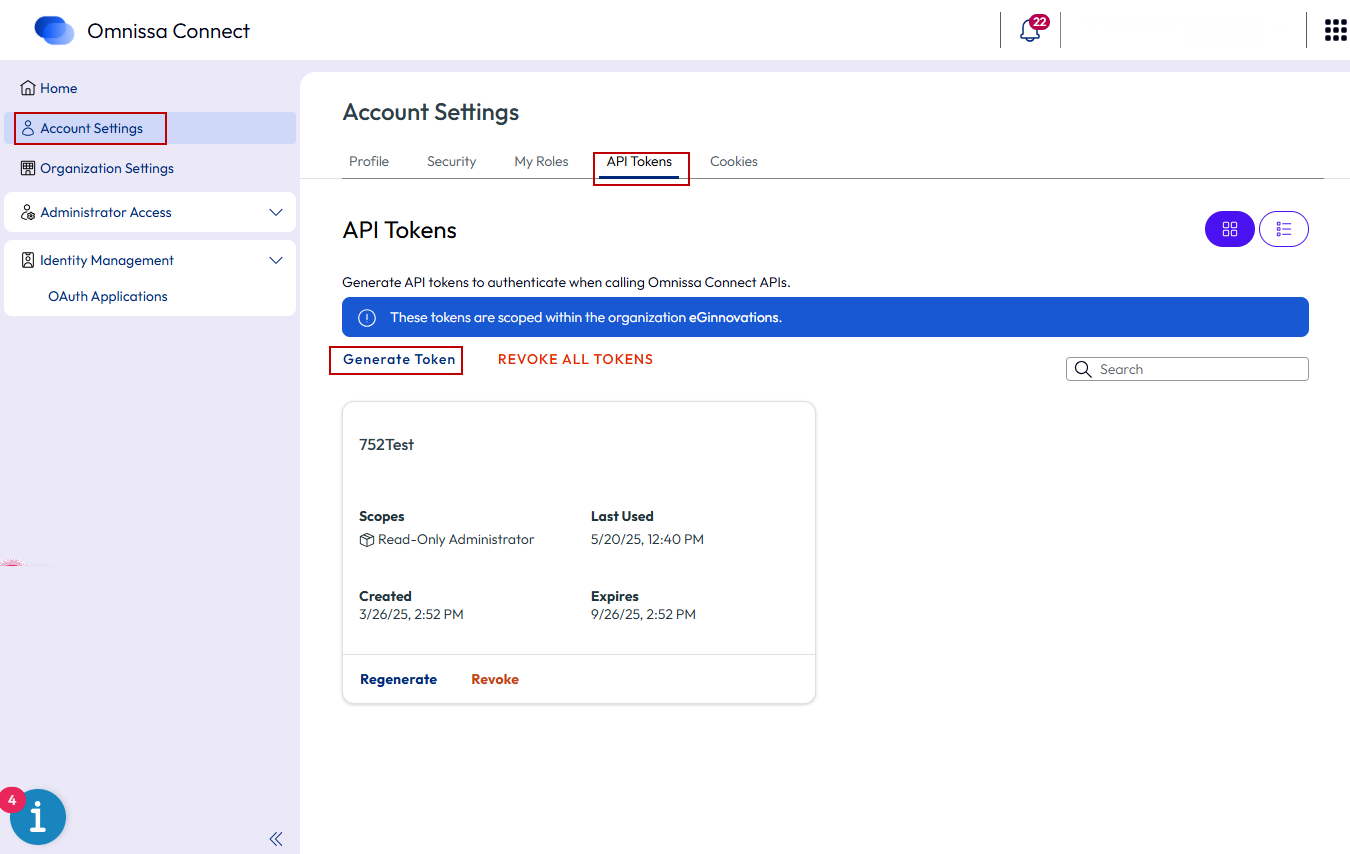
In Omnissa Connect console, select Account Settings menu option from the left panel and it will be navigated to Account Settings page. In the Account Settings page, select API Tokens tab and click the Generate Token option (see Figure 8).
-
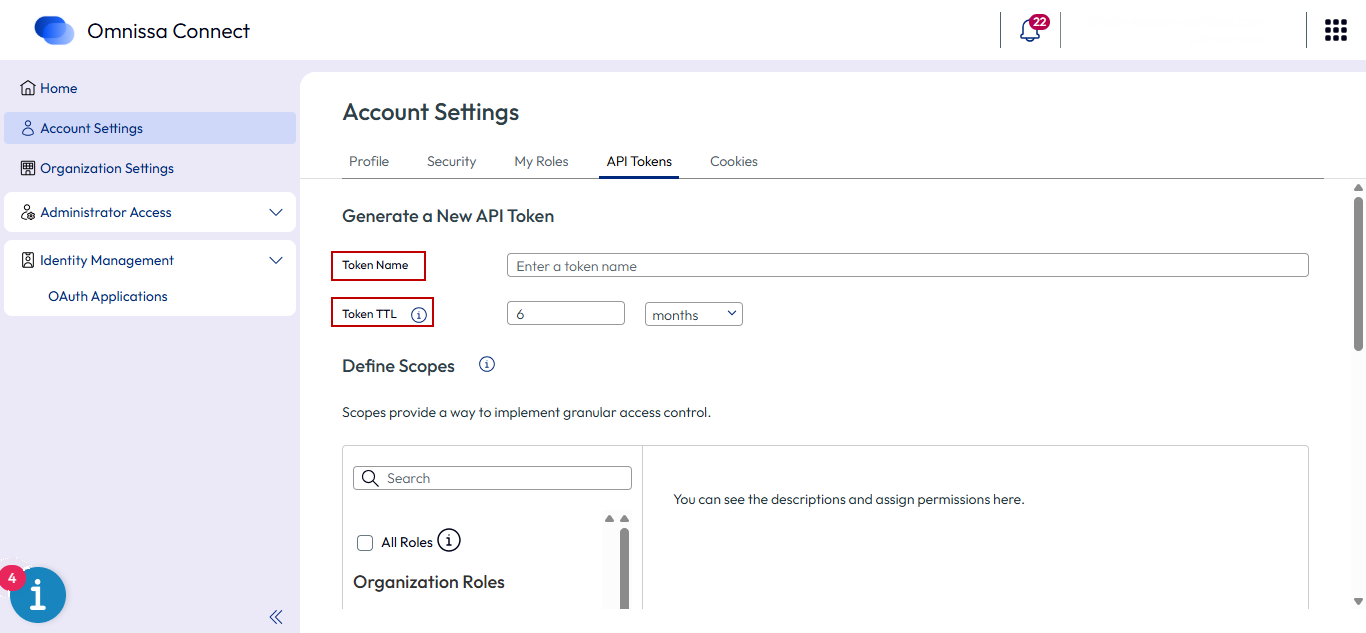
Specify the Token name and Time to Live (Token Validity) details as shown in Figure 9.
-
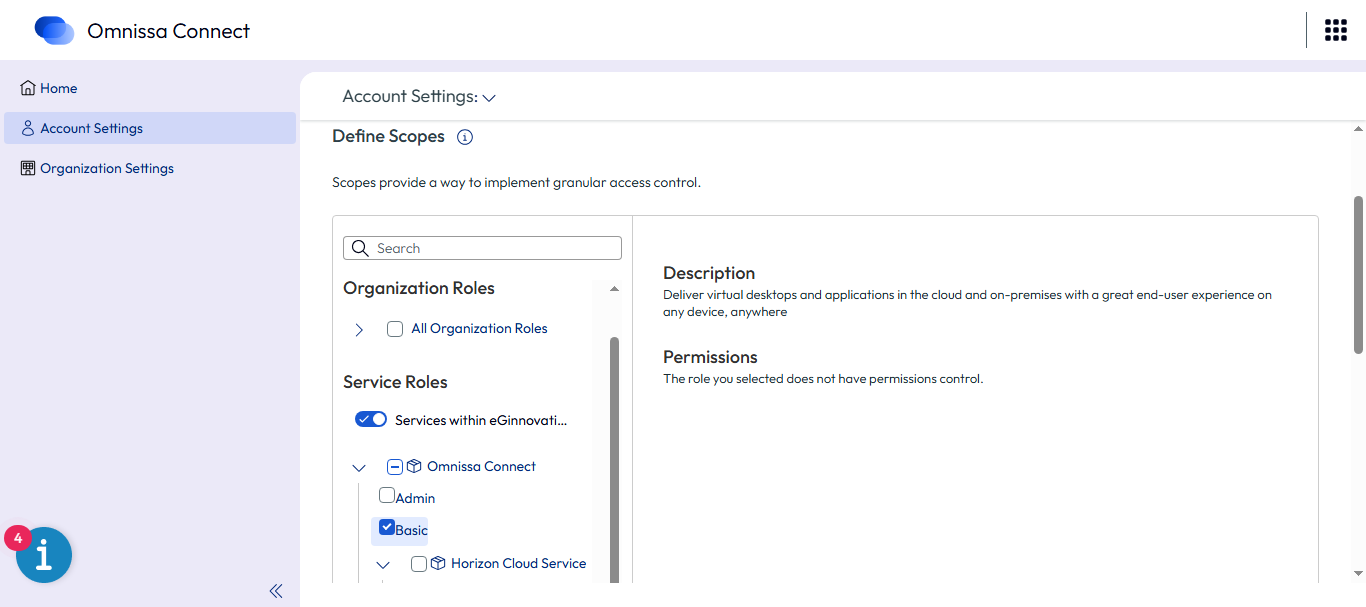
For assigning the Service Role, click the Horizon Cloud Service option from the Services Roles section (see Figure 10).
-
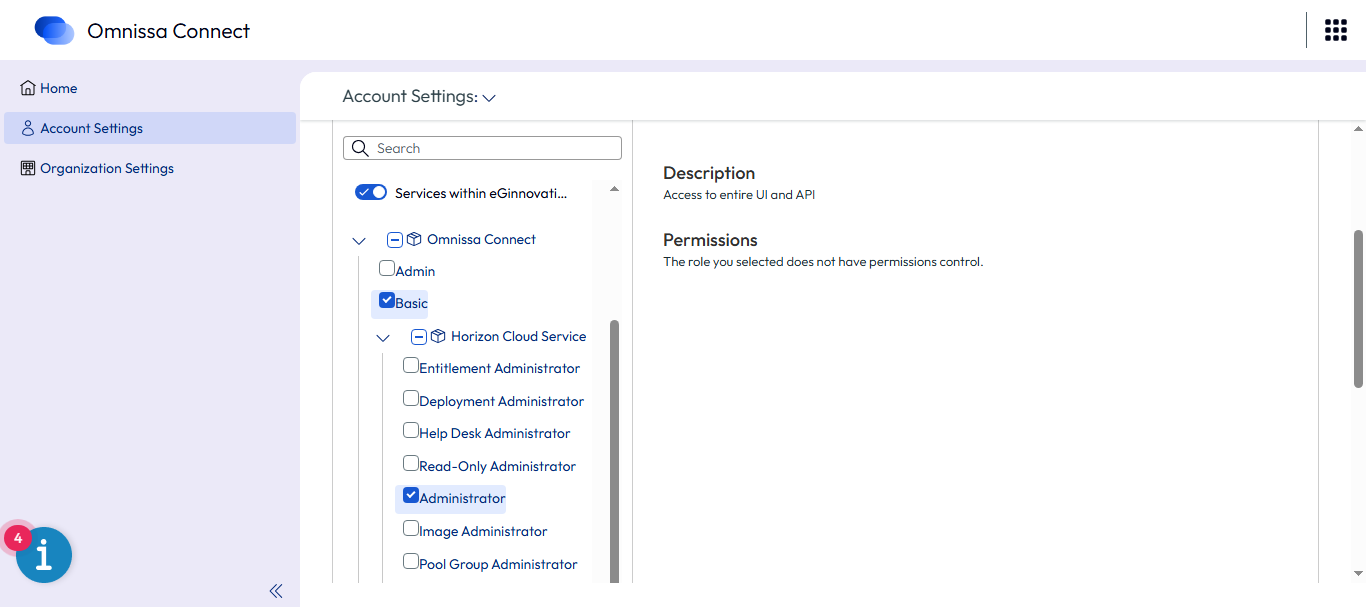
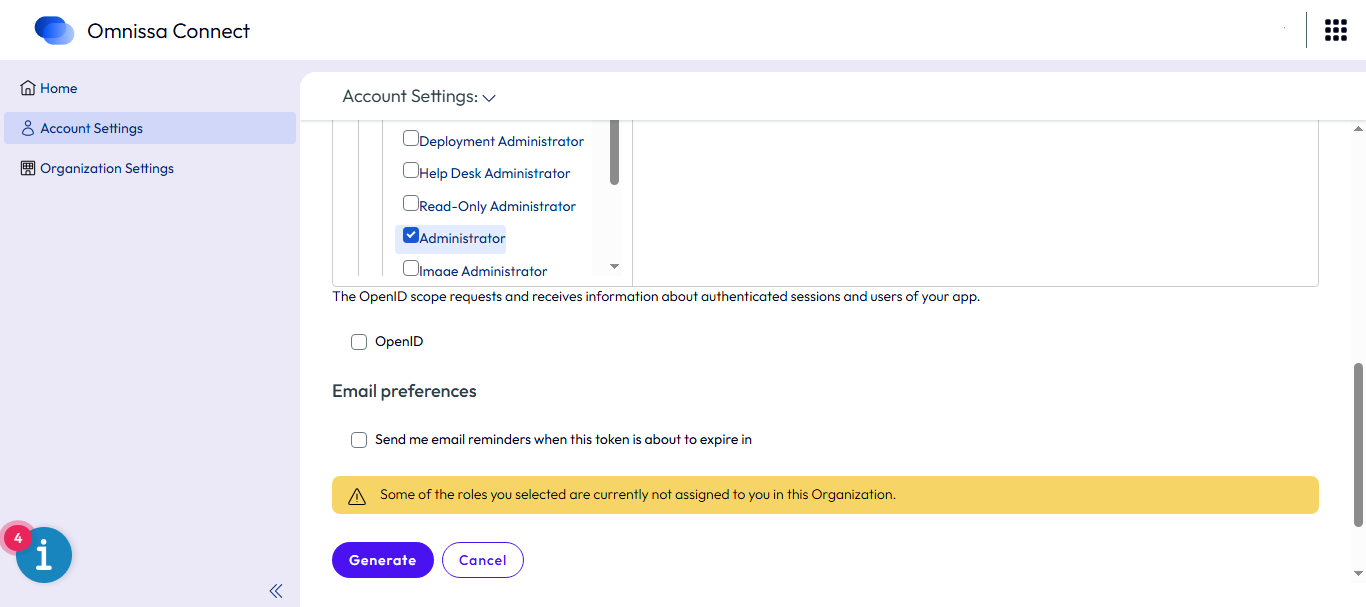
Select the Administrator option from the Horizon Cloud Service list (see Figure 11).
-
Click the Generate button to generate the API Token (see Figure 12).
-
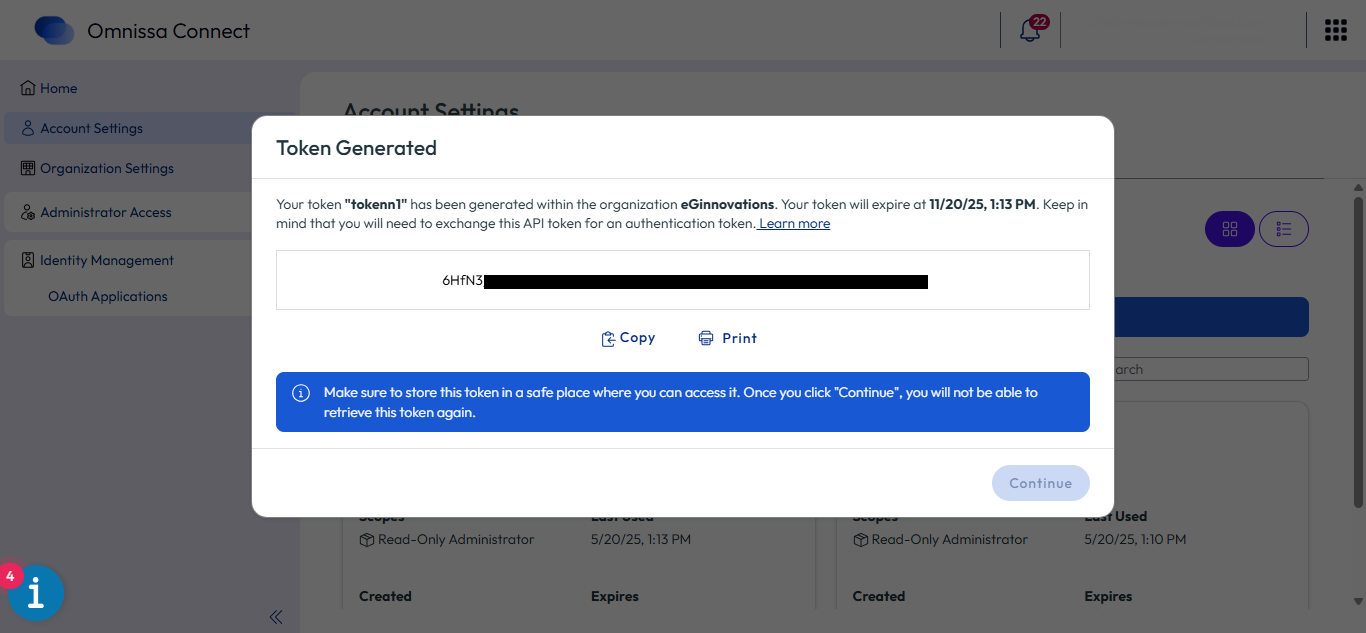
The API token gets generated as shown in Figure 13.