Adding Oracle VM Server 4.x
eG Enterprise cannot auto-discover Oracle VM Server 4.x. This implies that you need to manually add the component for monitoring. The steps for manually adding the Oracle VM Server 4.x component are detailed below:
-
Log into the eG administrative interface.
-
Click on the Add Component button in the right corner of the Components at a Glance page that appeared or follow the Infrastructure -> Components -> Add/Modify menu sequence.
-
The Components page will then appear. In the Components page, select Oracle VM Server 4.x as the Component type and click the Add New Component button.
-
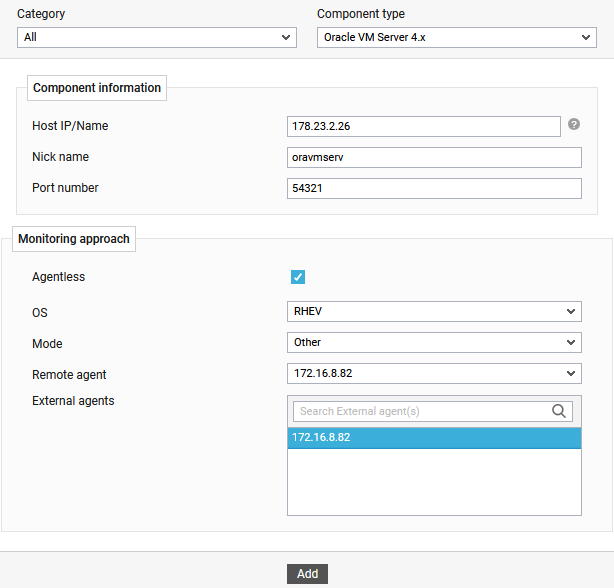
Figure 1 will then appear.
-
When Figure 1 appears, specify the Host IP the Nick name and Port Number. By default the Port Number will be 54321.
-
Since Oracle VM Server 4.x can be monitored in an Agentless manner alone, the Agentless flag will be enabled by default.
-
By default, RHEV is selected as the OS, Other as the Mode.
-
Then, pick the Remote Agent that should do agentless monitoring of the server.
-
Next, assign an External Agent to the server.
-
Finally, click the Add button to add the server to the eG Enterprise system. Components manually added will be automatically managed by eG Enterprise.