Virtual Machine State Test
This test continuously monitors the target Oracle VM Server 4.x and reveals the count of registered/powered on or off/orphaned/suspended virtual machines on the target hypervisor. In addition, this test also reports the detailed diagnosis that reveals the list of virtual machines that are registered/powered off/orphaned/suspended. This way, you can easily isolate the virtual machines that are powered off, orphaned or suspended. Besides, this test also reports the number of VMs that are migrated from or to the target hypervisor. In the process, you can also determine how many of the VMs are assigned with users.
Target of the Test: An Oracle VM Server 4.x
Agent running the test: A remote agent
Output of the test: One set of results for the Oracle VM Server 4.x being monitored.
| Parameter | Description |
|---|---|
|
Test period |
How often should the test be executed. |
|
Host |
The host for which the test is to be configured. |
|
Management Server Host IP, Management Server Domain, Management Server Port, Management Server User, Management Server Password |
To auto-discover the VMs on a target Oracle VM Server 4.x and obtain the outside view of the performance of each VM, the eG agent needs to connect to the OLVM Manager that manages the target Oracle VM Server 4.x. To enable the eG agent to obtain the outside view, you need to configure the test with the following:
If the Oracle VM server being monitored was discovered via an OLVM manager , then the IP address, port number, domain name, and user credentials of the OLVM manager used for discovery will be automatically displayed against the respective parameters. If the Oracle VM server being monitored was not discovered via an OLVM manager , but you still want to use an OLVM manager for obtaining the outside view, then, you can select any IP address of your choice from the Management Server Host IP list. By default, this list will be populated with the IP addresses/host names of all the OLVM managers that were configured for the purpose of discovering the Oracle VM servers. If you select an Management Server Host from this list, then the corresponding port number, domain name, and user credentials will be automatically displayed against the respective parameters. On the other hand, if the OLVM manager that you want to use for metrics collection is not available in the Management Server Host list, then, you can configure an OLVM manager on-the-fly by picking the Other option from the Management Server Host list. An ADD THE OLVM MANAGER DETAILS window will then pop up. Refer to Configuring an OLVM Manager to Use for Monitoring the Oracle VM Server 4.x to know how to add an OLVM manager using this window. Once the OLVM manager is added, its IP address, port number, domain name and user credentials will be displayed against the corresponding parameters. |
|
Confirm Password |
Confirm the the Management Server Password by retyping it here. |
|
SSL |
If the OLVM manager to which the eG agent should connect is SSL-enabled, then set this flag to Yes. If not, set it to No. |
|
Detailed Diagnosis |
To make diagnosis more efficient and accurate, the eG Enterprise embeds an optional detailed diagnostic capability. With this capability, the eG agents can be configured to run detailed, more elaborate tests as and when specific problems are detected. To enable the detailed diagnosis capability of this test for a particular server, choose the On option. To disable the capability, click on the Off option. The option to selectively enable/disable the detailed diagnosis capability will be available only if the following conditions are fulfilled:
|
| Measurement | Description | Measurement Unit | Interpretation |
|---|---|---|---|
|
Registered VMs |
Indicates the total number of VMs that have been registered with the Oracle VM Server. |
Number |
Use the detailed diagnosis of this measure to view the details of the registered VMs. |
|
Powered on VMs |
Indicates the number of VMs that are currently powered on. |
Number |
To know which are the VMs that are powered on, use the detailed diagnosis capability of this measure (if enabled). |
|
Powered off VMs |
Indicates the number of VMs that are currently powered off. |
Number |
To know which are the VMs that are powered on, use the detailed diagnosis capability of this measure (if enabled). |
|
Suspended VMs |
Indicates the number of VMs that are currently in a suspended state. |
Number |
Use the detailed diagnosis of this measure to know which VMs are currently in a suspended state. The suspend action saves the virtual machine state to disk and stops it. |
|
Orphaned VMs |
Indicates the number of VMs that are currently in an UNKNOWN state. |
Number |
Use the detailed diagnosis of this measure to know which VMs are currently in an unknown state. |
|
Other VMs |
Indicates the number of VMs currently in the image_illegal and not_responding states,. |
Number |
Use the detailed diagnosis of this measure to know which VMs are currently in an image_illegal and not_responding state. |
|
VM templates |
Indicates the number of template VMs currently on the hypervisor.
|
Number |
A template is a "golden" copy of a virtual machine (VM) organized by folders and managed with permissions. They are useful because they act as a protected version of a model VM which can be used to create new VMs. As a template is the original and perfect image of a particular VM, it cannot be powered on or run. You can use the detailed diagnosis of this measure to view the names and IP addresses of the template VMs. |
|
Added VMs |
Indicates the number of VMs that were newly added to the hypervisor since the last measurement period. |
Number |
You can use the detailed diagnosis of this measure to know which VMs were recently migrated to the hypervisor. |
|
Removed VMs |
Indicates the number of VMs that were newly removed from the hypervisor since the last measurement period. |
Number |
You can use the detailed diagnosis of this measure to know which VMs were recently migrated from the hypervisor. |
|
VMs with users assigned |
Indicates the number of VMs that have been assigned to users. |
Number |
To know which VMs have been assigned to users, use the detailed diagnosis capability of this measure (if enabled). |
|
VMs with users unassigned |
Indicates the number of VMs that have not been assigned to users. |
Number |
To know which VMs have not been assigned to users, use the detailed diagnosis capability of this measure (if enabled). |
The detailed diagnosis of the Registered VMs measure reveals the name, IP address, and operating system of the registered VMs.
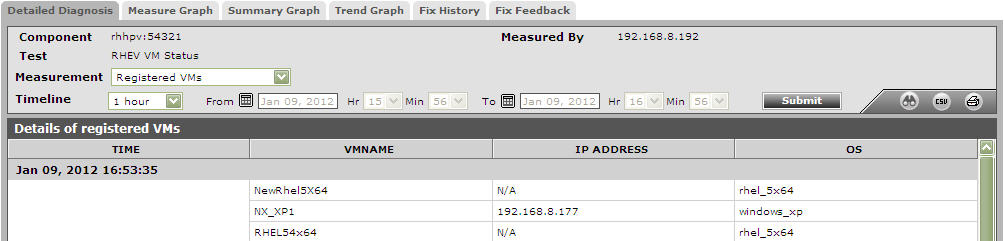
Figure 1 : The detailed diagnosis of the Registered VMs measure
The detailed diagnosis of the Orphaned VMs measure reveals the name, IP address, and operating system of the VMs that are currently in an Unknown state.
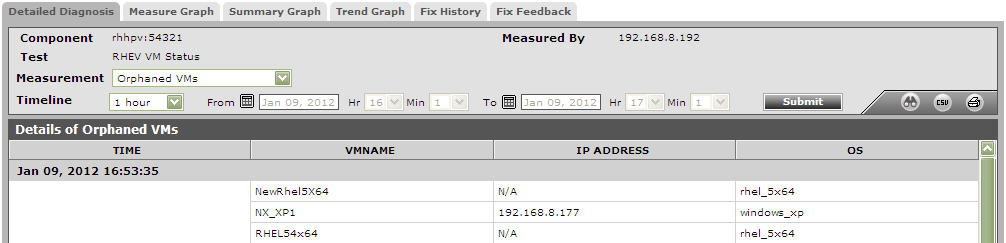
Figure 2 : The detailed diagnosis of the Orphaned VMs measure
The detailed diagnosis of the Powered on VMs measure reveals the name, IP address, and operating system of the VMs that are currently powered on.
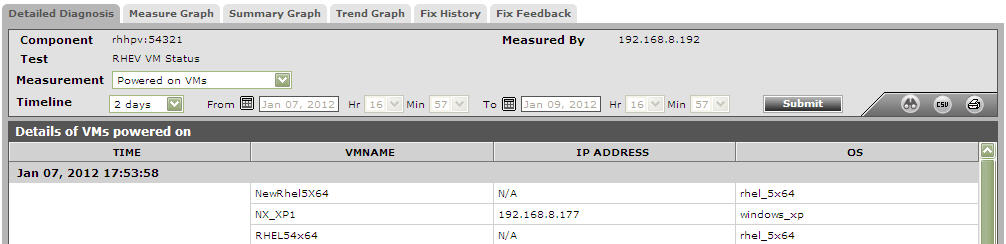
Figure 3 : The detailed diagnosis of the Powered on VMs measure
The detailed diagnosis of the VMs without users assigned measure reveals the name, IP address, and operating system of the VMs that have been not been assigned to any users.
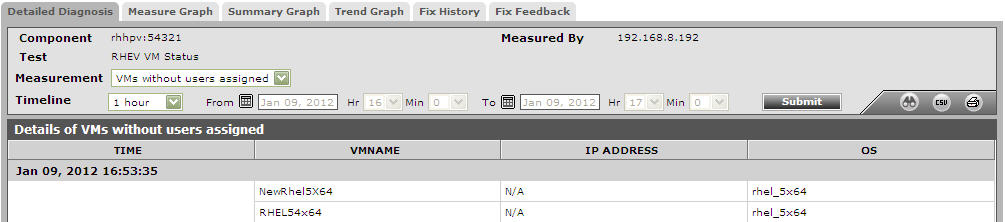
Figure 4 : The detailed diagnosis of the Vms without users assigned measure