Adding PostgreSQL Cluster
eG Enterprise cannot auto-discoverPostgreSQL Cluster. This implies that you need to manually add the component for monitoring. The steps for manually adding thePostgreSQL Cluster component are detailed below:
-
Log into the eG administrative interface.
-
Click on the Add Component button in the right corner of the Components at a Glance page that appeared or follow the Infrastructure -> Components -> Add/Modify menu sequence.
-
The Components page will then appear. In the Components page, select PostgreSQL Cluster as the Component type and click the Add New Component button.
-
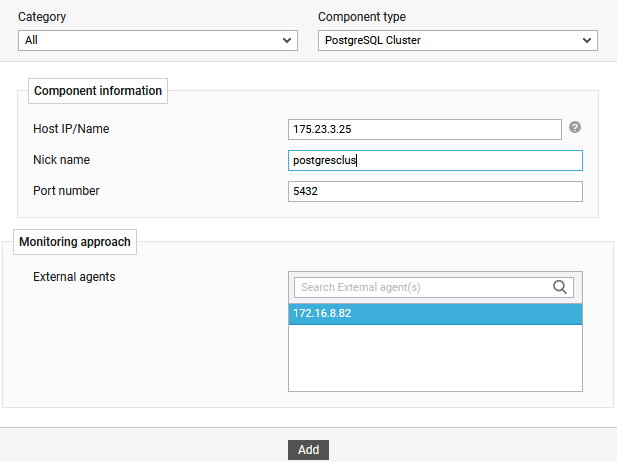
Figure 1 will then appear.
-
Specify the Host IP/Name and the Nick name for the PostgreSQL Cluster component.
-
The Port number will be set as 5432 by default. If the PostgreSQL Cluster is listening on a different port in your environment, then override this default setting (see Figure 1).
-
Select an external agent from the External agents list box and click the Add button to add the component for monitoring.