How to Use the Universal Simulator?
The following sections will describe in detail on how to record a transaction and configure the Universal Simulation component for monitoring.
How to Record a Transaction?
The Universal Simulation Transaction Recorder is a standalone desktop tool that is packaged with the eG agent and is installed on the desktop / VM from where the simulation will happen. This is used to simulate the required transactions and record the entire simulation to be played back at custom intervals later on.
To record a transaction, do the following:
- Login to the host on which the eG agent is installed.
- Execute the UniversalSimulationRecorder.exe from the <EG_INSTALL_DIR>\lib\Synthetic\Universal folder.
-
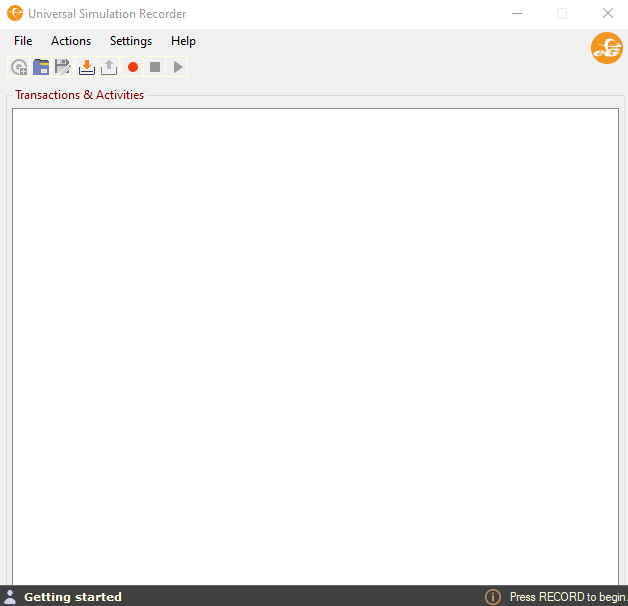
Figure 1 will then appear.
-
To start recording a transaction, click the
 icon in Figure 1. Figure 2 then appears.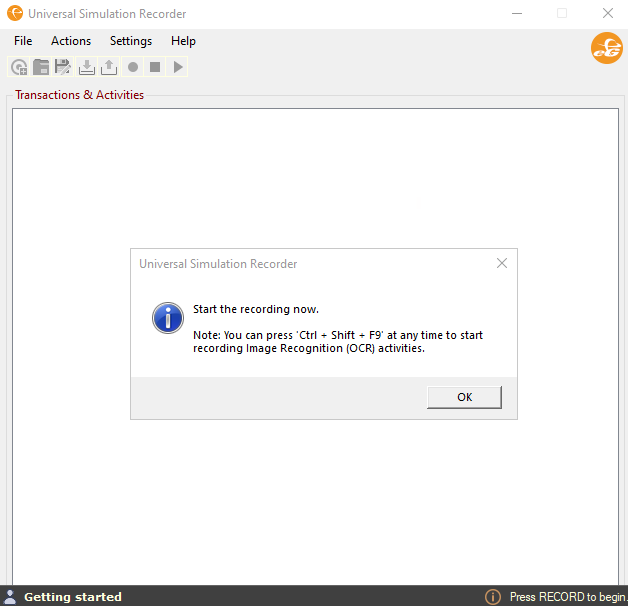
-
Click the OK button in Figure 2. This will help you towards building the script by starting the recording. The primary purpose of the recording is to start capturing the transactions that are to be emulated. Figure 3 will then appear.
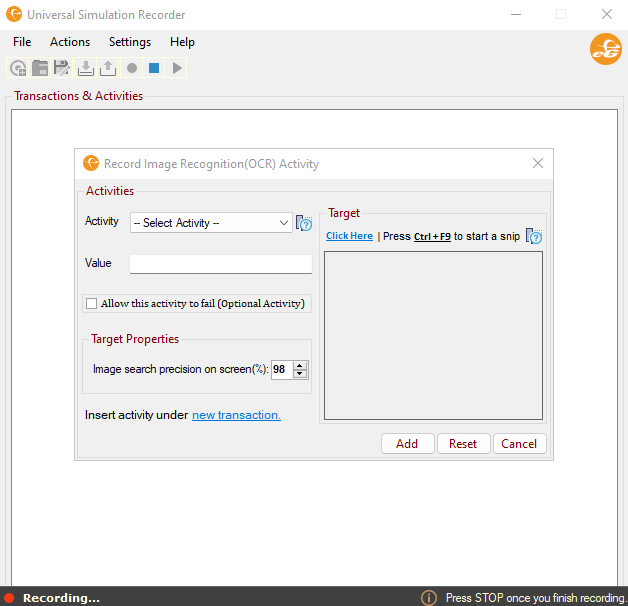
Figure 3 : The Record Image Recognition Activity pop up window
-
Each activity that you do using the Record Image Recognition (OCR) Activity form (see Figure 3) on the thick client/thin client will be recorded. For example, let us say, take the case of accessing an AVD client, launching a desktop, accessing SLA software from the desktop and generating a report. For this, in our example, you open the AVD client, login to the AVD client, enumerate the desktops, launch the desktop, access the SLA software, generate a report and send the report as an email to recipients. These transactions and activity pertaining to the transactions will be recorded in sequence.
-
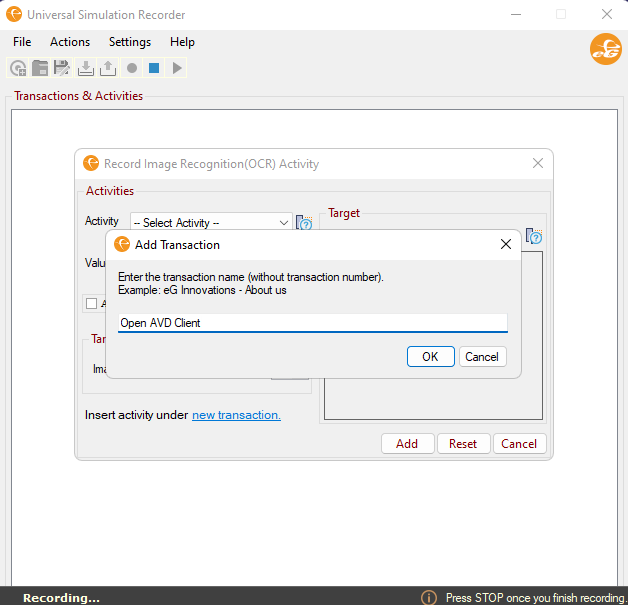
To start with, click the new transaction link in Figure 3. Figure 4 then appears.
-
In Figure 4, specify the name of the new transaction and click the OK button.
-
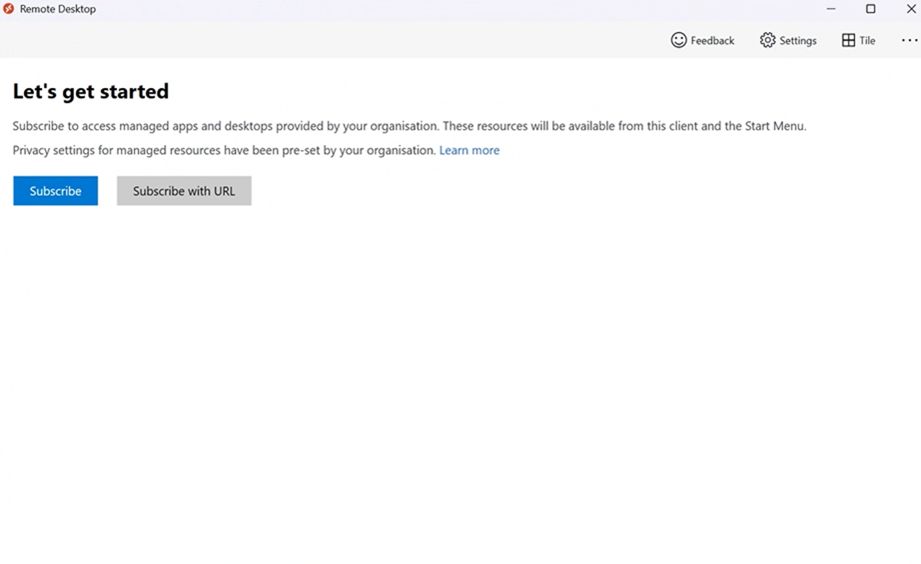
To record an activity in the new transaction, click the Click Here link in Figure 3 or Ctrl+F9 option as shown in Figure 3. In our example, you are trying to open the AVD client. For this, first, you should access the remote desktop or the AVD client. Figure 5 then appears.
-
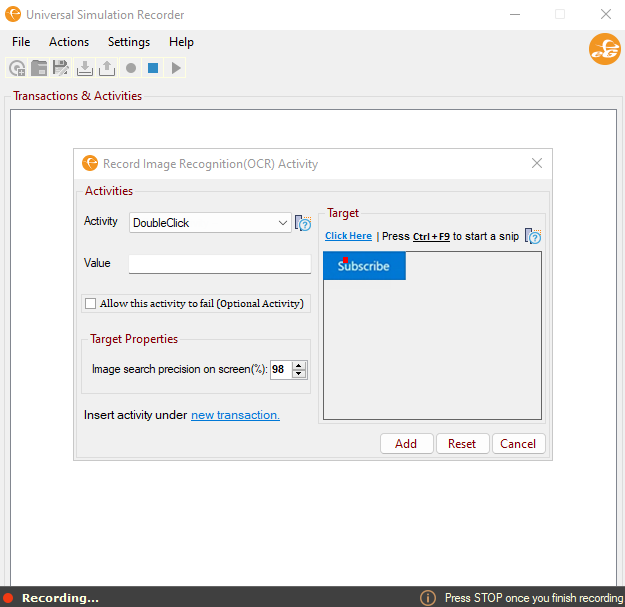
Next, to record an activity of opening the AVD client, pick the DoubleClick option from the Activity list and navigate to Figure 5 to record the activity. Then click the Click Here link in Figure 3 or Ctrl+F9 key in your keyboard. This will open the snipping tool using which you can place the cursor on the Subscribe button and snip a screenshot. This will ensure you that the activity is captured (see Figure 6). To know the activities that are supported by the Universal Simulator in the Activity list, refer to Additional Activities Available for Recording in Universal Simulator and Image Recognition/OCR Activities Available for Recording in Universal Simulator
-
Clicking the Add button in Figure 6 will add the activity to the transaction. Likewise, you can add any number of activities to the transaction and any number of transactions to a script.
-
Once you have performed all the required transactions, you will be prompted if you would like to continue or stop recording the activity as shown in Figure 7.
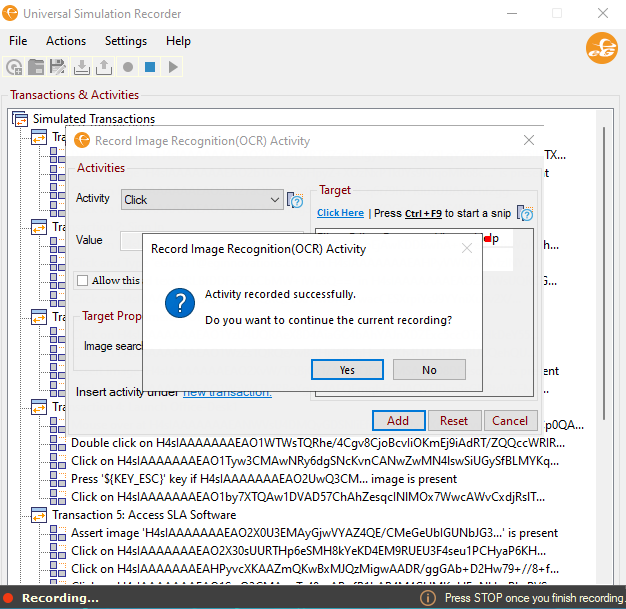
Figure 7 : A message prompting you to choose to continue the recording or not
Click the No button in Figure 7 to stop recording anymore activity. To stop the recording, you can click the by selecting the
 button that appears in the icon ribbon of Figure 8.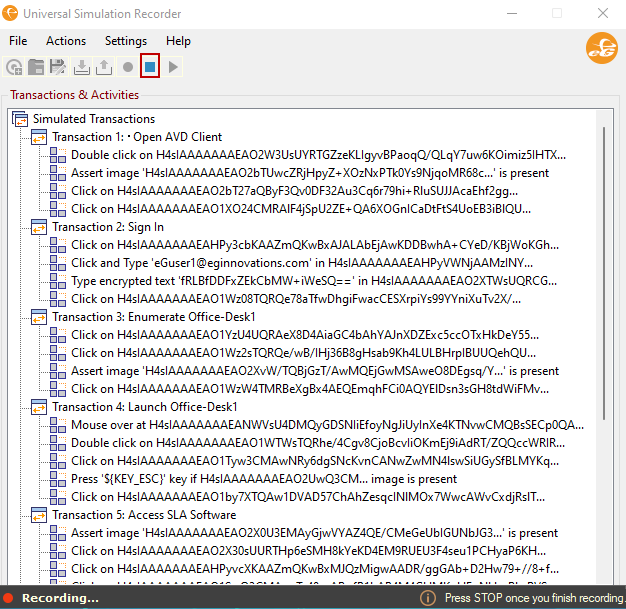
-
Once you have stopped the recording, you can even replay the recording to verify if you have perfectly recorded the script. For this, press the Play button as highlighted in Figure 9.
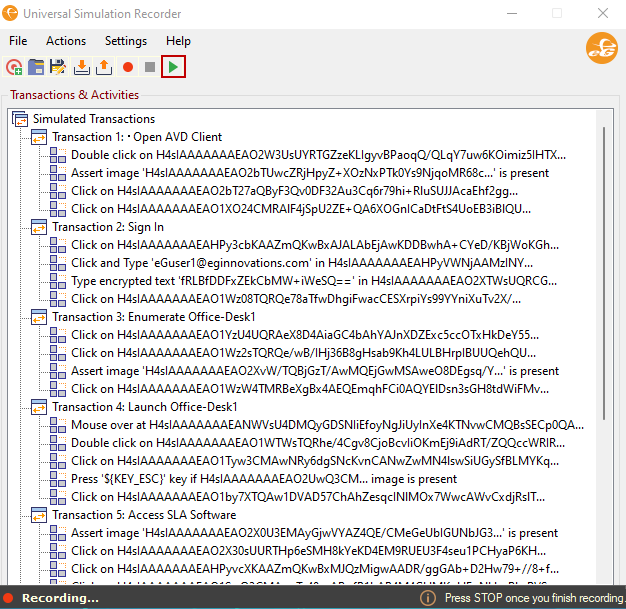
Figure 9 : Clicking the Play button to replay the recorded script
-
Figure 10 displays the sequence of the script that is recorded an AVD Client.
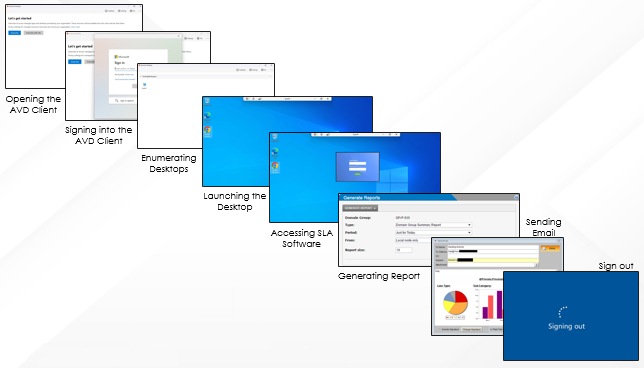
Image Recognition/OCR Activities Available for Recording in Universal Simulator
To start recording an Image recognition/OCR activity as a transaction, click Ctrl+Shift+F9 from the simulation recorder as shown in Figure 2. The steps 4 to 12 in How to Record a Transaction?
The following table lists the OCR activities and the purpose of each activity in detail.
|
Activity |
Description |
Target |
Value |
|---|---|---|---|
|
Click |
Click on a specified image in the Target location. |
The location of the image to be clicked. |
Not applicable. |
|
ClickAndType |
Click on an image in the Target location and set the value as you typed it in. |
The location of the image to be clicked and where the Value is to be typed. |
The value to be typed into the image at the Target location. |
|
Type |
Sets the value of an input field, as though you typed it in. |
The location of the image where the Value is to be typed. |
The value to be typed into the image at the Target location. |
|
TypeEncrypt |
Sets the value of an input field, as though you typed it in. |
The location of the image where the Value is to be typed. |
The encrypted/secret value to be typed into the image at the Target location. |
|
ClickAndTypeWithEncrypt |
Clicks on the image at the Target location and sets the encrypted Value as though you typed it in. |
The location of the image to be clicked and where the Value is to be typed. |
The encrypted/secret value to be typed into the image at the Target location. |
|
MouseOver |
Moves the mouse over (hovers over) the image in the Target location. |
The location of the image to be hovered over with the mouse. |
Not applicable. |
|
MoveMouseTo |
Moves the mouse over (hovers over) the image in the Target location using native mouse\ninput events (low-level Windows API). |
The location of the image to be hovered over with the mouse. |
Not applicable. |
|
AssertImagePresent |
Asserts that the specified image is present on the current screen. |
The image that is expected to be present on the screen. |
Not applicable. |
|
AssertImageNotPresent |
Asserts that the specified image is not present on the current screen. |
The image that is expected to be not present on the screen. |
Not applicable. |
|
DoubleClick |
Double-clicks on the image in the Target location. |
The location of the image to be double-clicked. |
Not applicable. |
|
RightClick |
Perform a right-click on the image in the Target location with the mouse. |
The location of the image to be right-clicked with the mouse. |
Not applicable. |
|
SendKeysIfImagePresent |
Send keystrokes to the active foreground window if the specified image is present on the current screen. This is useful for handling window pop-ups that require explicit keyboard events. |
The image expected to be present on the screen. |
Key or value to be sent on active foreground window. |
|
WaitForImagePresent |
Wait for the Target image to appear on the screen. |
The image that is expected to be present on the screen. |
The amount of time to wait (timeout in seconds). |
|
WaitForImageNotPresent |
Wait until the Target image is no longer present on the screen. |
The image that is expected not to be present on the screen. |
The amount of time to wait (timeout in seconds). |
|
ClickUntilImageIsPresent |
Repeatedly clicks on an image at the Target location until it appears on the current screen. |
The location where the image is to be clicked. |
Not applicable. |
|
SendkeysUntilImageIsPresent |
Repeatedly send keystrokes to the active foreground window if the specified image is present on the current screen. It is useful for handling window pop-ups that require explicit keyboard events. |
The image expected to be present on the screen. |
Key or value to be sent on active foreground window. |
Additional Activities Available for Recording in Universal Simulator
|
Activity |
Description |
Target |
Value |
|---|---|---|---|
|
AssertVariableValueExist |
Asserts that a specified value exists in the stored variable. Verifies that the value of the stored variable at the Target location is the same as the specified value. |
The name of the variable. |
The string that is expected to be present in the variable. |
|
AssertVariableValueNotExist |
Asserts that a specified value does not exist in the stored variable. Verifies that the value of the stored variable at the Target location is not the same as the specified value. |
The name of the variable. |
The string that is expected not to be present in the variable. |
|
EnumDesktopWindows |
Enumerate all desktop windows displayed on the local computer and print their details to a log file. This is useful for debugging. |
Not applicable. |
Not applicable. |
|
AssertFileAvailable |
Assert the availability of an expected file. Verifies that the file specified in the Target location is available. |
The absolute path(including file name) of the file. |
Not applicable. |
|
AssertFileNotAvailable |
Assert the unavailability of an expected file. Verifies that the file specified in the Target location is not available. |
The absolute path(including file name) of the file. |
Not applicable. |
|
AssertProcessRunningByName |
Asserts that an expected process with the given name is running on the local computer. Verifies that the process specified in the Target location is running. |
The friendly name (case insensitive and exact match) of the process. |
Not applicable. |
|
AssertProcessNotRunningByName |
Asserts that an expected process is not running on the local computer with the given name. Verifies that the process specified in the Target location is not running. |
The friendly name (case insensitive and exact match) of the process. |
Not applicable. |
|
StopProcessByName |
Kill or force the termination of the specified process(es) running on the local computer by their friendly name. |
The friendly name (case-insensitive and exact match) of the process(es) to be stopped. |
Not applicable. |
|
AssertDesktopWindowExistByTitle |
Asserts that a window with a given title is displayed on the system’s desktop. Enumerate all desktop window titles and verify whether the text in the Target location is present. |
The string that is expected to be present (case insensitive and exact match) in desktop window titles. |
Not applicable. |
|
AssertDesktopWindowNotExistByTitle |
Asserts that an expected window with a given title is not displayed on the system’s desktop. Enumerate all desktop window titles and verify that the text in the Target location is not present. |
The string that is expected not to be present (case insensitive and exact match) in desktop window titles. |
Not applicable. |
|
CloseDesktopWindowByTitle |
Close the desktop windows by their titles. Enumerate all desktop windows and close any whose titles match the text specified in the Target location. |
The title (case insensitive and exact match) of the desktop window to be closed. |
Not applicable. |
|
CreateFile |
Creates a file at the specified location if it does not already exist and writes the given string to the file. |
The absolute path (including the file name) of the file to be created. |
Optional. The input string to be written to the file. |
|
CreateOrOverwriteFile |
Creates a file at the specified location or overwrites it if it already exists and then writes the given string to the file. |
The absolute path (including the file name) of the file to be created or overwritten. |
Optional. The input string to be written to the file. |
|
OpenFile |
Opens or runs a file with its associated/default application from the specified location and stores the process ID of the application in a variable for later use. |
The absolute path (including file name) of the file to be opened. |
Optional. The name of the variable to store the process ID of the opened application. |
|
DeleteFile |
Deletes the file from the specified location. |
The absolute path (including file name) of the file to be deleted. |
Not applicable. |
|
Pause |
Delays the execution of the simulation by the specified amount of time. |
The duration of the delay, in seconds. |
Not applicable. |
|
Echo |
Prints the specified string or variable to the log file. This is useful for debugging. |
The value to be printed in the log file. |
Not applicable. |
|
StopCitrixWorkspaceProcess |
Kill or force the termination of the Citrix Workspace process running on the local computer. |
Not applicable. |
Not applicable. |
|
AssertFileSizeInKB |
Assert the expected file size in KB. Verifies whether the size (in KB) of the file at the Target location matches the specified value. |
The absolute path (including the file name) of the file. |
The expected file size (in KB). |
|
AssertDesktopForegroundWindowByTitle |
Asserts that the expected foreground window displayed on the system’s desktop has the given title. Retrieves the system’s foreground window title and verifies whether it matches the text in the Target location. |
The string expected to be present (case-insensitive and exact match) in the system’s foreground window title. |
Not applicable. |
|
SetDesktopForegroundWindowByTitle |
Brings the specified desktop window to the foreground. Finds a desktop window with a title that matches the text in the Target location and moves it to the front. |
The title (case-insensitive and exact match) of the desktop window to be moved to the foreground. |
Not applicable. |
|
ReadFileAndStore |
Read the entire contents of a file from the specified location as plain text and store it in a variable for later use. |
The absolute file path (including the file name with extension) to read. |
The name of the variable to store the file contents as a plain text string. Only uppercase letters, digits and underscores (_) are allowed. |
|
ParseJSONVariableAndStore |
Read JSON data from a variable, parse it using a search query (path to element), and store the results in another variable for later use. This allows you to select and extract specific data from a variable that contains JSON information. |
Specify a search query(case-sensitive and exact match) to run. |
The name of a variable to store the return value of search query. |
|
ParseTextVariableAndStore |
Read plain text strings from a variable, parse it using a search query (path to the string), and store the results in another variable for later use. This allows you to select and extract specific data from a variable that contains textual information. |
Specify a search query(case-sensitive and exact match) to run. |
The name of the variable to store the return value of the search query. |
|
RunWindowsCommand |
Run commands in Windows Command Prompt (cmd) with non-elevated privileges. This opens Command Prompt in the user session from the background, executes the provided command in the Target location, and returns the console output. The command output can be stored in a variable for later use. |
Specify the command to run. |
Optional. The name of the variable to store the console output as a string. |
|
StopProcessByID |
Kill or force the termination of the specified process running on the local computer by its PID. |
The PID of the process to be stopped. |
Not applicable. |
|
StopProcessUsingTaskKillCommand |
Kill or force the termination of specified process(es) running on the local computer using the Windows 'taskkill' command. This allows you to end the process(es) by name, ID, or window title. |
Specify the filter parameters for the process(es) to be stopped. |
Not applicable. |
|
HorizontalScroll |
Scroll horizontally (left and right) by a specific number of ticks or steps. |
Specify the number of ticks to scroll horizontally. |
Not applicable. |
|
VerticalScroll |
Scroll vertically (up and down) by a specific number of ticks or steps. |
Specify the number of ticks to scroll vertically. |
Not applicable. |