Performing Post-Script Activities
Sometimes, at the end of every simulation, you may need to do some mandatory tasks on the simulation endpoint such as:
- deleting downloaded files
- logging off user sessions
- stopping Citrix Workspaces process
- closing any open window etc.
For this purpose, now, you can record those tasks as activities and mark them as Post Script activities(see Figure 1). The Post Script activities will be executed irrespective of whether the simulation succeeded/failed.
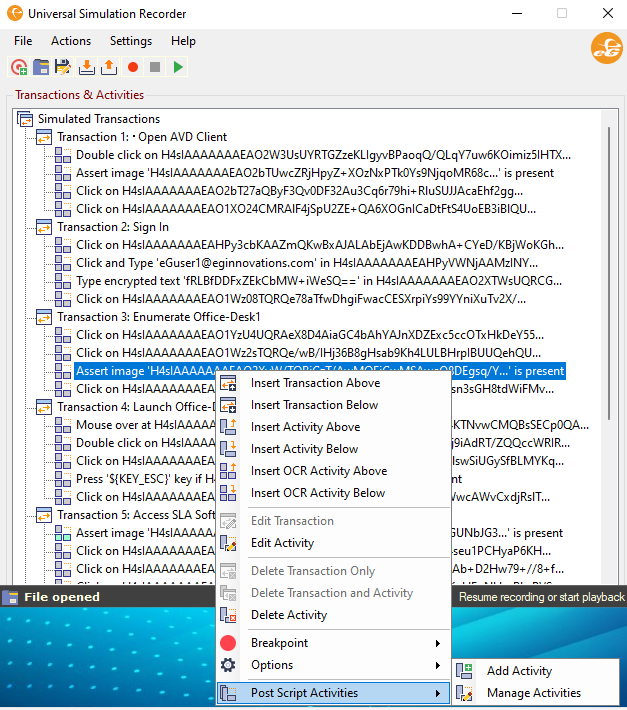
Figure 1 : Adding a Post Script Activity
To mark an activity as Post Script activity, right click on the activity and navigate through Post Script Activities -> Add Activity. Figure 2 then appears stating that the activity is successfully marked as a Post Script activity.
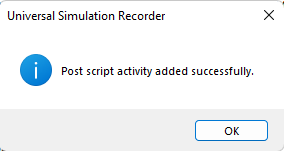
Figure 2 : A message stating that the Post Script activity is successfully added
To manage your Post Script activities, navigate through Post Script Activities -> Manage Activities menu sequence. Figure 3 then appears.
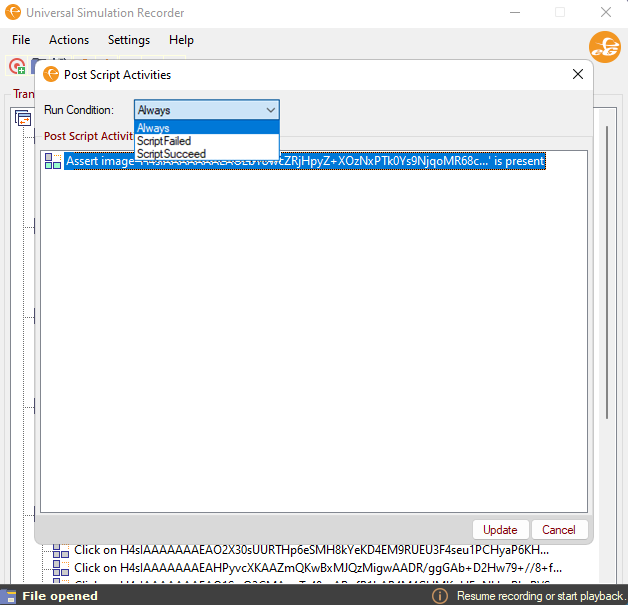
Figure 3 : Manage a Post Script Activity
By default, Always option will be chosen from the Run Condition list indicating that the Post script activity will run irrespective of whether the script succeeds or fails. Choosing the ScriptFailed option will ensure that the Post script activity runs only when the script fails. Similarly, choosing the ScriptSucceed option ensures that the Post script activity runs only when the script executes successfully.
Click the Update button if you have made any changes to the Post script activity. You can even playback the recorded script to check if the Post script activity is perfectly recorded.
Similar to a normal activity, the following activities can be performed on a Post script activity too (see Figure 4).
-
Edit the Activity
-
Move the Post script activity up/down
-
Copy/Paste the Post script activity above or below a chosen Post script activity
-
Delete the Post script activity
-
Enable/Disable the Post script activity. For this you need to choose the Enable or Disable option by expanding the Options menu in Figure 4.
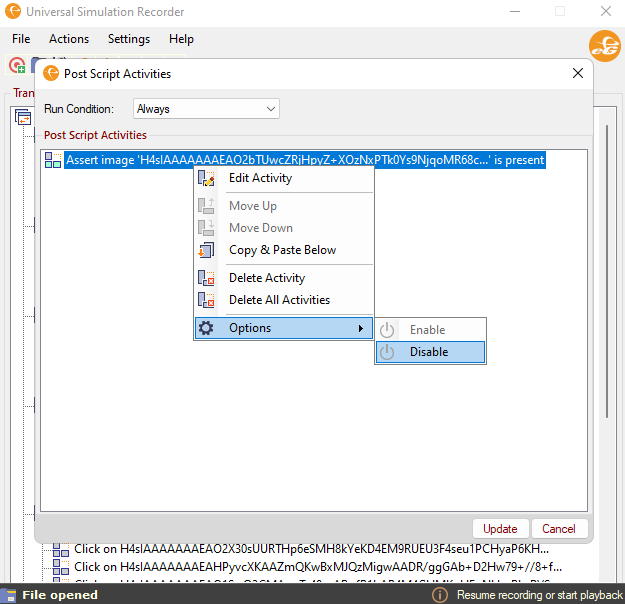
Figure 4 : Activities that can be performed on a Post script activity