Pre-requisites for Universal Simulator

Before attempting to use the simulator, make sure that the following pre-requisites are fulfilled:

Category Pre-requisites
Universal Simulator Agent / Simulation Endpoint
  • Client Session Simulation capability should be enabled on the eG license.

  • The universal simulator agent / external agent should be installed on a dedicated virtual machine or a physical server running Windows 2019/2022/2025 or Windows 10(version 1803) and above/11 operating system.
  • The universal simulator agent / external agent should not be used to monitor any other component in the target environment.

  • The universal simulator agent / external agent should only run an English version of Windows operating system.

    Note:

    • If Multilingual User Interface pack is applied on the Windows operating system, then, ensure that the English language is chosen as the System locale.

    • The universal simulator agent running on English version of Windows operating system is capable of simulating a target thick client (non-web) / thin client (web) application of any language.

  • The universal simulator agent / external agent should not be used to monitor any other component in the target environment.

  • Microsoft .Net Framework 4.7.2 (or above) should pre-exist on the system hosting the univeral simulator agent/external agent.
  • The simulator also requires a user account with local administrator rights on the simulation endpoint - i.e., on the system hosting the universal simulator agent. This user should be logged in at all times for the simulator to run continuously. Also, make sure that this session window is not minimized because this may cause problems in the universal simulation.

    Note:

    • The universal simulation will not work if the session is closed.
    • The universal simulation will not work if the screen is locked on the simulation endpoint.

    • The universal simulator will not work if the screensaver appears on the simulation endpoint.

  • The user session in simulation endpoint should have the same display resolution as the recording script if OCR capabilities are enabled.

Troubleshooting

  • In our environment, universal simulation is performed via RDP sessions. Your pre-requisites specifies that the session window should not be minimized. How should we ensure that the simulation is not impacted if the RDP session is minimized?

    If the universal simulation is performed via an RDP session, then, you can make sure that the simulation is not impacted even if the RDP session window is minimized. For this, execute the RDPSessionInteractiveTask.exe on the system from which the user has launched the RDP session. This executable is available in the <eG_INSTALL_DIR>\lib folder. Once you download and extract the package into any location, you will find the RDPSessionInteractiveTask.exe within.
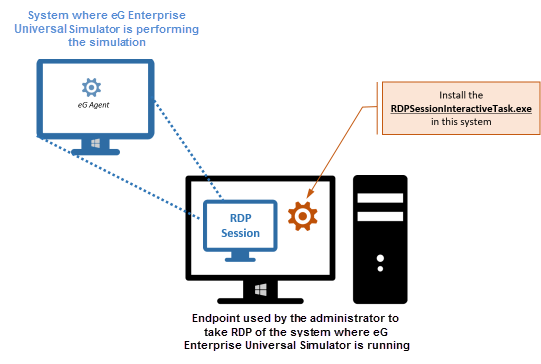
    Web App Simulation performed via RDP session

    Figure 1 : Universal Simulation performed via an RDP session

    To execute the RDPSessionInteractiveTask.exe, do the following:

    • Open the command prompt of the system from which the RDP session was launched as an administrator.
    • Execute the RPSessionInteractiveTask.exe file. Upon successful execution, a message to that effect will appear.
    • Reconnect the RDP session.

Support Matrix for Universal Simulator

Deployment

Gateway Support

Identity Provider (Idp)/SSO Integrated Support

Static 2FA Support

Dynamic 2FA Support

Thick Client/Non-Web Apps

Full Session Simulation

Can record and playback all thick client gateways

Can record and playback all IdP & SSO steps

Any static token/passcode

Can record and playback custom script(.py, .bat, etc.) to generate dynamic token/passcode