Universal Simulation Recorder Settings
By default, there are certain pre-built settings for the Universal Simulation Recorder. To access these settings, navigate through the Settings -> Recorder Settings menu sequence in the Universal Simulation Recorder. Figure 1 then appears.
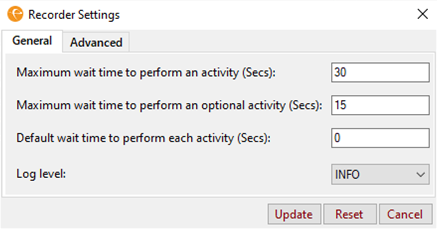
Figure 1 : General Settings of the Universal Simulation Recorder
General Settings
The general settings mentioned in Figure 1 are explained below:
-
Maximum wait time to perform an activity (Secs): By default, the transactions recorded in the script are replayed in sequence. In the process, during playback or simulation, the maximum wait time to perform an activity in a transaction is set to 30 seconds. This implies that the script will wait for the activity to complete within 30 seconds beyond which will exit the simulation. If you prefer to set the value for this parameter, you can override the default value.
-
Maximum wait time to perform an optional activity (Secs): By default, the transactions recorded in the script are replayed in sequence. In the process, during playback or simulation, the maximum wait time to perform an activity marked as an optional activity in a transaction is set to 15 seconds. This implies that the script will wait for the optional activity to complete within 15 seconds beyond which the simulation will continue with the next activity. If you prefer to set the value for this parameter, you can override the default value.
-
Default wait time to perform each activity (Secs): By default, the transactions recorded in the script are replayed in sequence. In the process, during playback or simulation, administrators may want to introduce a time delay before each activity in a transaction is performed. This is because, administrators wanted the simulation to be simulated just like how it was recorded by the user. To this effect, administrators can set a value of their choice against this parameter. The default value is set to 0.
-
Log level: By default, INFO is chosen from this list. This indicates that whenever the simulation is performed, information level logs are logged for further processing. You can choose to disable the logging activity by selecting the OFF option. You can also enable debug mode by choosing the DEBUG option. If you choose WARNING or ERROR options, the warning messages and error messages (respective to the option chosen) will be logged.
Advanced Settings
Administrators can even use a few Advanced settings to playback the recorded script.
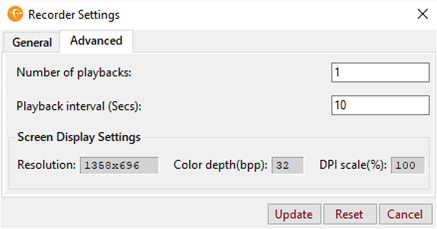
Figure 2 : Advanced Settings of the Universal Simulation Recorder
Figure 2 displays the Advanced Settings that can be configured by the user:
-
Number of playbacks: In order to verify the transactions recorded in the script are replayed in sequence without technical glitch, administrators should playback the recorded script multiple times. To automatically playback the recorded script without manual intervention, administrators can set a specific value against this parameter. For example, setting the value of this parameter to 2 will automatically replay the recorded script twice. By default, this value is set to 1.
-
Playback interval (Secs): By default, this parameter is set to 10 seconds indicating that during consecutive playbacks of the recorded script, there will be a time delay of 10 seconds after a playback is complete and before the next playback commences. If you prefer to set the value for this parameter, you can override the default value.
-
Screen Display Settings: The screen display settings that the Universal Simulation Recorder uses to record the transactions i.e., the screen display settings of the endpoint on which the script is being recorded are displayed here.
-
Resolution: By default, this will display the resolution of the simulation endpoint. For e.g., if the resolution of the endpoint simulation is 1358*696, then it is set to 1358*696. Note that this setting cannot be altered.
-
Color depth(bpp): By default, this will display the color depth of the simulation endpoint. For e.g., if the color depth of the endpoint simulation is 32, then it is set to 32. Note that this setting cannot be altered.
-
DPI scale(%): By default, this will display the DPI scale of the simulation endpoint. For e.g., if the DPI scale of the endpoint simulation is 100%, then it is set to 100. Note that this setting cannot be altered.
-
Clicking the Reset option will set the default values to the fields mentioned above.
Clicking the Update button will effect the changes made. Clicking the Cancel button will cancel the changes made, if any.