Managing the WildFly JBoss Server
To manage a target WildFly JBoss Server using eG Enterprise, do the following:
- Login to the eG administrative interface.
- Invoke the Admin tile menu and select the Add/Modify option from the Components menu of the Infrastructure tile.
-
Then, select the WildFly JBoss as the Component type and click the Add New Component button. Figure 1 will then appear.
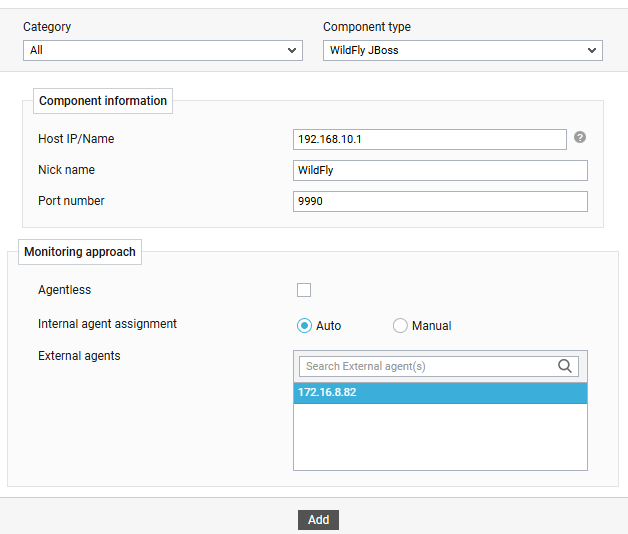
- In Figure 1, provide the Host IP/Name of the WildFly JBoss server to be monitored. Then, provide a Nick name for the server.
- The Port number will be set as 9990 by default. Depending upon the operating mode of the target WildFly JBoss server, you may have to override this default setting by specifying a different port number here. To determine the exact port number that you should specify, follow the procedure detailed in Determining the Port Number for Managing WildFly JBoss Server topic.
- Finally, click the Add button to add the server for monitoring.