Xen Desktop Applications Test
This test discovers the applications executing on the Cloud PCs and reports the availability and resource-usage of each of the desktop applications.
Target of the test :A Windows Cloud PCs Group
Agent deploying the test : A remote agent
Outputs of the test : One set of outputs for every distinct application executing on each Cloud PC
| Parameter | Description |
|---|---|
|
Test Period |
How often should the test be executed |
|
Host |
Specify the nick name of the Windows 365 Cloud PCs Group component for which this test is to be configured. |
|
Port |
The port at which the specified Host listens. By default, this is NULL. |
|
Report Powered OS |
If this flag is set to Yes (which is the default setting), then the 'inside view' tests will report measures for even those Cloud PCs that do not have any users logged in currently. Such PCs will be identified by their name and not by the username_on_CloudPCName. On the other hand, if this flag is set to No, then this test will not report measures for those Cloud PCs to which no users are logged in currently. |
|
Report By User |
This flag is set to Yes by default. The value of this flag cannot be changed. This implies that the Cloud PCs in environments will always be identified using the login name of the user. In other words, this test will, by default, report measures for every username_on_CloudPCName. |
|
Is Show All Apps |
Using this flag, you can indicate whether the test should report top resource-intensive applications alone or all applications running in the background when the user accesses an application on the Cloud PC. By default, this flag is set to No, indicating that this test will report only top three applications consuming excessive CPU, Memory and IO Reads processes. This helps the administrator optimize the database. To report all the applications, you need to set this flag to Yes. |
|
Show User Apps Only |
Using this flag, you can indicate whether the test should monitor all applications or applications that are being actively used by the users. By default, this flag is set to Yes, indicating that only the active applications will be monitored by the eG agent. To monitor all applications, you need to set this flag to No. |
|
Show Whitelist Apps Only |
In some highly secure cloud environments, administrators whitelist an index of business-critical and most commonly used applications that are permitted to be present and active on the target Cloud PC. The goal of whitelisting is to protect the target server from potentially harmful applications and prevent any unauthorized files from executing. Application whitelisting places control over which applications are permitted to run on the target server and is controlled by the administrators, rather than the end-user. In such environments, administrators may wish to monitor only the applications that are whitelisted on the target server. To achieve this, administrators can set the Show Only Whitelist Apps flag to Yes. By default, this flag is set to No indicating that this test monitors all applications executing on the target server. By default, eG Enterprise offers a comma separated list of pre-defined applications specified against the WhiteListProcesses option in the [EXCLUDE_APPLICATIONS] section of the eg_tests.ini file available in the <eG_INSTALL_DIR>/manager/config folder. Setting the Show Only Whitelist Apps flag to Yes will enable this test to monitor only the applications that are listed against the WhiteListProcesses option. If administrators wish to add or remove one or more applications to/from this pre-defined list, then, they can do so by specifying the applications against the WhiteListProcesses option. |
|
Exclude |
Provide a comma-separated list of file patterns to be excluded from monitoring in the Exclude text box. This helps to filter out irrelevant file types that are not essential to the performance analysis of the desktop applications. For example *.vvf,*.pdf,*.jpeg,*.png,*.rbf,*.doc*. |
|
DD Frequency |
Refers to the frequency with which detailed diagnosis measures are to be generated for this test. The default is 1:1. This indicates that, by default, detailed measures will be generated every time this test runs, and also every time the test detects a problem. You can modify this frequency, if you so desire. Also, if you intend to disable the detailed diagnosis capability for this test, you can do so by specifying none against DD FREQUENCY. |
|
Detailed Diagnosis |
To make diagnosis more efficient and accurate, eG Enterprise embeds an optional detailed diagnostic capability. With this capability, the eG agents can be configured to run detailed, more elaborate tests as and when specific problems are detected. To enable the detailed diagnosis capability of this test for a particular server, choose the On option. To disable the capability, click on the Off option. The option to selectively enable/disable the detailed diagnosis capability will be available only if the following conditions are fulfilled:
|
| Measurement | Description | Measurement Unit | Interpretation |
|---|---|---|---|
|
Processes running |
Indicates the number of instances of this application that is currently executing across all PCs on the target host operating system. |
Number |
|
|
Physical CPU usage |
Indicates the percentage of physical CPU resources utilized by this application. |
Percent |
A very high value of this measure is a cause for concern, as it indicates excessive CPU usage by a single application. This in turn would cause other desktop applications to contend for limited physical resources, thus degrading the performance of those applications and that of the server as a whole. If this measure reports a value close to 100% for any application, then you can use the detailed diagnosis of this measure to identify which specific instance of that application is hogging CPU. |
|
Memory usage |
Indicates the amount of memory resources utilized by this application. |
MB |
A very high value of this measure is a cause for concern, as it indicates excessive memory usage by a single application. This in turn would cause other desktop applications to contend for limited physical memory resources, thus degrading the performance of those applications and that of the server as a whole. If this measure reports a high for any application, then you can use the detailed diagnosis of this measure to identify which specific instance of that application is hogging memory. |
|
CPU used |
Indicates the physical CPU (in Mhz) used up by this application. |
Mhz |
|
|
I/O reads |
Indicates the rate at which this application reads data from the disk. |
KB/Sec |
Compare the value of these measures across applications to identify the I/O-intensive application. |
|
I/O writes |
Indicates the rate at which this application writes data to the disk. |
KB/Sec |
|
|
I/O read operations |
Indicates the rate at which this application performs read operations. |
Operations/Sec |
Compare the value of these measures across applications to identify the I/O-intensive application. |
|
I/O write operations |
Indicates the rate at which this application performs write operations. |
Operations/Sec |
|
|
Total I/O operations |
Indicates the rate at which this application performs I/O operations. |
Operations/Sec |
|
|
Percent of memory usage |
Indicates the percentage of memory used by this application. |
Percent |
A high value for this measure indicates that the application is consuming more memory. This is a cause for concern. |
The detailed diagnosis of the Physical CPU usage and Memory usage measures list all the running instances of the given application, and reports the CPU and memory usage of each instance. From these insights, you can accurately isolate the instance that is consuming CPU and/or memory resources excessively.
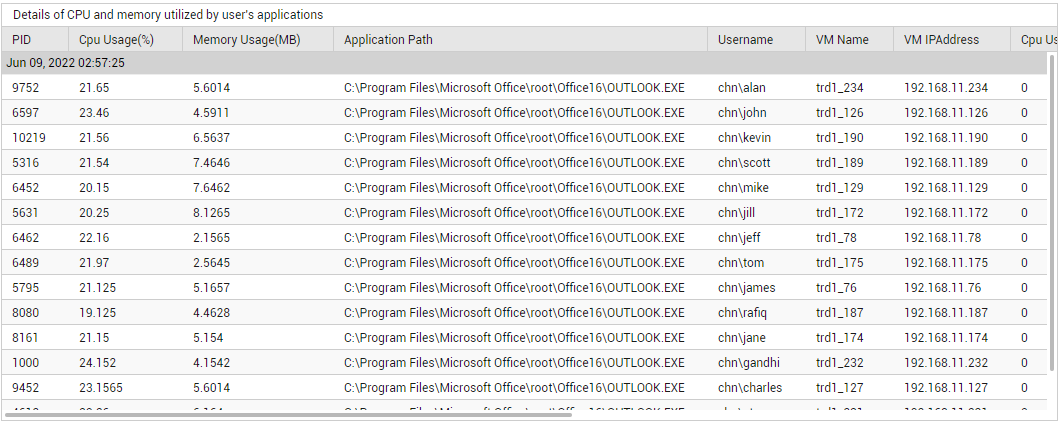
Figure 1 : The detailed diagnosis of the Physical CPU usage measure of the Desktop Applications test