Integrating the eG Manager with Twilio
Twilio is a cloud communications platform that provides a set of tools and services for developers to build and integrate various communication functionalities into their applications. It allows developers to add capabilities such as voice calling, video calling, messaging (SMS, MMS), and more to their web and mobile applications through a set of APIs.
For SMS alerting, eG Enterprise integrates with Twilio SMS. The integration converts eG alerts into SMS messages, which are then routed to configured mobile phone numbers.
Before you attempt to integrate the eG manager with Twilio, you have to make sure that the following pre-requisites are fulfilled:
-
Signup for Twilio and obtain a valid Account SID; refer to Twilio documentation to know how to achieve this.
-
Generate an Auth Token for enabling the eG manager to interact with Twilio SMS; refer to Twilio documentation to know how such a token can be generated. Once generated, make a note of the token.
-
Obtain a Sender mobile number. To acquire a phone number, first login to the Twilio console. Then, in the Twilio Console landing page, click Get phone number to obtain a sender phone number.
Once the requirements mentioned above are fulfilled, proceed to integrate the eG manager with Twilio by following the steps below:
-
Login to the eG administrative interface.
-
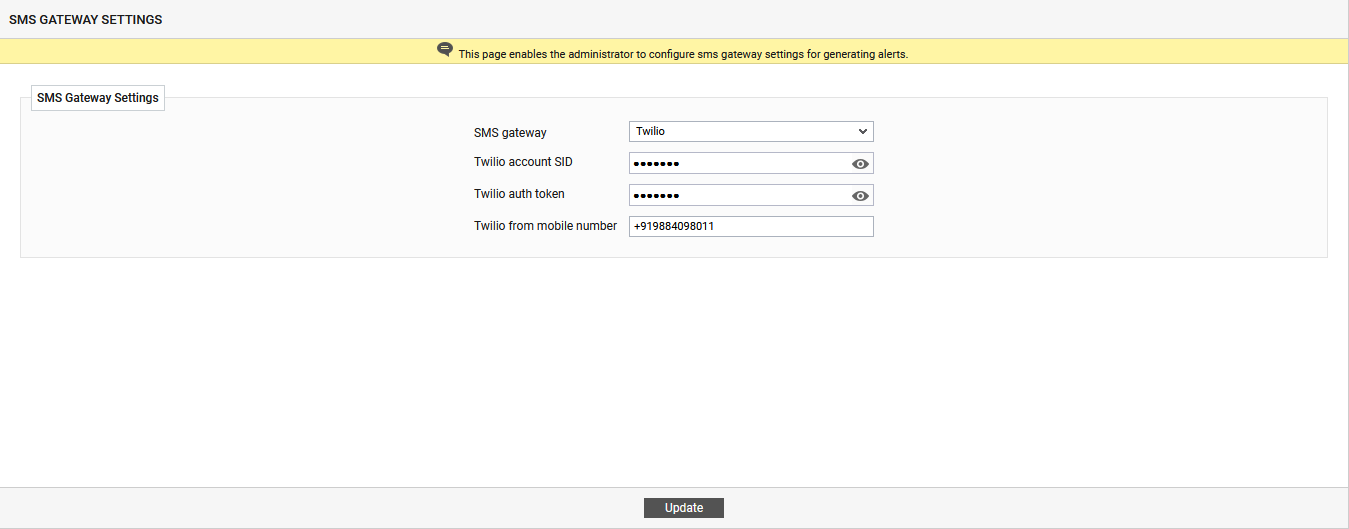
Click on the Admin tile menu, and follow the Alerts -> SMS Gateway Settings menu sequence. Figure 1 will then appear.
-
From the SMS gateway drop-down in Figure 1, select the Twilio option.
-
Then, specify the Twilio account SID. The account SID is a unique identifier for your Twilio account. You will obtain this SID when signing up for Twilio. You should be able to find the Account SID in the landing page as soon as you login to the Twilio console.
-
Next, specify the Twilio auth token. The token is a secret key used for authenticating API requests. So, in Twilio auth token text box, you will have to provide the token that was generated for authenticating requests from the eG manager to Twilio SMS.
-
Then, enter the Twilio from mobile number. This is the Sender mobile number, which you can 'get' once you login to the Twilio console.
-
Finally, click the Update button.
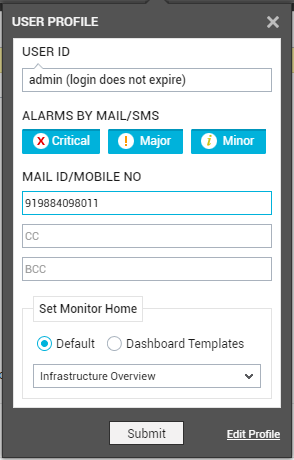
Then, to complete the configuration, the mobile numbers that should receive the SMS alerts should be specified. For that, each user who wants to receive SMS alerts should edit their user profile in the eG Enterprise system, select one/more alarm priorities for email/SMS alerting (see Figure 2), and in the To text box under Mail ID/Mobile No, specify a comma-separated list of mobile numbers that should receive the SMS'. Every mobile number entered should be prefixed by its country code (see Figure 2). Finally, click the Submit button.