Integrating with SMAX
SMAX (Service Management Automation X) is an Enterprise Service Management (ESM) platform from OpenText (formerly Micro Focus) that uses AI and machine learning to automate and streamline IT and business services like ITSM (Incident, Problem, Change Management) and ITAM (Asset Management).
eG Enterprise can be configured to integrate with SMAX, so for every eG alert that is raised in the eG manager, a corresponding ticket is automatically created in SMAX. Similarly, if a problem is fixed and eG raised a Normal alert for the same, it triggers automatic closure of the corresponding ticket in SMAX.
For integration, the SMAX REST API is leveraged. Whenever an eG alert is raised:
-
The eG manager connects to the API authentication endpoint;
-
Fetches a request token from the endpoint;
-
Reads the problem component/descriptor from the eG alert, and identifies the Service ID in SMAX that maps to the problem component/descriptor;
-
Uses the token to create a new ticket for the problem component/descriptor in SMAX.
For successful integration therefore, the following pre-requisites need to be fulfilled:
-
Obtain the API Authentication Endpoint URL;
-
Obtain an SMAX Tenant ID;
-
Obtain valid credentials (username and password) for accessing the endpoint and fetching the request token;
Note:
If token fetching fails, then the eG manager, by default, will automatically retry the process indefinitely until successful. If you want, you can limit the number of retries. For that, do the following:
-
Edit the eg_services.ini file in the <EG_MANAGER_INSTALL_DIR>\manager\config directory (on Windows; on Unix, this will be the /opt/egurkha/manager/config directory).
-
Look for the maxNoOfTokenRetryAttempts parameter in the [TT_INTEGRATION_SMAX] section of the file.
-
This parameter will be set to -1 by default, indicating that the eG manager will keep attempting to fetch tokens, until it succeeds.
-
If you want to limit the number of retries to, say 3, then set this parameter to 3, as shown below:
maxNoOfTokenRetryAttempts=3
-
Finally, save the file.
-
-
If an eG alert is raised on a descriptor-based test, then make sure that each problem descriptor is mapped to a Service ID in SMAX. Similarly, in case of an eG alert for a non-descriptor-based test, the problem component should be mapped to a Service ID in SMAX. The descriptor/component - Service ID mappings should be maintained in the eg_smax_service_mapping.csv file. This file should be copied to the <EG_MANAGER_INSTALL_DIR>\ manager\config directory (on Windows; on Unix, this should be the /opt/egurkha/manager/config directory).
-
In the eG Enterprise system, alarm priorities are typically: Critical, Major, Minor, and Normal. Each of these priorities should be mapped to an ImpactScope in SMAX, and this mapping should be maintained in the eG manager. For that, do the following:
-
Edit the eg_services.ini file in the <EG_MANAGER_INSTALL_DIR>\manager\config directory (on Windows; on Unix, this will be the /opt/egurkha/manager/config directory).
-
Set the ticketImpactMapping parameter in the [TT_INTEGRATION_SMAX] section of the file to a comma-separated list of Priority:ImpactScope pairs, where Priority represents the priority/severity of an alarm in eG Enterprise, and ImpactScope represents the ImpactScope that maps to that priority in SMAX. SMAX supports the following ImpactScopes:
-
SingleUser
-
MultipleUsers
-
SiteOrDepartment
-
Enterprise
For instance, say you want to define the following Priority-ImpactScope mappings:
Priority
ImpactScope
Critical
SingleUser
Major
MultipleUsers
Your specification in this case will be:
ticketImpactMapping=Critical:SingleUser,Major:MultipleUsers,Minor:,Normal:
-
-
Finally, save the file.
-
-
Similarly, each alarm priority in eG Enterprise should be mapped to an Urgency in SMAX, and this mapping should be maintained in the eG manager. For that, do the following:
-
Edit the eg_services.ini file in the <EG_MANAGER_INSTALL_DIR>\manager\config directory (on Windows; on Unix, this will be the /opt/egurkha/manager/config directory).
-
Set the ticketUrgencyMapping parameter in the [TT_INTEGRATION_SMAX] section of the file to a comma-separated list of Priority:Urgency pairs, where Priority represents the priority/severity of an alarm in eG Enterprise, and Urgency represents the Urgency state that maps to that priority in SMAX. SMAX supports the following Urgency states:
-
NoDisruption
-
SlightDisruption
-
SevereDisruption
-
TotalLossOfService
For instance, say you want to define the following Priority-Urgency mappings:
Priority
ImpactScope
Critical
TotalLossOfService
Major
SevereDisruption
Your specification in this case will be:
ticketUrgencyMapping=Critical:TotalLossOfService,Major:SevereDisruption,Minor:,Normal:
-
-
Finally, save the file.
-
Once the aforesaid requirements are fulfilled, proceed to integrate the eG manager with SMAX. For that, follow the procedure detailed below:
- Login to the eG administrative interface.
-
Follow Alerts -> ITSM/Collaboration Integration menu sequence in the Admin tile menu.
-
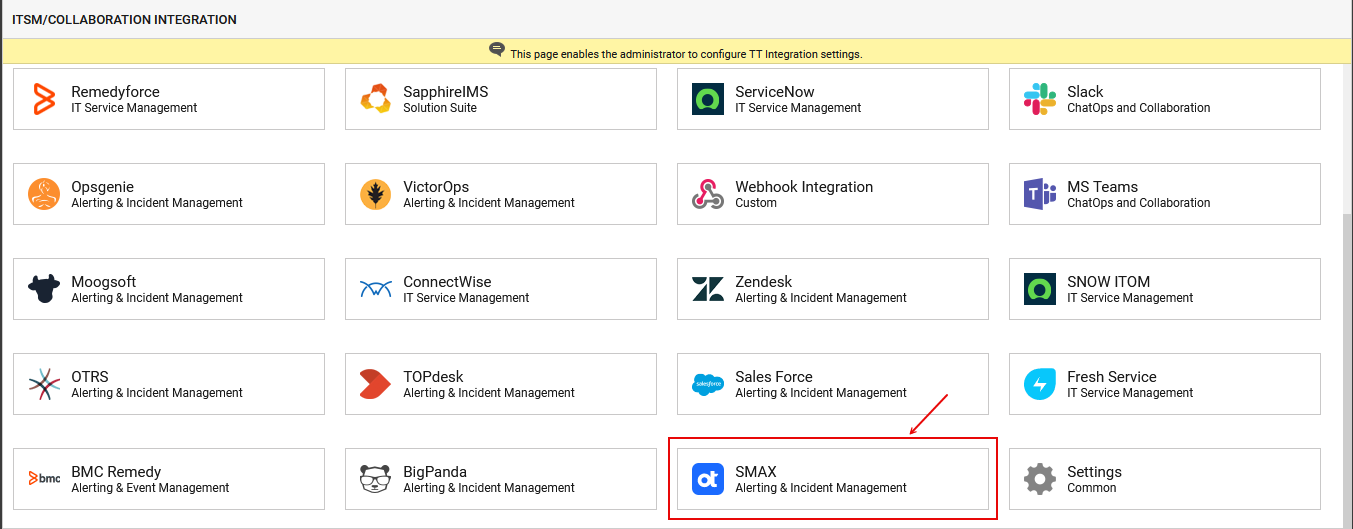
Figure 1 will appear, listing the third-party ITSM/Collaboration tools that eG Enterprise can integrate with.
-
Now, click on the SMAXoption in Figure 1. Figure 2 will then appear.
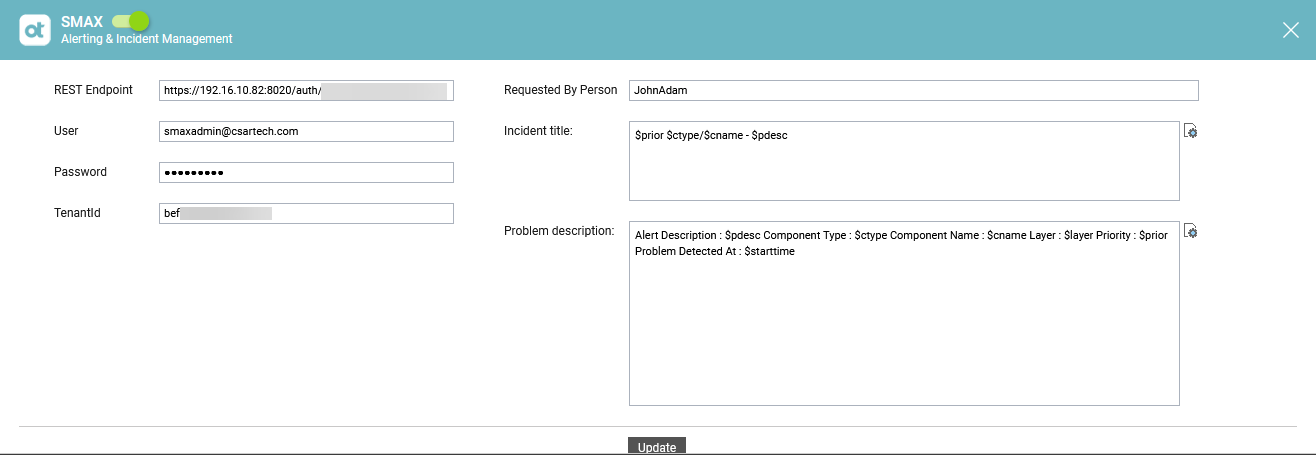
- To enable integration with SMAX, first slide the SMAX slider in Figure 2 to the right.
-
Then, specify the following in Figure 2:
- REST Endpoint: To initiate a session with the REST API, the eG manager must make a call to the API authentication endpoint URL and fetch a request token. To facilitate this communication, specify the endpoint URL here.
- User, Password: In order to access the endpoint URL and fetch a token, the eG manager requires the privileges of a valid API user. Specify the User name and Password of such a user here.
- TenantId: SMAX API Tenant ID is a unique identifier used to access a specific SMAX instance or customer environment via its REST APIs. It is a mandatory parameter in most API requests to ensure the operation is performed within the correct tenant's context. Most importantly, to obtain an authentication token from an authentication endpoint URL, a valid tenant ID is critical. Specify such a tenant ID here.
- Requested By Person: Specify the name of the person who is raising the ticket.
-
Incident title: Specify the title format for all eG alerts that are routed to SMAX. The default format is as follows:
$prior - $ctype / $cname - $pdesc
The ‘dollared’ ($) text in the format above is a key, the value of which varies at run time, depending upon the information contained in the eG alarms. For example, in the default format above, $prior is a key that represents the alarms priority, and changes according to the priority of the actual alarm that is sent by the eG manager to SMAX. You are advised against changing any of the key names.
The other keys that are part of the default format are discussed in the table below:
$cname
Will display the name of the problem component
$ctype
Will display the component type to which the problem component belongs
$pdesc
Will display a brief description of the problem
If required, you can override the default Incident Title, so it includes additional details about the problem condition - e.g., problem priority, alert ID etc. For that, click on the
 icon alongside Incident Title. Figure 3 will then appear.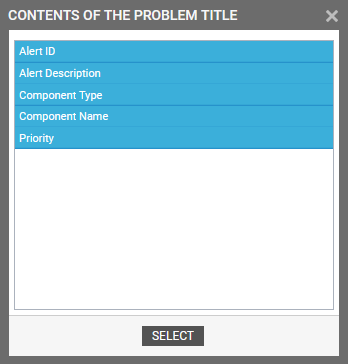
Figure 3 : Adding additional problem information to Incident Title
From Figure 3, select the information you want included in the Incident Title and click on the SELECT button. The Incident Title will then change as depicted by Figure 4.

-
Problem description: Use this parameter to indicate the format in which problem information should be communicated by the eG manager to SMAX. By default, the Problem description will be of the format indicated by Figure 5 below:
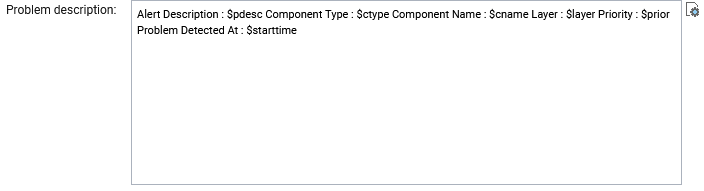
Figure 5 : The Problem Description to be routed to SMAX
The Problem Description, as you can see, is characterized by a list of label : variable pairs. In each pair, the 'label' is a static value that qualifies/describes the value of the 'variable' that follows. The 'variable' on the other hand will be substituted at run time by relevant alert information. For instance, in the pair Alert Description : $pdesc, 'Alert Description' is the static label that will be sent as is to SMAX. This label implies that the value that follows it will be a brief problem description. The variable $pdesc will be replaced at run time by the actual problem description contained within the corresponding alarm. You can change 'labels' if you so need, but you are advised against changing the variable names.
The following variables apply by default:
If required, you can override the default Problem description, so it includes additional problem details. For that, click on the$cname
The name of the problem component
$ctype
The component type to which the problem component belongs
$pdesc
A brief description of the problem
$layer
The problematic layer
$prior
The problem priority/severity
$starttime
The date/time at which the problem was first detected
icon alongside Problem description. This will open Figure 6.
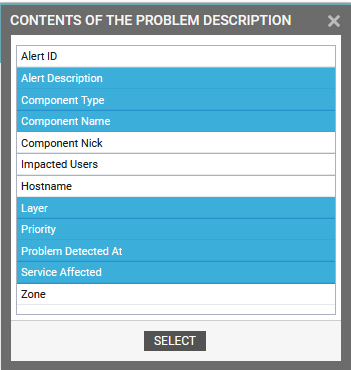
Figure 6 : Selecting the details to be included in the Problem description for SMAX
Say, you want the problem description to include the name of the business service that was impacted by the problem condition. In this case, select Service Affected from Figure 6 and click the SELECT button. The Problem description will then change accordingly.
-
Finally, click the Update button.