Configuring Tests for webMethods Microservices Runtime
Once the component is added successfully, you will be directed to the Components page of the eG admin interface where the newly added component will be listed as shown in Figure 372.

Figure 372 : The Components page listing the newly added webMethods Microservices Runtime component
Clicking on the  icon in Figure 372 will lead you to Figure 373 where the list of unconfigured tests will be listed in the UNCONFIGURED TESTS list box.
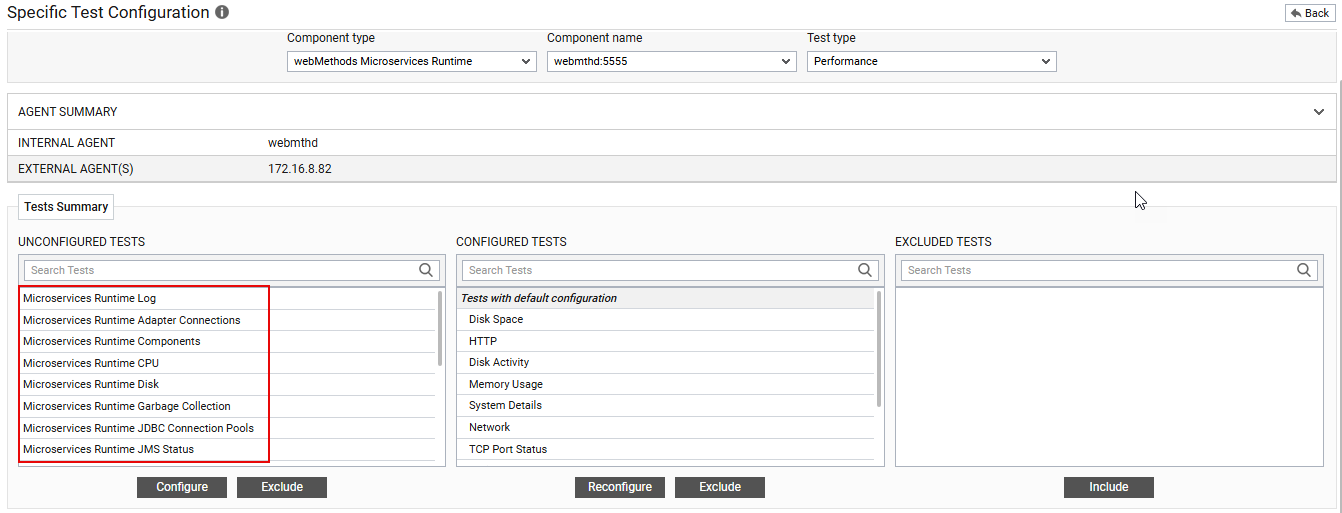
Figure 373 : The list of unconfigured tests for the webMethods Microservices Runtime
Click on any of the tests to configure it. For instance, if you click on the Microservices Runtime CPU test, Figure 374 will appear.
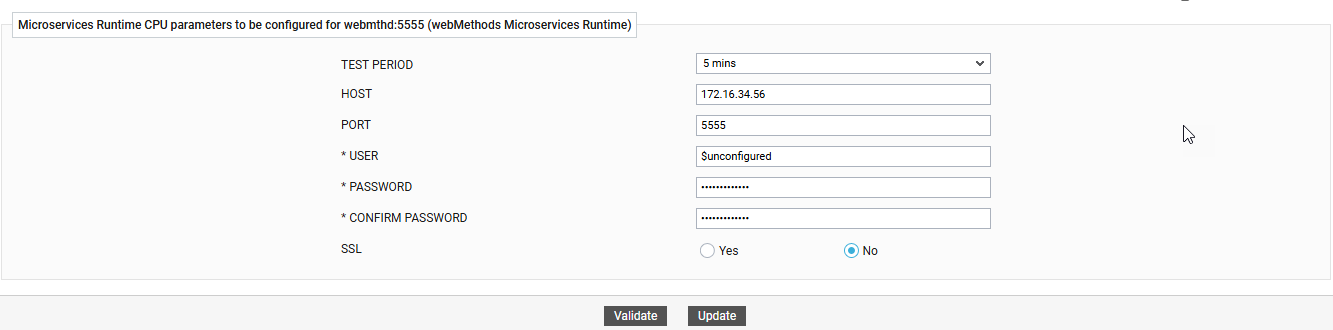
Figure 374 : Configuring the Microservices Runtime CPU test
To know how to configure this test, refer to Microservices Runtime CPU Test .
Click the Update button in Figure 374 to update the test configuration. This will automatically configure all the other unconfigured tests for the webMethods Microservices Runtime.