Managing the webMethods Microservices Runtime
eG Enterprise automatically discovers the webMethods Microservices Runtime component in the target environment and also auto-manages the component after it is discovered. However, if for some reason the component is not discovered automatically, you will have to manually add the component to the eG Enterprise system using the eG admin interface.
The steps for manually adding a webMethods Microservices Runtime component are detailed below:
- Login to the eG admin interface.
- Follow the Infrastructure -> Components -> Add/Modify menu sequence.
- In the page that appears next, select webMethods Microservices Runtime as the Component type. Then, click the Add New Component button.
-
Figure 1 will then appear.
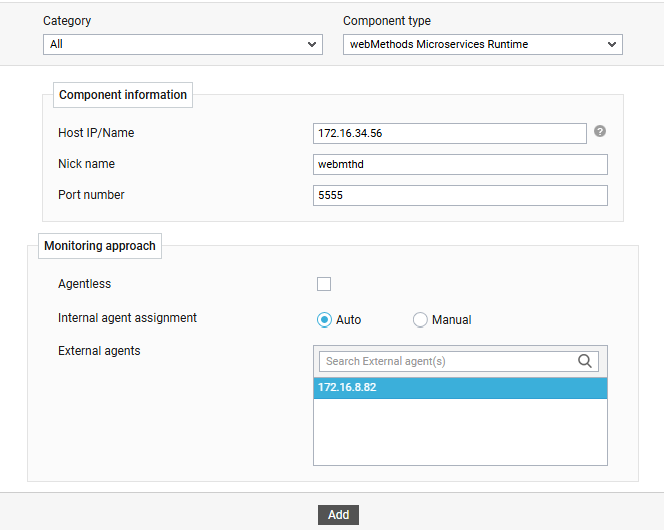
Figure 1 : Adding a webMethods Microservices Runtime for monitoring
-
In Figure 1, specify the Host IP/Name and the Nick name for the webMethods Microservices Runtime component.
-
In the Port number text box, specify the port on which the webMethods Microservices Runtime communicates. By default, this is 5555.
-
If you are monitoring the target webMethods Microservices Runtime in an agent-based manner, just select an external agent from the External agents list box.
-
Finally, click the Add button to add the component to the eG Enterprise system.
-
Once the component is added, proceed to configure the tests for the component.