Pre-requisites for Monitoring webMethods Microservices Runtime
For monitoring webMethods Microservices Runtime server, you need to create a user account and assign a group to the user in the webmethod integration console. The steps on how to create user account and assigning a group to the user in webmethods integration console are discussed below.
The following steps help the administrators to create a user account in the webmethods integration console.
-
Login into webmethods integration server administrator console.
-
In the Security menu, click User Management.
-
Click Add and Remove Users option in the User Management page (see Figure 1).
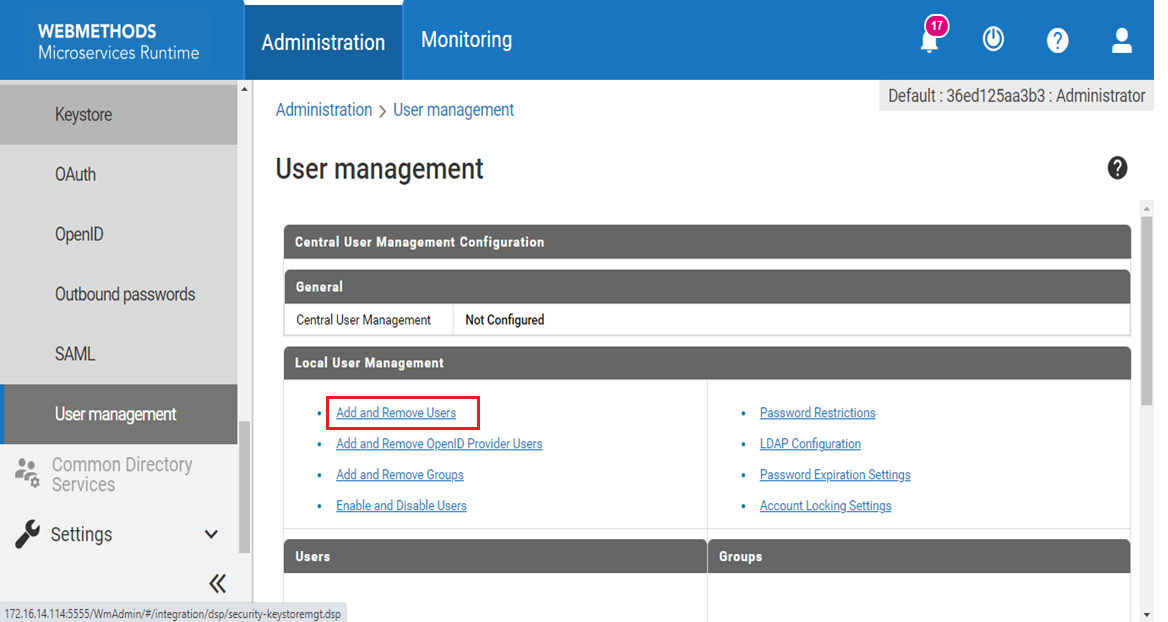
Figure 1 : User Management page in Webmethods Integration console
-
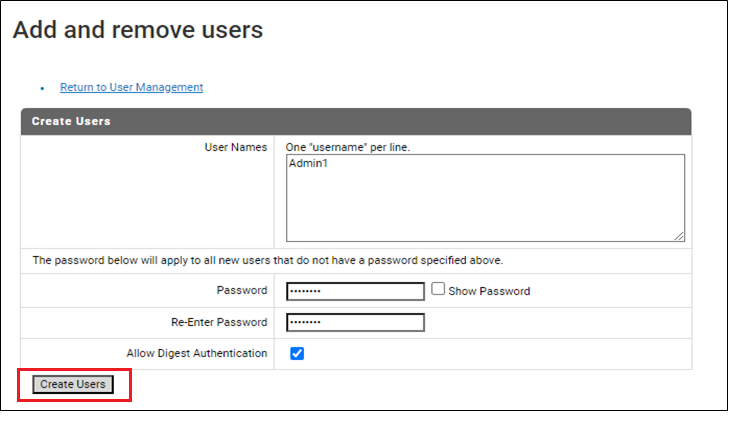
In the Create Users section, specify the User Names (one user name entry per line) and provide the user Password/Re-Enter password in the respective text boxes for those users. Enable the Allow Digital Authentication option and click Create Users button (see Figure 2).
Note:
-
Username and password are case sensitive.
-
Since string “SAMLART” is a reserved word in integration server, avoid using this string in the User Name text box.
-
The following steps help the administrators to assign a group to a user in the webmethods integration console.
-
Login into webmethods integration server administrator console.
-
In the Security menu, click User Management.
-
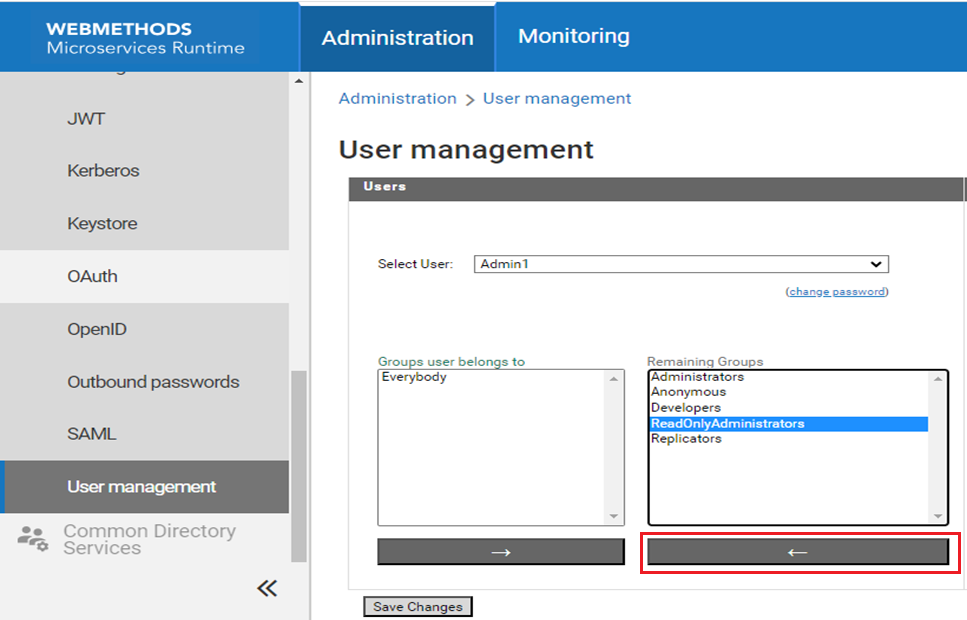
Navigate to Users section in User Management page (see Figure 3). Now, select the user from Select User drop down list, choose the required user group from Remaining Groups selection box and then click the left arrow button to add the selected user to the Groups user belongs to selection box.
Note:
You can add user group as Administrators or ReadOnlyAdministators for monitoring purposes.
-
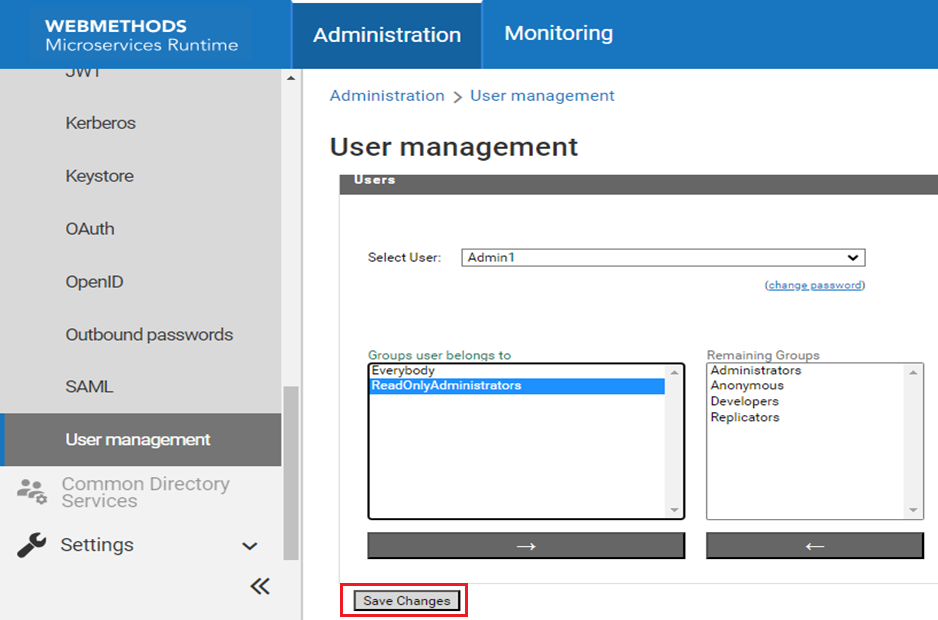
The selected user will be added to the Groups user belongs to selection box. Now click Save Changes button to assign the user group to the user selected from the Select User drop down list (see Figure 4).