How to monitor Citrix Director 7.x using eG Enterprise?
eG Enterprise monitors the Citrix Director in an agent-based manner. For this purpose, an eG agent should be deployed on the target Citrix Director. To enable this agent to communicate with the target director and pull out performance metrics, a set of pre-requisites should be fulfilled. These requirements have been explained in the following section.
Pre-requisites for monitoring the Citrix Director 7.x
Typically, before attempting to monitor a Citrix Director, the following pre-requisites should be fulfilled:
- The Domain, Username, and Password parameters of every test that the eG agent executes for the Citrix Director 7.x component should be configured with the domain name and credentials (as the case may be) of a user with Farm Administrator rights.
-
The user should also be assigned the Allow log on locally security privilege on the Citrix Virtual Apps/Desktops Site 7.x Delivery Controller. To achieve this do the following;
- Go to the Control Panel in the host.
- From the list of control panel items, click the Administrative Tools to view the set of tools available for system administrators and advanced users.
- Upon selecting the Local Security Policy tool in the Administrative Tools location, the Local Security Policy settings console will appear.
- Next, navigate to the User Rights Assignment node in the Local Policies tree in the left panel of the settings console. This will display the security policies corresponding to the user rights in the right panel.
- Now, select the Allow log on locally policy to assign the security privilege to the user.
- The user should also be assigned the Interactive Logon permission.
- The eGurkhaAgent service should run using the Local System account.
Once the above-said requirements are set in place, manage the Citrix Director component using the eG administrative interface to proceed the Citrix Director monitoring. The steps for achieving this are briefed in the below section.
Managing the Citrix Director 7.x
The eG Enterprise cannot automatically discover the Citrix Director 7.x. This implies that you need to manually add the component for monitoring. Remember that the eG Enterprise automatically manages the components that are added manually. To manage a Citrix Director component, do the following:
- Log into the eG administrative interface.
-
eG Enterprise cannot automatically discover Citrix Director 7.x. You need to manually add the server using the Add Component page (see Figure 1) that appears when the Infrastructure -> Components -> Add/Modify menu sequence is followed. Remember that components manually added are managed automatically.
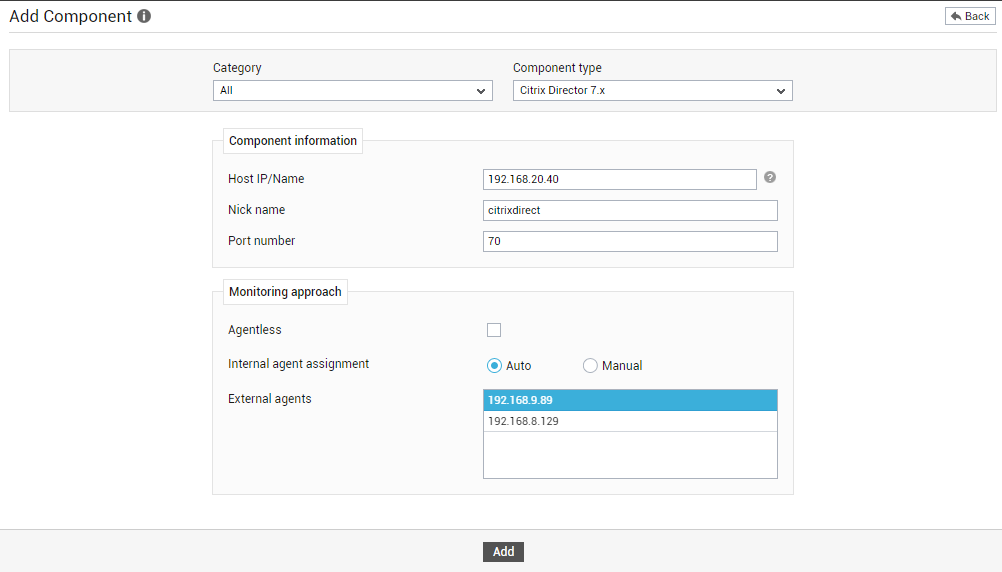
- Specify the Host IP and the Nick name of the Citrix Director 7.x in Figure 1. Then click the Add button to register the changes.
-
Doing so will bring you back to the Add Component page, where you can see the Citrix Director component that you recently added.
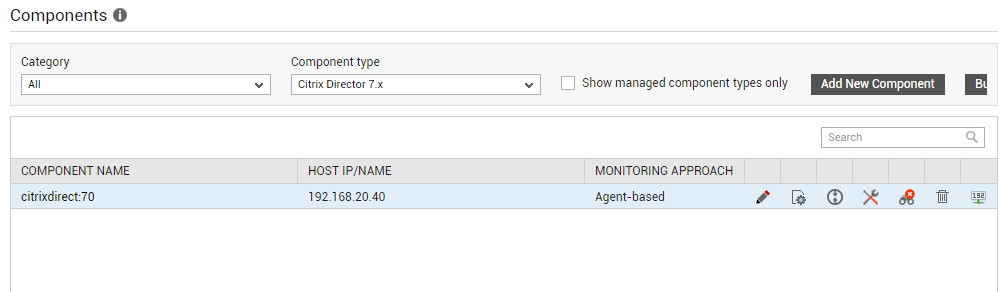
Figure 2 : Viewing the Citrix Director component that has been added
- Now, proceed to configure tests for the new component. For that, click on the
 icon corresponding to that component.
 -
In the page that appears next, select any of the tests displayed in the Unconfigured Tests list box, and click the Configure button beneath. For instance, say you select the Desktop OS Machines test for configuration. Figure 3 will then appear.
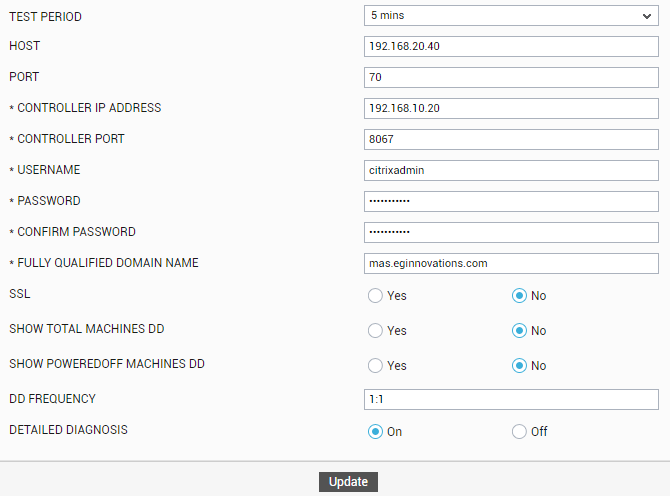
- To know how to configure this test, refer to the Desktop OS Machines Test section under Monitoring the Citrix Director 7.x .
- Configuring one test automatically configures all the other tests for the Citrix Director component.
- Once the tests are configured, sign out of the eG admin interface.