How to Monitor Google Workspace Synthetic Monitor Using eG Enterprise?
To monitor Google Workspace using eG Enterprise, follow the broad steps outlined below:
-
Add a Google Workspace Synthetic Monitor component using eG Admin interface;
-
Configure tests for the managed Google Workspace Synthetic Monitor;
Each of these broad steps are discussed elaborately below.
Adding a Google Workspace Synthetic Monitor component
The eG Enterprise cannot automatically discover an Google Workspace Synthetic Monitor. This implies that you need to manually add the component for monitoring. The steps for manually adding a Google Workspace Synthetic Monitor are detailed below:
-
Login to the eG admin interface.
-
Click on the Add Component button in the right corner of the Components at a Glance page that appeared or follow the Infrastructure -> Components -> Add/Modify menu sequence.
-
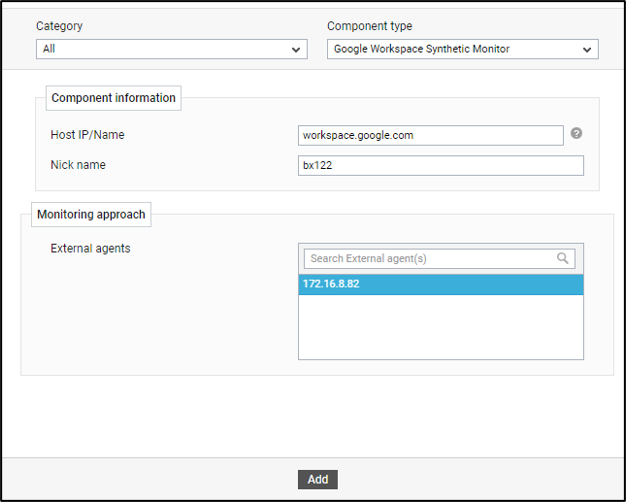
In the page that appears, select Google Workspace Synthetic Monitor as the Component type and click the Add New Component button. Figure 1 will then appear.
-
Specify the Host IP/Name and the Nick name for the Google Workspace Synthetic Monitor component in Figure 1.
-
Next, assign an External Agent to the component.
-
Finally, click the Add button to add the Google Workspace Synthetic Monitor to the eG Enterprise system. Components manually added will be automatically managed by eG Enterprise.
Configuring the tests
Once the Google Workspace Synthetic Monitor component is added, proceed to configure tests for the server. For that, do the following:
-
Follow the Infrastructure -> Components -> Add/Modify menu sequence in the eG admin interface.
-
In the page that appears next, select Google Workspace Synthetic Monitor as the Component type. The Google Workspace Synthetic Monitor that you recently added will then be listed therein. To configure tests for that server, click on the
 icon corresponding to it (see Figure 2).
Figure 2 : Clicking on the Configure Tests icon corresponding to a managed Google Workspace Synthetic Monitor
-
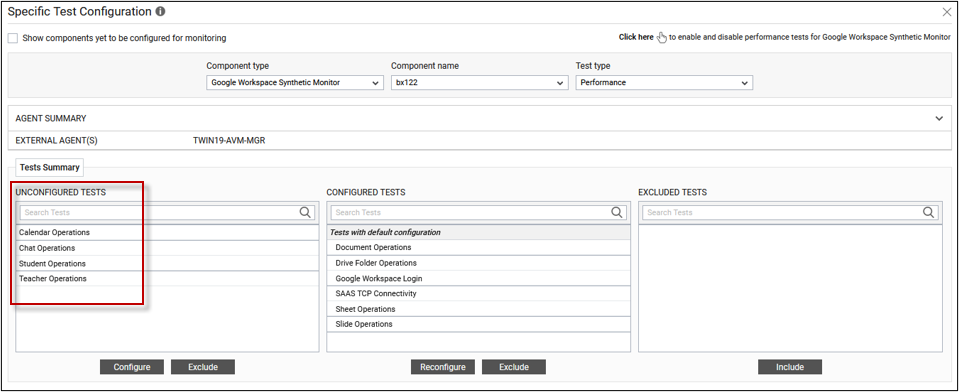
Figure 3 will then appear. The UNCONFIGURED TESTS and CONFIGURED TESTS list boxes that then appear will display the tests that are still to be configured and the tests that have been configured by default (respectively) for the chosen server. From the UNCONFIGURED TESTS list in Figure 3, select the test that you want to configure. Once you select the test, click the Configure button in Figure 3 to configure it.
-
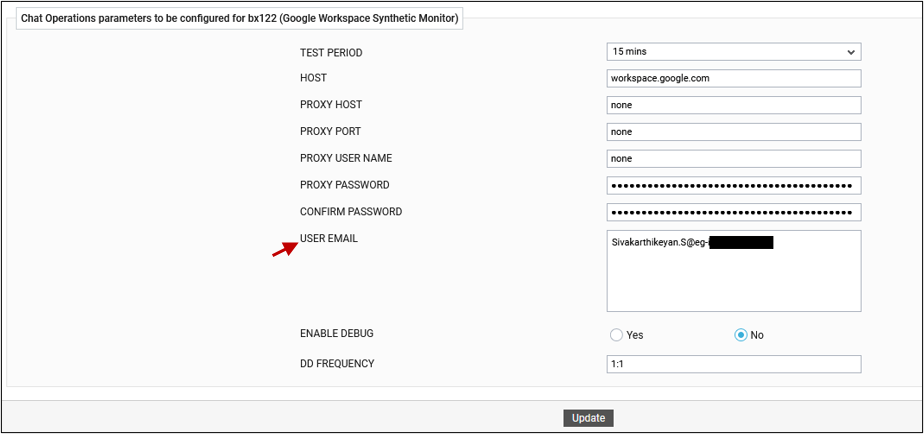
For instance, if you click on Chat OperationsTest Figure 4 will appear.
-
To know how to configure this test, refer to Chat Operations Test
-
Click the button to update the test configuration. This will automatically configure all the other unconfigured tests for the Google Workspace Synthetic Monitor component.