O365 Service Health Test
If Office 365 users experience issues with cloud services, then administrators must be able to rapidly and accurately identify the problematic cloud service well-before the users complain. The O365 Service Health test helps administrators with this! For each service offered by Office 365, this test reports the status of the service in real-time, thus enabling administrators to instantly spot that service that is experiencing a performance degradation. The test additionally reveals if any service incidents are occurring, and elaborately describes such incidents vide detailed diagnostics. If a service has been stopped as part of a planned maintenance activity, then this test indicates the same by reporting the count of maintenance events each service is currently experiencing.
Note:
This test uses the Microsoft Graph API. Tests that use Microsoft Graph API may not start reporting metrics right away. Sometimes, they may go without reporting metrics for over 48 hours. This is normal behavior, and it occurs because, Microsoft does not collect/refresh the metrics as frequently as the test executes.
Target of the test : Office 365
Agent deploying the test : A remote agent
Outputs of the test : One set of results for each service offered by the monitored Office 365 tenant
| Parameters | Description |
|---|---|
|
Test period |
How often should the test be executed |
|
Host |
The host for which the test is to be configured. By default, this is portal.office.com |
|
Tenant Name |
Certificate-based authentication (CBA) enables customers to allow or require users to authenticate with X.509 certificates against their Azure Entra ID for applications and browser sign-in. When monitoring highly secure Office 365 environments, you should configure the eG agent to identify itself to a tenant using a valid X.509 certificate, so that it is allowed secure access to the tenant and its resources. To achieve this, you should do the following:
|
|
Graph Client ID, Graph Client Secret |
This test pulls metrics by accessing the Microsoft Graph API. Therefore, for this test to run, the Microsoft Graph App should first be registered on Microsoft Entra ID, with a specific set of permissions. To know what these permissions are and which tests require these permissions, refer to eG Tests Requiring Microsoft Graph App Permissions.
This App can be created manually or using the proprietary PowerShell script that eG Enterprise provides. For the manual procedure, refer to Registering the Microsoft Graph App On Microsoft Entra ID. To use the PowerShell script, refer to Automatically Fulfilling Pre-requisites For Monitoring Microsoft Office 365 Environments. To allow this test access to Microsoft Graph App, you need to configure the test with the Graph Client ID and Graph Client Secret of the registered application. The Client ID is a unique identifier for your application, while the Client Secret is a confidential string used to verify your application's identity to access protected resources. If you have manually registered the app in Microsoft Entra ID, then steps 5 and 6 of the procedure detailed in the Registering the Microsoft Graph App On Microsoft Entra ID topic will lead you to the Client ID and Client Secret of the app. Make a note of these details and use them to configure the Graph Client ID and Graph Client Secret parameters, respectively. On the other hand, if you have used eG's proprietary pre-requisites script to automatically create the Microsoft Graph app, then, step 13 of the procedure detailed in the Automatically Fulfilling Pre-requisites For Monitoring Microsoft Office 365 Environments topic will provide you with the Client ID and Client Secret of the graph app. Make a note and configure the Graph Client ID and Graph Client Secret parameters accordingly. |
|
Graph Scope, Graph Authority |
This test pulls metrics by accessing the Microsoft Graph API. Therefore, for this test to run, a Microsoft Graph App should first be registered on Microsoft Entra ID, with a specific set of permissions. To know what these permissions are and which tests require these permissions, refer to eG Tests Requiring Microsoft Graph App Permissions.
This App can be created manually or using the proprietary PowerShell script that eG Enterprise provides. For the manual procedure, refer to Registering the Microsoft Graph App On Microsoft Entra ID. To use the PowerShell script, refer to Automatically Fulfilling Pre-requisites For Monitoring Microsoft Office 365 Environments. To interact with the Graph API and gather the required performance statistics, the eG agent running this test requires an access token. The SCOPE and AUTHORITY parameters within the access token are crucial for defining the scope of access and the authentication context, respectively. SCOPE specifies what resources the eG agent running this test can access, while AUTHORITY identifies the authentication provider. The Graph Scope and Graph Authority parameters of this test capture the SCOPE and AUTHORITY definitions (respectively) in the eG agent's access token. By default, the Graph Scope parameter is set to https://graph.microsoft.com/.default. This is a common SCOPE for Microsoft Graph, allowing the eG agent to access all permissions that have been granted to the registered Microsoft Graph app within the Microsoft Entra ID. You can change this to match the SCOPE defined for the eG agent in your organization. Similarly, the Graph Authority is set to https://login.microsoftonline.com/ by default. In this case, the tenant name or ID you specify against the Tenant Name parameter will be automatically appended to https://login.microsoftonline.com to complete the URL and set the default Graph Authority - i.e., https://login.microsoftonline.com/<Tenant_Name/ID>. This default setting indicates that Microsoft Entra ID will handle the authentication and authorization process. |
|
Domain, Domain User Name, Domain Password, and Confirm Password |
These parameters are applicable only if the eG agent needs to communicate with the Office 365 portal via a Proxy server. In this case, in the Domain text box, specify the name of the Windows domain to which the eG agent host belongs. In the Domain User Name text box, mention the name of a valid domain user with login rights to the eG agent host. Provide the password of that user in the Domain Password text box and confirm that password by retyping it in the Confirm Password text box. On the other hand, if the eG agent is not behind a Proxy server, then you need not disturb the default setting of these parameters. By default, these parameters are set to none. |
|
Proxy Host, Proxy Port, Proxy User Name, and Proxy Password |
These parameters are applicable only if the eG agent needs to communicate with the Office 365 portal via a Proxy server. In this case, provide the IP/host name and port number of the Proxy server that the eG agent should use in the Proxy Host and Proxy Port parameters, respectively. If the Proxy server requires authentication, then specify the credentials of a valid Proxy user against the Proxy User Name and Proxy Password text boxes. Confirm that password by retyping it in the Confirm Password text box. If the Proxy server does not require authentication, then specify none against the Proxy User Name, Proxy Password, and Confirm Password text boxes. On the other hand, if the eG agent is not behind a Proxy server, then you need not disturb the default setting of any of the Proxy-related parameters. By default, these parameters are set to none. |
|
DD Frequency |
Refers to the frequency with which detailed diagnosis measures are to be generated for this test. The default is 1:1. This indicates that, by default, detailed measures will be generated every time the test runs, and also every time the test detects a problem. You can modify this frequency, if you so desire. Also, if you intend to disable the detailed diagnosis capability for this test, you can do so by specifying none against DD Frequency. |
|
Detailed Diagnosis |
To make diagnosis more efficient and accurate, the eG Enterprise embeds an optional detailed diagnostic capability. With this capability, the eG agents can be configured to run detailed, more elaborate tests as and when specific problems are detected. To enable the detailed diagnosis capability of this test for a particular server, choose the On option. To disable the capability, click on the Off option. The option to selectively enabled/disable the detailed diagnosis capability will be available only if the following conditions are fulfilled:
|
| Measurement | Description | Measurement Unit | Interpretation | ||||||
|---|---|---|---|---|---|---|---|---|---|
|
Service status |
Indicates the current health status of this service. |
|
If the service is not experiencing any service incidents currently. , then this measure will report the value Healthy. On the other hand, if even one service incident is occurring on the service, then this measure will report the value Service Degraded. The numeric values that correspond to these measure values are discussed in the table below:
Note: By default, this measure reports the Measure Values listed in the table above to indicate current health status of a service. In the graph of this measure however, the same is indicated using the numeric equivalents only. |
||||||
|
Service incidents |
Indicates the number of service incidents that are currently occurring on this service. |
Number |
Unplanned service incidents occur when one of the services in the Office 365 suite is unavailable or unresponsive Use the detailed diagnosis of this measure to know the complete details of the service incidents. |
||||||
|
Maintenance events |
Indicates the number of maintenance events currently occurring on this service. |
Number |
Planned maintenance is regular Microsoft-initiated service updates to the infrastructure and software applications. Microsoft typically plans maintenance for times when service usage is historically at its lowest based on regional time zones. |
The detailed diagnosis of the Service incidents measure reveals the complete details of the problems impacting service availability and responsiveness. The details include when the incident occurred, a brief description of the incident, and the tenant and feature affected by the incident. This information greatly aids troubleshooting.

Figure 1 : The detailed diagnosis of the Service incidents measure
Using the detailed diagnosis of the Deleted users measure, you can at-a-glance identify the users who have been deleted and the locations from which they have been deleted.
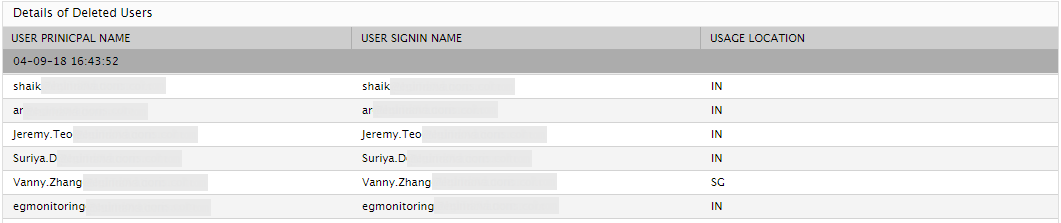
Figure 2 : The detailed diagnosis of the Deleted users measure
The detailed diagnosis of the Users with non-expiring passwords measure reveals the principal name and sign-in name of the users who have been configured with non-expiring passwords. Additionally, the detailed metrics reveal the location of the user and the Office 365 product to which he/she has been assigned a license.
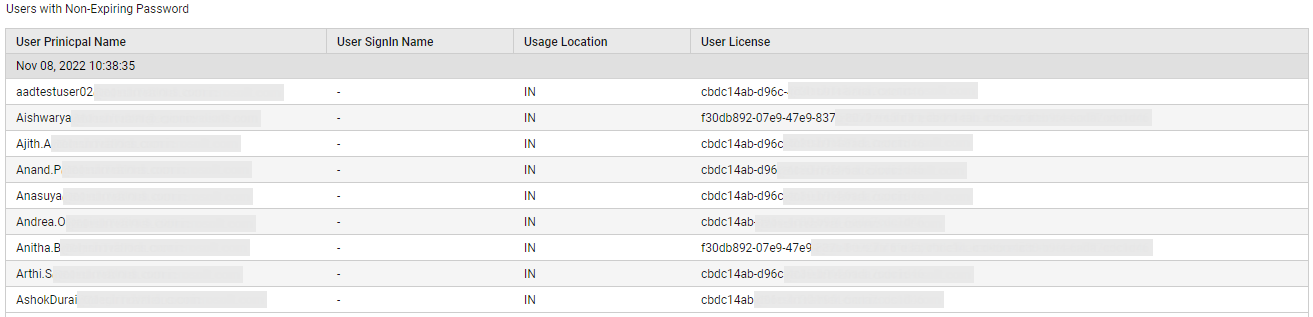
Figure 3 : The detailed diagnosis of the Users with Non-Expiring Passwords measure