Managing SAP ABAP Instance
eG Enterprise can automatically discover the SAP ABAP Instance in the environment and also lets you to add the SAP ABAP Instance component if the ABAP Instance is not auto-discovered. The following steps explain you how to manage the server that is auto-discovered using the eG administrative interface.
- Log into the eG administrative interface.
- If a SAP ABAP Instance is already discovered, then directly proceed towards managing it using the COMPONENTS – MANAGE/UNMANAGE page.
- However, if it is yet to be discovered, then run discovery (Infrastructure -> Components -> Discover) to get it discovered or add the component manually using the COMPONENTSpage (Infrastructure -> Components -> Add/Modify). Remember that components manually added are managed automatically. Discovered components, however, are managed using the COMPONENTS – MANAGE / UNMANAGE page.
- To manage the SAP ABAP Instance component that is auto-discovered, follow the Infrastructure -> Components -> Manage/Unmanage in the Infrastructure tile of the Admin menu.
- In the COMPONENTS – MANAGE/UNMANAGE page that appears next, select SAP ABAP Instance as the Component type. Then, the auto-discovered components will be displayed under the Unmanaged Components section.
-
Next choose the component to be managed from the from the Unmanaged Components section. Figure 1 and Figure 2 clearly illustrate the process of managing the SAP ABAP Instance.
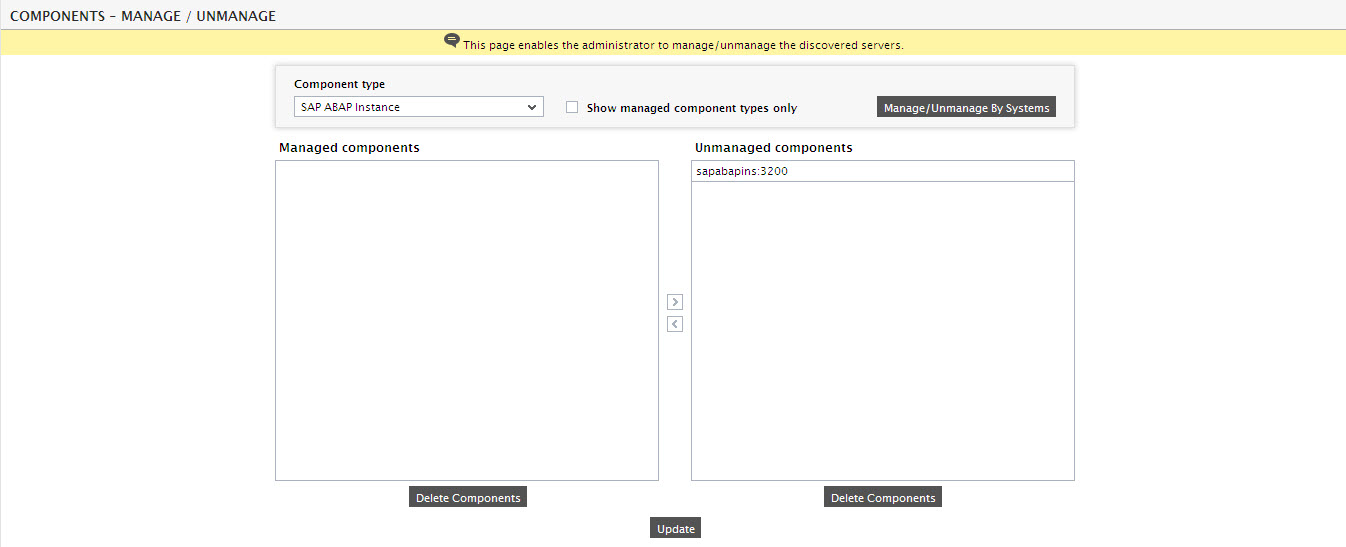
Figure 1 : Selecting a SAP ABAP Instance for monitoring
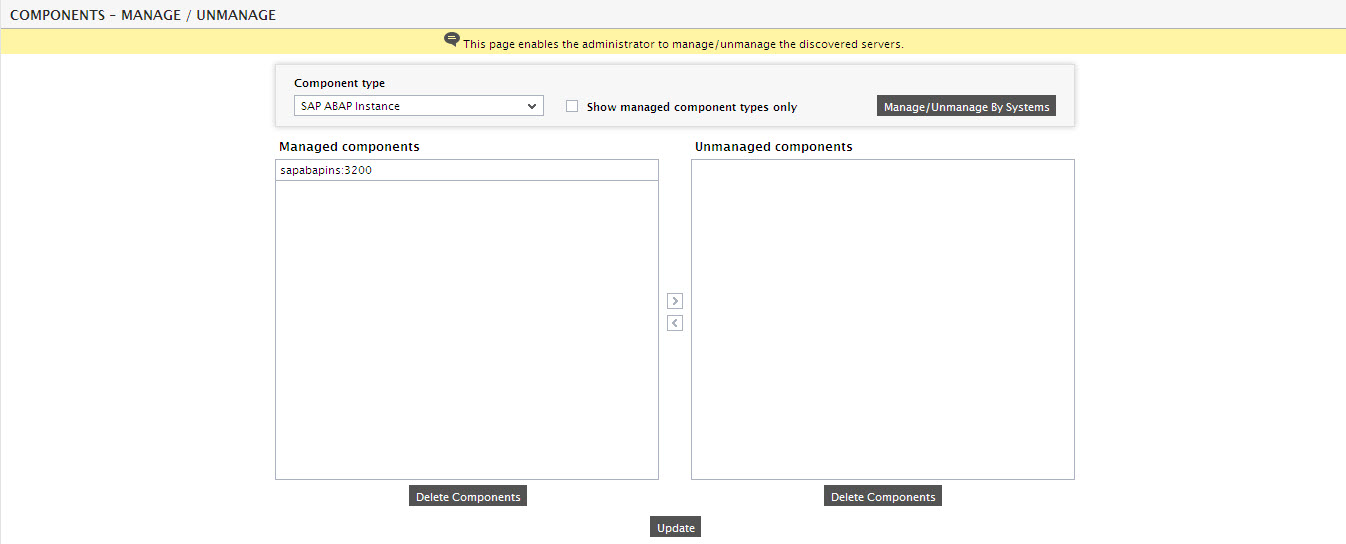
-
Then, try to sign out of the eG administrative interface. Upon doing so, Figure 3 will appear listing the unconfigured tests for the SAP ABAP Instance.
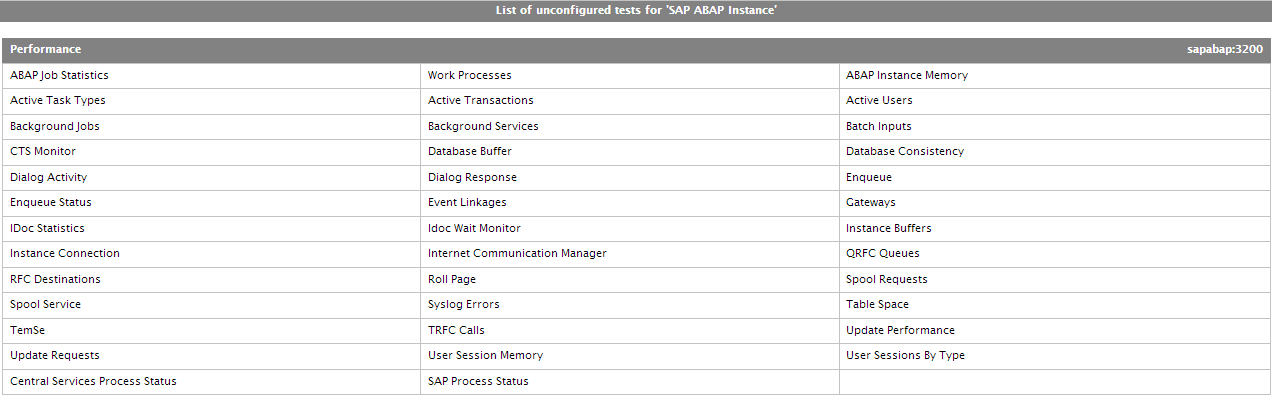
Figure 3 : The list of unconfigured tests for the SAP ABAP Instance
-
Click on any test in the list of unconfigured tests. For instance, click on the ABAP Instance History test to configure it. In the page that appears, specify the parameters as shown in Figure 4.
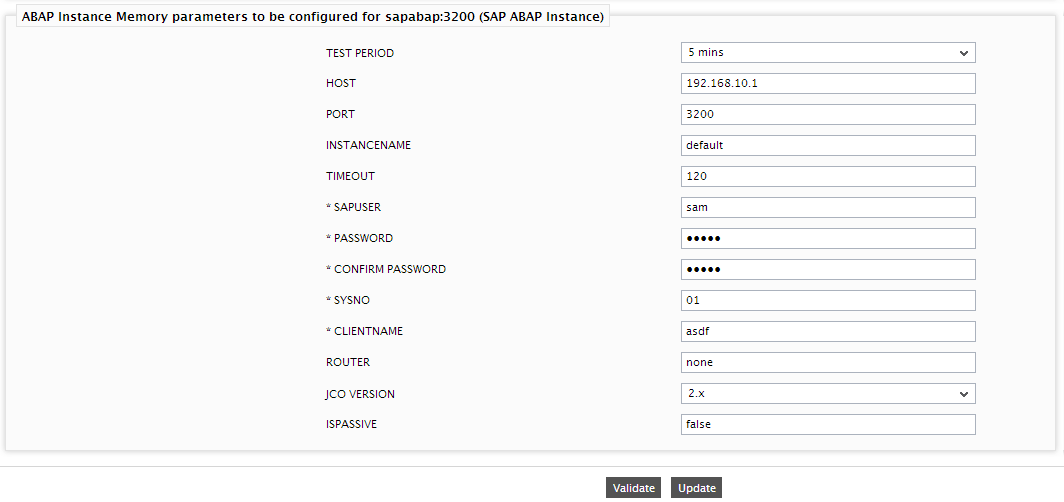
- To know how to configure parameters, refer to Monitoring the SAP ABAP Instance.
- Finally, sign out of the eG administrative interface.
Adding SAP ABAP Instance
To manually add the SAP ABAP Instance component in eG Enterprise, follow the steps below:
- Follow the Components -> Add/Modify menu sequence in the Infrastructure tile of the Admin menu.
- Next, select SAP ABAP Instance from the Component type drop-down and then click the Add New Component button.
-
When Figure 5 appears, provide the Host IP/Name of the SAP ABAP Instance that you want to manage.
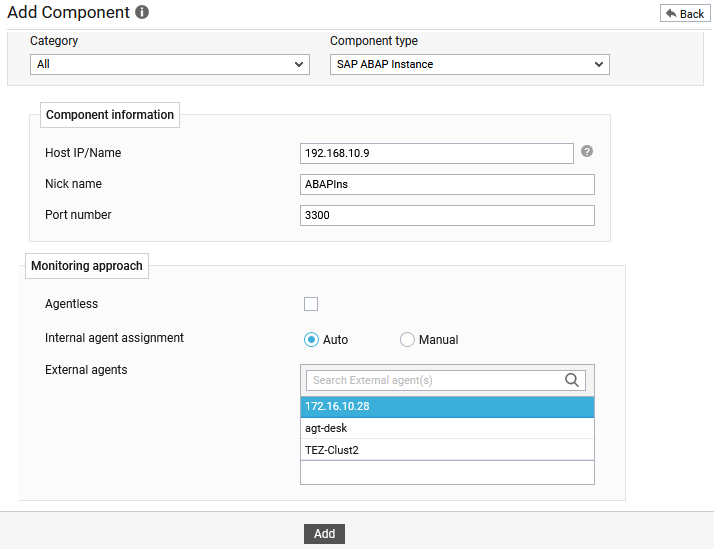
- Then, provide a Nick name for the server.
- The Port number will be set as 3300 by default implying that this is the port number used by the gateway service running within the SAP ABAP Instance. Typically, the format of the port number is 33xx, where xx is the ‘instance number’ of the target SAP ABAP Instance being monitored. Therefore, administrators should change this default port number to the appropriate 33xx port, provided the instance number of the target SAP ABAP Instance is different from the default value i.e., 00.
-
By selecting / deselecting the Agentless check box (see Figure 5), indicate whether the component being added is to be monitored in an agentless or agent-based manner. By default, this box is unchecked.
-
By default, the Auto option against the Internal agent assignment field will be selected. This indicates that by default, eG maps every configured IP/nick name with a separate internal agent. To manually define the IP-internal agent association, select the Manual option.
- In case you are monitoring a SAP ABAP Instance in an agent-based manner, just pick an external agent from the External agents list box and click the Add button to add the component for monitoring.
-
On the other hand, if you are monitoring a SAP ABAP Instance in an agentless manner, then do the following:
-
Select the Agentless check box (see Figure 6).
-
Pick the OS on which the SAP ABAP Instance is running.
-
Set the Mode to Other.
-
Select the Remote agent that will be monitoring the SAP ABAP Instance.
-
Choose an external agent for the server by picking an option from the External agents list box.
-
Finally, click the Add button to add the SAP ABAP Instance for monitoring.
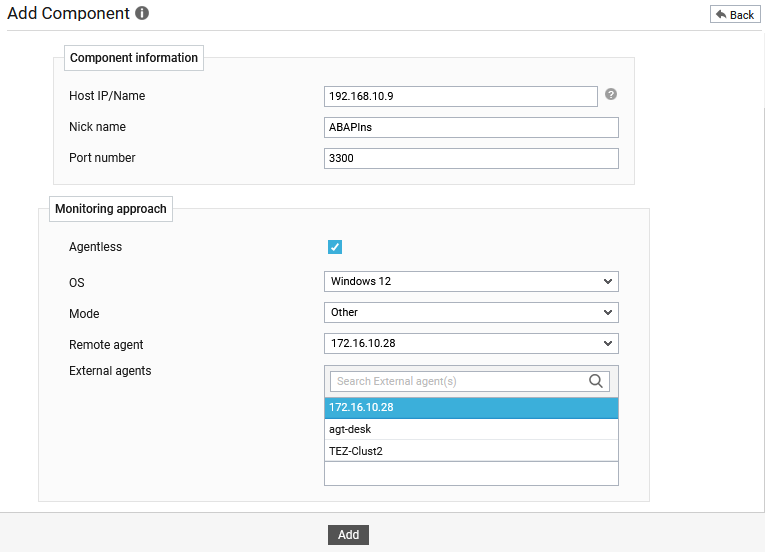
Figure 6 : Adding a SAP ABAP Instance in an agentless manner
-
- Once the SAP ABAP Instance component is added successfully, you will be directed to the Components page. Using the options provided in the Components page, you can modify, unmanage or delete the newly added component. In addition, you can also configure the tests, set thresholds and maintenance policies, and change the IP address.
- To collect the performance metrics, you may need to manually configure the tests that are mapped to the SAP ABAP Instance component. To configure the tests that need manual configuration, click on the
 icon in the Components page. This will lead you to the Specific Test Configuration page where the unconfigured tests for the SAP ABAP Instance component will be listed in the Unconfigured Tests list box.
 - Now, click on the test name to configure it. To know how to configure the tests, refer to the Monitoring the SAP ABAP Instance. To view the performance metrics, switch to the Monitor tab.