Configuring the Universal Simulator to Perform the Simulation
Once the Pre-requisites for Universal Simulator are fulfilled and a script is recorded and exported to the eG manager, follow the steps detailed below to get the simulator up and running.
-
Log into the eG administrative interface.
-
Add a dedicated external agent for the purpose of the simulation. For that, follow the Agents -> External Agents menu sequence and click the Add New Agent button. Then, specify the IP address/host name of the system that is hosting the dedicated external agent, and also provide a Nick name for the agent (see Figure 1).
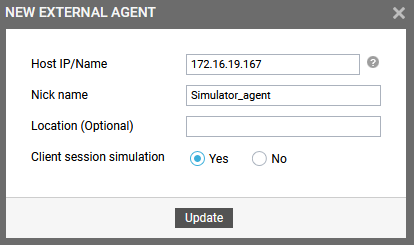
Figure 1 : Adding a dedicated external agent for the simulation
Note:
A single eG external agent can be used to run different types of simulations (for e.g., Citrix logon simulation, Omnissa Horizon logon simulation, Web App simulation etc).
-
If you wish to specify the location of the external agent, then, you can do so using the Location (Optional) text box.
-
Also, make sure that the Client session simulation flag is set to Yes for the agent.
-
Finally, click the Update button in Figure 1 to save the changes.
-
Once this external agent is started, it simulates the entire simulation process by periodically running a Simulated Transactions test. It is this test that serves as the Universal Simulator. Since this test is mapped to a Universal Simulation component, you now need to manage a component of that type. For this, follow the Infrastructure -> Components -> Add/Modify menu sequence, and then pick Universal Simulation from the list of Component types. Then, click Add New Component. When Figure 2 appears, add a Universal Simulation component using any nick name you want.

-
When adding, make sure you assign the dedicated external agent, which you had previously installed and configured for the sole purpose of this simulation, to the Universal Simulation component.
-
Once the component is added successfully, you will be redirected to the Components at a Glance page (see Figure 3). Using the options provided in the Components at a Glance page, you can modify, unmanage or delete the newly added component. In addition, you can also configure the tests.

-
To collect the performance metrics, you may need to manually configure the tests that are mapped to the Universal Simulation component. To configure the tests that need manual configuration, click on the
 icon in Figure 3. This will lead you to Figure 4 where the unconfigured tests for the Universal Simulation component will be listed in the Unconfigured Tests list box.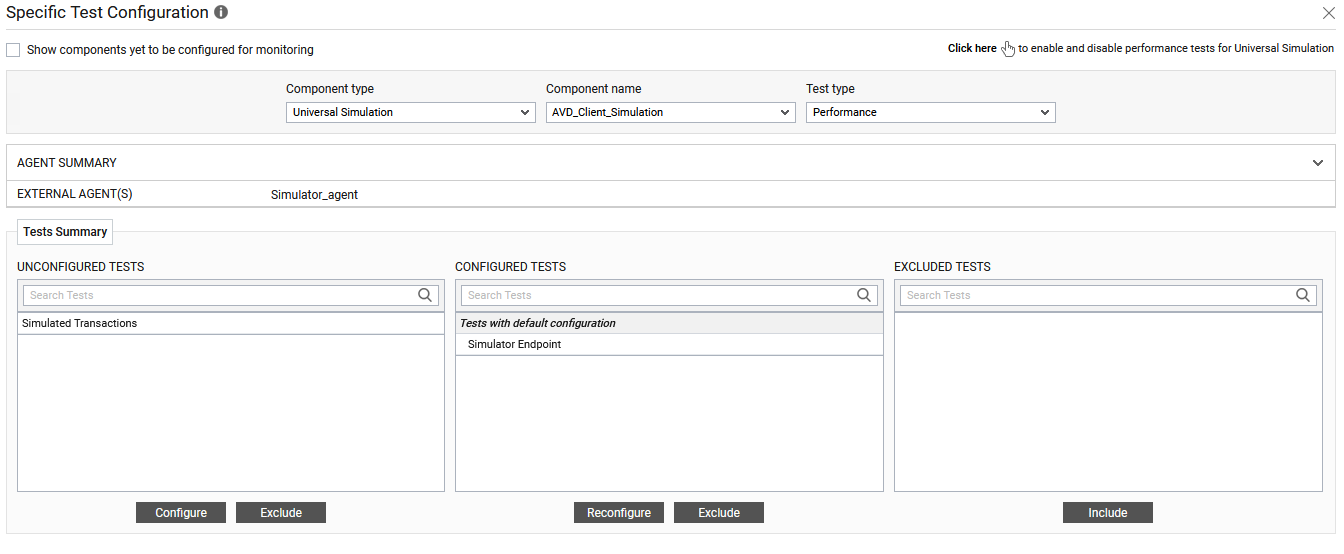
Figure 4 : The list of unconfigured tests for the Universal Simulation component
-
Click on the Simulated Transactions test in Figure 4 to configure it.
-
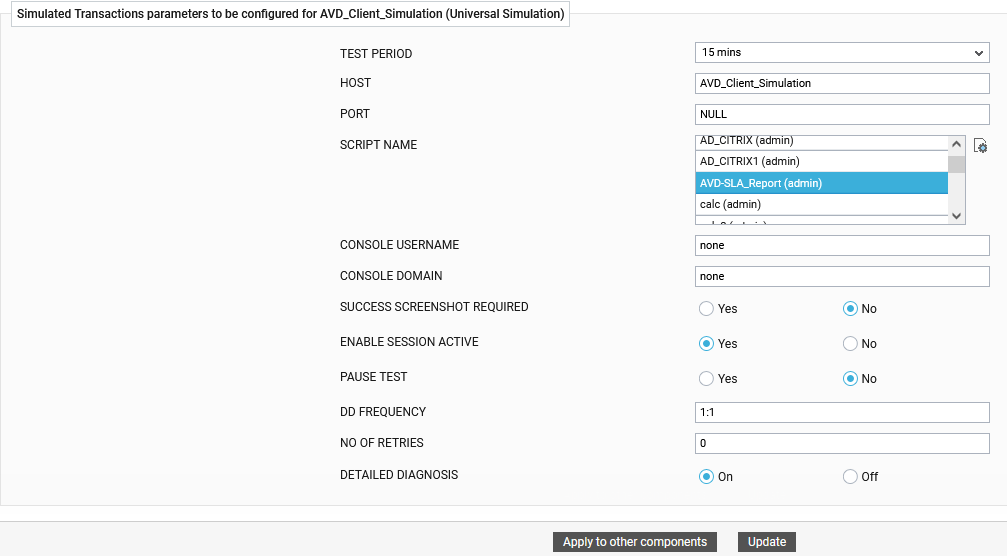
Figure 5 will then appear.
-
To know how to configure the test, refer to Simulated Transactions Test
-
Once all parameters are configured, click the Update button to save the configuration.