AVD Errors Impacting Connection Activity Test
The connection activity errors in Microsoft Azure Broker usually refer to problems that occur while establishing or maintaining a session between the client (user device) and the AVD infrastructure (host pools, session hosts, brokers, etc.). These errors can be caused by several underlying issues across networking, authentication, session brokering, or the host VM itself.
This test helps the administrators to monitor/analyze the error counts arising at the endpoint or client-side when trying to connect to the AVD environment and take remedial actions to ensure a significant session communication is happening between the client and AVD environment.
Note:
Typically, to consolidate log entries, correlate log data, and perform complex analysis, a host pool's logs are often sent to one/more Log Analytics Workspaces. This test reports valid metrics by reading data from these Log Analytics Workspaces only. If the host pool's logs are not sent to any Log Analytics Workspace, then this test will only report the value 0 for most of its measures. To avoid this, before configuring this test, make sure that the host pool's logs are configured to be sent to at least one Log Analytics Workspace. Follow the steps discussed in Configuring the Host Pool Logs to be Sent to a Log Analytics Workspace to achieve this.
Target of the Test: A Microsoft AVD Broker
Agent deploying the test: A remote agent
Output of the test: One set of results for each AVD host pool managed by the target AVD broker, in each resource group of the configured subscription.
| Parameters | Description |
|---|---|
|
Test Period |
How often should the test be executed. |
|
Host |
The host for which the test is to be configured. |
|
Subscription ID |
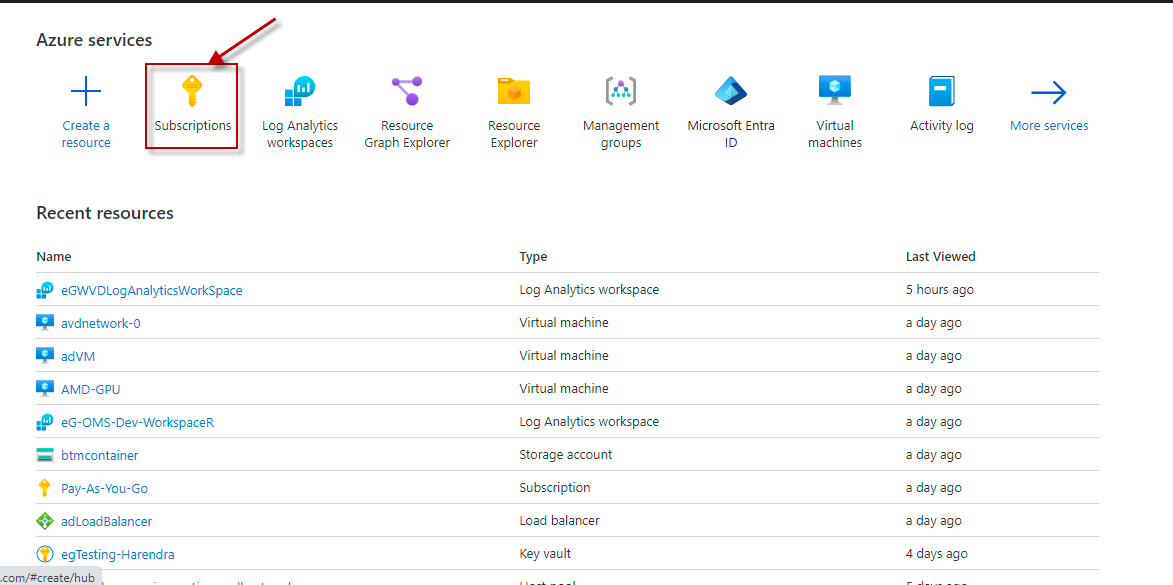
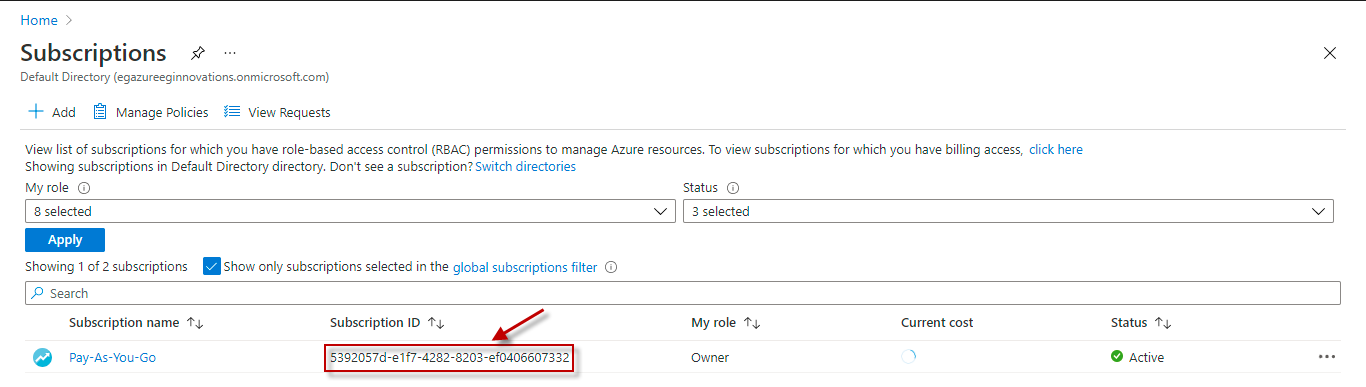
Specify the GUID which uniquely identifies the Microsoft Azure Subscription to be monitored. To know the ID that maps to the target subscription, do the following:
|
|
Tenant ID |
Specify the Directory ID of the Azure AD tenant to which the target subscription belongs. To know how to determine the Directory ID, refer to Configuring the eG Agent to Monitor a Microsoft AVD Broker Using Azure ARM REST API |
|
Client ID and Client Password |
To collect the required metrics, the eG agent requires an Access token in the form of an Application ID and the client secret value. If a Microsoft Azure Subscription component or a Microsoft Azure Active Directory component is already being monitored, then an Application would have already been created for monitoring purposes. The Application ID and Client Secret of such an application can be specified here. However, if no such application exists, then you will have to create one for monitoring the AVD broker. To know how to create such an application and determine its Application ID and Client Secret, refer to Configuring the eG Agent to Monitor a Microsoft AVD Broker Using Azure ARM REST API. Specify the Application ID of the created Application in the Client ID text box and the client secret value in the Client Password text box. |
|
Proxy Host |
In some environments, all communication with the Azure cloud be routed through a proxy server. In such environments, you should make sure that the eG agent connects to the cloud via the proxy server and collects metrics. To enable metrics collection via a proxy, specify the IP address of the proxy server and the port at which the server listens against the Proxy Host and Proxy Port parameters. By default, these parameters are set to none, indicating that the eG agent is not configured to communicate via a proxy, by default. |
|
Proxy Username, Proxy Password and Confirm Password |
If the proxy server requires authentication, then, specify a valid proxy user name and password in the Proxy Username and Proxy Password parameters, respectively. Then, confirm the password by retyping it in the Confirm Password text box. |
|
Log Analytics Workspace Name |
Typically, to consolidate log entries, correlate log data, and perform complex analysis, a host pool's logs are often sent to one/more Log Analytics Workspaces. By default, the Log Analytics Workspace Name parameter is set to All. This indicates that the test reads log data from all Log Analytics Workspaces configured for the target subscription, by default. However, if you want the test to use only those Log Analytics Workspaces to which a host pool's logs are sent, then provide the names of these workspaces here as a comma-separated list. To determine the names of the workspaces, do the following:
|
|
DD Frequency |
Refers to the frequency with which detailed diagnosis measures are to be generated for this test. The default is 1:1. This indicates that, by default, detailed measures will be generated every time this test runs, and also every time the test detects a problem. You can modify this frequency, if you so desire. Also, if you intend to disable the detailed diagnosis capability for this test, you can do so by specifying none against DD frequency. |
|
Detailed Diagnosis |
To make diagnosis more efficient and accurate, eG Enterprise embeds an optional detailed diagnostic capability. With this capability, the eG agents can be configured to run detailed, more elaborate tests as and when specific problems are detected. To enable the detailed diagnosis capability of this test for a particular server, choose the On option. To disable the capability, click on the Off option. The option to selectively enable/disable the detailed diagnosis capability will be available only if the following conditions are fulfilled:
|
| Measurement | Description | Measurement Unit | Interpretation |
|---|---|---|---|
|
Client errors |
Indicates the number of client errors encountered by this host pool. |
Number |
Ideally, the value of this measure should be 0. If a non-zero value is reported, then, use the detailed diagnosis of this measure to know the error details specific to the client. The details include Correlation ID, User Name, Code, Code Symbolic, Operations and Session Host Name. |
|
Host errors |
Indicates the number of host errors encountered by this host pool. |
Number |
|
|
Gateway errors |
Indicates the number of gateway errors encountered by this host pool. |
Number |
|
|
Broker errors |
Indicates the number of broker errors encountered by this host pool. |
Number |
|
|
Management errors |
Indicates the number of management errors encountered by this host pool. |
Number |
|
|
Service errors |
Indicates the number of service errors encountered by this host pool. |
Number |
|
|
RDgateway errors |
Indicates the number of errors encountered by RD gateway in this host pool. |
Number |
|
|
FSlogix errors |
Indicates the number of errors encountered by FSlogix in this host pool. |
Number |
|
|
RDstack errors |
Indicates the number of errors encountered by RD stack in this host pool. |
Number |
|
|
User errors |
Indicates the number of user errors encountered by this host pool. |
Number |
|
|
Unique user errors |
Indicates the number of unique user errors encountered by this host pool. |
Number |
Use the detailed diagnosis of this measure to know the unique user details related to errors. The details include user name and user count. |
|
Unique errors |
Indicates the number of unique errors encountered by this host pool. |
Number |
|
|
Unique operations errors |
Indicates the number of unique operations errors encountered by this host pool. |
Number |
|
|
Unique session host |
Indicates the number of unique session hosts in this host pool. |
Number |
|
|
Unique client os |
Indicates the number of unique client os in this host pool. |
Number |
|
|
Unique client type |
Indicates the number of unique client types in this host pool. |
Number |
|
|
Unique client version |
Indicates the number of unique client versions in this host pool. |
Number |
|
|
Unique gateway region |
Indicates the number of unique gateway regions in this host pool. |
Number |
|