Azure Control Plane Test
The Azure control plane is responsible for processing management operations such as provisioning, updating, scaling, or deleting Azure resources, and its efficiency directly influences the responsiveness of the entire subscription. Any spikes in request volume or increases in latency can slow down automation workflows, delay resource creation, and adversely impact service reliability. In addition, such issues, if left unnoticed, may result in failed deployments, stalled pipelines, or inconsistent configuration states across cloud resources.
The Azure Control Plane test monitors key metrics such as total requests and average latency, enabling administrators to detect unusual surges in control-plane activity or degradation in processing speed. By continuously tracking these metrics, the test helps identify emerging performance bottlenecks and highlights periods where Azure throttling or backend delays may be occurring. This proactive visibility allows administrators to diagnose the cause of slowdowns, optimize automation behavior, and ensure that management operations execute smoothly.
Target of the Test : A Microsoft Azure Subscription
Agent deploying the test: A remote agent
Output of the test: One set of results the target Microsoft Azure Subscription
| Parameters | Description |
|---|---|
|
Test Period |
How often should the test be executed. |
|
Host |
The host for which the test is to be configured. |
|
Subscription ID |
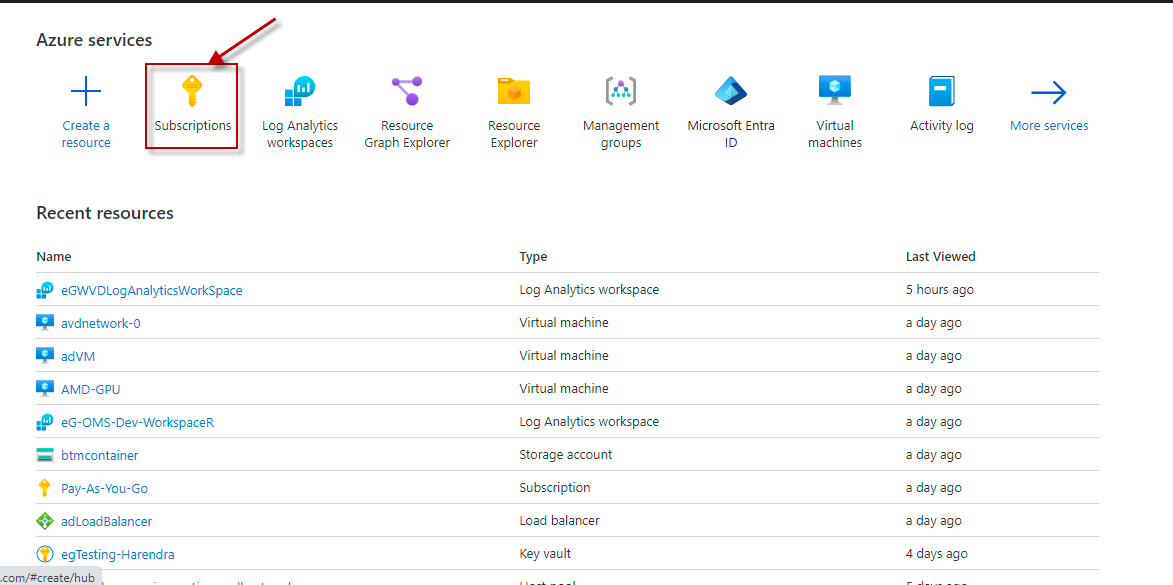
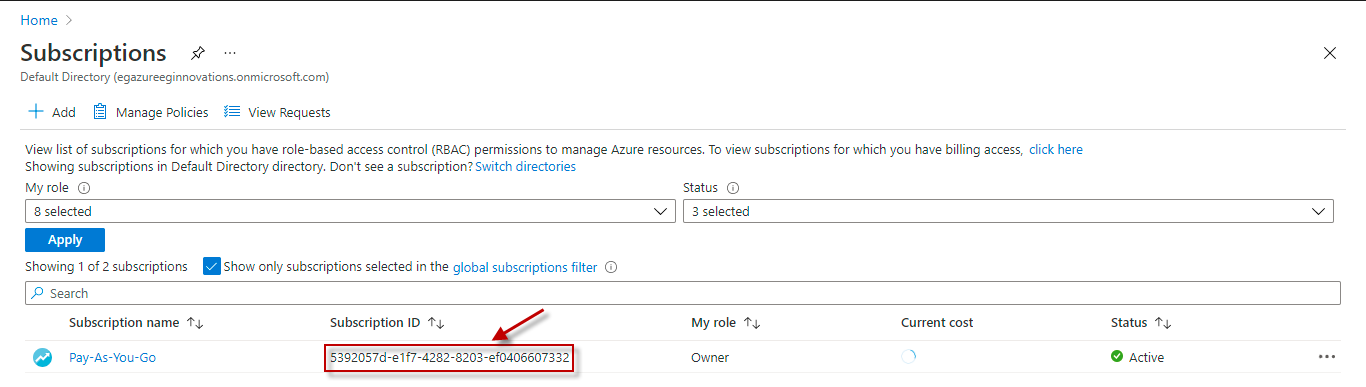
This field will be automatically populated if you have chosen to automatically fulfill the pre-requisites for monitoring the Microsoft Azure Subscription. Specify the GUID which uniquely identifies the Microsoft Azure Subscription to be monitored in this text box
|
|
Tenant ID |
This field will be automatically populated if you have chosen to automatically fulfill the pre-requisites for monitoring the Microsoft Azure Subscription. Specify the Directory ID of the Azure Entra ID tenant to which the target subscription belongs in this text box |
|
Client ID, Client Password, and Confirm Password |
To connect to the target subscription, the eG agent requires an Access token in the form of an Application ID and the client secret value. For this purpose, you should register a new application with the Microsoft Entra tenant. To know how to create such an application and determine its Application ID and client secret, refer to Configuring the eG Agent to Monitor a Microsoft Azure Subscription Using Azure ARM REST API. Specify the Application ID of the created Application in the Client ID text box and the client secret value in the Client Password text box |
|
Proxy Host and Proxy Port |
In some environments, all communication with the Azure cloud be routed through a proxy server. In such environments, you should make sure that the eG agent connects to the cloud via the proxy server and collects metrics. To enable metrics collection via a proxy, specify the IP address of the proxy server and the port at which the server listens against the Proxy Host and Proxy Port parameters. By default, these parameters are set to none, indicating that the eG agent is not configured to communicate via a proxy, by default. |
|
Proxy Username, Proxy Password and Confirm Password |
If the proxy server requires authentication, then, specify a valid proxy user name and password in the Proxy Username and Proxy Password parameters, respectively. Then, confirm the password by retyping it in the Confirm Password text box. |
| Measurement | Description | Measurement Unit | Interpretation |
|---|---|---|---|
|
Total requests in last measurement period |
Indicates the total number of control-plane requests received during the last measurement period. |
Number |
A consistently high request count may suggest heavy provisioning or configuration activity. Sudden spikes may indicate automated workflows running excessively, misconfigured scripts, or unexpected load from third-party tools. Azure provides control-plane metrics only at a minimum granularity of 5 minutes; therefore, this measure will be reported only when the test frequency is set to 5 minutes or more. |
|
Total requests for 1 hour |
Indicates the total number of control-plane requests received over the last 1-hour duration. |
Number |
A rising hourly trend may point to scheduled automation tasks or scaling events. Abnormal increases may lead to rate limiting or throttling by Azure, impacting provisioning operations. |
|
Average latency in last measurement period |
Indicates the average time taken by Azure to process control-plane requests during the last measurement period. |
Seconds |
Higher-than-normal latency suggests delays in Azure’s backend services. This can impact deployments, updates, and scaling operations. Persistent latency spikes may lead to timeout errors, stalled pipelines, or failures in automation workflows. Azure provides control-plane metrics only at a minimum granularity of 5 minutes; therefore, this measure will be reported only when the test frequency is set to 5 minutes or more. |
|
Average latency for 1 hour |
Indicates the average time taken by Azure to process control-plane requests during the last 1-hour duration. |
Seconds |
Tracking hourly latency trends helps identify whether delays are temporary, load-related, or indicative of systemic Azure throttling. If hourly latency remains elevated, administrators should investigate possible quota limits, backend issues, or misbehaving automation scripts. |