Adding/Removing Breakpoints
Often, administrators playback the recorded script multiple times before uploading in order to assure that the playback is replayed in the same sequence that was followed while recording the script. If the playback is not in the recorded sequence, they should immediately start troubleshooting the script and identify the exact transaction / user activity that was problematic. For hassle free troubleshooting, administrators can introduce breakpoints on user activities and replay the script.
To add a breakpoint to an activity, administrators can right click the user activity of their choice, navigate to Breakpoint and click the Add option (see Figure 1).
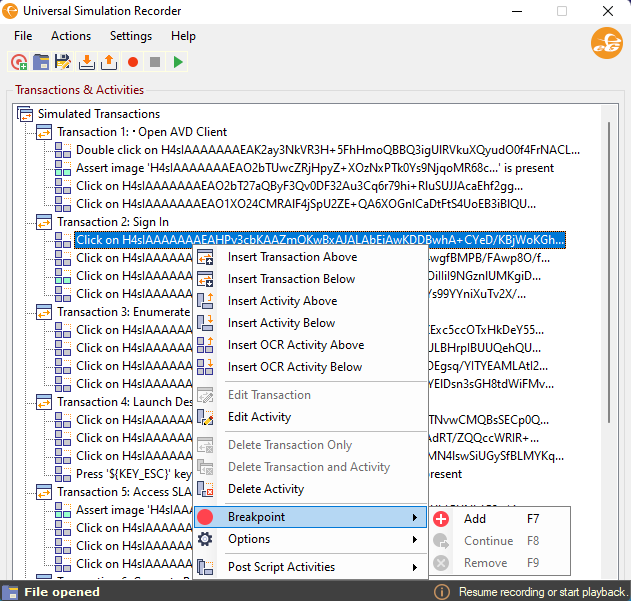
Figure 1 : Adding a breakpoint
A breakpoint is then introduced on the user activity. A red dot preceding the user activity (see Figure 2) helps you easily identify a breakpoint.
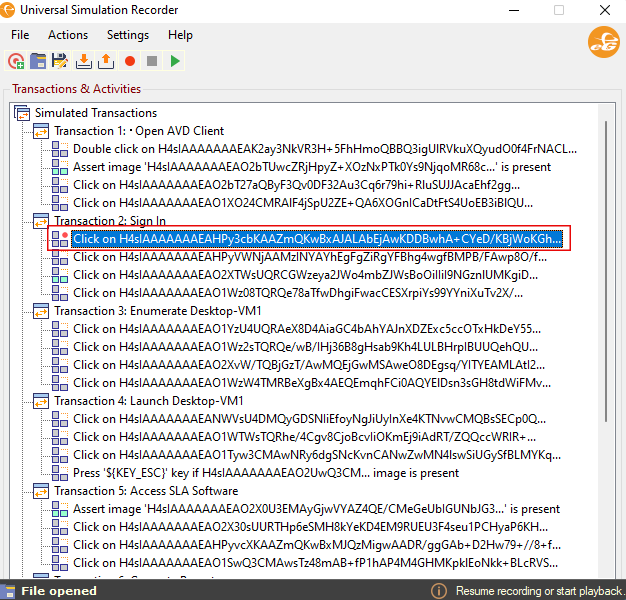
Figure 2 : Identifying a breakpoint with a red dot
To remove, the Breakpoint, administrators can click the Remove option as shown in Figure 3.
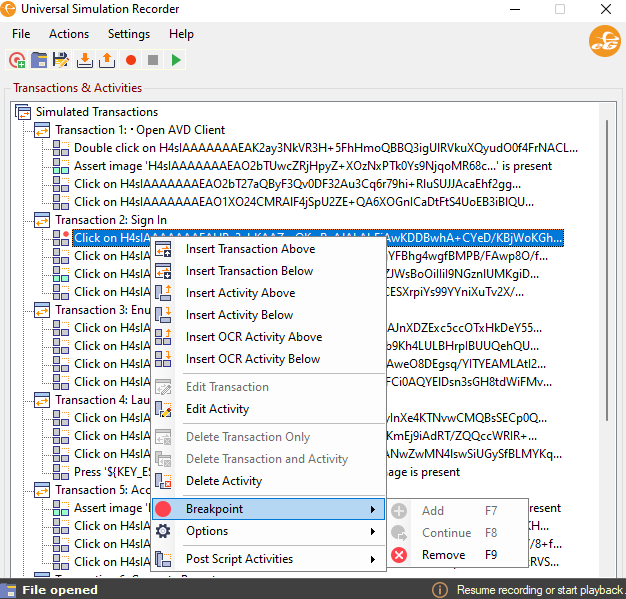
Figure 3 : Removing a breakpoint
To resume the playback from the breakpoint, administrators can click the Continue option as shown in Figure 4.
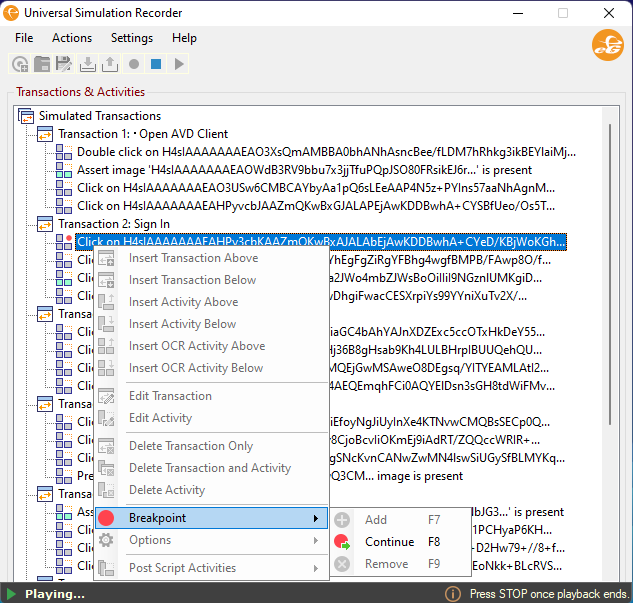
Figure 4 : Continue playback from breakpoint
Note:
-
You cannot add/remove the breakpoints while a user is recording a script or playing back the recorded script using the Universal Transaction Recorder.
-
You cannot add a breakpoint for transactions.
-
You are allowed to add multiple breakpoints for user activities.