Virtual Desktops Dashboard
The Virtual Desktops Dashboard provides an at-a-glance look at the overall health of the virtual desktops, user experience, user's logon performance, application performance, and resources utilization at different levels.
To access the dashboard, follow the menu sequence: Monitor -> Dashboards -> Digital Workspaces -> Virtual Desktops.
By default, the Virtual Desktops dashboard will be displayed only if components of the following component types are managed in the target environment.
-
XenServer - VDI
-
VMware vSphere VDI
-
Amazon Cloud Desktop Group
-
Cloud Desktop Group
-
Citrix Desktop Group
-
Nutanix AHV - VDI
Accordingly, the Type list box will list all these component types and by default, the XenServer - VDI will be chosen from this list indicating that the dashboard is plotted for the XenServer - VDI in the target environment. By default, the DefaultDashboard view is chosen from the Views list. This indicates that the dashboard is created by default for the components of the chosen Component Type.
The sections that follow will discuss each page of the Virtual Desktops dashboard in detail.
Overview
The Overview page provides a bird's eye view of the overall health of the target virtual desktop environment as well as the aggregate resource utilization of applications hosted in the environment (see Figure 1).
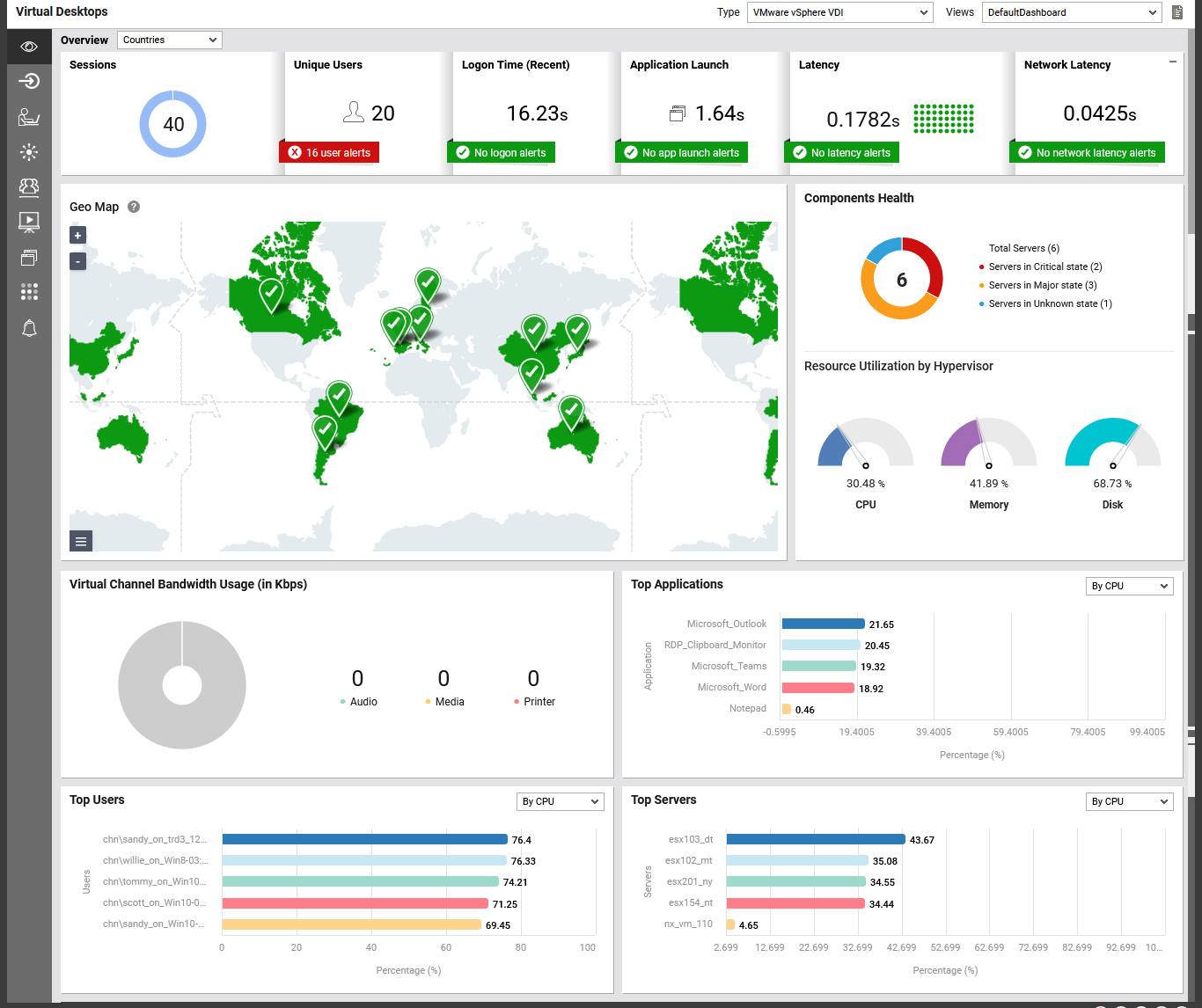
Figure 1 : The Overview page of the Virtual Desktops dashboard
With the help of a group of visual tools – e.g., intuitive icons, color-coded values, miniature graphs, geo maps, etc. - the Overview page of the Virtual Desktops dashboard helps you find quick and accurate answers, from just a glance, to the following questions:
- Are the virtual desktops in the environment healthy? If not, then how many servers are affected by major or critical issues?
- Are the virtual desktops utilizing the resources optimally?
- How many distinct users are currently accessing the virtual desktops? - this is a good indicator of the number of users who are truly utilizing the to the traffic on the web site.
- Is logging into the Virtual Apps server failing frequently/taking too much time?
-
Is any application taking longer than expected to launch, and which applications are most impacted?
- Are users facing latencies to connect to the VDI server?
-
Are users experiencing latency issues when connecting to the VMware vSphere VDI server? If yes, which regions are most affected?
- Are users from any particular geographic location over-utilizing CPU or memory resources?
-
What type of data (audio, media, printer) is consuming the maximum share of virtual channel bandwidth?
- Which application/user/server is consuming maximum CPU/memory resources?
-
Which user sessions are consuming the highest CPU/memory resources, and are these expected workloads?
-
Which server is consuming the maximum CPU/memory resources, and does this indicate load imbalance?
Let us now discuss each section available in this page with respect to the VMware vSphere VDI component type in detail.
The Sessions doughnut chart in Figure 1helps administrators identify the total number of sessions established to the VMware vSphere VDI server.
The Unique Users section displays the number of unique users accessing the target VDI server. Clicking on the count of alerts will open Figure 2 that displays all the individual alerts raised for the users in the target environment.
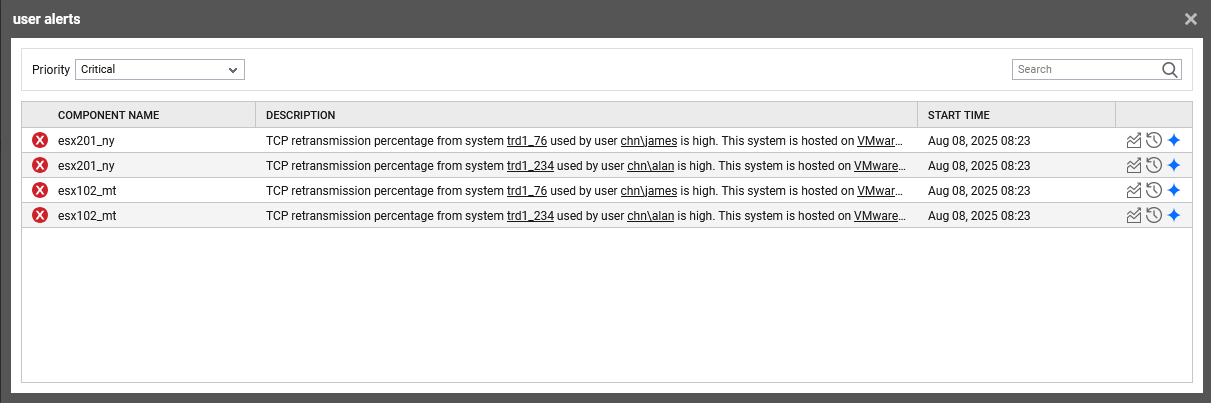
Figure 2 : The User Alert window displaying the alerts raised for the users
The Logon Time (Recent) section reveals the time duration taken by the user to establish the session. Also, this section captures and displays the count of alerts raised for the logon time of the users that exceeded a configured time duration. Clicking on the count of alerts will lead you to the Logon Alerts window that displays all the individual alerts raised for the delay in the logon time of the users logged into the target environment.
The Application Launch section shows the average time taken by users to launch applications in the target VDI environment and also displays the number of alerts raised for delays occurred while launching the applications. Clicking the displayed value takes you to the Applications tab for more details. Clicking the alert count opens the App Launch Alerts window, which lists all alerts related to application launch delays.
The Latency section shows a heat map of the average screen refresh latency experienced by users. This latency is the time measured at the client between a user’s action and the graphical response from the target VDI server. Clicking the displayed value opens the User Experience Overview dashboard, which highlights users with high average latency. The section also displays the number of alerts raised when latency exceeded default thresholds. Clicking the alert count opens the Latency Alerts window, which lists all alerts related to screen refresh latency in the target environment.
The Network Latency section reveals the average latency experienced by the users when transmitting/receiving data over the network channels. Clicking the value displayed in this section will lead you to the User Experience Overview dashboard that highlights the users who experienced high network latency. Also, this section captures and displays the count of alerts raised when the network latency of the users violated the default threshold values. Clicking on the count of alerts will lead you to the latency alerts that displays all the individual alerts raised in the target environment with respect to the average network latency of the users.
To analyze user experience geographically, use the Geo Map section of the dashboard. The Geo Map in Figure 3 quickly tells you where your users are from. Location markers accurately pinpoint the countries from which the users have established sessions on the target server. The size of the location marker varies according to the number of sessions established by the users of each country - i.e., larger the marker, higher will be the number of sessions from that country. Also, to indicate the experience of users from a country, both that country and its corresponding marker are colored using conventional color-codes. This way, the map intelligently differentiates between the “happy” countries and the “unhappy” ones.
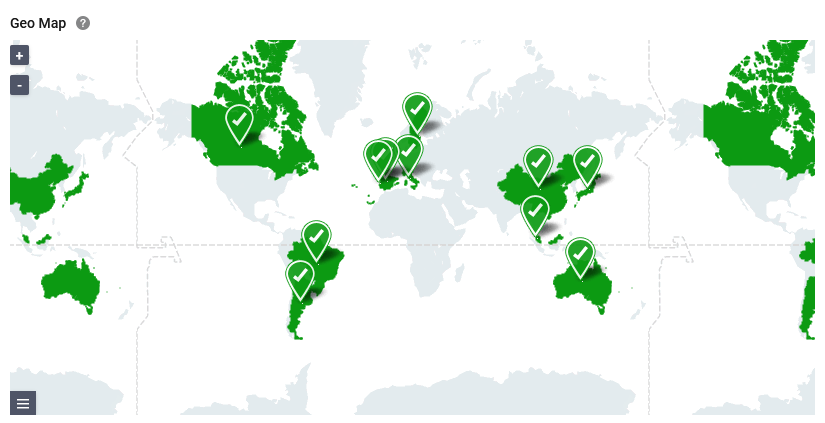
Figure 3 : The Geo Map section
Note:
At any given point in time, you can choose to view only the request indicators - i.e., the markers - or the response time indicators - i.e., the countries colored using conventional color-codes - in the map. For instance, to hide the markers, click on the button below the map, and uncheck the Requests check box. To hide the colored countries, uncheck the Response time check box (see Figure 4).
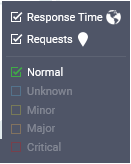
Figure 4 : Customizing the Geo map
You can also choose to view in the map, only those countries with a poor user experience. For this, you may want to uncheck the Normal check box in Figure 4, and check the Major, Minor, Critical, and/or Unknown check boxes therein.
To know why users from certain countries are 'unhappy' with the target VDI server, click on the problem country in the map. A box depicted by Figure 5 will appear revealing what the users from that country experience when interacting with the target VDI server. The sessions from the country, the average latency, and percentage of CPU and memory utilization are displayed in the box. From this, you can easily infer what is ailing the experience of users from that country – latency? or excessive resource utilization?
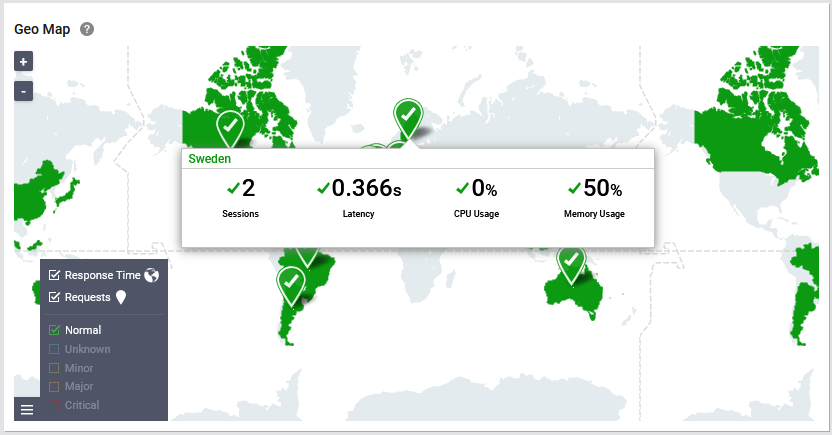
Figure 5 : Viewing the user experience statistics of a particular country in the Geo map
If users from a country are experiencing issues in sessions, it is only natural that you want to figure out whether the problem is widespread or is confined to a specific region within that country. This can be easily determined by zooming into a problem country in the map! For this, just select the country you want to focus on from the Countries drop-down list in the Geo section. Figure 5 will then appear revealing the exact regions (in that country) from which requests are received and the overall experience of the users from each region. Then, the Components Health section adjacent to the Geo Map section reveals the current health and resource utilization of the VDI servers in the environment.
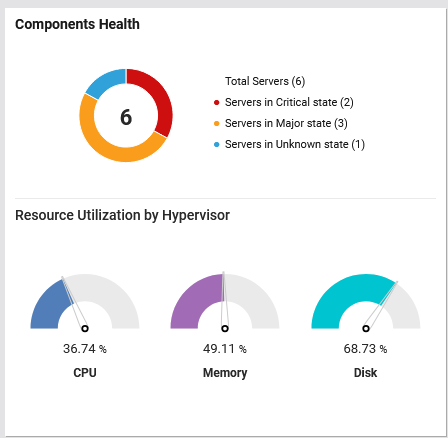
Figure 6 : The Components Health section
The Components Health section reveals color-coded doughnut graph that displays the count of VDI servers in critical / major /minor states with respect to current health. Clicking on a division in this graph will enable you to view the list of servers in a particular state. The windows that displays the list of servers also reveals the problems that the servers are currently facing. The Resource Utilization by Hypervisor sub-section in Figure 6 reveals the average percentage of CPU utilization, memory utilization and disk utilization of the VDI servers in the environment.
The Virtual Channel Bandwidth Usage section (Figure 7) allows administrators to quickly view bandwidth usage by printer, audio, and multimedia traffic. A color-coded doughnut chart highlights the type of traffic consuming the most bandwidth. This helps identify areas where client configuration can be optimized to reduce bandwidth consumption and improve performance.
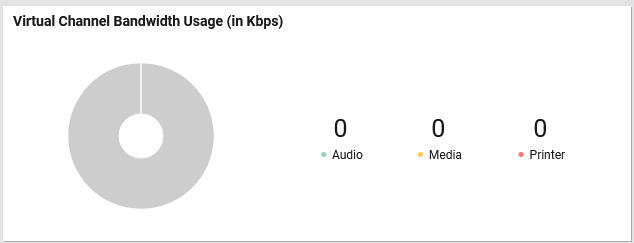
Figure 7 : The Virtual Channel Bandwidth Usage section
The Top Applications section helps administrators to identify the applications that are utilizing the maximum memory, CPU etc. Use the drop-down list provided at the right-corner of the section to select the criteria based on which you want to plot the bar graph (see Figure 8).
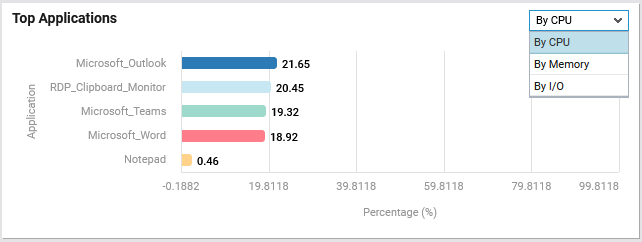
Figure 8 : The Top Applications section
The Top Users section point you the top users who are utilizing the maximum memory, CPU etc. Use the drop-down list provided at the right-corner of the section to select the criteria based on which you want to plot the bar graph (see Figure 9).
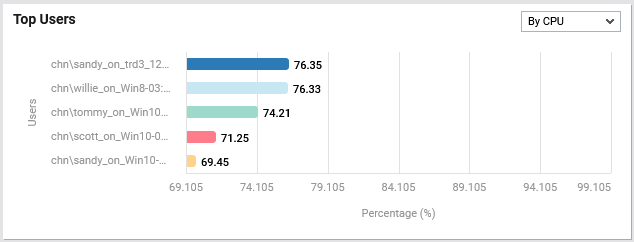
Figure 9 : The Top Users section
The Top Servers section point you the top servers that are over-utilizing the memory, CPU etc. Use the drop-down list provided at the right-corner of the section to select the criteria based on which you want to plot the bar graph (see Figure 10).
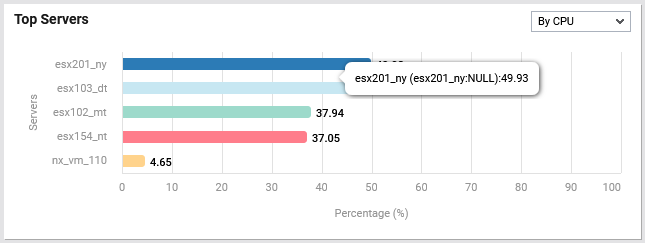
Figure 10 : The Top Servers section
Logon Activity
The Logon Activity page appears when you click the Logon option from the left panel of the Virtual Desktops dashboard. This dashboard offers in-depth insights into the user logon activity, identify slow logons and isolate the users who experienced slowness while logging into the target VDI servers.

Figure 11 : The Virtual Apps - Logon Activity dashboard
The top most ribbon in this page helps administrators identify the following:
-
The first grid in the ribbon displays the count of new sessions that were established recently and the count of new users logged into the target VDI server. If any alerts were captured during the session logons, then, the count of alerts will be displayed in this section. Clicking on the alerts section will lead you to the layer model of the target VDI server on which users experienced logon issues.
-
The Avg Logon Time section displays a graph that helps administrators identify average time taken by the users to login into the target VDI server during the past one hour. Clicking on the graph will lead you to the layer model page of the target VDI server where average user logon duration is recorded. The average logon time (in seconds) taken by a user during the last 10 mins is displayed under the Last 10 mins field and the average logon time taken by a user during the last 1 hour is displayed under the Last 1 hour field. Clicking on a value against the Last 10 mins and Last 1 hour fields will lead you to the layer model page of the target VDI server where average user logon duration is recorded.
-
In the Max Logon Time section, the maximum logon time (in seconds) taken by a user during the last 10 mins is displayed under the Last 10 mins field and the maximum logon time taken by a user during the last 1 hour is displayed under the Last 1 hour field. Clicking on a value displayed under the Last 10 mins and Last 1 hour field will lead you to the layer model page of the target VDI server where you can identify the users who took the maximum time to login to the target VDI server.
-
The Slow Logons section displays the number of user logins that were identified as slow during the Last 10 mins and Last 1 hour. Clicking on a value displayed under the Last 10 mins and Last 1 hour field will lead you to the layer model of the target VDI server where you can identify the users whose logins to the VDI server were identified as slow.
The Breakdown of Logon Time (Recent) section displays a doughnut chart which helps administrators visually identify the exact step that is causing logon slowness - is it GPOs? or User Profile? or Active Directory? or Logon script execution?
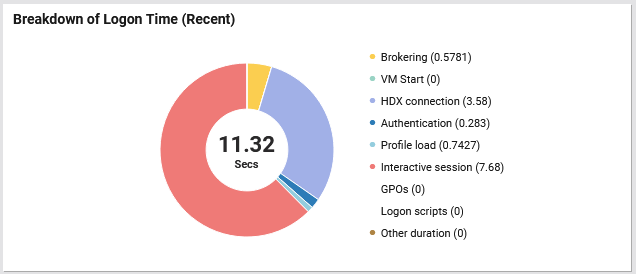
Figure 12 : The Breakdown of Logon Time section
Clicking on a legend displayed in this section will lead you to the User Experience Overview dashboard which helps administrators identify the users whose login experience is suffering.
The Logon Activity section displays a graph that shows the exact time at which the number of users logged in and the average time taken by the users to login during the last one hour. By merely looking at this graph, administrators can identify the exact time at which logins to the target VDI server took too long and when exactly maximum number of users logged into the server.
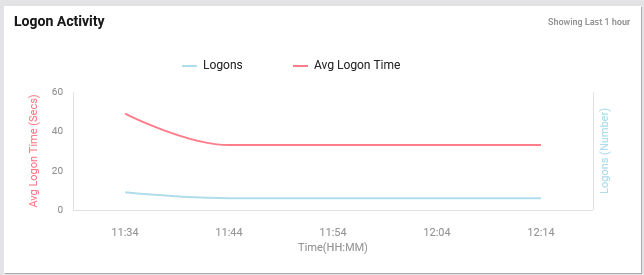
Figure 13 : The Logon Activity section
The Logons by Delivery Group section displays the number of user logons grouped by delivery group in the target VDI environment. This helps administrators understand how logon activity is distributed across different delivery groups. By looking at the this graph, administrators can quickly identify which delivery groups are most actively used, and detect groups with little or no activity that may require attention or optimization.
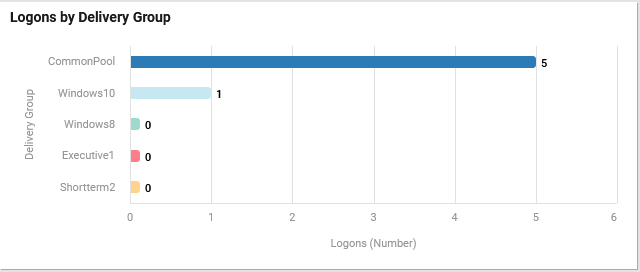
Figure 14 : The Logons by Delivery Group section
The Logon Duration by Delivery Group section shows the average time (in seconds) taken by users to log on, grouped by delivery group. This helps administrators compare logon performance across different delivery groups and quickly identify where users are experiencing longer delays. Delivery groups with higher average logon times may require further investigation into profile loading, group policies, or resource availability.
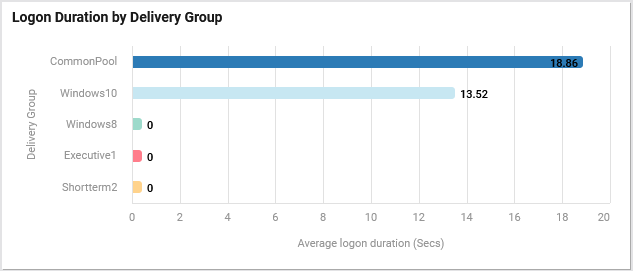
Figure 15 : The Logon Duration by Delivery Group section
The Connection/Machine Failures section graphically displays the number of connections/machines that failed during the last one hour. By looking at this graph, administrators can instantly identify the exact time at which maximum number of connections/machines failed.
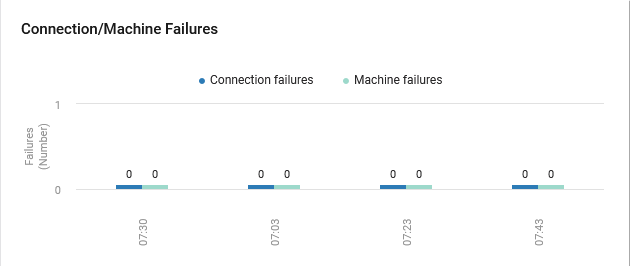
Figure 16 : The Connection/Machine Failures section
The Top 5 Logons By Duration section lists the top-N users in terms of the time taken by them to login to the virtual desktops. This section helps the administrators quickly identify the users who took maximum time for logging in.
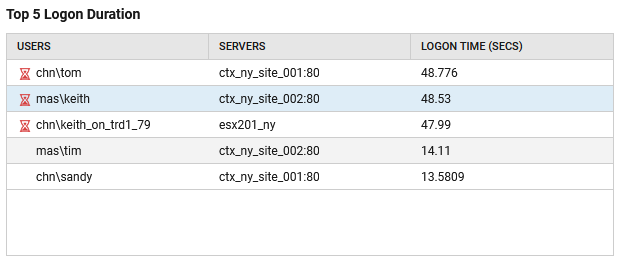
Figure 17 : The Top 5 Logons By Duration section
The Top Users By Profile Size section lists the top-N users based on their profile size. By merely looking at the bar graph provided in this section, administrators can identify the users with large profile size.
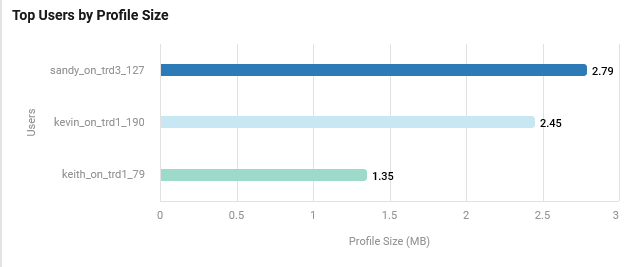
Figure 18 : The Top Users By Profile Size section
User Experience
The User Experience tab page appears when you click the User Experience option from the left panel of the Virtual Desktops dashboard. This dashboard reveals the performance metrics related to the end-user experience in the VDI infrastructure during the last 10 minutes.
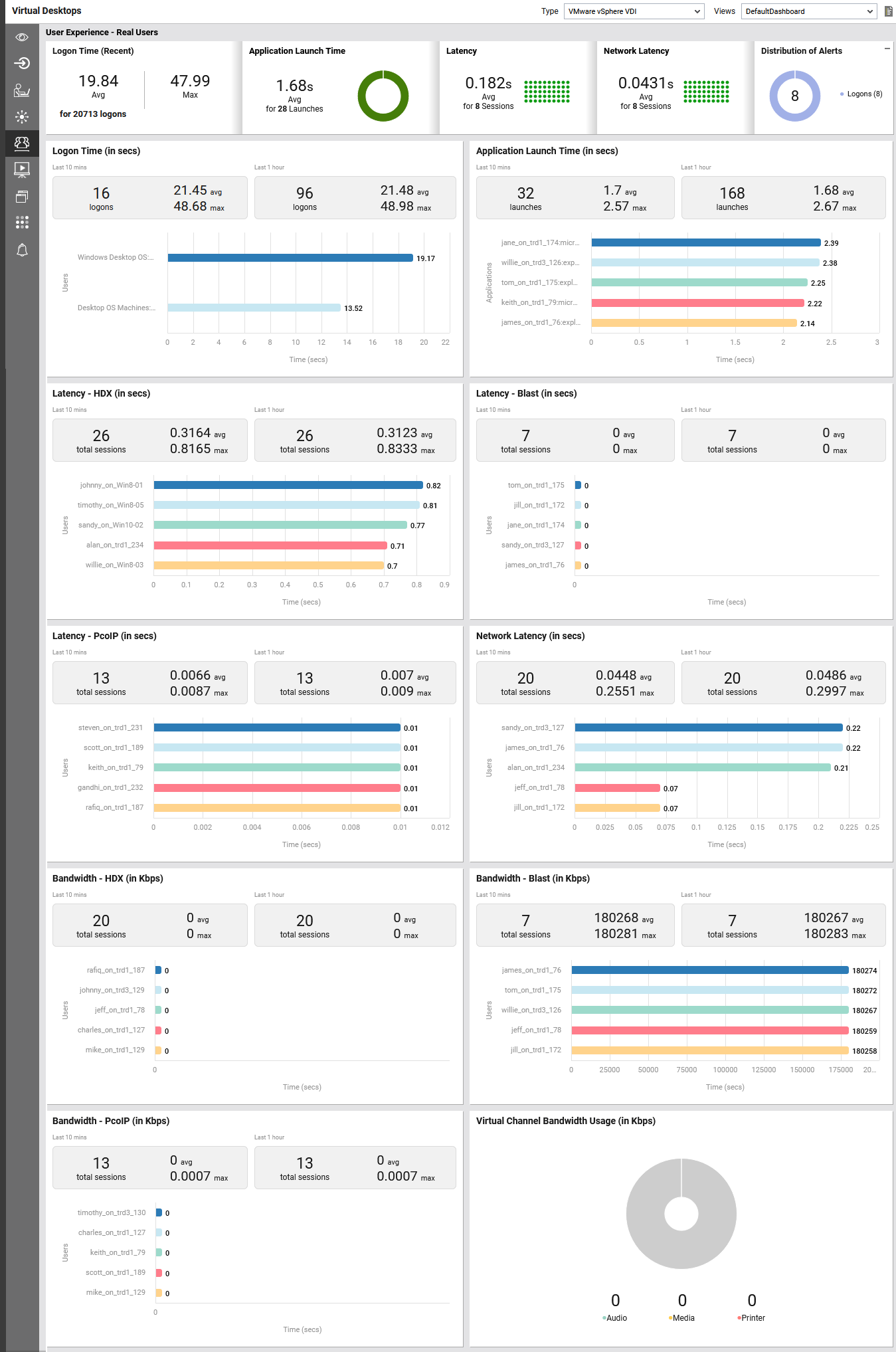
Figure 19 : The User Experience tab page
The top most ribbon in this dashboard helps administrators identify the following:
-
The Logon Time (Recent) section reveals the time duration taken by the users to establish the sessions during the last 10 minutes. Clicking on the doughnut chart provided in this section will lead you to the User Experience Overview dashboard that highlights the users whose logon duration was high.
-
The Application Launch Time section reveals the average time taken by the users to launch an application in the target environment during the last 10 minutes. Clicking on the doughnut chart provided in this section will lead you to the Applications tab page of this dashboard.
-
The Latency section shows a heat map of the average latency experienced by users. This latency is the time measured at the client between a user’s action and the graphical response from the target VDI server. Clicking the displayed value opens the User Experience Overview dashboard, which highlights users with high average latency.
-
The Network Latency section reveals the average latency experienced by the users when transmitting/receiving data over the network channels. Clicking the value displayed in this section will lead you to the User Experience Overview dashboard that highlights the users who experienced high network latency.
-
The doughnut chart provided in the Distribution of Alerts section reveals the distribution of alerts raised for the delay in the logon time of the users and alerts generated when the average network latency and screen refresh latency of the users violated the default threshold values. Clicking on the legends provided in this section will invoke the pop-up windows that display all the individual alerts raised in the target environment with respect to the legend you are clicking on. For example, clicking on the Logons legend will invoke the Open Problems window that displays all the individual alerts raised for the delay in the logon time of the users logged into the target environment.
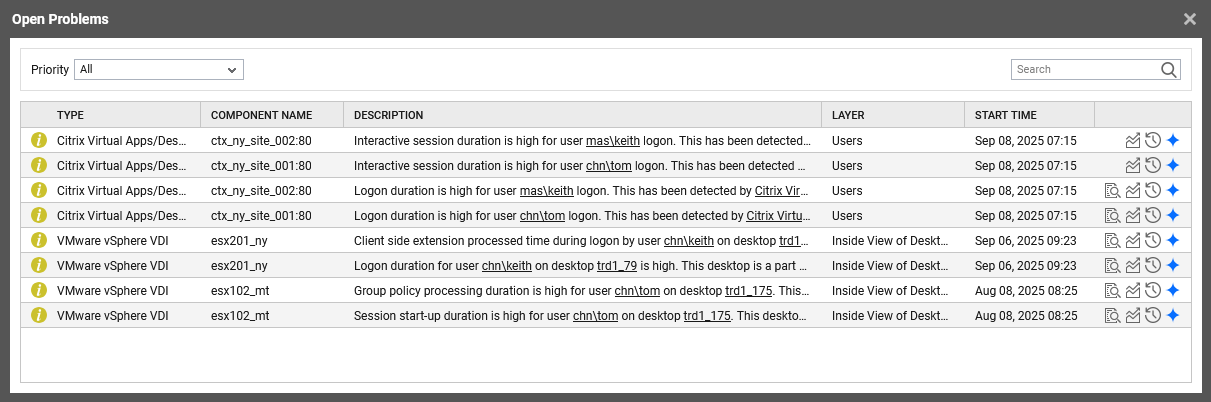
Figure 20 : The open problems in the target VDI environment with respect to user logons
The Logon time section displays a bar graph that helps administrators identify average time taken by the users to login into the target VDI server during the past one hour. Clicking on the graph will lead you to the layer model page of the target VDI server where average user logon duration is recorded. The average logon time (in seconds) taken by a user during the last 10 mins is displayed under the Last 10 mins field and the average logon time taken by a user during the last 1 hour is displayed under the Last 1 hour field. Clicking on a value against the Last 10 mins and Last 1 hour fields will lead you to the Components Dashboard.
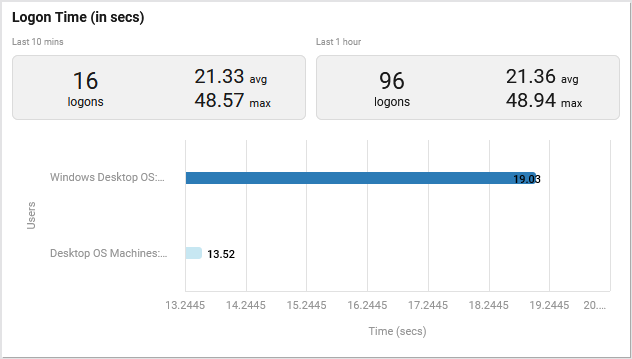
Figure 21 : The Logon time section in the User Experience tab page
The Application Launch Time section reveals the average time taken by the users to launch an application in the target environment. The average application launch time (in seconds) taken by a user during the last 10 mins is displayed under the Last 10 mins field and the average application launch time taken by a user during the last 1 hour is displayed under the Last 1 hour field.
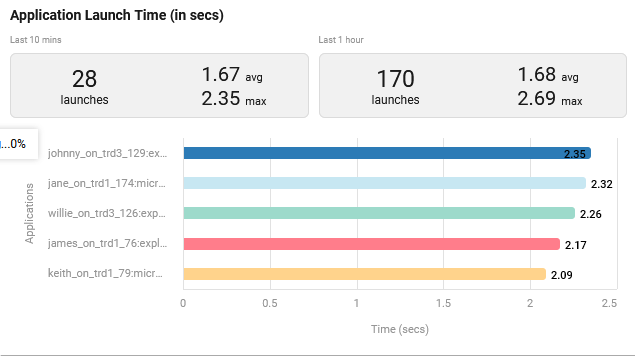
Figure 22 : The Application Launch Time section in the User Experience page
The Latency - HDX, Latency - Blast, and Latency - PcoIP sections (Figure 23) display the total number of sessions established through the HDX, Blast and PcoIP protocols during the last 1 hour and last 10 minutes. In addition, these sections also reveal the average and maximum latency (in seconds) occurred during establishing the sessions through the protocols. The bar charts in these sessions displays the time taken by each user to establish the sessions to the virtual desktops. Clicking a bar displayed in the bar charts will lead you to the User Experience dashboard of each user, providing deeper insights into their session performance.

Figure 23 : The Latency - HDX, Latency - Blast, Latency - PcoIP and Network Latency sections of User Experience page
The Network Latency section in Figure 23 reveals display the total number of sessions established over the network channels during the last 1 hour and last 10 minutes. In addition, these sections also reveal the average and maximum latency (in seconds) experienced by users during establishing the sessions. Clicking a bar in the bar chart provided in this section will lead you to the User Experience dashboard (Figure 24) of each user that highlights the users who experienced high network latency.
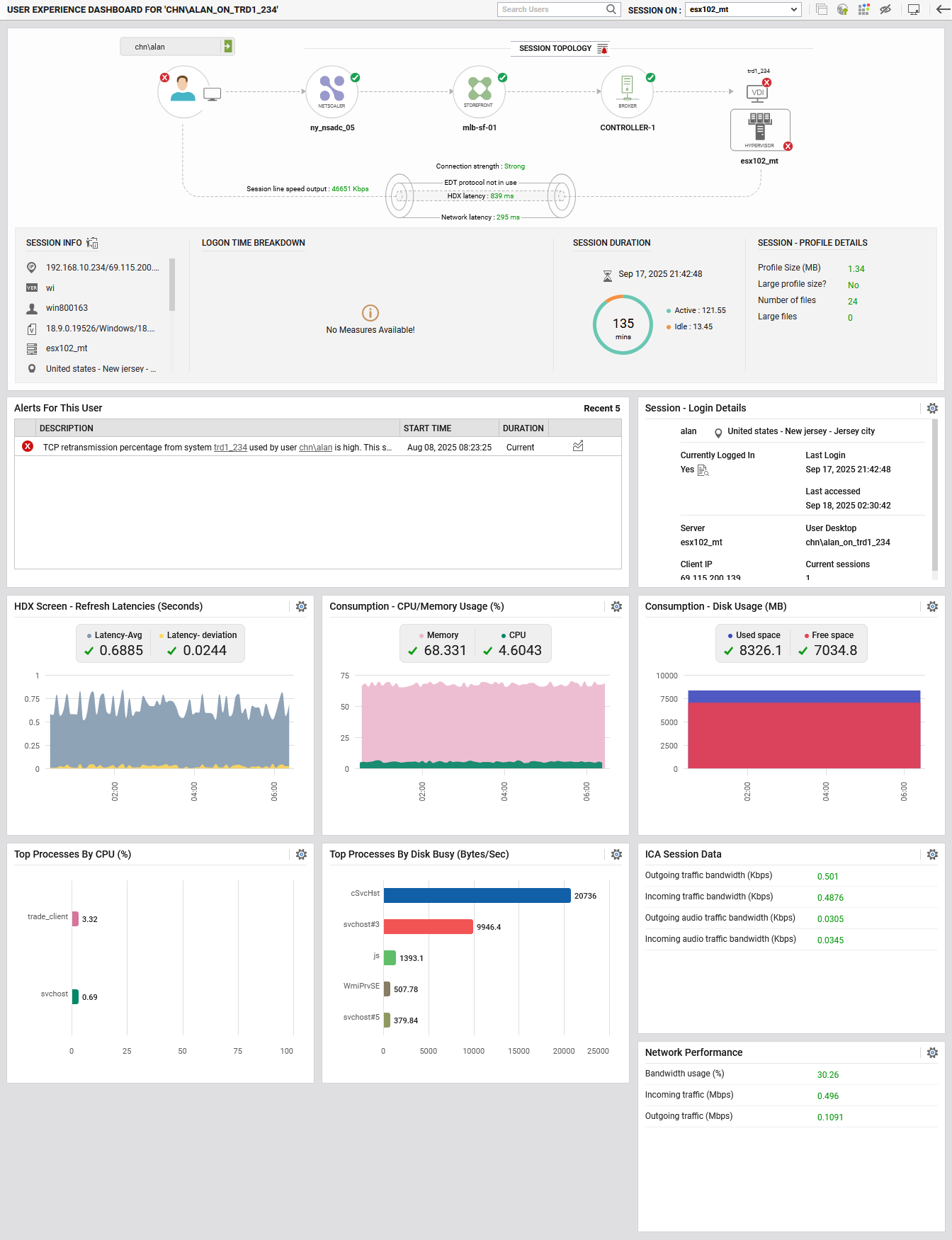
Figure 24 : The USER EXPERIENCE DASHBOARD for a user
The Bandwidth - HDX, Bandwidth - PcoIP, and Bandwidth - Blast sections reveals the bandwidth used for data traffic from the users to the virtual desktop through different protocols. By merely looking at the bar graph in these sections, administrators can identify which user has been transmitting/receiving bandwidth-intensive data. Clicking a bar that represents a user will lead you to the User Experience dashboard of that particular user (Figure 24). The average bandwidth (in Kbps) of the users during the last 10 mins is displayed under the Last 10 mins field and the average bandwidth of the users during the last 1 hour is displayed under the Last 1 hour field.

Figure 25 : The Bandwidth - HDX, Bandwidth - PcoIP, Bandwidth - Blast and Virtual Channel Bandwidth Usage sections in the User Experience page
The Virtual Channel Bandwidth Usage section reveals the bandwidth consumption of the users when the virtual channel is used for transmitting/receiving the audio/media/printer data. By merely looking at the doughnut chart in this section, administrators can identify which type of data was maximum transmitted/received through the virtual channel. The average virtual channel bandwidth (in Kbps) of the users during the last 10 mins is displayed under the Last 10 mins field and the average virtual channel bandwidth of the users during the last 1 hour is displayed under the Last 1 hour field.
Brokering
The Brokering page appears when you click on the Brokering option from the left panel of the Virtual Desktops dashboard. This page reveals the non-availability and poor responsiveness of the license server in the site, session overload on the site and state of brokers, current status of each controller and key service and the count of machines registered with every controller, and connections/Server OS and Desktop OS machine failures in the site.
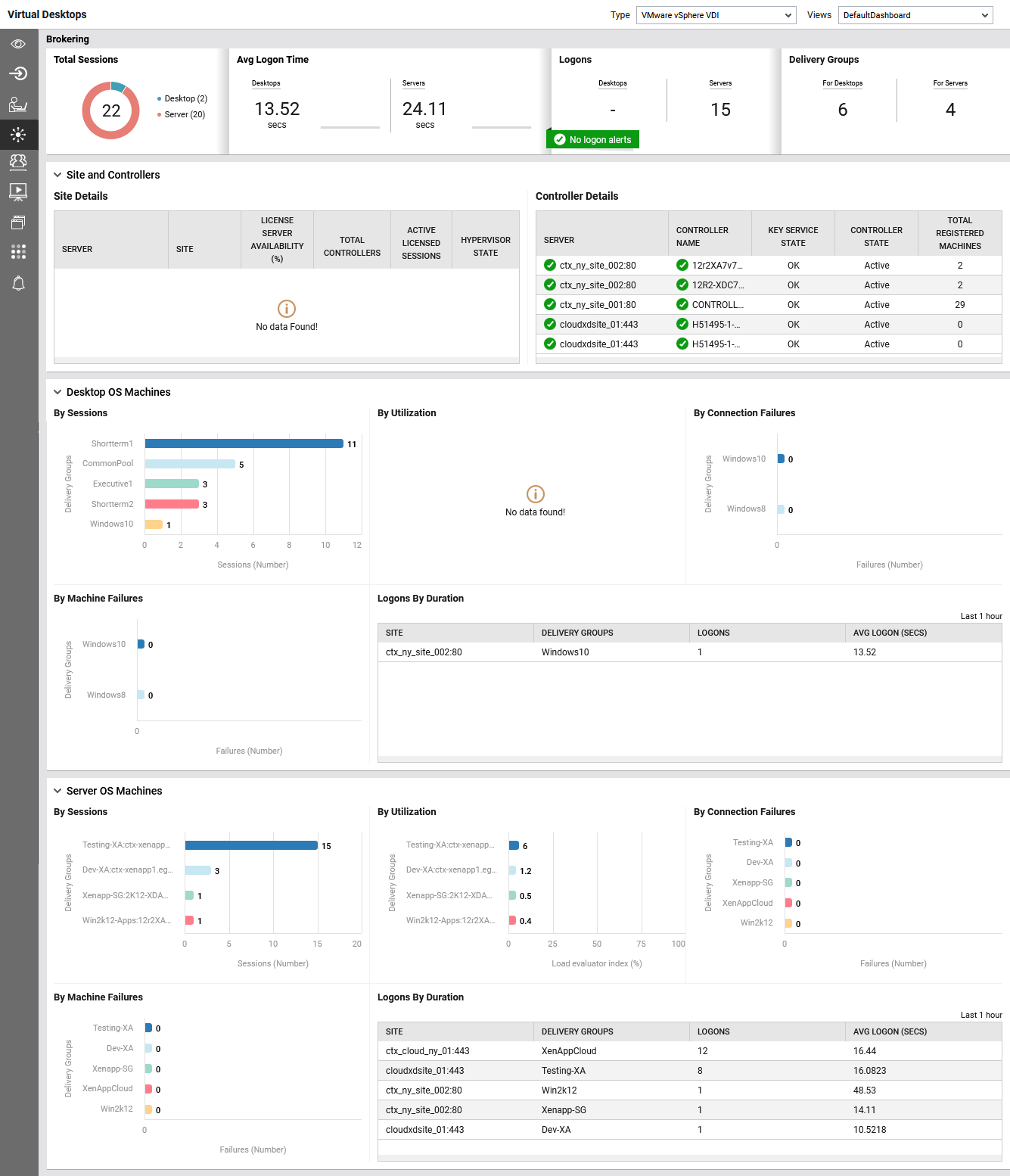
Figure 26 : The Brokering tab page of the Virtual Desktops dashboard
The top most ribbon in this dashboard helps administrators identify the following:
-
The Total Sessions section reveals the total number of licensed sessions that are currently active on the site. The doughnut chart provided distribution of sessions established to the desktop OS and server OS machines in the site. The count of sessions displayed in this section is a good indicator of the load on the site.
-
The Avg Logon Time section displays the average time taken by users to login in to the desktop OS and server OS machines in the site. Clicking on the values will lead you to the layer model page of the target site where average user logon duration is recorded.
-
The No. of Logons section reveals the number of users who recently logged into desktop OS and server OS machines. Clicking on the values will lead you to the layer model page of the target Citrix site where user logons are recorded. If any alerts were captured for user logons, then, the count of alerts will be displayed in this section. Clicking on the alerts section will lead you to the layer model of the target server on which users experienced logon issues.
-
The Delivery Groups section displays the count of desktop OS and server OS machines delivered by the delivery groups. Clicking on the values will lead you to the layer model page of the target site where the count of machines is recorded.
The Site and Controllers section (see Figure 27) comprises of the Site Details and Controller Details tables. The Site Details table provides an overview of site-level information in the virtual desktop environment. It displays the availability of the license server, the total number of controllers associated with each site, the count of active licensed sessions, and the current state of the hypervisor. This information helps administrators validate whether the site is functioning properly, licenses are being served without disruption, and the underlying hypervisor resources are healthy.
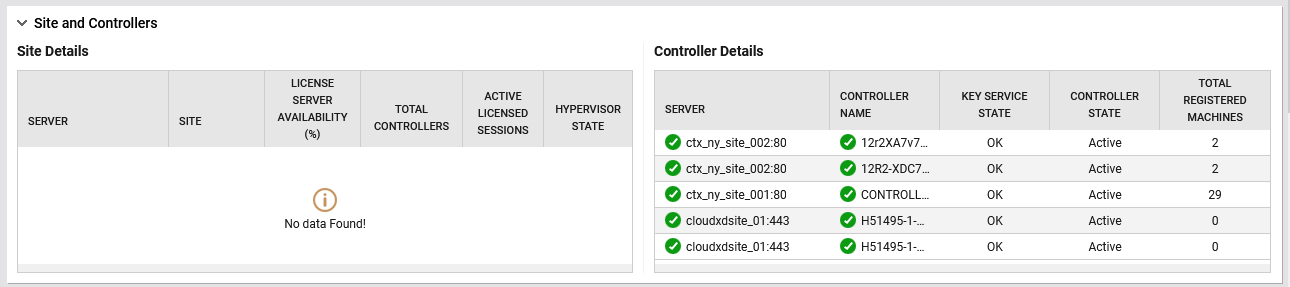
Figure 27 : The Site and Controllers section of Brokering tab page
The Controller Details table lists all controllers within the configured sites along with their operational status. For each controller, it shows the server name, controller name, key service state, controller state, and the total number of registered machines. The key service state confirms whether critical services are running as expected, while the controller state indicates if the controller is active. The table also reveals how many machines are currently registered with each controller, helping administrators monitor load distribution and identify potential overload issues with machine registrations.
The Desktop OS Machines section provides administrators with a consolidated view of session activity and system health across different delivery groups that deliver desktop OS machines. The By Sessions bar chart graphically displays the number of active sessions per group, allowing quick identification of heavily used desktops. The By Utilization, By Connection Failures and By Machine Failures bar charts reveal details on overall machine utilization, connection failures, and machine failures, helping administrators to spot issues that could impact user experience. Additionally, it tracks logon activity over the last 1 hour, showing both the number of logons and the average logon duration for each delivery group.
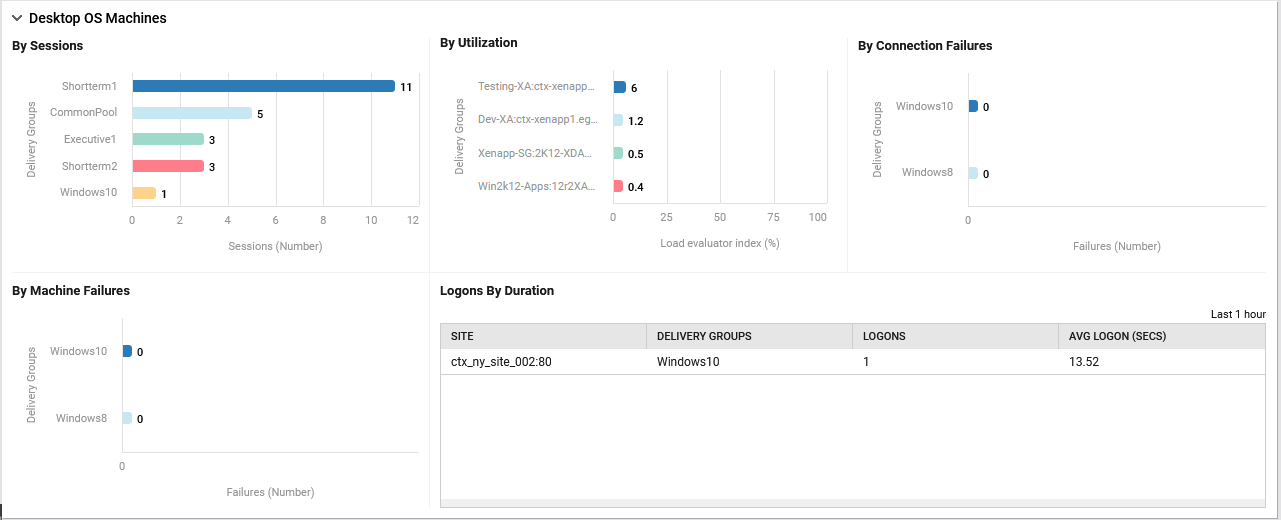
Figure 28 : The Desktop OS Machines section of the Brokering Page
The Server OS Machines section uses bar charts to show the number of sessions established, connection failures, and machine failures for each delivery group. The Logons By Duration table lists each site and delivery group, the number of user logons to server OS machines, and the average logon duration, providing a clear view of usage and performance trends.
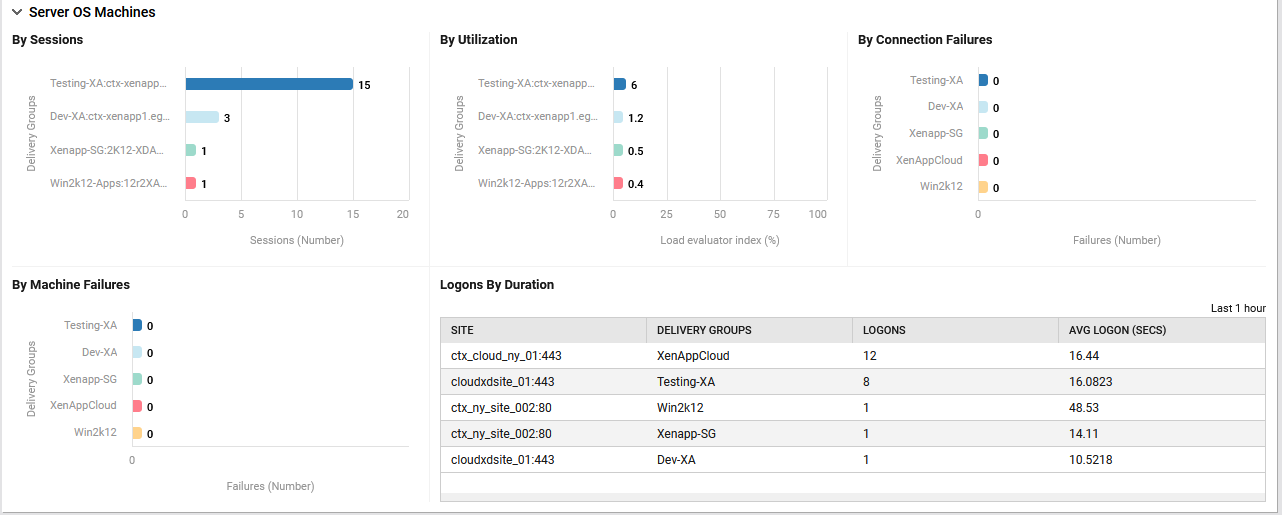
Figure 29 : The Server OS Machines section of the Brokering Page
Delivery Groups
The Delivery Groups tab page appears when you click the Delivery Groups option from the left panel of the Virtual Desktops dashboard. Note that this dashboard appears only if the Citrix Virtual Apps/Desktops Site 7.x component is managed in the target environment. The Delivery Groups page provides an overview of both Desktop OS Machines and Server OS Machines. This dashboard sheds light on the count of desktop OS machines and server OS machines that failed in each delivery group, connection failures, disconnected sessions, etc.
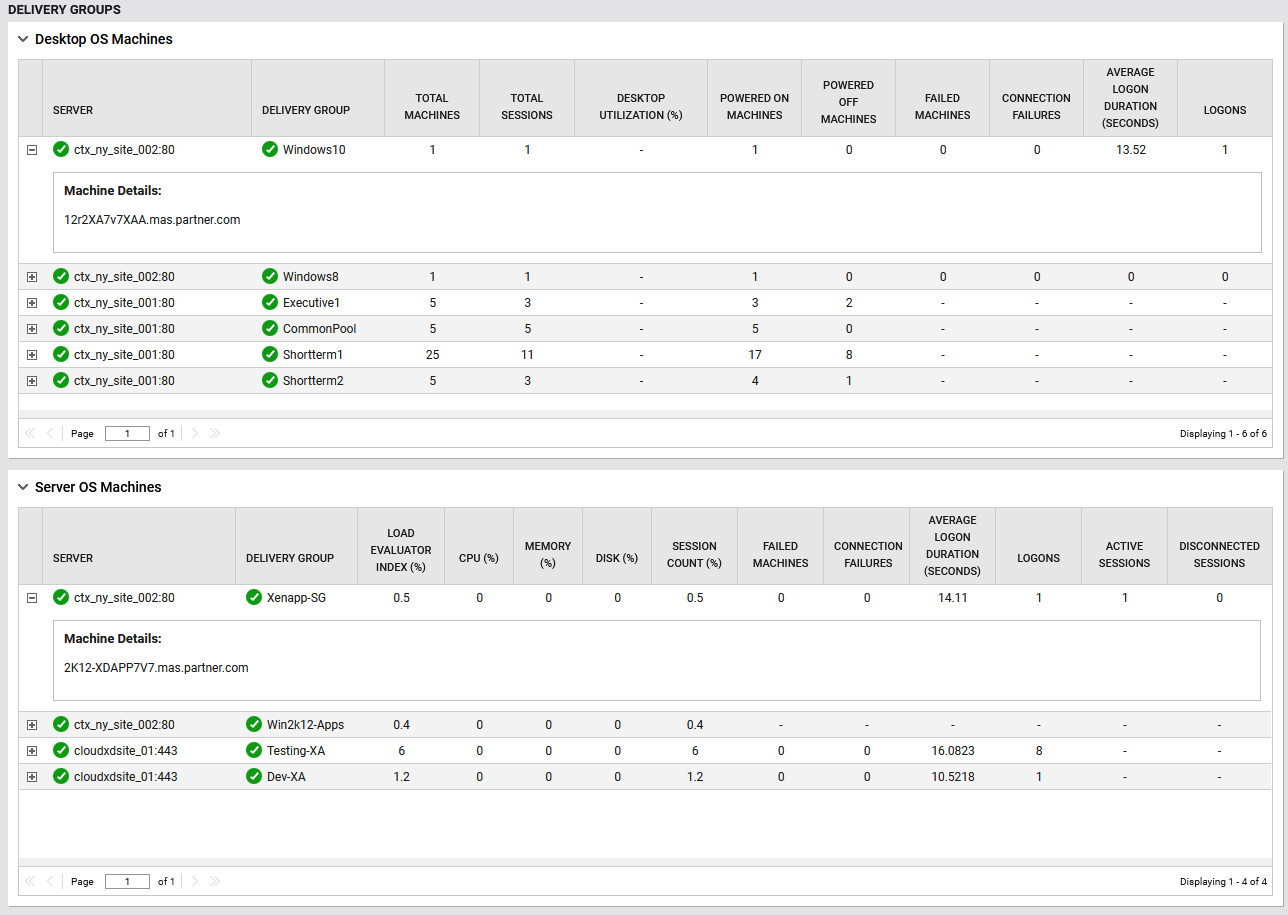
Figure 30 : The Virtual Desktops - Delivery Groups page
In Figure 30, the Desktop OS Machines section reveals the delivery groups that provision the desktop machines, and the count of machines provisioned to the site. By clicking on the plus icon provided along with the server name, you can find out the names of machines provisioned to each site. In addition, this section also displays the total number of machines and sessions established to those machines, the percentage of the machine utilization, the count of powered on/powered off machines, the count of machines that failed, the number of connection failures, the count of user logons to the machines and the time taken for logging in to the machines. Clicking on the delivery group will lead you to the layer model page of the Citrix Virtual Apps/Desktops Site 7.x.
The Server OS Machines section in Figure 30 provides a detailed view of all server-based delivery groups and their operational status. It displays the delivery groups along with the associated servers. For each server, the section lists critical performance and availability metrics, including the Load Evaluator Index (LEI), which indicates overall load distribution across the server, and resource utilization levels such as CPU, memory, and disk usage. Session activity is also tracked, showing the number of active sessions, disconnected sessions, and the total session count percentage, helping administrators understand user load and usage trends. Additionally, the section highlights reliability by reporting failed machines and connection failures, if any, and measures the average logon duration to assess end-user experience. This comprehensive information enables administrators to monitor real-time server health, balance workloads efficiently, and quickly identify performance or connectivity issues across all server OS delivery groups. Clicking on the delivery group will lead you to the layer model page of the Citrix Virtual Apps/Desktops Site 7.x.
Sessions
The Sessions tab page appears when you click the Sessions option from the left panel of the Virtual Desktops dashboard. This dashboard sheds light on the session activity on the target VDI server.
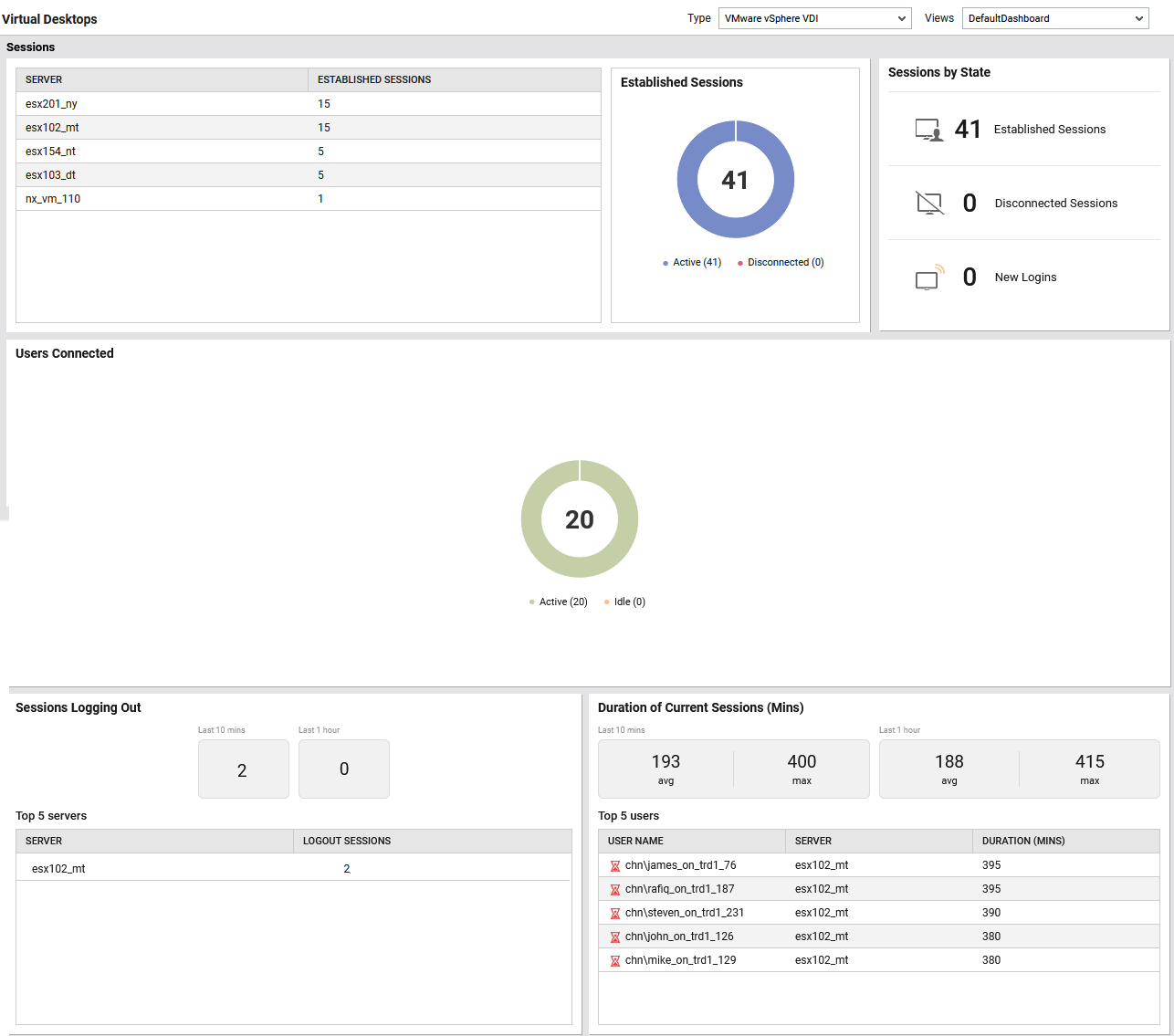
Figure 31 : The Virtual Desktops - Sessions dashboard
The top most ribbon in this dashboard helps administrators identify the following:
-
A table provided in this ribbon displays the VDI servers and the total number of sessions established to those servers. Clicking on the server name or the values will lead you to the layer model page of the target server where the count of sessions is recorded.
-
A doughnut chart in the Established Sessions section displays the distribution of sessions established on the desktops. Clicking on the legend will lead you to the User Experience Overview dashboard.
-
The Session by State section reveals the count of sessions in different state such as the count of active sessions, the count of sessions that are disconnected and the count of new user logins. By merely looking at this section, you can instantly know the workload on the target VDI server.
The doughnut chart provided in the Users Connected section reveals distribution of the users who are currently in active and idle state.
The table provided in the Sessions Logging Out section displays the VDI servers and the total number of sessions that were logged out from those servers. The number of the sessions logged by users during the last 10 mins is displayed under the Last 10 mins field and the number of sessions logged out by users during the last 1 hour is displayed under the Last 1 hour field.
The Duration of Current Sessions section reveals the top-N users based on in terms of the duration taken by them to login to the virtual machines, the VDI servers to which the users established the sessions, and duration of the user sessions in minutes. The average and maximum session duration taken by the users during the last 10 mins is displayed under the Last 10 mins field and the average and maximum session duration taken by the users during the last 1 hour is displayed under the Last 1 hour field. Clicking on the user name will lead you to the User Experience dashboard of that particular user (see Figure 24).
Applications
The Applications tab page appears when you click the Applications option from the left panel of the Virtual Desktops dashboard. This dashboard provides in-depth insights into overall application performance and to enable them to accurately isolate the root-cause of any application-level slowdown. Administrators can also proactively identify persistent problems by merely looking at this dashboard.
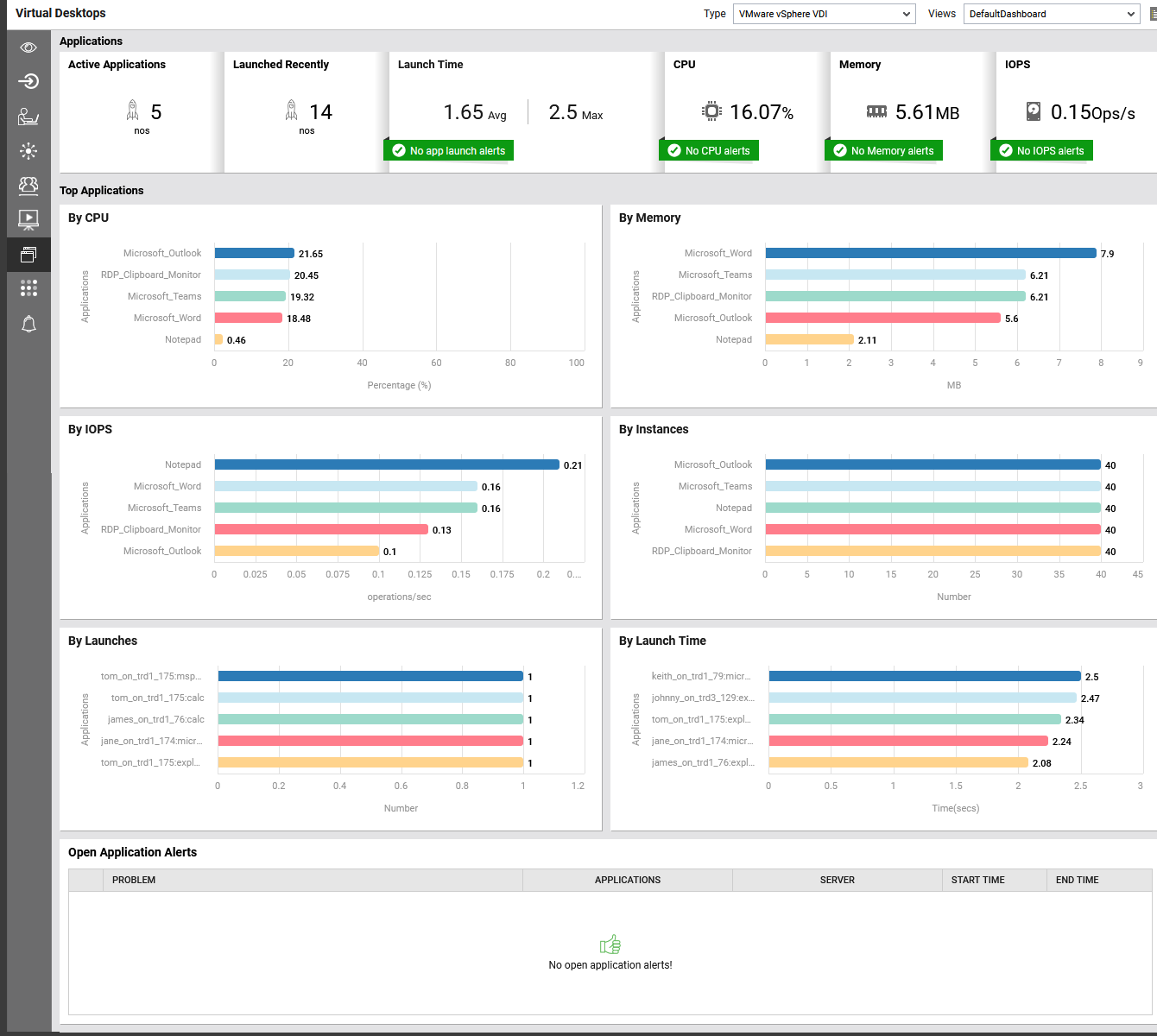
Figure 32 : The Virtual Desktops - Applications dashboard
The top most ribbon in this dashboard helps administrators identify the following:
-
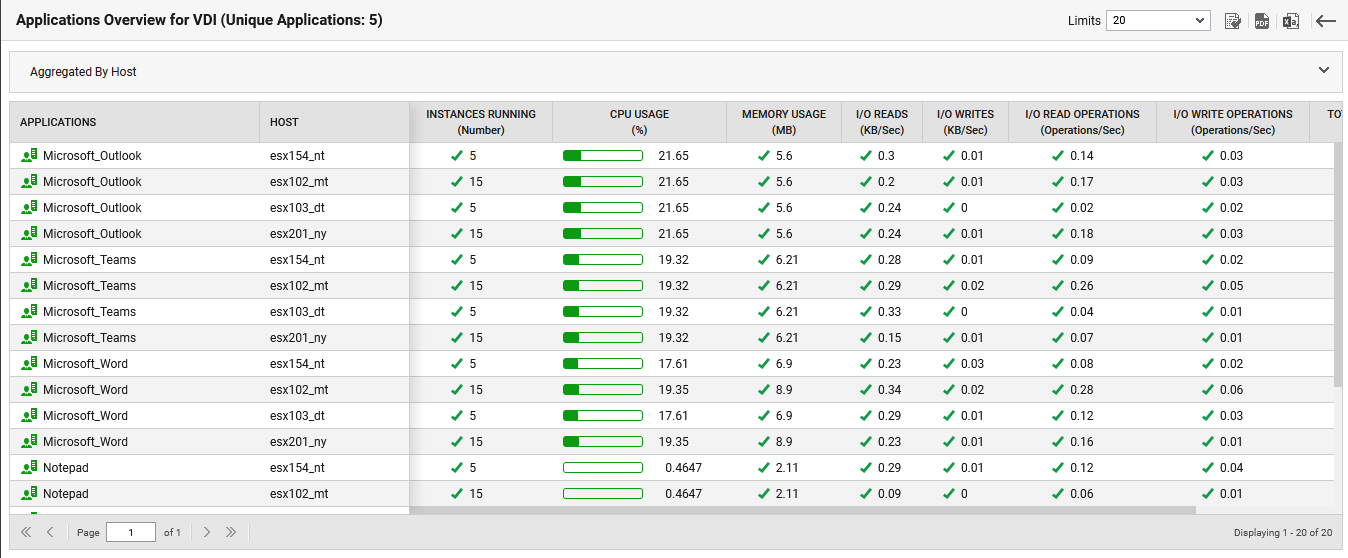
The total number applications that are currently running and active on the target VDI server. Clicking on the value in this section will lead you to the Applications Overview dashboard (see Figure 33).
-
The Launched Recently section displays the count of applications that are launched recently.
-
The Launch Time sections reveals the maximum and average time taken by the applications to launch. If any alerts were captured during application launch , then, the count of alerts will be displayed in this section. Clicking on the alerts section will invoke the App Launch Alerts window that displays all the individual alerts raised for the applications in the target environment.
-
The CPU section displays the overall percentage of CPU utilization by all the applications that are running on the target VDI server. Clicking on the value in this section will lead you to the Applications Overview dashboard (see Figure 33) where you can view the CPU utilization of each application. If any alerts were captured due to over-utilization of CPU resources, then, the count of alerts will be displayed in this section. Clicking on the alerts will invoke the CPU Alerts window that displays all the alerts raised for the CPU usage of the applications.
-
The Memory usage section displays the overall percentage of memory utilization by all the applications that are running on the target VDI server. Clicking on the value in this section will lead you to the Applications Overview dashboard (see Figure 33) where you can view the memory utilization of each application. If any alerts were captured due to over-utilization of memory resources, then, the count of alerts will be displayed in this section. Clicking on the alerts will invoke the Memory Alerts window that displays all the alerts raised for the memory usage of the applications.
-
The IOPS section reveals the rate at which the read and write operations are performed by the applications that are running on the target server. Clicking on the value in this section will lead you to the Applications Overview dashboard (see Figure 33) where you can view the rate at which the data read and write operations performed by each application. If any alerts were captured due to issues in the read and write operations, then, the count of alerts will be displayed in this section. Clicking on the alerts will invoke the IOPS Alerts window that displays all the alerts raised for the issues in the read and write operations performed by the applications.
The By CPU section (see Figure 34) displays the percentage of processor utilization by top applications. It provides a quick view of which applications are consuming the most CPU resources, helping to identify performance-heavy processes. The By Memory section (see Figure 34) shows the memory usage of top applications in MB. This allows easy comparison of memory consumption across applications and helps in identifying processes that occupy more system memory. If an application slowdown can be attributed to the lack of adequate CPU or memory resources, then these bar graphs can help you in quickly identifying the exact application that could be serving as the source of this CPU or memory contention. Clicking on each bar in these sections will lead you to the Applications Overview dashboard (see Figure 33) where you can view the CPU and memory utilization of an individual application.

Figure 34 : The By CPU and By Memory sections of the Applications page
The By IOPS widget displays the input/output operations per second utilized by applications. It helps in understanding the intensity of read/write activity and identifying processes with higher I/O demands. Clicking on each bar in this section will lead you to the Applications Overview dashboard (see Figure 33) where you can view the number of read and write operations performed by each application per second. The By Instances section shows the number of running instances of top applications. This provides visibility into how many sessions or occurrences of each application are active at a given time. Clicking on each bar in this section will lead you to the Applications Overview dashboard (see Figure 33) where you can view the number of instances of each application that is running currently on the target VDI server.

Figure 35 : The By IOPS and By Instances sections of the Applications page
The By Launches section (see Figure 36) displays the number of times applications have been initiated. This helps in tracking application usage frequency and identifying commonly accessed programs. The By Launch Time graph (see Figure 36) shows the time taken for applications to launch, measured in seconds. It provides insights into application responsiveness and helps identify any performance delays during startup. Clicking on each bar in this section will lead you to the Applications Overview dashboard (see Figure 33).

Figure 36 : The By Launches and By Launch Time sections of the Applications page
Next, the Open Application Alerts section (see Figure 37) lists the problems (if any) that are currently open for each application, the server on which the application is running, the time stamp at which the problem was reported and the end time.

Figure 37 : The Open Application Alerts section of the Applications page
Server Resources
The Server Resources tab page appears when you click the Resources option from the left panel of the Virtual Desktops dashboard. This dashboard provides insights into the CPU, memory and disk resources utilization and incoming and outgoing traffic at user, application and server levels.
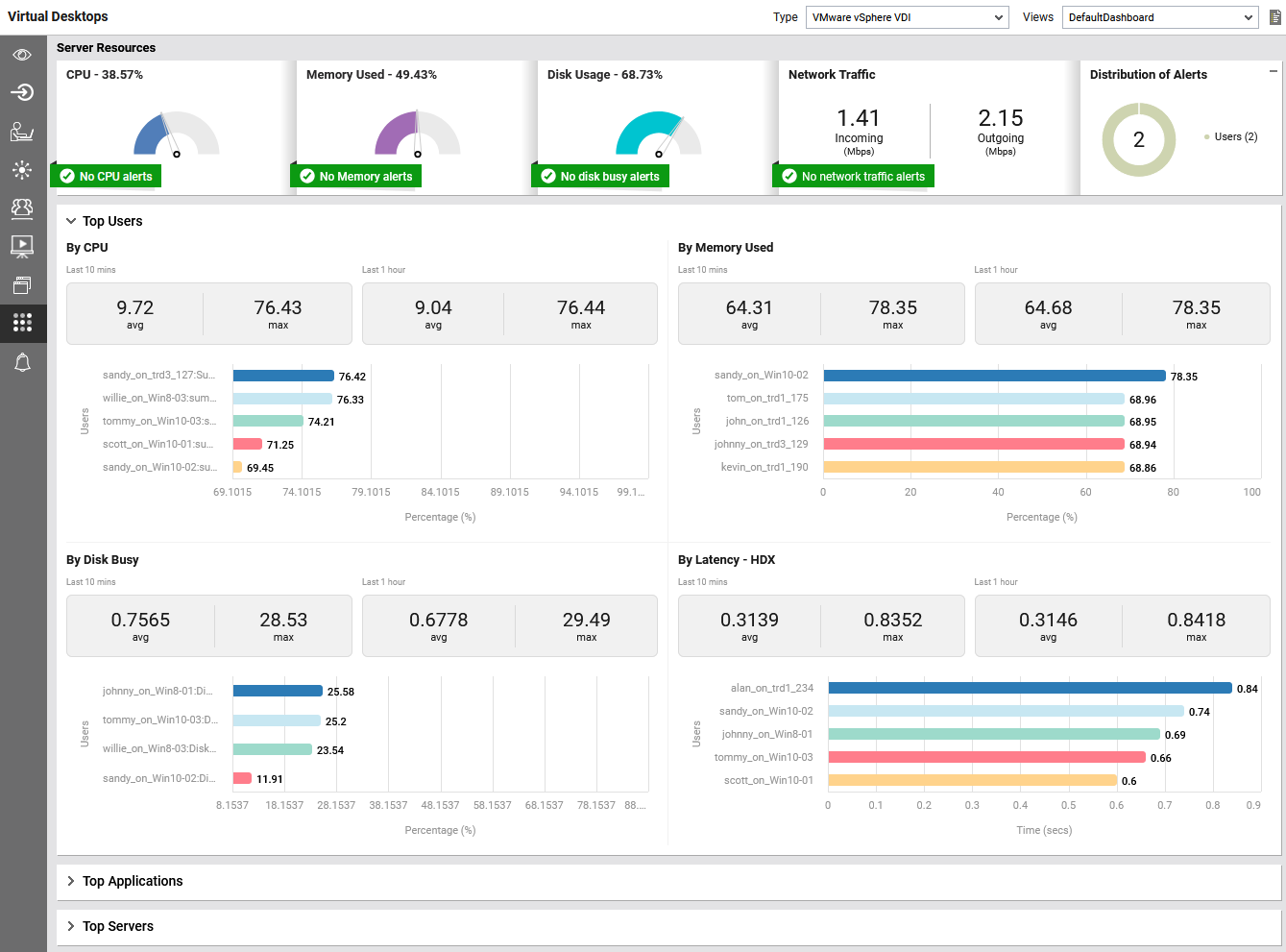
Figure 38 : The Virtual Desktops - Server Resources page
The top most ribbon in this dashboard helps administrators identify the following:
-
The CPU section displays a gauge chart that reveals the percentage of CPU utilized on the target server. If any alerts were captured due to over-utilization of CPU resources, then, the count of alerts will be displayed in this section. Clicking on the alerts will invoke the CPU Alerts window that displays all the alerts raised for the CPU usage on the target VDI server.
-
The gauge chart in the Memory Used section displays the overall percentage of memory utilization on the target server. If any alerts were captured due to over-utilization of memory resources, then, the count of alerts will be displayed in this section. Clicking on the alerts will invoke the Memory Alerts window that displays all the alerts raised for the memory usage on the server.
-
The gauge chart in the Disk busy section provides the percentage of elapsed time during which the disk is busy processing requests (i.e., reads or writes). If any alerts were captured due to issues in the disk while processing the requests, then, the count of alerts will be displayed in this section. Clicking on the alerts will invoke the Disk Busy Alerts window that displays all the alerts raised for disks on the target server.
-
The Network Traffic section reveals the rate at which the data is received and transmitted from the target server. If any alerts were captured while receiving and transmitting the requests, then, the count of alerts will be displayed in this section. Clicking on the alerts will invoke the Network Traffic Alerts window that displays all the alerts raised for the problems encountered during data reception/transmission.
-
The Distribution of Alerts section provides a doughnut chart showing distribution of alerts that are currently open for the target server. Each slice of the doughnut chart represents the alerts raised for users and applications on the target server. Clicking on the legends provided in the section will lead you to the Open Problems window showing all the alerts that are currently open for the users/applications.
The Top Users section (see Figure 38) provides a series of bar charts based on the CPU usage, Memory usage, IOPS and bandwidth usage of the top-N users. Clicking on the bars provided in the bar charts will lead you to the User experience dashboard of the users. By looking at these bar charts, you can also find out the average and maximum CPU and memory utilization by the users during the last 10 minutes that is displayed under the Last 10 mins field and during the last 1 hour that is displayed under the Last 1 hour field. Likewise, the average and maximum rates at which the read and write operations performed by the users during the last 10 minutes and last 1 hour are displayed under Last 10 mins and Last 1 hour fields, respectively. Furthermore, the average and maximum percentage of bandwidth used by the users during the last 10 minutes and last 1 hour are displayed under Last 10 mins and Last 1 hour fields, respectively.
The Top Applications section (see Figure 39) provides a series of bar charts based on the CPU usage and memory usage of the applications, the rate at which the read and write requests processed for the applications and the number of handles opened by the applications processes of the top-N applications. Clicking on the bars provided in the bar charts will lead you to the Applications Overview dashboard.
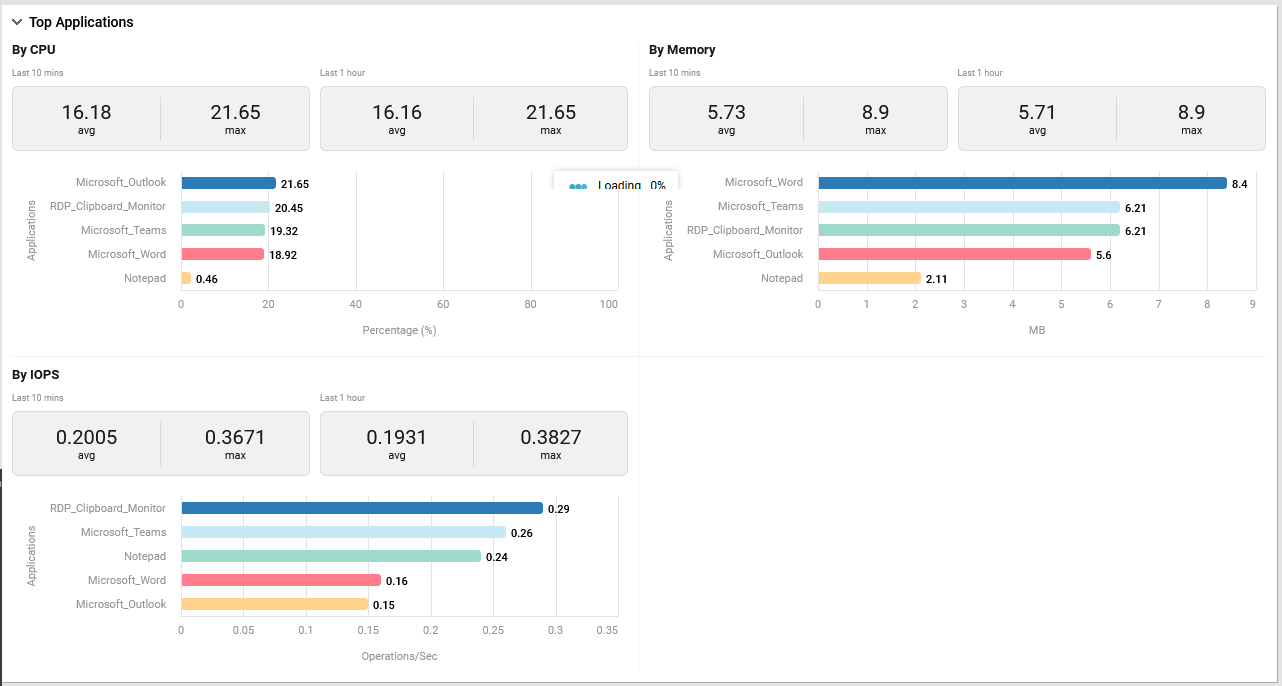
Figure 39 : The Top Applications section of the Server Resources page
By looking at these bar charts, you can also find out the average and maximum CPU and memory utilized by the applications during the last 10 minutes that is displayed under the Last 10 mins field and during the last 1 hour that is displayed under the Last 1 hour field. Likewise, the average and maximum rates at which the read and write operations are performed by the applications during the last 10 minutes and last 1 hour are displayed under Last 10 mins and Last 1 hour fields of the By IOPS section, respectively.
The Top Servers section provides a series of bar charts based on the CPU and memory utilization on the servers, incoming and outgoing traffic on the servers, and the how much the disks on the servers are busy in processing the requests. Clicking on the bars provided in the bar charts will lead you to the layer model page where the metrics related to the CPU and memory utilization, incoming/outgoing traffic and disk are recorded.
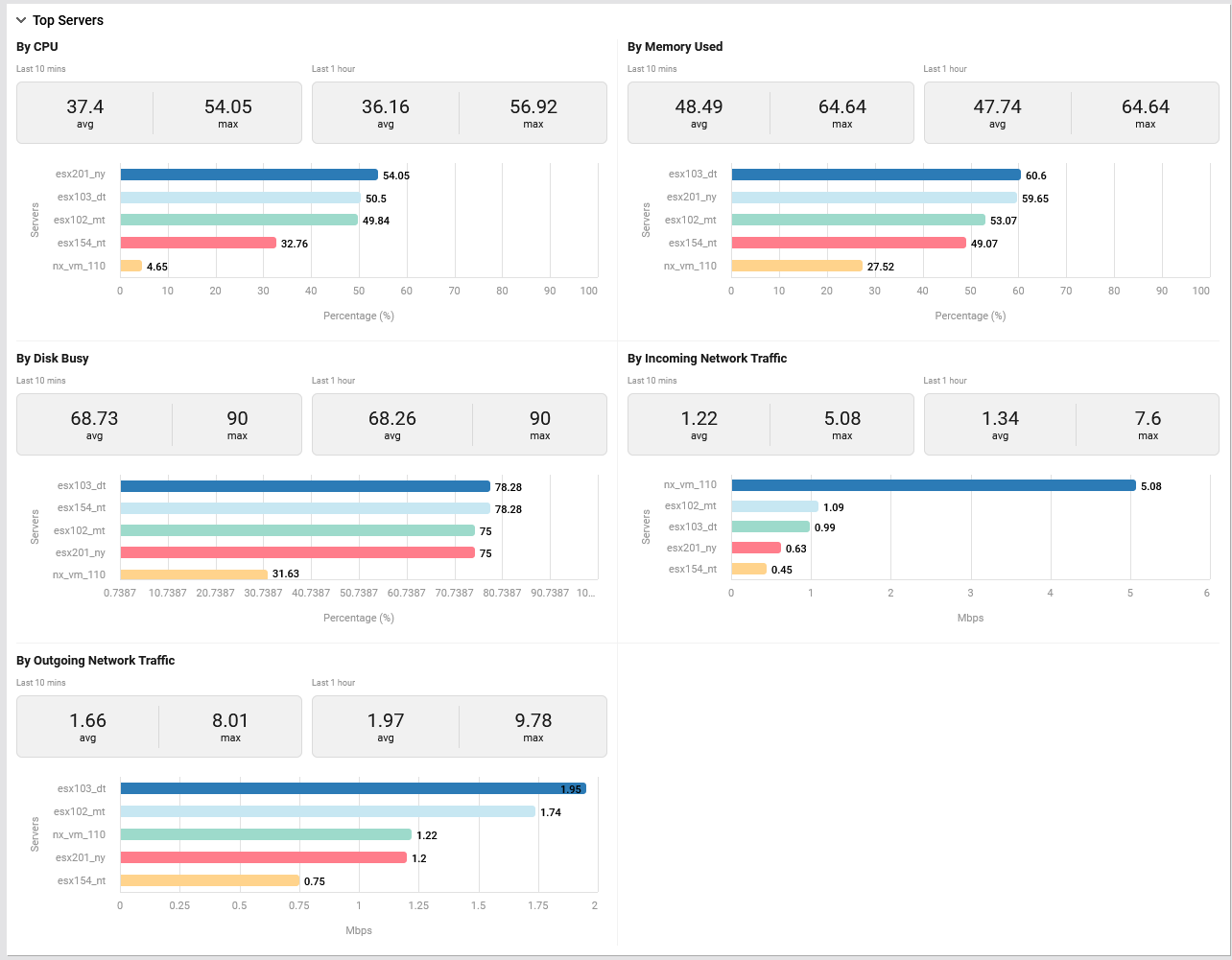
Figure 40 : The Top Applications section of the Resources tab page
By looking at these bar charts in the By CPU and By Memory used sections, you can find out the average and maximum CPU and memory resources utilized on the server during the last 10 minutes that is displayed under the Last 10 mins field and during the last 1 hour that is displayed under the Last 1 hour field. Likewise, the average and maximum percentage of elapsed time during which the disk was busy processing requests (i.e., reads or writes) during the last 10 minutes and last 1 hour are displayed under Last 10 mins and Last 1 hour fields of the By Disk Busy section, respectively. Additionally, the average and maximum rates at which the data was received by and transferred from the servers during the last 10 minutes and last 1 hour are displayed under Last 10 mins and Last 1 hour fields of the By Incoming Network traffic and By Outgoing Network Traffic sections, respectively.
Alerts
The Alerts dashboard provides you with a consolidated list of alerts that are yet to be resolved across the VDI servers in the target environment. In our example, the dashboard lists all the open eG alerts across all the VMware vSphere VDI components that have been managed in the target environment.
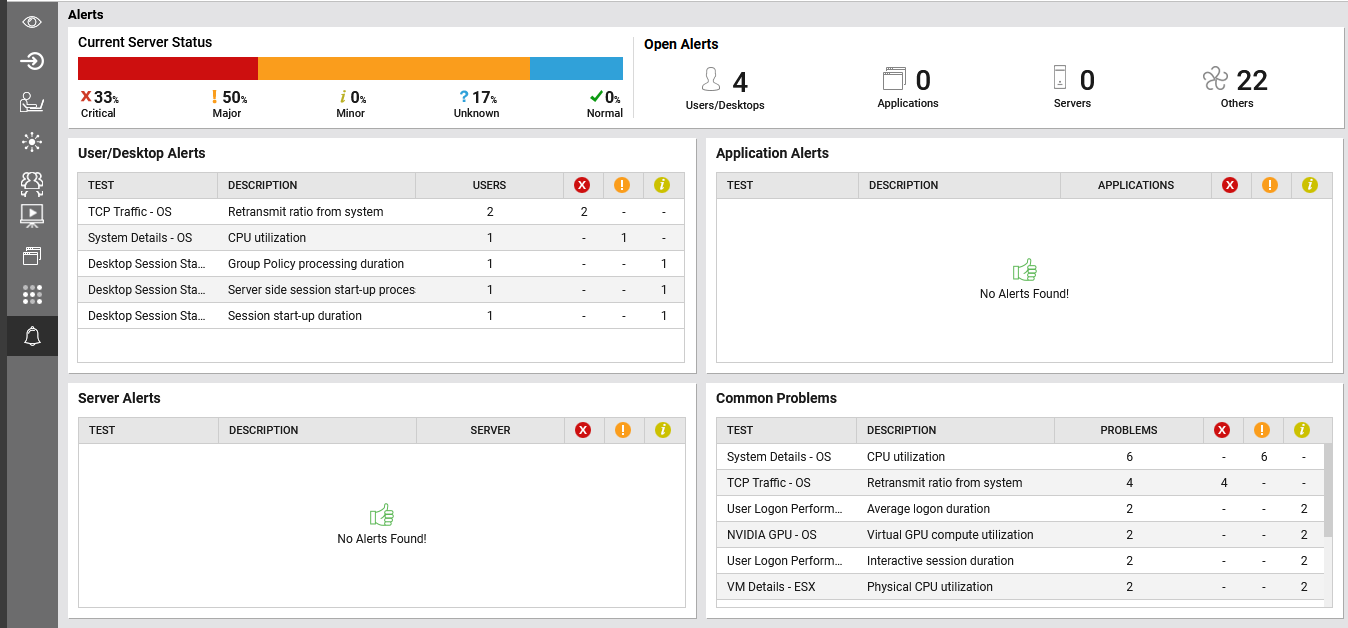
Figure 41 : The Virtual Desktops - Alerts page
The Current Server Status section in Figure 41reveals the health of the VMware vSphere VDI components managed in the target environment. By viewing this section, administrators can figure out the percentage of VMware vSphere VDI components that are problem-prone i.e., in Critical/Major/Minor states.
The Open Alerts section reveals the number of alerts that are currently open in the target environment for the managed VMware vSphere VDI components. The number of alerts displayed in the section are categorized based on the alerts related to each tier i.e., the Users, Desktops, Applications and Servers. Also, this section reveals the count of alerts raised due to issues in operating system, network etc. under the Others category. Clicking on a number in this section will lead you to Figure 42 that lists all the open alerts relevant to that category.
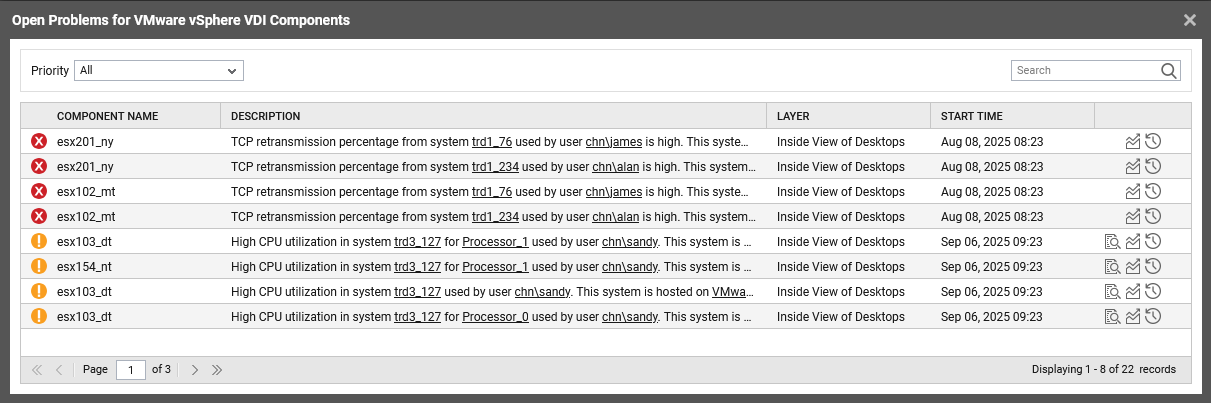
Figure 42 : Open Alerts for the VMware vSphere VDI components
The User/Desktop Alerts section offers detailed insights into where exactly the user experienced issues while accessing the target VMware vSphere VDI server - is it during session start-up? or is it during user logins? or is it an issue with the user's browser? or is it while establishing sessions? etc. The User/Desktop Alerts lists the exact test/measure combination that was responsible for an alert generated for users. Also, the count of Critical/Major/Minor alerts generated for the users are also reported for each test/measure combination. This will help administrators identify the exact issue and initiate troubleshooting at the earliest.
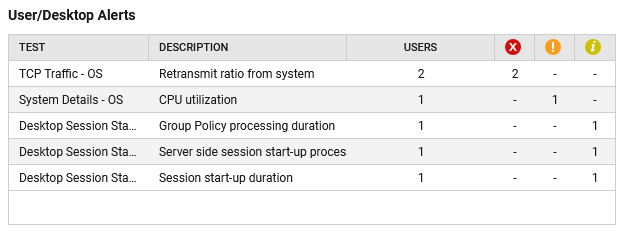
Figure 43 : The User/Desktop Alerts section
Clicking on any column in a row will lead you to a pop up window with the heading of the measure responsible for the alert i.e., the measure displayed in the Description column. For example, if the Retransmit ratio from system measure violated the threshold and resulted in an alert, then the Retransmit ratio from system pop up window will be opened as soon as you click the contents displayed in a row.
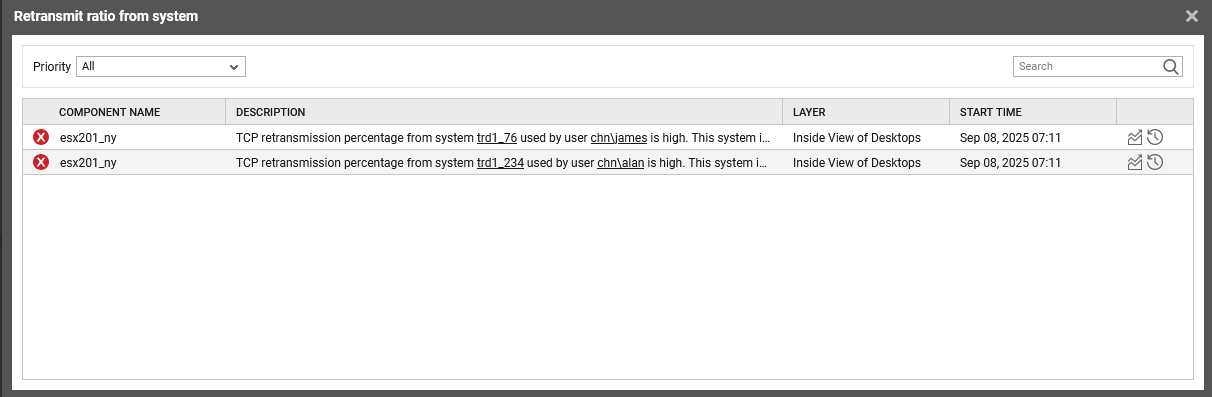
Figure 44 : The Retransmit ratio from system window
The Application Alerts section in Figure 41 offers detailed insights into the applications that are problem-prone or slow to launch or could not be launched. The Application Alerts table lists the exact test/measure combination that was responsible for an alert that was generated while the application was launched/accessed. Also, the count of Critical/Major/Minor alerts generated while launching/accessing the applications are also reported for each test/measure combination. This will help administrators identify the exact issue and initiate troubleshooting at the earliest. Clicking on any column in a row will lead you to a pop up window with the heading of the measure responsible for the alert i.e., the measure displayed in the Description column.
The Server Alerts table in Figure 41offers detailed insights into the network related issues that are faced by users while accessing the VMware vSphere VDI server. The Server Alerts table lists the exact test/measure combination that was responsible for the generation of alerts while the VMware vSphere VDI server was accessed over the network. Also, the count of Critical/Major/Minor alerts generated while accessing the server are also reported for each test/measure combination. This will help administrators identify the exact issue and initiate troubleshooting at the earliest. Clicking on any column in a row will lead you to a pop up window with the heading of the measure responsible for the alert i.e., the measure displayed in the Description column.
The Common Problems section (Figure 45) offers detailed insights into the common issues that are faced by users while accessing the VMware vSphere VDI server. The Other Problems table lists the exact test/measure combination that was responsible for the generation of alerts while the VMware vSphere VDI server was accessed by the users. Also, the count of Critical/Major/Minor alerts generated while accessing the server are also reported for each test/measure combination. This will help administrators identify the exact issue and initiate troubleshooting at the earliest.
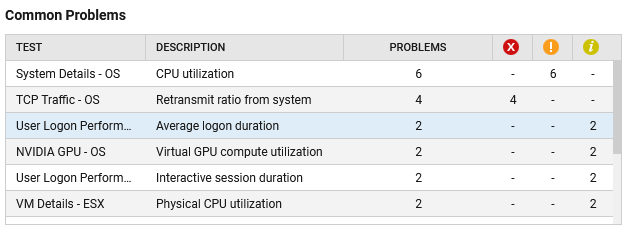
Figure 45 : The Common Problems section
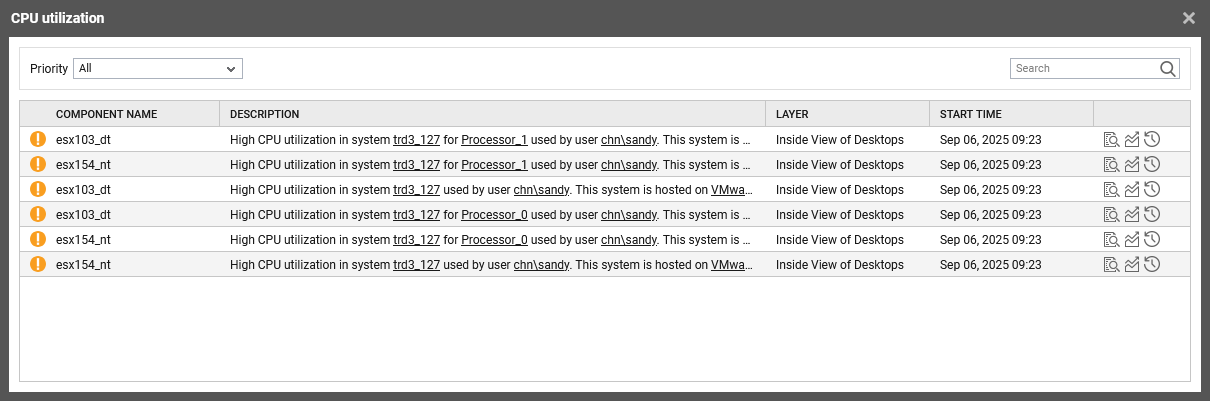
Clicking on any column in a row will lead you to a pop up window with the heading of the measure responsible for the alert i.e., the measure displayed in the Description column. For example, if the CPU utilization measure violated the threshold and resulted in an alert, then the CPU utilization pop up window (Figure 46) will be opened as soon as you click the contents displayed in a row.